
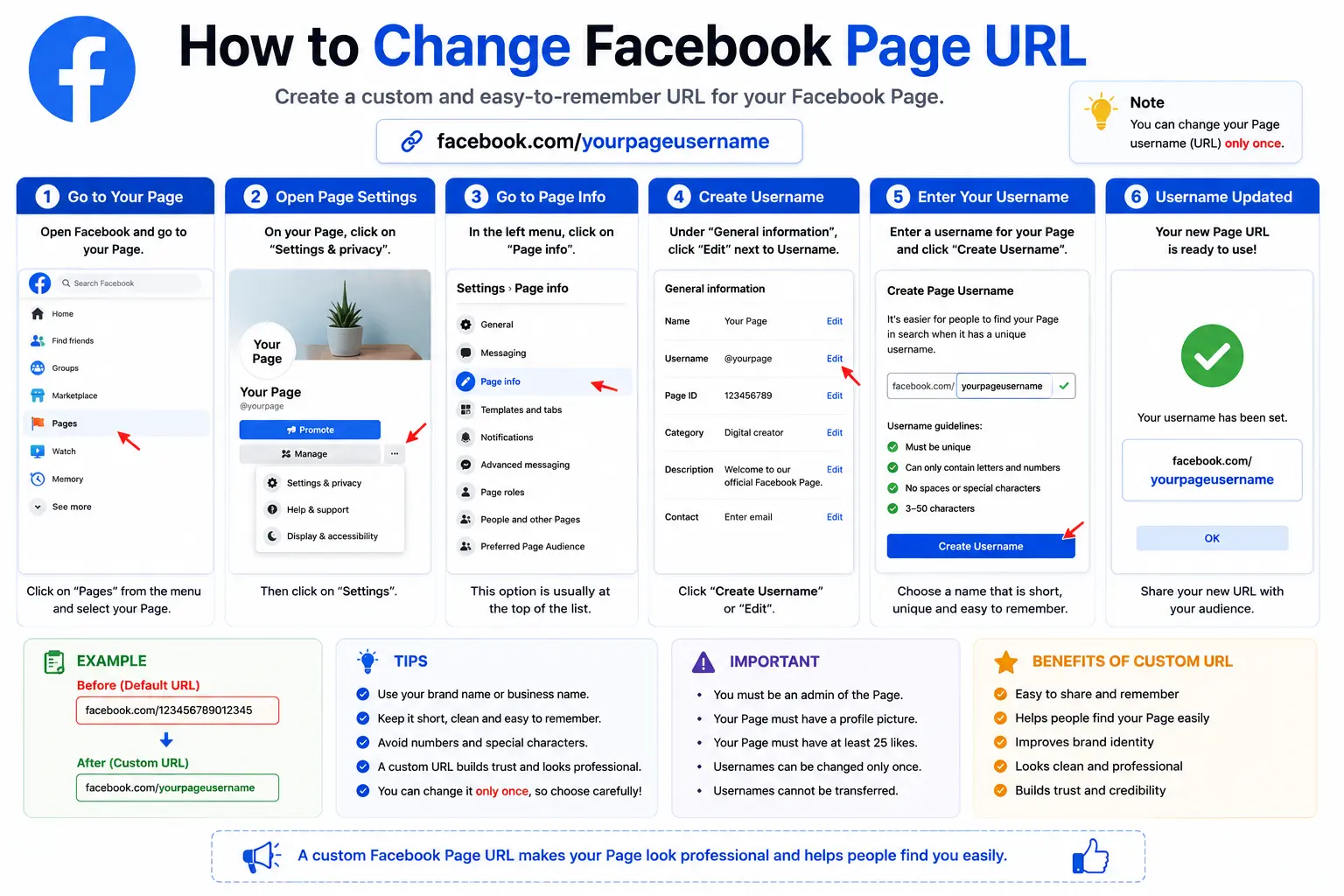
If your Facebook Page still shows a messy web address full of random numbers, you’re not alone. Learning how to change Facebook page URL settings is one of the fastest ways to make your business look more professional online. It takes less than five minutes, and you don’t need any technical skills to do it.
In this guide, you’ll learn exactly how to change your Facebook page URL, on both desktop and mobile, the rules Facebook enforces, and the mistakes that trip up most beginners.
Table of Contents
What Is a Facebook Page URL?
A Facebook Page URL is the web address people type or click to land on your Page. It’s the same idea as any URL on the internet, the address that a browser uses to find and load a specific page.
By default, Facebook assigns your Page a long, auto-generated URL that looks something like this:
facebook.com/profile.php?id=100093827465012
That string of numbers is your Page ID. It works fine technically, but it’s hard to remember, impossible to say out loud, and it doesn’t tell visitors anything about your brand.
When you customize it, you replace that number string with a readable username, turning your address into something like:
facebook.com/YourBusinessName
This is called a vanity URL, a custom web address chosen to represent a brand or person rather than a random system-generated string. If you want the full breakdown of how these work across platforms, this guide on what a vanity URL is explains the concept in more depth.
It’s also worth knowing the small technical distinction between a URL and a URI, since the two terms get mixed up often. If you’re curious, this comparison of URI vs URL clears up the difference in plain language. And if you want to understand what each section of a web address actually means, this breakdown of the parts of a URL is a helpful companion read.
Why Change Your Facebook Page URL?
Businesses and creators customize their Facebook Page URL for a few practical reasons:
- Branding: A clean URL like facebook.com/NikeRunning looks far more credible than a numeric one.
- Easier sharing: A short, memorable address is easier to say in a video, print on a flyer, or type from memory.
- Consistency: Matching your Facebook username to your Instagram, LinkedIn, or website handle builds a unified brand identity across platforms.
- Rebranding: If your business changed its name, your old Facebook username may no longer match.
- First impressions: A polished URL signals that a Page is active, legitimate, and professionally managed.
Before You Begin: Rules to Know
Before you rush into changing your username, keep these Facebook rules in mind. They apply whether you’re changing a personal profile, a business Page, or figuring out how to change Facebook business page URL settings specifically.
| Rule | Details |
| Admin access required | Only a Page admin can change the username. |
| Minimum length | Usernames must be at least 5 characters. |
| Allowed characters | Letters, numbers, and periods only. No spaces or special symbols. |
| Uniqueness | The username must not already be taken by another Page or profile. |
| No automatic redirect | Facebook does not forward visitors from your old URL to the new one. |
| Change frequency | Facebook limits how often you can change a username, so choose carefully. |
The lack of an automatic redirect is the rule most people overlook. Once you change your address, any old links, printed materials, or search results pointing to the previous URL will simply stop working. Update every link you control before or immediately after making the switch.
How to Find Your Current Facebook Page URL
Before changing anything, confirm what your current URL actually is. The easiest way is to open your Page and copy the address directly from your browser’s address bar, similar to how you would search Google or type a URL to reach any website.
If you’re not sure where to look, this step-by-step guide on how to find your Facebook URL walks through it for both personal profiles and business Pages. There’s also a quicker reference here on how to get your Facebook URL if you just need the shortest path.
Small tip: if you ever catch yourself typing a full brand name into Google just to reach a page you could’ve opened directly, you’ve lived out that familiar “search Google or type a URL” meme. Once your Facebook Page has a clean, memorable username, you can skip that extra step entirely and go straight to the address bar.
How to Change Facebook Page URL on Desktop
This is the most reliable method, since Facebook’s desktop settings menu offers the clearest path to the username field.
- Log in to Facebook using the personal account that has admin access to the Page.
- Go to your Page. Click your Page’s profile picture or select it from your list of Pages.
- Click Settings & Privacy, then select Settings.
- In the left-hand menu, click Page Setup (sometimes labeled Page Info on older layouts).
- Find the Username field and click Edit next to it.
- Type your desired username. Facebook checks availability instantly, a green checkmark means it’s free to use.
- Click Save. Your new Facebook Page URL is active immediately.
That’s the core process for how to change URL on Facebook from a computer. If your Page uses the newer “New Page Experience” layout, the labels may look slightly different, but the location (Settings → Page Setup → Username) stays the same.
How to Change Facebook Page URL on Mobile
Prefer your phone? The steps are nearly identical inside the Facebook app.
- Open the Facebook app and make sure you’re logged into the admin account.
- Go to your Page, then tap the three-dot menu (More).
- Tap Edit Page Info or Settings, depending on your app version.
- Scroll to the Username section and tap it.
- Enter your new username and wait for the availability check.
- Tap Save once you see confirmation that it’s available.
This covers how to change my Facebook URL whether you’re on iPhone or Android, since both versions of the app use the same menu structure.
How to Change Facebook Business Page URL Using Meta Business Suite
If you manage your Page through Meta Business Suite (common for businesses running ads or working with a marketing team), the process is similar but starts from a different dashboard:
- Log in to business.facebook.com.
- Select the Page you want to update from your list of assets.
- Open Page Settings from the left sidebar.
- Click Page Setup, then Edit next to your username.
- Enter the new username, confirm availability, and click Save.
This is the recommended route if multiple people manage your Page, since Meta Business Suite keeps username changes tied to the correct business account rather than a personal profile.
How to Customize Your Facebook Page URL: Best Practices
Choosing the right username matters just as much as knowing the steps. Here’s how to pick one that works well long-term:
- Match your brand name exactly when possible, avoid abbreviations that customers wouldn’t guess.
- Keep it short. Shorter usernames are easier to remember and share.
- Avoid numbers and periods unless your exact brand name is unavailable and you need a small variation.
- Stay consistent across platforms. If your Instagram or LinkedIn handle is @BrightPathStudio, try to secure the same username on Facebook. You can check how this works on other platforms in these guides on finding your Instagram URL and your LinkedIn URL.
- Claim it early. Usernames are first-come, first-served. If your ideal handle is available, don’t wait.
Common Mistakes to Avoid
| Mistake | Why It Hurts |
| Changing the URL without updating other links | Old links in ads, business cards, or your website will break. |
| Picking a URL that doesn’t match your brand name | Confuses visitors and weakens brand recognition. |
| Assuming the old URL will redirect | Facebook does not auto-forward traffic to the new address. |
| Changing the username too often | Frequent changes hurt recognition and may trigger Facebook’s cooldown limits. |
| Not checking admin permissions first | Non-admins can’t access the username field at all, wasting time troubleshooting. |
Facebook URL vs. Other Platform URLs
If you manage a brand across multiple networks, it helps to see how username changes compare platform to platform.
| Platform | Custom URL Term | Where to Change It |
| Username | Settings & Privacy → Settings → Page Setup | |
| Public Profile URL | Profile → Edit Public Profile & URL | |
| Username/Handle | Profile → Edit Profile → Username |
LinkedIn works in a similar way to Facebook, you’re editing a single field that controls your entire public address. If you manage a company page there too, this guide on how to change your LinkedIn URL mirrors many of the same principles covered here.
A quick aside for the technically curious: the concept of “changing an address that points to something” isn’t unique to social media. Developers deal with a similar idea when they need to update where a code repository points, which is essentially changing a remote URL in Git. The underlying logic, swapping an old address for a new one without losing your data, is the same whether you’re managing a Facebook Page or a codebase.
What Happens to SEO and Search Rankings After You Change Your URL?
A common worry is whether changing a Facebook Page URL hurts your visibility in Google search results. In most cases, the impact is minimal if you act quickly:
- Google typically re-indexes the new URL within days to a few weeks.
- Any external links pointing to your old Facebook URL will no longer land on your Page, since Facebook doesn’t redirect them.
- Update your website footer, email signatures, and directory listings as soon as the change is live.
This is a smaller-scale version of the same principle behind URL SEO best practices, clean, consistent, descriptive URLs tend to perform better for both users and search engines. If you’re evaluating how link changes affect authority signals more broadly, tools that measure metrics like Ahrefs URL Rating can help you track the impact over time on your website’s linked pages.
Troubleshooting: Username Not Available or Can’t Save Changes
- “Username is taken”: Try adding a relevant word (like your city or industry) instead of random numbers, which look unprofessional.
- No Edit option appears: You’re likely not logged in as an admin, or you’re viewing the Page as your personal profile instead of the Page itself.
- Changes won’t save: Clear your browser cache or try the Meta Business Suite route instead of the standard Facebook interface.
- New URL doesn’t update in Google search: This is normal for the first few days; give it time before requesting re-indexing.
FAQs
How do I change my Facebook URL for a business Page? Log in as an admin, go to Settings & Privacy → Settings → Page Setup, click Edit next to Username, enter your new handle, and save. The same steps apply whether you’re using the standard Facebook interface or Meta Business Suite.
Can I change my Facebook Page URL back to the old one? Only if no one else has claimed it in the meantime. Facebook usernames are released for others to use once you change away from them, so there’s no guarantee it’ll still be free.
Is changing my Facebook Page URL free? Yes. There’s no cost to update your username on Facebook.
Will my old Facebook link still work after I change my URL? No. Facebook does not automatically redirect old URLs to new ones, so any saved links, bookmarks, or search results using the old address will no longer reach your Page.
How often can I change my Facebook Page username? Facebook allows changes but enforces a waiting period between them, so it’s best to choose a permanent username the first time rather than changing it repeatedly.
Do I need admin access to change a Facebook Page URL? Yes. Only Page admins can access the username settings.
Final Thoughts
Knowing how to change Facebook page URL settings is a small task with a real impact on how professional your business looks online. Pick a username that matches your brand, double-check it before saving, and update every external link once the change is live. A clean, branded Facebook URL takes minutes to set up and pays off every time someone shares, prints, or searches for your Page.


