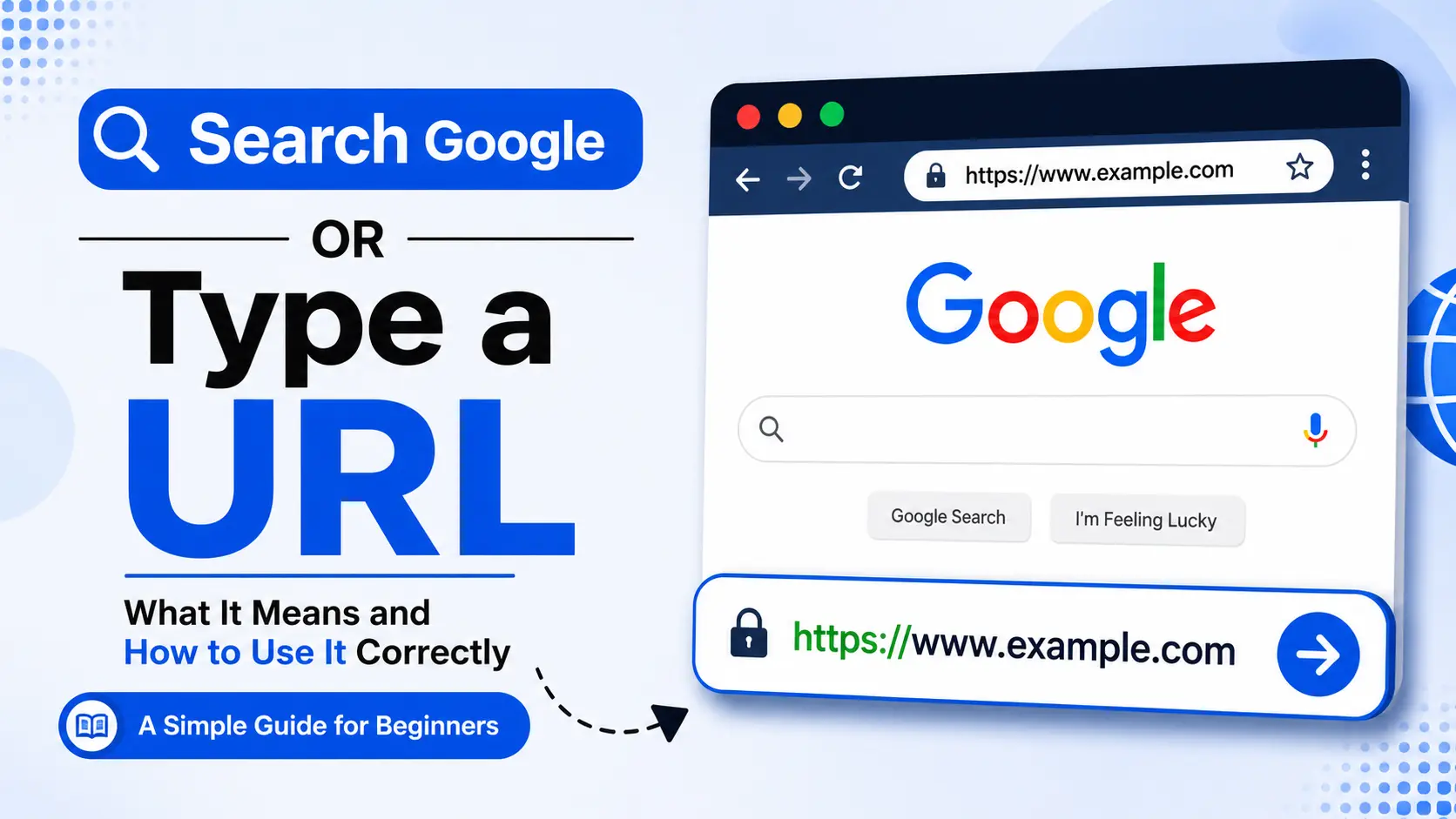
If you’ve ever opened Chrome, Edge, or a new browser tab and seen the words “Search Google or type a URL” sitting in a gray box, you’ve probably wondered whether it’s an instruction, a setting, or something you need to fix. It isn’t broken, and it isn’t asking you a question. It’s simply telling you that one single bar in your browser can do two different jobs: search the web, or take you straight to a website.
This guide breaks down exactly what that phrase means, how your browser decides which action to take, why it matters for your privacy and speed, and how to control it in every major browser.
What Does “Search Google or Type a URL” Actually Mean?
“Search Google or type a URL” is placeholder text that appears in the address bar of Google Chrome (and, with slightly different wording, in Edge, Firefox, and Safari) when the bar is empty. Chrome calls this combined bar the Omnibox, because it handles two functions in one field instead of forcing you to use a separate search box and a separate address bar.
That single line of gray text is telling you exactly what your two options are:
- Search Google — type a word, phrase, or question, and your browser sends it to your default search engine to find matching results.
- Type a URL — type a website’s exact address, and your browser takes you straight there, skipping the search results page entirely.
You don’t have to choose in advance. The browser reads what you type and figures out which action fits.
Why Browsers Combine Search and Address Bars
Older browsers used to keep these two functions apart: a search box for queries, and a separate bar above it for web addresses. That meant extra clicks and extra confusion about which box to use. Chrome’s Omnibox (and its equivalents in other browsers) merged the two, and nearly every modern browser followed suit. This design choice brings a few clear benefits:
- Fewer steps. You don’t need to decide upfront whether you’re searching or navigating — just start typing.
- Faster access. Frequently visited sites and recent searches appear as autocomplete suggestions, so you often don’t need to finish typing at all.
- One consistent habit. Whether you know the exact address or only a vague idea of what you’re looking for, the same bar handles both.
If you want a deeper technical explanation of what a web address is actually made of — the protocol, domain, and path — SearchGlossary’s what is a URL guide breaks that down piece by piece.
How Your Browser Decides: Search vs. Navigate
This is the part most articles skip, and it’s where the actual logic lives. When you press Enter, the browser runs a quick check on what you typed:
- Does it look like a domain? If your input contains a recognizable pattern like a dot followed by a valid extension (.com, .org, .io, .gov, etc.) and has no spaces, the browser treats it as a web address and tries to load it directly.
- Does it match your browsing history or bookmarks? If you’ve visited a site before, the browser’s autocomplete will often highlight it as a suggestion before you even finish typing.
- Otherwise, it’s treated as a search query. Anything with spaces, question marks, or no recognizable domain pattern gets sent to your default search engine.
A Simple Example
| What you type | What happens | Why |
| wikipedia.org | Opens Wikipedia directly | Recognized as a valid domain |
| wikipedia | Runs a Google search for “wikipedia” | No domain extension, so it’s treated as a query |
| best laptops for students | Runs a Google search | Contains spaces and reads like a natural-language query |
| 192.168.1.1 | Opens your router’s admin page | Recognized as a valid IP address |
| mail.google.com/mail/u/0 | Opens that exact Gmail inbox page | Full, valid URL with a path |
There’s one shortcut worth knowing: on Windows and Linux, typing a site name and pressing Ctrl + Enter automatically adds www. and .com around it in Chrome. On a Mac, the same shortcut is Ctrl + Return. Type amazon and press that combination, and you’ll land on www.amazon.com without typing the rest.
Search Google or Type a URL: Which Should You Actually Use?
Both options are valid — the right one depends on what you already know.
Type the URL directly when:
- You know the exact address (bookmarked sites, work tools, your bank).
- You’re logging into something sensitive, like online banking or email. Typing the address yourself avoids clicking a lookalike ad or phishing link disguised as the real site in search results.
- You want the fastest possible route, since it skips the results page entirely.
Search Google when:
- You don’t know the exact address or aren’t sure it exists.
- You’re comparing multiple sources, like reviews, news coverage, or shopping options.
- You’re asking a question rather than looking for one specific site — for example, “how to reset a router” or “capital of Australia.”
A useful rule of thumb: if you can picture the exact web address in your head, type it. If you’re not sure where you’re headed, search.
What Happens Behind the Scenes When You Type
The address bar starts working the moment you type the first character, not after you press Enter. That’s why suggestions appear so quickly. A few things happen in the background:
- Autocomplete pulls from multiple sources — your browsing history, saved bookmarks, open tabs, and your default search engine’s suggestion service.
- Preconnection. Chrome may quietly open a connection to your search engine’s servers in the background so results load faster once you hit Enter.
- Search suggestions require sending data. When “Improve search suggestions” (or the equivalent setting) is turned on, whatever you type is sent to your default search engine as you type it — not just after you press Enter — along with basic connection information like your IP address. Firefox and Edge work the same way. Safari notes that search suggestions may be logged by the search provider.
If that gives you pause, every major browser lets you turn search suggestions off entirely, which stops your keystrokes from being sent anywhere until you actually submit a search.
Browser-by-Browser: Where the Settings Live
You can’t flip a single switch labeled “remove Search Google or type a URL,” because the phrase itself isn’t a feature — it’s just placeholder text describing the Omnibox’s dual behavior. What you can control is your default search engine, your homepage, your new tab page, and whether suggestions are sent as you type.
Google Chrome
Go to Settings → Search engine to change which engine handles your searches (Google, Bing, DuckDuckGo, and others are usually available). Under Settings → Privacy and security → Search and URL predictions, you can toggle suggestions on or off.
Microsoft Edge
Edge uses the same combined bar and defaults to Bing, though it can be switched to Google or another engine under Settings → Privacy, search, and services. In InPrivate mode, Edge disables search suggestions automatically.
Mozilla Firefox
Firefox’s address bar pulls suggestions from history, bookmarks, and open tabs in the same way. Search engine and suggestion settings live under Settings → Search. Like Edge, Firefox turns off suggestions by default in Private Browsing windows.
Safari
Safari’s placeholder text reads slightly differently (“Search or enter website name”), but the underlying behavior is identical — one field for both search and navigation. Settings are under Safari → Settings → Search.
Common Mistakes to Avoid
- Searching for sites you should type directly. Searching your bank’s name and clicking the first result — which is sometimes a paid ad — is a common way people land on phishing pages. Type the address yourself for anything involving logins or payments.
- Assuming a single word is a website. Typing just netflix might trigger a search instead of opening the site, depending on your browser and history. Add .com if you want to go there directly.
- Ignoring unexpected search engine changes. If your default search engine changes on its own, or you can’t switch it back, that’s often a sign of a browser hijack caused by a rogue extension — not a normal setting change.
- Leaving suggestions on without realizing what’s shared. This isn’t a security risk for most people, but it’s worth knowing that your keystrokes are sent to your search provider as you type when suggestions are enabled.
Troubleshooting the Address Bar
| Problem | Likely Cause | Fix |
| Wrong site opens for a search-like term | Autocomplete matched a saved suggestion | Highlight the bad suggestion and press Shift + Delete to remove it |
| Search engine changed without your input | An extension or hijack changed the default | Check installed extensions; reset browser settings if needed |
| Typing a real URL still triggers a search | Missing a valid extension (no .com, .org, etc.) | Type the full address, including the extension |
| Address bar suggestions feel inaccurate | History-based suggestions can lag behind recent activity | Clear browsing history or delete individual suggestions |
| Can’t change your search engine and it won’t stick | Sign of a hijacked browser | Reset browser settings from your browser’s settings menu |
Frequently Asked Questions
Is “Search Google or type a URL” an error message? No. It’s the default placeholder text shown in an empty address bar. It disappears as soon as you start typing.
Why does my browser sometimes search instead of opening the site I meant? This usually happens when what you typed doesn’t look like a valid web address — for example, a single word with no domain extension. Add .com or the correct extension, or select the right suggestion from the dropdown.
Can I turn off search suggestions in the address bar? Yes. Every major browser has a setting to disable suggestions, which also stops your typed characters from being sent to your search engine before you press Enter.
Is it safer to type a URL than to search for it? For sensitive sites like banking or email, yes. Typing the address directly avoids the risk of clicking a fake or sponsored link that mimics the real site in search results.
What is the Omnibox? Omnibox is Chrome’s name for the combined address-and-search bar. Other browsers use the same concept with different branding, but the underlying behavior — search or navigate from one field — is the same everywhere.
Does typing a URL use less data or load faster than searching? Typing a URL directly is generally faster because it skips the search results page and connects straight to the destination server.
Key Takeaways
“Search Google or type a URL” isn’t a prompt you need to respond to in a specific way — it’s a description of how your browser’s address bar works. Type a full address when you know exactly where you’re going, especially for anything involving logins or payments. Search when you’re exploring, comparing, or unsure of the exact site. Understanding this small distinction makes everyday browsing faster and noticeably safer.