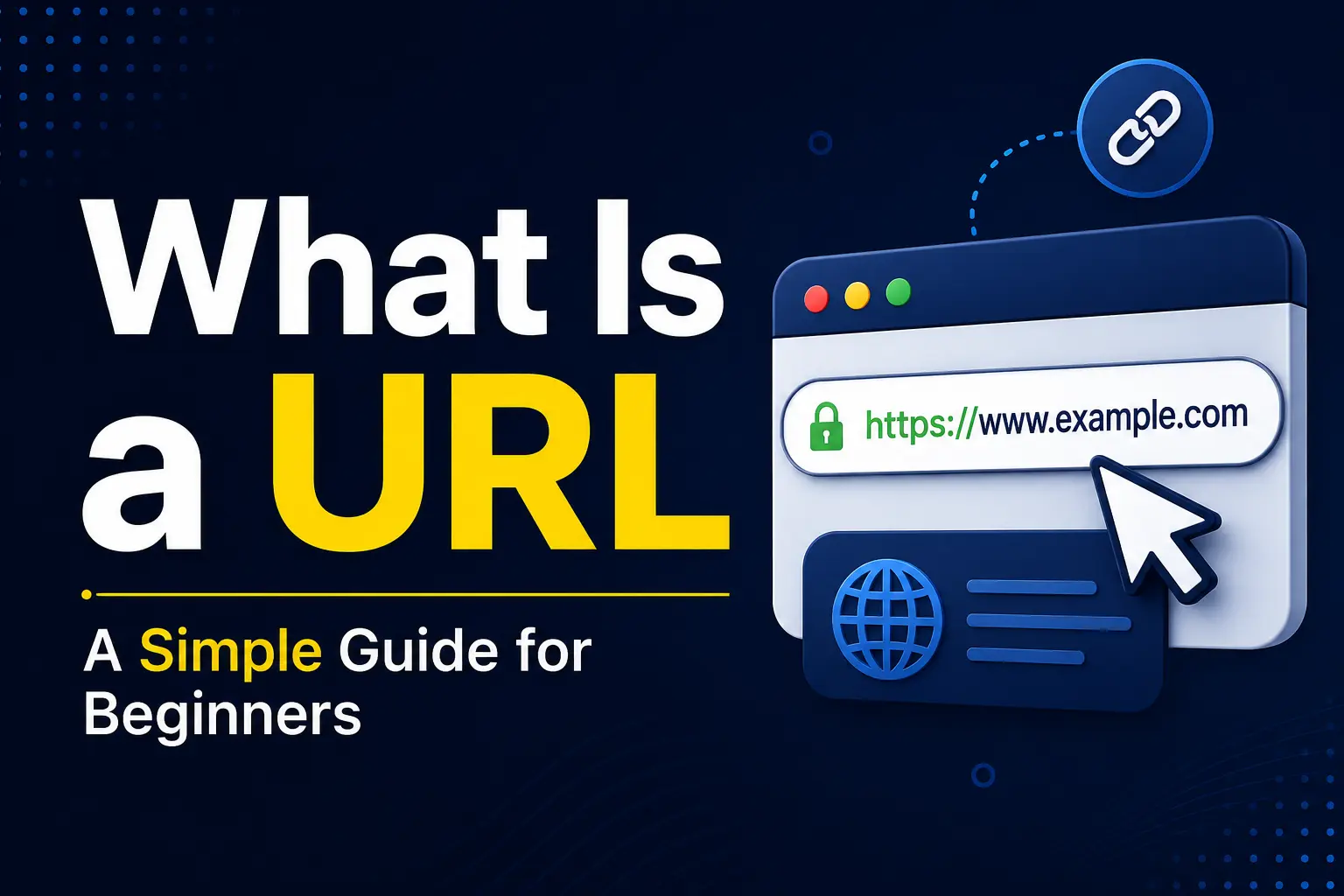
If you’ve ever typed an address into your browser or clicked a link, you’ve used a URL — even if you never thought about what the letters actually mean. So, what is a URL? In simple terms, a URL (Uniform Resource Locator) is the address that tells your browser exactly where to find a specific page, image, file, or resource on the internet.
Think of it like a street address for the web. Just as a street address tells a delivery driver exactly which house to go to, a URL tells your browser exactly which “location” on the internet to load.
In this guide, you’ll learn what a URL is, what it stands for, how it’s built, the different types of URLs, common mistakes people make, and answers to the most-searched questions about URLs — all explained in plain English.
What Does URL Stand For?
URL stands for Uniform Resource Locator.
Breaking that down:
- Uniform — it follows a standard, predictable format that works the same way across every browser and device.
- Resource — the “thing” you’re trying to access: a webpage, an image, a video, a PDF, or any other file.
- Locator — it locates (finds) that resource by specifying exactly where it lives on the internet.
So a URL is essentially a standardized set of directions that leads your browser to one specific resource, out of the billions that exist online.
What Is a URL, Exactly? (Simple Definition)
A URL is a text string that specifies three main things:
- How to access a resource (the protocol, like https://)
- Where the resource is located (the domain name, like searchglossary.com)
- What exact resource you want (the path, like /blog/seo-basics)
Here’s a real example:
This single line tells your browser:
- Use a secure connection (https)
- Go to the server for searchglossary.com
- Load the specific page found at /blog/what-is-seo
Every website URL you’ve ever clicked follows this same basic logic, even if the structure looks slightly different from site to site.
The Anatomy of a URL (Breaking Down Each Part)
Understanding URL structure becomes much easier once you see each piece labeled separately. Let’s break apart a full URL example:
| Part | Example | What It Does |
| Scheme/Protocol | https:// | Tells the browser how to communicate with the server (securely or not) |
| Subdomain | www | A section of the main domain, often used for organization |
| Domain name | example.com | The unique address of the website |
| Port | :443 | Specifies which “door” on the server to use (usually hidden by default) |
| Path | /products/shoes | The specific page or file location on the server |
| Query parameters | ?color=red&size=9 | Extra information passed to the page, often for filtering or tracking |
| Fragment | #reviews | Jumps to a specific section within the page |
Not every URL contains all of these parts. Most everyday URLs only use the protocol, domain, and path — the rest appear when needed, such as on e-commerce sites or search result pages.
URL vs Domain vs Website vs IP Address
People often confuse a URL with a domain name or a website. They’re related, but not the same thing.
| Term | What It Actually Is | Example |
| URL | The full address to one exact resource | https://example.com/contact |
| Domain name | Just the site’s unique name | example.com |
| Website | The entire collection of pages under a domain | Every page on example.com |
| IP address | The numeric address of the server behind the domain | 192.0.2.1 |
Here’s a helpful analogy: if a website is an entire office building, the domain is the building’s street name, and the URL is the exact suite number that gets you to one specific office inside it. The IP address is the GPS coordinates the postal service actually uses behind the scenes — the domain name just makes it human-readable.
Types of URLs
Not all URLs look or behave the same way. Here are the main types you’ll encounter:
1. Absolute URL Contains the full address, including the protocol and domain. Example: https://example.com/about
2. Relative URL Only includes the path, assuming the browser already knows the domain (commonly used inside a website’s own code). Example: /about
3. Static URL Doesn’t change and usually looks clean and readable. Example: https://example.com/blog/url-guide
4. Dynamic URL Generated on the fly, often containing query parameters or IDs. Example: https://example.com/search?q=url&page=2
5. Canonical URL The “preferred” version of a URL that search engines should index, used to avoid duplicate content issues.
What Does a URL Look Like in Real Life?
Here are a few practical URL examples you’ll recognize:
- https://www.google.com — a homepage URL
- https://en.wikipedia.org/wiki/Internet — a URL pointing to a specific article
- https://mail.google.com — a subdomain-based URL for a specific service
- ftp://files.example.com/report.pdf — a URL using a different protocol (FTP) to access a file
Notice that the structure stays consistent: protocol first, then domain, then path.
How to Find the URL of a Webpage
If someone asks “what is the URL of this page,” here’s how to find it:
- On desktop: Look at the address bar at the top of your browser — that entire line is the URL.
- On mobile: Tap the address bar (it may show only the domain until tapped) to reveal the full URL.
- To copy it: Click once inside the address bar, then copy the highlighted text.
- To share a specific section: Some browsers let you right-click and select “Copy link to highlight” to generate a URL with a fragment pointing to exact text.
Common URL Mistakes to Avoid
Even experienced internet users run into these issues:
- Typos in the domain name — a single misspelled letter sends you to the wrong (sometimes malicious) site.
- Missing https:// — some older systems or apps won’t recognize a URL without the protocol.
- Broken or outdated links — pages get moved or deleted, resulting in “404 Not Found” errors.
- Confusing a search query with a URL — typing “what is a url” into the address bar triggers a search, not a direct page load.
- Using uppercase letters inconsistently — URLs are case-sensitive in the path, so /About and /about can lead to different results.
URL Best Practices (Especially for Website Owners)
If you’re building or managing a website, URL structure directly affects both user experience and SEO. Good practice includes:
- Keep URLs short, readable, and descriptive (e.g., /best-running-shoes instead of /product?id=48219).
- Use hyphens – to separate words, not underscores or spaces.
- Stick to lowercase letters for consistency.
- Avoid unnecessary parameters when a clean, static URL will do.
- Always use https:// rather than http:// for security.
- Make sure old URLs redirect properly if a page’s address changes.
This approach is often called using a semantic URL — one where the address itself describes what the page is about, both for humans and search engines.
FAQs About URLs
What does URL mean in computer terms? It means Uniform Resource Locator — the standardized address used to locate any file or page on the internet, including webpages, images, and documents.
What is the difference between a URL and a link? A link (or hyperlink) is clickable text or an image that, when clicked, sends the browser to a URL. The URL is the destination address; the link is the clickable path to get there.
Is a website URL the same as a domain? No. The domain (like example.com) is just the site’s name. The full URL includes the domain plus the specific path to a resource, such as example.com/contact.
Can a URL be an IP address instead of a domain name? Yes. A URL can technically use a numeric IP address instead of a domain name, such as https://192.0.2.1/page, though domain names are used almost everywhere because they’re easier to remember.
Why do some URLs start with http and others with https? https includes an extra “S” for secure — it encrypts the data sent between your browser and the website. Nearly all modern, trustworthy sites use https.
What is a URL used for besides browsing? URLs are also used to link images, embed videos, download files, connect APIs, and reference resources inside apps and software — not just for loading webpages.
Final Thoughts
At its core, a URL is simply the address system that makes the internet navigable. Once you understand its parts — protocol, domain, path, and optional extras like parameters and fragments — reading and even building your own URLs becomes second nature.
Whether you’re a beginner just learning how the web works or a website owner refining your site’s structure, understanding what a URL is and how it’s built is one of the most fundamental pieces of internet literacy.