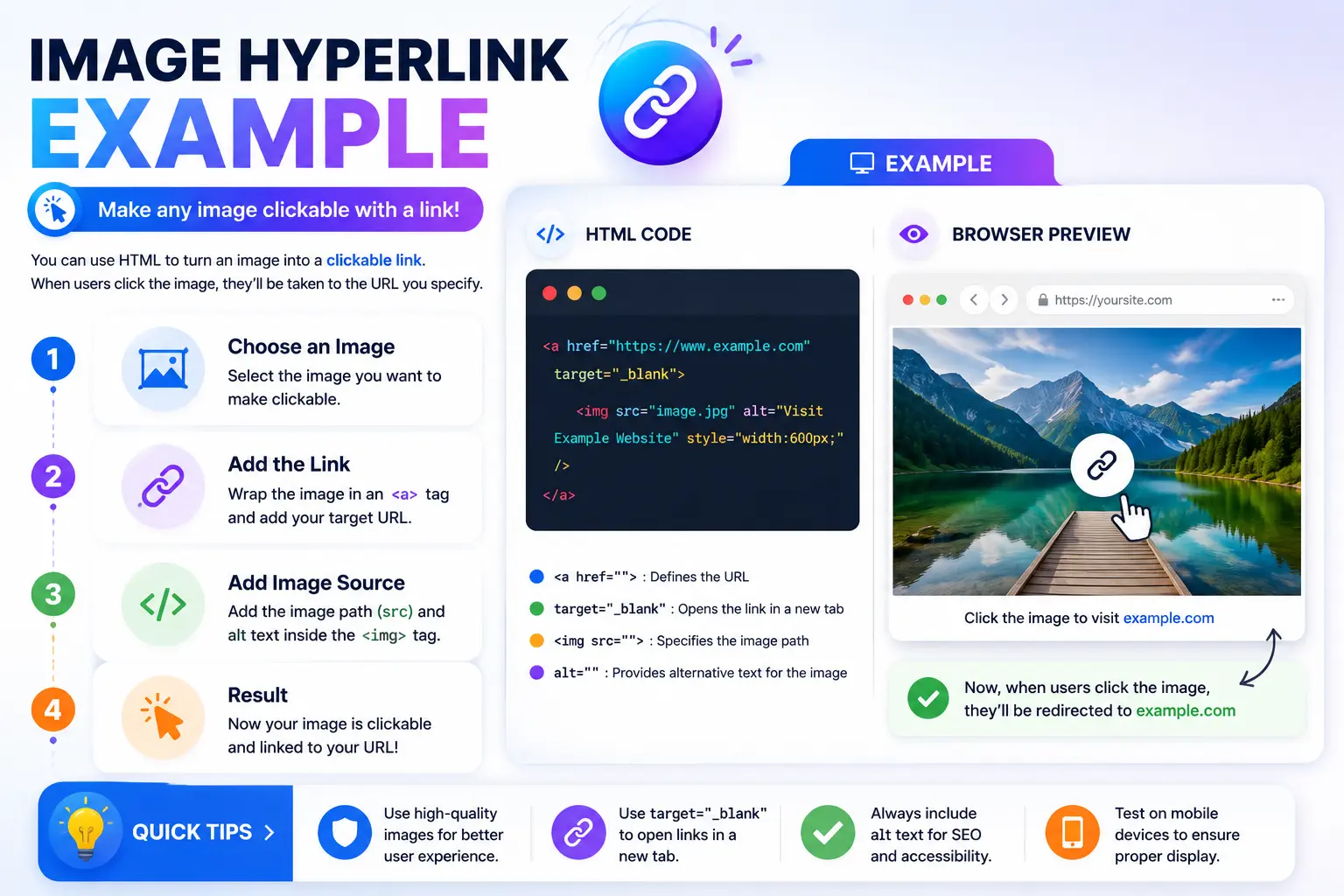
Looking for a working image hyperlink example to understand exactly how to make a picture clickable in HTML? The short version: you wrap an <img> tag inside an <a> (anchor) tag, and the entire image becomes a clickable link to whatever URL you specify.
This guide walks through the exact syntax with working examples, explains what each part of the code actually does, covers a few variations you’ll run into (linking to external sites, internal pages, and opening links in a new tab), and flags the mistakes that most often break an image hyperlink for beginners.
Table of Contents
Basic Image Hyperlink Example
Here’s the simplest working example — an image that links to an external website:
<a href=”https://www.example.com”>
<img src=”logo.png” alt=”Example company logo”>
</a>
What’s happening here:
- <a href=”…”> opens the hyperlink, with the destination URL inside the quotes.
- <img src=”…” alt=”…”> is the image itself — src points to the image file, and alt provides a text description.
- </a> closes the hyperlink.
Because the <img> tag sits inside the <a> tag, the entire image becomes clickable — not just text near it. Clicking anywhere on the image takes the visitor to the URL specified in href.
Breaking Down Each Part of the Code
| Element | Purpose |
| <a href=”URL”> | Opens the link; href (hypertext reference) holds the destination |
| <img src=”file”> | Displays the image; src (source) points to the image file’s location |
| alt=”description” | Text shown if the image fails to load, and read aloud by screen readers |
| </a> | Closes the hyperlink |
Every part matters here — leaving out the closing </a> tag, for instance, can cause everything after the image to become unintentionally part of the link as well.
Image Hyperlink Example: Linking to an Internal Page
If you’re linking to another page within the same website, rather than an external site, the href value changes to a relative path instead of a full URL:
<a href=”/about.html”>
<img src=”team-photo.jpg” alt=”Our team”>
</a>
Here, /about.html points to a page within the same site, rather than an entirely different domain.
Image Hyperlink Example: Opening the Link in a New Tab
By default, clicking a hyperlinked image navigates the visitor away from the current page. To have the link open in a new browser tab instead — commonly used for external links — add the target=”_blank” attribute:
<a href=”https://www.example.com” target=”_blank” rel=”noopener noreferrer”>
<img src=”banner.jpg” alt=”Visit our partner site”>
</a>
What the extra attributes do:
- target=”_blank” opens the link in a new tab.
- rel=”noopener noreferrer” is a security best practice that prevents the newly opened page from gaining unwanted access to the original page’s window — always include this alongside target=”_blank”.
Image Hyperlink Example: Linking to an Email Address
An image can also link to an email address instead of a webpage, using a mailto: link:
<a href=”mailto:contact@example.com”>
<img src=”email-icon.png” alt=”Email us”>
</a>
Clicking this image opens the visitor’s default email program with a new message already addressed to that email.
Image Hyperlink Example: Linking to a Downloadable File
To make an image link directly to a file (like a PDF) rather than another webpage:
<a href=”brochure.pdf” download>
<img src=”download-icon.png” alt=”Download our brochure”>
</a>
The download attribute prompts the browser to download the file directly, rather than trying to open and display it in the browser window.
Full Working Example (Combining Elements)
Here’s a more complete example showing an image hyperlink as it might appear on a real page, including a caption below it:
<figure>
<a href=”https://www.example.com/shop” target=”_blank” rel=”noopener noreferrer”>
<img src=”product.jpg” alt=”Wireless headphones, black” width=”300″>
</a>
<figcaption>Shop our wireless headphones</figcaption>
</figure>
This adds a width attribute to control the image’s display size, and wraps the whole thing in a <figure> element with a caption — a common, semantically correct pattern for product images on ecommerce sites.
Comparison: Common Image Hyperlink Variations
| Use Case | href Value | Extra Attribute Needed |
| External website | Full URL (https://…) | None (or target=”_blank”) |
| Internal page | Relative path (/page.html) | None |
| Email address | mailto:address@example.com | None |
| Phone number | tel:+15551234567 | None |
| Downloadable file | File path (file.pdf) | download |
| New tab | Any of the above | target=”_blank” rel=”noopener noreferrer” |
Why the Alt Attribute Matters on a Hyperlinked Image
The alt attribute isn’t optional decoration — it serves two genuinely important purposes on any image, and especially on one that’s also a clickable link:
- Accessibility: Screen readers announce the alt text aloud, so a visually impaired visitor understands both what the image shows and, often, where the link leads.
- Fallback display: If the image file fails to load for any reason, the alt text displays in its place, so visitors still understand what was supposed to be there.
For a hyperlinked image specifically, writing alt text that also hints at the link’s destination (like “Visit our partner site” rather than just “banner”) gives screen reader users the context they need, since they may not have separate visible link text to rely on the way they would with a plain text hyperlink.
Real-World Use Cases
- Company logos: Nearly every website hyperlinks its logo (usually in the header) back to the homepage.
- Product thumbnails: E-commerce sites commonly link a product photo directly to that product’s full listing page.
- Social media icons: Small icon images in a website footer, each linking out to the corresponding social media profile.
- Banner ads: A promotional image linking to a specific landing page or sale.
- Download buttons: An icon or graphic linking directly to a downloadable file, like an app store badge linking to a mobile app listing.
Common Mistakes When Creating an Image Hyperlink
- Forgetting the closing </a> tag. This can cause unintended content after the image to also become part of the clickable link.
- Leaving out the alt attribute. This hurts both accessibility and the fallback experience if the image fails to load.
- Using target=”_blank” without rel=”noopener noreferrer”. This is a known security consideration, since the new tab can otherwise gain limited access back to the original page.
- Mixing up src and href. src belongs on the <img> tag (pointing to the image file); href belongs on the <a> tag (pointing to the link destination) — confusing the two breaks the code.
- Not testing the link after publishing. A typo in the URL or an incorrect relative path is easy to miss until someone actually clicks the image.
Best Practices
- Always include a meaningful alt attribute, especially for images that are also functioning as links.
- Use relative paths for internal links (/about.html) rather than hardcoding the full domain, so links continue to work correctly if the site’s domain ever changes.
- Pair target=”_blank” with rel=”noopener noreferrer” every time you open a link in a new tab, as a standard security practice.
- Keep image file sizes reasonable. A hyperlinked image that loads slowly delays the moment a visitor can actually click it.
- Test every image hyperlink after publishing, especially on production websites, to confirm it leads to the correct, intended destination.
Frequently Asked Questions
How do you make an image a hyperlink in HTML?
Wrap the <img> tag inside an <a> tag, with the destination URL in the href attribute: <a href=”URL”><img src=”image.jpg” alt=”description”></a>. The entire image becomes clickable.
Can an image link to another image?
Yes. The href attribute can point to an image file just as easily as a webpage — clicking the hyperlinked image would then open or download that other image file, depending on the browser and file type.
How do I make a hyperlinked image open in a new tab?
Add target=”_blank” to the <a> tag, and pair it with rel=”noopener noreferrer” for security: <a href=”URL” target=”_blank” rel=”noopener noreferrer”>.
Do I still need alt text if the image is also a link?
Yes, and it matters even more in this case. Alt text helps screen reader users understand both the image and, ideally, where the link leads, since a hyperlinked image doesn’t have separate visible link text the way a text hyperlink does.
What’s the difference between the src and href attributes?
src (source) goes on the <img> tag and points to the image file being displayed. href (hypertext reference) goes on the <a> tag and points to the destination the link leads to when clicked. They serve different purposes and aren’t interchangeable.
Can I hyperlink just part of an image, like different clickable regions?
Yes, though it requires a different technique called an image map, using the <map> and <area> HTML elements to define multiple clickable regions within a single image, each linking to a different destination.
Final Thoughts image hyperlink example
An image hyperlink in HTML comes down to one core pattern: wrap your <img> tag inside an <a> tag, and the entire image becomes clickable. From there, the same attributes used for text hyperlinks — target=”_blank”, mailto:, download — all work exactly the same way.
Keep the alt attribute in place, test your links after publishing, and pair any new-tab links with rel=”noopener noreferrer” for good security practice. Once you’ve seen a few working examples, the pattern becomes second nature for any image you want to make clickable.