
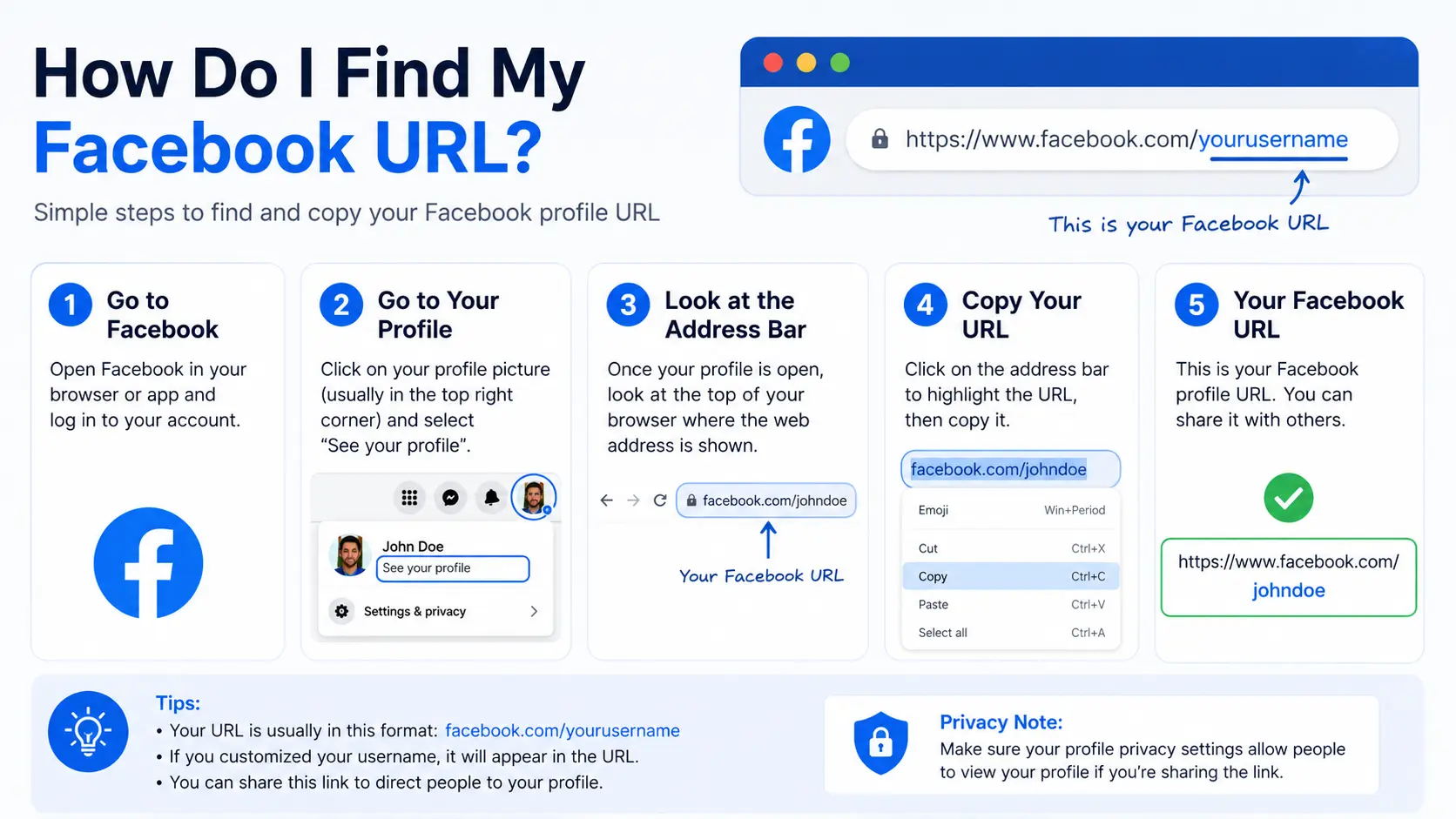
If you have ever tried to add a “Follow us on Facebook” link to your website or email signature, you have probably asked yourself: how do I find my Facebook URL? The good news is that it only takes a few clicks, whether you are on a computer, an iPhone, or an Android phone.
In this guide, you will learn exactly where to find your Facebook URL for your personal profile, your business page, and even someone else’s profile — plus how to fix common problems along the way.
Table of Contents
What Is a Facebook URL?
A Facebook URL is the web address that takes people directly to your profile, page, or group on Facebook. It works the same way as any other URL on the internet — it is simply the “location” of your Facebook profile online.
A typical Facebook URL looks like this:
If you have not set a custom username yet, your URL will instead show a long string of numbers, like this:
Both versions work, but a custom username is easier to read, remember, and share.
How Do I Find My Facebook URL on Desktop (Computer)
This is the fastest method if you are using a web browser like Chrome, Safari, or Edge.
- Go to facebook.com and log in to your account.
- Click your profile picture in the top-right corner of the page.
- Select View Profile (or click your name) to open your personal profile.
- Look at the address bar at the top of your browser window.
- The text shown there is your Facebook URL. Click inside the address bar to highlight it, then copy it.
That’s it — you now have your profile link ready to paste anywhere you need it, such as an email signature, resume, or website.
Where Is My Facebook URL on Mobile App (iPhone and Android)
Many people ask where is my Facebook URL on the mobile app, since the phone app does not have an address bar like a browser does. Here is where it hides.
On the Facebook App (iPhone or Android)
- Open the Facebook app and log in.
- Tap the three horizontal lines (☰) menu icon, usually in the top-right corner.
- Tap your name and profile picture at the top of the menu to open your profile.
- Tap the three dots (•••) button, located near the “Edit Profile” button.
- Look for Copy Link or Your profile link — tapping it copies your URL straight to your clipboard.
On Mobile Using a Browser (Safari or Chrome)
If you would rather not use the app, you can also find your URL through your phone’s browser:
- Open Safari or Chrome and go to facebook.com.
- Log in to your account.
- Tap your profile picture, then tap the address bar to see and copy your full profile URL — just like on desktop.
How to Find Your Facebook Page URL (Business Page)
A Facebook Page is different from a personal profile. Pages are used by businesses, creators, brands, and public figures. If you manage one, here is how to find your Facebook page URL.
On Desktop:
- Log in to Facebook at facebook.com.
- Click Pages in the left-hand menu, or click your profile picture and select your Page from the dropdown.
- Once your Page loads, check the browser’s address bar — that is your Facebook page URL.
- Copy it and paste it into your website, Google Business Profile, or marketing materials.
On the Mobile App:
- Open the Facebook app and tap the menu icon.
- Scroll down and tap on your Page name under “Pages.”
- Tap the three dots (•••) near the top of the Page.
- Select Copy Link to Page.
Tip: If you cannot see your Page in the left-side menu, click your profile picture in the top-right corner and choose your Page from the dropdown list, or search for it directly using the Facebook search bar.
How to Find Someone Else’s Facebook URL
Sometimes you need a friend’s, colleague’s, or a company’s profile link instead of your own.
- Log in to Facebook.
- Type the person’s or business’s name into the search bar at the top of the page.
- Click their profile or Page from the results.
- Copy the URL from your browser’s address bar (desktop) or tap the three dots and choose Copy Link (mobile app).
Note that this only works for public profiles or Pages. Private profiles will still open, but some information may be hidden unless you are friends with that person.
If you are unsure whether it is better to search directly on Facebook or type a link into your browser, our guide on searching Google or typing a URL explains the difference and when each approach makes sense.
Understanding Your Facebook URL Format
| URL Type | Example | What It Means |
| Custom username | facebook.com/yourname | You have claimed a personalized username |
| Numeric ID | facebook.com/profile.php?id=1234567890 | No custom username has been set yet |
| Page URL | facebook.com/yourbusinessname | The link to a business, brand, or public figure Page |
| Group URL | facebook.com/groups/groupname | The link to a Facebook Group |
How to Customize (Change) Your Facebook URL
If your link currently shows a long number instead of a name, you can set a custom username to fix it.
- Go to Settings & Privacy > Settings.
- Click Profile (or Username, depending on your device).
- Enter the username you want.
- Click Save Changes.
Once approved, your Facebook URL will update automatically to include your new username.
Facebook Username Rules
Facebook has specific rules for usernames. Keep these in mind before choosing one:
- Must be at least 5 characters long
- Can include letters, numbers, and periods
- Cannot include spaces or special symbols
- Must not already be taken by another user or Page
- Cannot impersonate another person or brand
Common Mistakes People Make When Finding Their Facebook URL
- Confusing a profile URL with a Page URL. These are two different links, and pasting the wrong one can send visitors to the wrong place.
- Copying an incomplete link. Always make sure the full address, starting with “https://,” is copied — not just part of it.
- Assuming everyone can see the URL the same way. Private profile settings may limit what non-friends can view, even if the link itself works.
- Forgetting to update marketing materials after changing a username, which can leave old links broken.
Best Practices for Using Your Facebook URL
- Set a short, memorable custom username instead of relying on a numeric ID.
- Double-check your link by opening it in a private/incognito browser window before sharing it publicly.
- Keep your profile or Page URL consistent with your brand name for easier recognition.
- Add your Facebook URL to your website, email signature, and other social profiles to make it easy for people to connect with you.
Frequently Asked Questions
What is my Facebook URL? Your Facebook URL is the unique web address linked to your profile or Page. You can find it in your browser’s address bar after opening your profile, or through the “Copy Link” option in the mobile app.
How do I find my Facebook page URL specifically? Open your Page from the “Pages” menu on desktop or the app, then copy the link from the address bar (desktop) or the three-dot menu (mobile app).
Why does my Facebook URL show numbers instead of my name? This happens when you have not yet set a custom username. You can fix this anytime in Settings & Privacy > Settings > Profile.
Can I change my Facebook URL after setting it once? Yes, in most cases you can update your username again later through the same settings menu, though Facebook may occasionally restrict frequent changes.
Where is my Facebook URL on the mobile app if I don’t see an address bar? Since the app does not have a browser address bar, tap the three dots next to “Edit Profile” on your profile page and select “Copy Link” instead.
How do I find the URL for a Facebook group? Open the group from the “Groups” menu, then copy the link from your browser’s address bar, or tap the three dots inside the group on mobile and select “Copy Link to Group.”
Final Thoughts
Now that you know how do I find my Facebook URL, you can quickly grab your profile or page link on any device — desktop, iPhone, or Android — in under a minute. Whether you are sharing it with friends or adding it to your business marketing materials, having a clean, custom Facebook URL makes it much easier for people to find and connect with you.


