
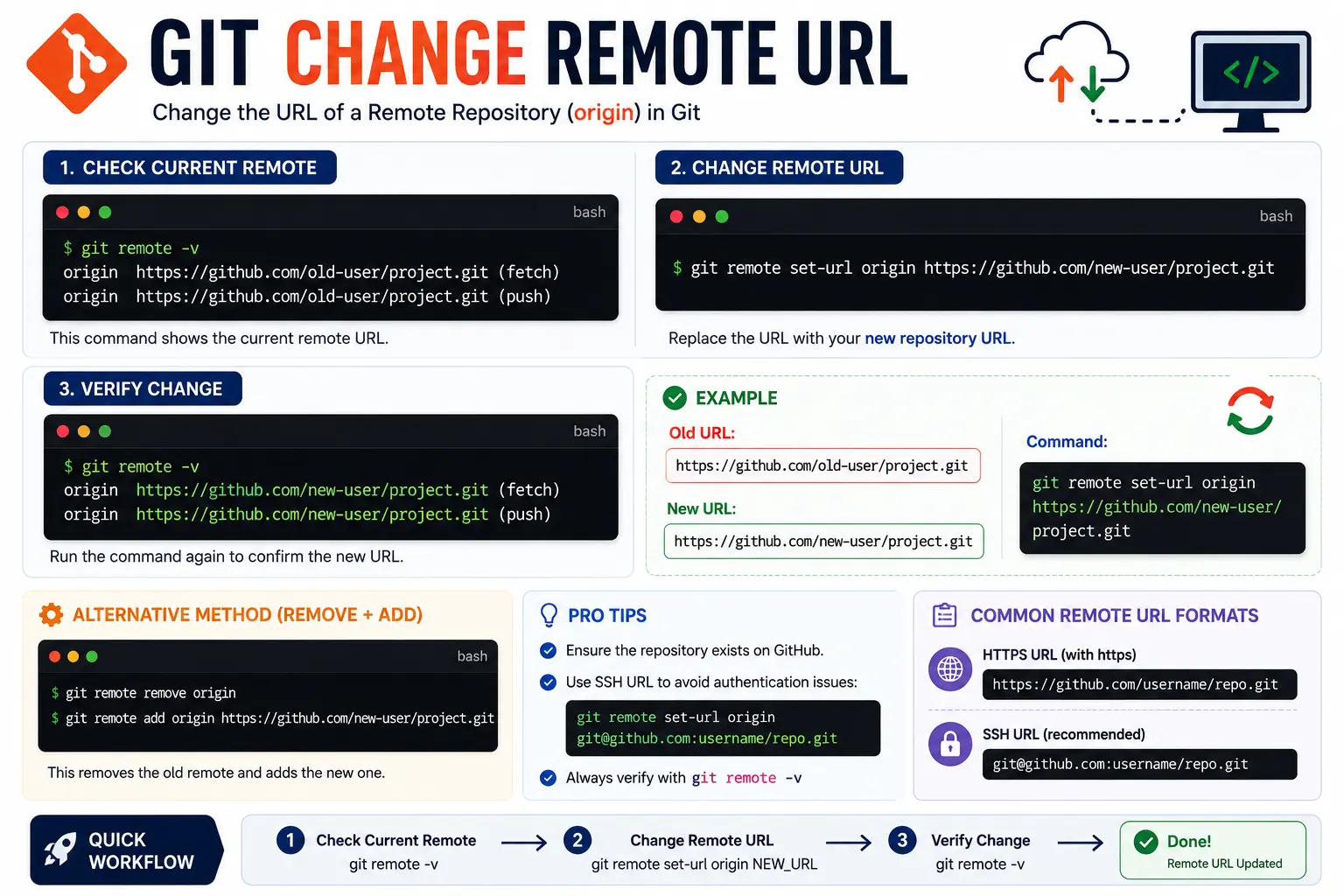
If you’ve moved a repository, switched from HTTPS to SSH, or renamed a GitHub organization, you’ll need to git change remote url so your local repository keeps pushing and pulling from the correct location. This is a common task, and thankfully it takes a single command to fix.
This guide walks through exactly how to check your current remote URL, change it, verify the update, and fix the most common errors people run into along the way.
Table of Contents
What Is a Git Remote URL?
Before changing anything, it helps to understand what you’re actually editing. A git remote URL is simply the URL — the web address — that tells your local Git repository where its corresponding remote repository lives, usually on a service like GitHub, GitLab, or Bitbucket.
By default, this remote is named origin, though a repository can have multiple remotes with different names if it’s connected to more than one location.
A typical remote URL looks like this:
Just like any other web address, it’s built from the same basic parts of a URL — a protocol, a domain, and a path pointing to the specific repository.
How to Check Your Current Remote URL
Before changing anything, it’s good practice to confirm what your remote is currently set to.
git remote -v
This returns the current URLs used for both fetching and pushing, something like:
origin https://github.com/username/old-repo.git (fetch)
origin https://github.com/username/old-repo.git (push)
If you see the wrong repository name, the wrong username, or the wrong protocol here, that’s exactly what you’ll be updating next.
How to Change the Remote URL With git remote set-url
The core command for this task is git remote set-url.
Basic syntax:
git remote set-url <remote-name> <new-url>
Most common real-world example (updating origin):
git remote set-url origin https://github.com/username/new-repo.git
This single command replaces the stored URL for origin with the new one you provide. There’s no need to remove and re-add the remote — set-url handles the update directly.
Verifying the Change
After running the command, always confirm the update worked by checking the remote again:
git remote -v
You should now see the new URL listed for both fetch and push:
origin https://github.com/username/new-repo.git (fetch)
origin https://github.com/username/new-repo.git (push)
If both lines reflect the new address, the change was successful, and your next git push or git pull will use the updated location.
Changing From HTTPS to SSH (or SSH to HTTPS)
One of the most common reasons people need to change their remote URL is switching between HTTPS and SSH authentication methods.
| Protocol | Example URL Format |
| HTTPS | https://github.com/username/repo.git |
| SSH | git@github.com:username/repo.git |
Switch to SSH:
git remote set-url origin git@github.com:username/repo.git
Switch back to HTTPS:
git remote set-url origin https://github.com/username/repo.git
Both formats point to the exact same repository — the difference is entirely in how Git authenticates with the remote server, not in what content is being tracked.
How to Change the Origin URL for a Renamed Repository or Organization
If a repository or GitHub organization has been renamed, the old URL will often still redirect for a while, but it’s best practice to update it directly rather than relying on that redirect indefinitely.
git remote set-url origin https://github.com/new-org-name/repo.git
This ensures future pushes and pulls go straight to the correct address without depending on a temporary forwarding rule that could eventually be removed.
Working With Multiple Remotes
Some repositories are connected to more than one remote — for example, a fork remote in addition to origin. In these cases, always double check you’re targeting the right remote name.
List all remotes with their URLs:
git remote -v
Update a specific, non-default remote:
git remote set-url upstream https://github.com/original-owner/repo.git
Specifying the exact remote name prevents you from accidentally updating the wrong connection when a repository has several.
Adding a Remote (If One Doesn’t Exist Yet)
git remote set-url only works if the remote already exists. If you’re setting a remote for the first time rather than changing an existing one, use git remote add instead:
git remote add origin https://github.com/username/repo.git
Attempting to use set-url on a remote name that doesn’t exist yet will return an error, since there’s nothing there to update.
Common Errors and How to Fix Them
Error: fatal: No such remote ‘origin’ This means the remote name you’re trying to update doesn’t exist yet. Use git remote add origin <url> instead of set-url.
Error: remote origin already exists This happens when you try to add a remote that’s already set up. Use git remote set-url origin <url> to update it instead of adding a duplicate.
Pushes still going to the old URL This usually means the change wasn’t confirmed correctly. Run git remote -v again to verify both the fetch and push URLs actually updated.
Authentication errors after switching protocols Switching from HTTPS to SSH requires a properly configured SSH key added to your Git hosting account. Without it, Git won’t be able to authenticate, even if the URL itself is correct.
Best Practices When Changing a Remote URL
- Always verify with git remote -v immediately after making a change, rather than assuming it worked.
- Update all collaborators, since each person’s local repository has its own separately stored remote URL — changing yours doesn’t change theirs.
- Keep fetch and push URLs consistent unless you have a specific reason to split them, since mismatched URLs can cause confusing behavior between pulling and pushing.
- Double check the exact remote name before running the command, especially in repositories with multiple remotes like origin and upstream.
Frequently Asked Questions
How do I change my git remote URL? Use git remote set-url origin <new-url>, replacing <new-url> with the correct repository address, then confirm the change with git remote -v.
What’s the difference between git remote set-url and git remote add? set-url updates an existing remote’s URL, while add creates a brand-new remote connection. Using add on a remote name that already exists will return an error.
How do I change my git origin URL specifically? Run git remote set-url origin <new-url>, since origin is simply the default name Git assigns to the primary remote in most repositories.
Can I switch between HTTPS and SSH without losing my commit history? Yes. Changing the remote URL only affects how Git connects to the remote repository — it has no effect on your local commit history or existing branches.
Do I need to re-clone the repository to change the remote URL? No. git remote set-url updates the connection directly, so there’s no need to delete and re-clone the repository.
Why does my push still go to the old repository after changing the URL? This usually means the update didn’t apply correctly, or you updated the wrong remote name. Re-run git remote -v to confirm exactly which URL is currently set for both fetch and push.
Final Thoughts Git Change Remote URL
Changing a Git remote URL is a quick, low-risk operation once you know the right command. git remote set-url origin <new-url> handles the vast majority of real-world cases — moved repositories, renamed organizations, and protocol switches between HTTPS and SSH — without touching your commit history or local files in any way.
Whenever you make this kind of change, get in the habit of confirming it with git remote -v right afterward. That one extra step avoids the most common mistake: assuming the update worked when your pushes are still quietly heading to the old address.


