
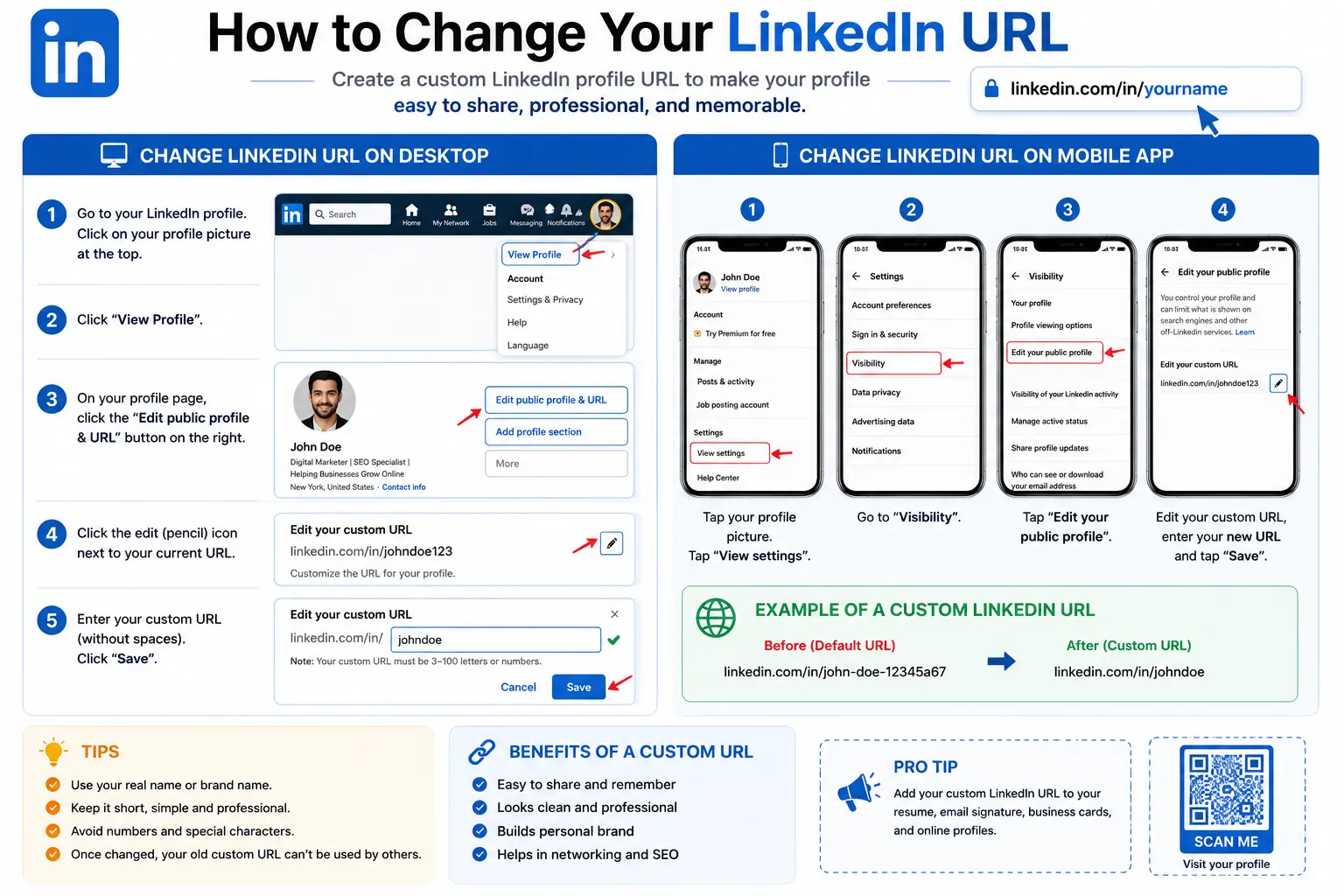
If your LinkedIn profile link looks something like linkedin.com/in/john-smith-8a2b91, you already know the problem. That random string at the end is what LinkedIn assigns by default, and it’s the exact opposite of professional or memorable. Learning how to change your LinkedIn URL takes about a minute and instantly turns that messy default link into something clean, like linkedin.com/in/johnsmith.
This guide walks through the exact steps for desktop and mobile, the character rules LinkedIn enforces, how often you’re allowed to change it, and the mistakes that trip people up.
Table of Contents
Why Customize Your LinkedIn URL?
Before jumping into the steps, it’s worth understanding why this matters. Your LinkedIn URL is a specific type of URL — a public web address that points directly to your profile — and like any link, it’s judged instantly by anyone who sees it.
A clean, custom URL:
- Looks more professional on a resume, business card, or email signature
- Is easier for people to remember and type correctly
- Reduces typos when someone shares or types it manually
- Can make your profile slightly easier to identify in Google search results
This isn’t unique to LinkedIn. The same logic behind branded, readable links — like a vanity URL used in marketing — applies here. A short, name-based address simply performs better than a long, random one.
How to Change Your LinkedIn URL on Desktop
This is the most reliable way to edit your LinkedIn URL, and it’s where LinkedIn’s editing tools live.
Steps:
- Log in to LinkedIn at linkedin.com on a desktop browser.
- Click the Me icon at the top of the homepage, then select View Profile.
- On your profile page, look at the right-hand panel for Edit public profile & URL, and click it.
- On the Public Profile Settings page, find the Edit your custom URL section in the top-right area.
- Click the pencil (edit) icon next to your current URL.
- Type your new custom ending directly after linkedin.com/in/.
- Click Save.
Your new custom URL takes effect immediately, and it will now display in your browser’s address bar whenever you view your own profile.
How to Change Your LinkedIn URL on Mobile
This is where most people run into confusion. The LinkedIn mobile app does not provide direct access to public profile URL settings — the customization tool only exists on the full desktop version of the site.
Workaround for mobile devices:
- Open a mobile browser (Chrome or Safari — not the LinkedIn app).
- Go to linkedin.com and log in.
- Turn on “Request Desktop Site” in your browser’s menu.
- Follow the same steps listed above for desktop.
Some guides describe tapping your profile photo, opening Contact info, and tapping your Profile URL from within the app — this will route you to the same Public Profile Settings page in a mobile browser view to complete the edit, since the in-app screen itself can’t make the change directly.
LinkedIn Custom URL Rules and Character Limits
LinkedIn enforces a few strict rules when you customize your URL. Keep these in mind before you try to save your new link.
| Rule | Requirement |
| Length | 3 to 100 characters |
| Allowed characters | Letters, numbers, and hyphens only |
| Not allowed | Spaces, symbols, or special characters |
| Case sensitivity | None — LinkedIn URLs are case-insensitive |
| Availability | First-come, first-served — taken names are rejected |
| One URL at a time | You can only have one active custom URL per profile |
Because LinkedIn URLs are case-insensitive, JohnSmith, johnsmith, and John-Smith all point to the exact same profile — capitalization is only a visual preference, not a functional difference.
How Often Can You Change Your LinkedIn URL?
LinkedIn limits how frequently you can update your custom URL to prevent abuse and profile impersonation.
- You can change your custom URL up to 5 times within any rolling 180-day period.
- Once you’ve used all 5 changes, you’ll need to wait until your earliest change falls outside that 180-day window before updating it again.
This limit resets on a rolling basis, not a fixed calendar period, so it’s based on your five most recent changes rather than a set date.
What Happens to Your Old LinkedIn URL?
When you change your custom URL, your previous one doesn’t disappear immediately.
- LinkedIn keeps your old custom URL linked to your profile for up to six months.
- During that window, no one else can claim it.
- If you manually unlink the old URL from your account, it becomes available for someone else to claim after seven days.
You can view and manage these previously linked URLs directly from the same Edit your custom URL section by selecting the option to see prior custom URLs linked to your profile.
Choosing a Good Custom LinkedIn URL
A strong custom URL is short, professional, and easy to say out loud. Here’s a simple structure to follow:
- First choice: linkedin.com/in/firstnamelastname
- If taken: Add a middle initial, number, or short professional term — e.g., janedoe-design or johnsmith92
- Avoid: Nicknames, unrelated words, or anything unprofessional
This mirrors the same principles found in good URL SEO practices more broadly — short, readable, keyword-relevant paths consistently perform better than long or cryptic ones, whether it’s a website page or a LinkedIn profile.
How to Shorten Your LinkedIn Profile URL
If your goal is specifically to shorten an existing custom URL rather than personalize it for the first time, the process is identical to changing it:
- Go to Edit public profile & URL.
- Click the pencil icon next to your current custom URL.
- Delete the existing ending and replace it with a shorter version — ideally just your first and last name.
- Click Save.
Removing extra numbers, middle names, or added characters is usually enough to significantly shorten an existing link.
How to Change a LinkedIn Company Page URL
Company Page URLs work differently from personal profile URLs, but the process is just as simple.
Steps:
- Go to your Company Page.
- Click Admin tools in the top-right corner.
- Locate the LinkedIn Public URL field.
- Type the new name.
- Click Save in the upper-right corner.
Company page URLs follow the format linkedin.com/company/your-company-name, and the same character rules apply — letters, numbers, and hyphens only.
Common Mistakes to Avoid
- Trying to edit the URL from the mobile app directly. This isn’t currently possible — you’ll need a mobile browser with desktop mode enabled, or a computer.
- Using special characters or spaces. LinkedIn will reject the change if the URL doesn’t meet its formatting rules.
- Not checking availability first. Since URLs are first-come, first-served, a common name may already be taken, requiring a slight variation.
- Overusing your change allowance. Repeatedly changing your URL can quickly use up your 5-change limit within the 180-day window, leaving you unable to make further updates if needed.
- Forgetting to update saved links elsewhere. After changing your URL, update it anywhere it was previously shared — resumes, email signatures, business cards — since the old link may eventually stop resolving to your profile.
- Choosing a URL too similar to someone else’s. This can create confusion for your connections and, in rare cases, raises impersonation concerns.
Frequently Asked Questions
How do I change my LinkedIn URL? Go to your profile, click Edit public profile & URL, click the pencil icon next to your current URL, type your new custom ending, and click Save.
Can I edit my LinkedIn URL from the app? Not directly. The LinkedIn mobile app doesn’t include the public profile URL editor. You’ll need to use a mobile browser with desktop mode enabled, or a computer.
How many times can I change my LinkedIn URL? Up to 5 times within any rolling 180-day period. After reaching that limit, you’ll need to wait until an earlier change falls outside the window.
What happens to my old LinkedIn URL after I change it? It stays linked to your profile for up to six months, preventing anyone else from claiming it. You can also manually unlink it sooner if you no longer want it reserved.
What characters are allowed in a custom LinkedIn URL? Only letters, numbers, and hyphens. Spaces and special characters aren’t allowed, and the URL must be between 3 and 100 characters long.
Is my LinkedIn URL case-sensitive? No. LinkedIn URLs are case-insensitive, so different capitalizations of the same name all lead to the identical profile.
Final Thoughts
Changing your LinkedIn URL is a small edit that makes a real difference in how professional and shareable your profile looks. Once you know where the setting lives — and understand the character rules, change limits, and mobile workaround — customizing it takes less time than filling out a single form field.
A clean, name-based link is one of the simplest ways to strengthen your personal brand on LinkedIn, and it pairs well with the same fundamentals that make any URL easy to trust, remember, and share.


