
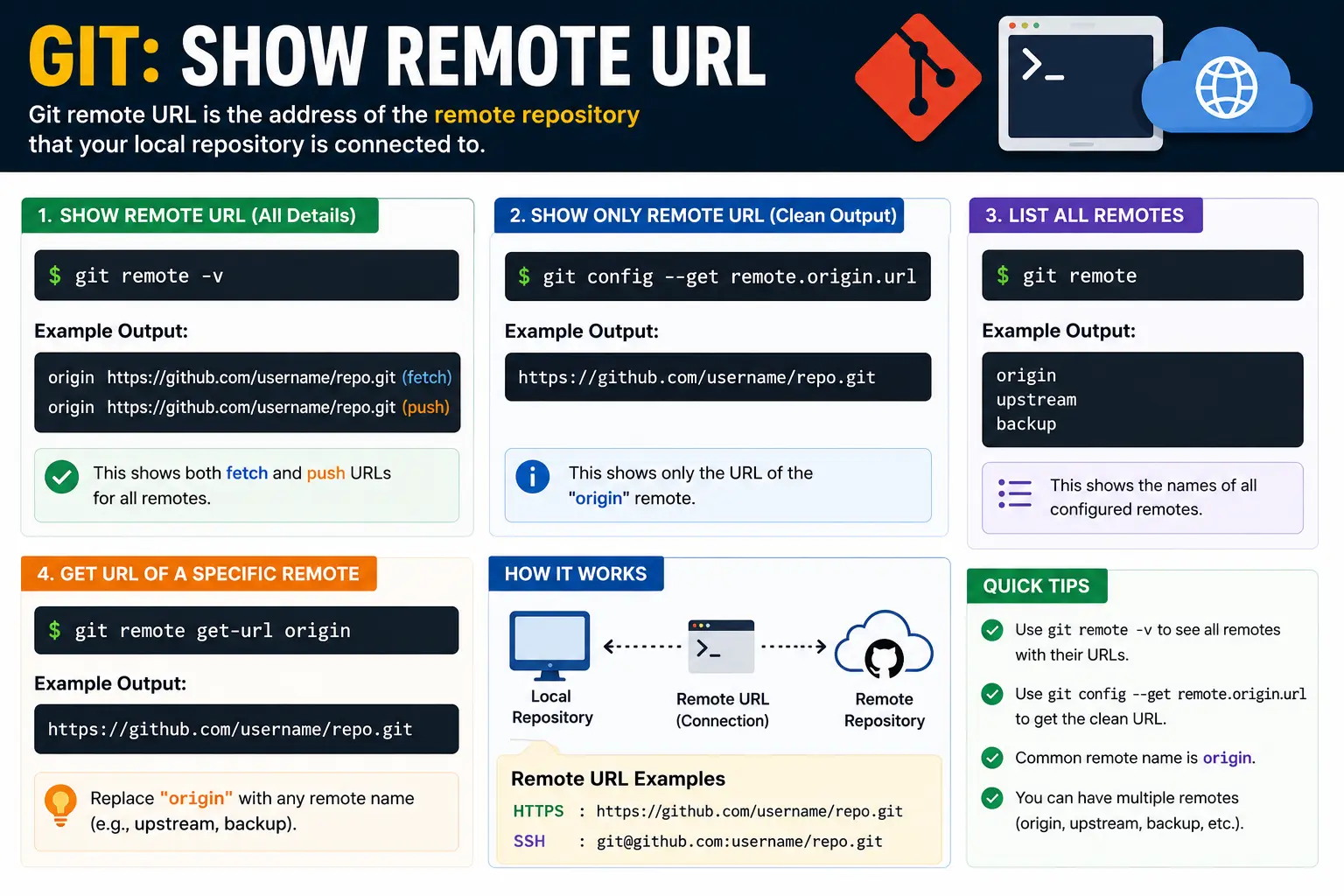
If you’ve ever opened a terminal, stared at a cloned repository, and thought “wait, where did this actually come from?” — you’re not alone. Whether you’re checking which server your code pushes to, verifying you’re connected to the right GitHub account, or troubleshooting a broken push, the first step is always the same: you need to git show remote url.
The good news is that Git makes this easy once you know which command to use. This guide walks through every method — from the quickest one-liner to the more detailed config-file approach — so you can find, verify, and understand your repository’s remote URL with confidence, even if you’re new to Git.
Table of Contents
What Is a Git Remote URL?
Before diving into commands, let’s clear up the basics.
A remote in Git is simply a reference to another copy of your repository, usually hosted on a server like GitHub, GitLab, or Bitbucket. The remote URL is the web address (or SSH path) Git uses to connect to that server when you push, pull, or fetch code.
If you’re unfamiliar with what a URL is in general, it helps to think of it the same way you’d think of any web address — similar to the concept explained in what is a URL. A git remote URL follows the same underlying structure as any other URL, just applied to source-code hosting instead of a website. If you want a deeper breakdown of how URLs are structured piece by piece, this guide on parts of a URL explained is a useful companion read.
A typical remote is named origin by default — it’s just a nickname Git assigns to the first remote you clone from. You can rename it, add more remotes, or point it somewhere else entirely.
Quick Answer: The Fastest Way to Show a Git Remote URL
If you just want the command and nothing else, here it is:
git remote -v
Run this inside any Git repository, and you’ll see output like:
origin https://github.com/username/repository.git (fetch)
origin https://github.com/username/repository.git (push)
That’s it. The -v flag stands for “verbose,” and it shows both the fetch URL (where Git pulls code from) and the push URL (where Git sends your commits).
Now let’s go deeper, because there are several other ways to do this — each useful in different situations.
5 Ways to Show or Get the Git Remote URL
1. git remote -v (Most Common Method)
This is the command most developers reach for first because it’s fast and shows everything at once.
git remote -v
When to use it: Daily use — checking which repo you’re connected to before pushing important changes.
2. git remote show origin (Detailed View)
If you want more than just the URL — like which branches are tracked, or whether your local branch is ahead or behind — use:
git remote show origin
Sample output:
* remote origin
Fetch URL: https://github.com/username/repository.git
Push URL: https://github.com/username/repository.git
HEAD branch: main
Remote branches:
main tracked
Local branch configured for ‘git pull’:
main merges with remote main
Local ref configured for ‘git push’:
main pushes to main (up to date)
When to use it: Debugging sync issues, or when you need to confirm which branches are tracked alongside the origin URL.
3. git config –get remote.origin.url
This method pulls the URL directly from Git’s configuration, which is useful in scripts or automation where you only want the raw URL — no extra text.
git config –get remote.origin.url
Output:
When to use it: Shell scripts, CI/CD pipelines, or anywhere you need a clean, single-line value.
4. Viewing the .git/config File Directly
Every Git repository stores its remote information in a plain text file at .git/config. You can view it directly:
cat .git/config
You’ll see a section like this:
[remote “origin”]
url = https://github.com/username/repository.git
fetch = +refs/heads/*:refs/remotes/origin/*
When to use it: When you want to see (or manually edit) the raw configuration, or when troubleshooting a repo where the usual commands aren’t behaving as expected.
5. Using git ls-remote (Confirms the URL Is Reachable)
This one is slightly different — it doesn’t just show the stored URL, it actually contacts the remote server to confirm the connection works.
git ls-remote –get-url origin
When to use it: When you’re not just trying to see the URL, but also want to confirm the remote server is reachable and the URL is valid.
Comparison Table: Which Command Should You Use?
| Command | Shows URL | Extra Detail | Best For |
| git remote -v | ✅ | Fetch + push URLs | Quick daily checks |
| git remote show origin | ✅ | Branch tracking info | Debugging sync issues |
| git config –get remote.origin.url | ✅ | Clean, single value | Scripts & automation |
| cat .git/config | ✅ | Full raw config | Manual inspection/editing |
| git ls-remote –get-url origin | ✅ | Confirms connectivity | Verifying server reachability |
How to Check the Remote URL for a Specific Remote (Not Just Origin)
Not every repository only has one remote called origin. Some projects — especially forks — have multiple remotes, such as origin (your fork) and upstream (the original project).
To list all remotes:
git remote
This returns just the names, like:
origin
upstream
To see the URL for a specific one:
git remote get-url upstream
This is the cleanest, most modern way to fetch a single remote’s URL, and it works well when you’re not sure whether you want origin or another remote name.
SSH vs. HTTPS: Understanding What the Remote URL Tells You
When you run any of the commands above, the URL you see will typically use one of two formats:
HTTPS format:
SSH format:
git@github.com:username/repository.git
Both point to the same repository, but they authenticate differently:
- HTTPS asks for a username and password (or a personal access token) when pushing.
- SSH uses a cryptographic key pair stored on your machine, so you’re not prompted for credentials every time.
Knowing which format your remote uses matters because it explains why Git might be asking you to log in repeatedly (HTTPS) or why a push suddenly fails after you set up a new machine without SSH keys configured.
This is also relevant if you ever need to switch formats — for instance, moving from HTTPS to SSH to avoid repeated logins. If that’s your goal, our companion guide on how to change a Git remote URL walks through it step by step.
Real-World Use Cases
1. Verifying you’re pushing to the right repository Before pushing sensitive code, run git remote -v to confirm you’re not accidentally pushing to a personal fork instead of the company’s main repository.
2. Setting up a new machine When you clone a project onto a new laptop, checking the remote URL confirms the clone worked correctly and is pointed at the right source.
3. Migrating repository hosts If your team moves from GitHub to GitLab (or vice versa), you’ll want to confirm the old URL first, then update it — this is exactly the scenario the git change remote URL guide covers.
4. CI/CD pipeline debugging Automated build scripts often need to programmatically fetch the remote URL using git config –get remote.origin.url to log or validate the source repository during a build.
5. Working with forks Open-source contributors frequently check both origin (their fork) and upstream (the original project) to make sure pull requests are submitted to the correct place.
Common Mistakes When Checking the Git Remote URL
- Assuming there’s only one remote. Forked repositories often have two or more — always run git remote first to see all names before assuming origin is the only one.
- Confusing fetch and push URLs. They’re usually identical, but they can be set differently. Always check both if you’re troubleshooting a push failure.
- Running the command outside a Git repository. If you see an error like fatal: not a git repository, you’re not inside a folder Git recognizes. Navigate into the correct directory first.
- Forgetting the .git extension changes nothing functionally. Some URLs end in .git, others don’t — both work, it’s just a convention.
- Mixing up SSH and HTTPS URLs when copying commands. Copying an SSH-format URL into a context that expects HTTPS (or vice versa) will cause connection errors.
Best Practices
- Run git remote -v as a quick sanity check before any major push, especially on shared or production repositories.
- Use git remote show origin when you need to understand branch tracking, not just the URL.
- In scripts, prefer git config –get remote.origin.url for clean, parseable output.
- If you manage multiple remotes, name them clearly (origin, upstream, staging) so git remote -v is easy to read at a glance.
- Keep your .git/config file untouched unless you know exactly what you’re editing — a typo there can break your remote connection entirely.
Troubleshooting: “fatal: No such remote” or Empty Output
If git remote -v returns nothing, it usually means one of two things:
- No remote has been added yet. This happens with a freshly initialized repository (git init) that hasn’t been linked to a server. You’ll need to add one with git remote add origin <url>.
- You’re in the wrong directory. Double-check with pwd (or cd into the correct folder) and confirm a .git folder actually exists there.
Frequently Asked Questions
How do I see the remote URL in Git? Run git remote -v in your terminal from inside the repository folder. It displays both the fetch and push URLs for every configured remote.
How do I get just the origin URL without extra text? Use git config –get remote.origin.url or git remote get-url origin — both return a clean, single-line URL.
Why does my git remote -v show nothing? Either no remote has been added yet, or you’re running the command outside a valid Git repository.
What’s the difference between git remote -v and git remote show origin? git remote -v gives a quick list of URLs. git remote show origin gives a more detailed report, including tracked branches and sync status.
Can a repository have more than one remote URL? Yes. It’s common for forked projects to have both origin (your fork) and upstream (the source project), each with its own URL.
Does checking the remote URL require an internet connection? No — commands like git remote -v and git config –get remote.origin.url just read local configuration files. Only git ls-remote actually contacts the server.
How do I change the remote URL once I’ve found it? Use git remote set-url origin <new-url>. For a full walkthrough, see our guide on how to change a Git remote URL.
Final Thoughts
Finding your repository’s remote URL is one of those small skills that becomes second nature the moment you need it — usually right before a critical push or when setting up a project on a new machine. Whether you use the quick git remote -v, the detailed git remote show origin, or a script-friendly git config –get remote.origin.url, you now have every method needed to git show remote url confidently, in any situation.
Understanding URLs — whether it’s a Git remote, a webpage address, or a social profile link — is a foundational web literacy skill. If you’re building that broader understanding, related reads like URI vs URL, what is a query string, and URL SEO basics are good next steps.


