
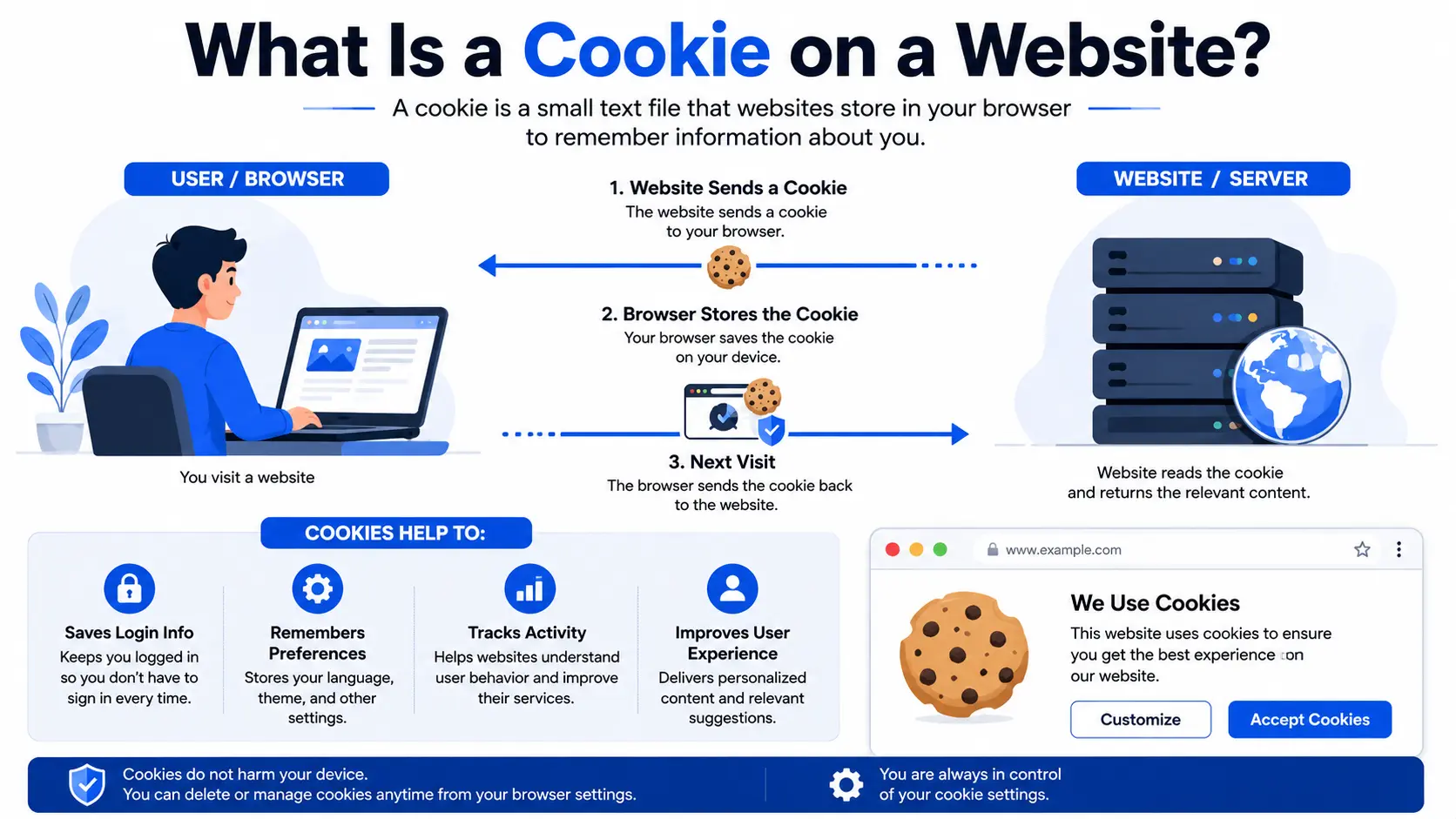
Every time you visit a site and it remembers your login, your cart items, or your language preference, a small file is doing that work behind the scenes. So what is a cookie on a website, exactly? A cookie is a small piece of text data that a website stores in your browser to remember information about you between visits or between pages.
Cookies aren’t programs, they can’t run code, and they can’t infect your device with a virus. They’re closer to a name tag your browser hands back to a website each time you return, so the site can recognize you instead of treating you like a stranger every single time.
This guide explains what website cookies actually do, the different types you’ll encounter, how they affect your privacy, and exactly how to delete them — including step-by-step instructions for Chrome.
Table of Contents
What Are Website Cookies, in Plain English?
Think of a cookie like a coat check ticket. When you check your coat at a theater, you get a small ticket with a number on it. You don’t need to explain who you are or which coat is yours every time — you just hand over the ticket, and the staff match it instantly.
A website cookie works the same way. When you visit a site, the server sends a small text file to your browser, usually containing:
- A unique identifier (not your name, just a reference number).
- Information the site wants to remember, like your cart contents or login state.
- An expiration date, after which the cookie deletes itself automatically.
Your browser stores this file and sends it back to the same website on future visits, so the site can “recognize” you without asking you to log in or rebuild your cart from scratch every time.
How Do Cookies Work Technically?
Here’s the basic exchange, step by step:
- You visit a website for the first time.
- The website’s server sends a Set-Cookie instruction along with the page.
- Your browser stores that cookie, tied to the website’s domain.
- On every future request to that same domain, your browser automatically sends the cookie back.
- The server reads the cookie and adjusts what it shows you — keeping you logged in, remembering your cart, or applying your saved settings.
Browser — requests page —> Website Server
Browser <— Set-Cookie: id=xyz123 — Website Server
Browser — next request + Cookie: id=xyz123 —> Website Server
This cycle happens automatically and invisibly, which is exactly why most people never think about cookies until something goes wrong — a site logs them out unexpectedly, or they start seeing oddly specific ads.
Types of Website Cookies
Not all cookies behave the same way, and understanding the differences is the key to understanding privacy debates around them.
| Cookie Type | Set By | Common Purpose | Privacy Concern |
| Session cookies | The site you’re visiting | Keep you logged in during one browsing session | Low — deleted when you close the browser |
| Persistent cookies | The site you’re visiting | Remember login or preferences across visits | Low to moderate, depending on data stored |
| First-party cookies | The domain shown in your address bar | Site functionality, preferences, analytics | Generally low |
| Third-party cookies | A different domain than the one you’re visiting (e.g., an ad network) | Track behavior across multiple websites | Higher — used for cross-site ad targeting |
| Secure/HttpOnly cookies | The site, with extra restrictions | Protect sensitive data like session tokens | Lower risk — harder for scripts to access |
Session Cookies vs. Persistent Cookies
A session cookie exists only while your browser tab or window is open. Close the browser, and it disappears. This is why some sites log you out the moment you close your browser entirely.
A persistent cookie has an expiration date built in, sometimes days, sometimes years out. This is what lets a site remember you weeks after your last visit without asking you to log in again.
First-Party vs. Third-Party Cookies
A first-party cookie comes from the actual website’s domain — the one shown in your browser’s address bar. These generally handle things like login sessions, shopping carts, and saved preferences.
A third-party cookie comes from a different domain than the one you’re actively visiting, often an advertising or analytics company whose code is embedded on the page. These are the cookies responsible for that unsettling experience of seeing an ad for something you looked at on a completely different website days earlier. Major browsers have been steadily restricting third-party cookies over the past few years due to privacy concerns.
What Do Cookies Actually Do? Real-World Examples
- Staying logged in. Without a cookie, you’d have to re-enter your username and password on every single page.
- Remembering your shopping cart. E-commerce sites use cookies so your cart items survive a page reload or a return visit.
- Saving preferences. Language settings, dark mode, currency, and layout choices are often stored in cookies.
- Analytics. Cookies help site owners understand how many visitors return, how they navigate, and which pages perform well.
- Advertising. Third-party cookies help ad networks build a profile of your browsing interests across multiple sites to serve more relevant ads.
Are Cookies Dangerous? What Are the Privacy Concerns?
Cookies themselves are not malware, and they cannot access files on your computer, install software, or steal your identity outright. However, they raise legitimate privacy concerns:
- Cross-site tracking. Third-party cookies allow companies to build a picture of your browsing habits across many unrelated websites.
- Data collection at scale. Combined with other identifiers, cookies contribute to detailed behavioral profiles used for advertising.
- Session hijacking risk. If a cookie storing your login session is stolen (through an insecure connection or malicious script), an attacker could potentially impersonate your logged-in session. This is why secure sites use HTTPS and mark sensitive cookies as “Secure” and “HttpOnly.”
This is also why nearly every website today shows a cookie consent banner — a direct result of privacy regulations like the EU’s GDPR and various U.S. state privacy laws, which require sites to disclose what cookies they use and, in many cases, get explicit consent before setting non-essential ones.
What Is a Website Cookie Policy?
A cookie policy is a page (often linked in a website’s footer or consent banner) that explains what cookies the site uses, why, how long they last, and how visitors can manage or reject them. A compliant cookie policy typically covers:
- The categories of cookies used (essential, functional, analytics, advertising).
- Which third parties, if any, set cookies through the site.
- How users can opt out or manage their preferences.
- How long each type of cookie persists.
If you run a website, publishing a clear cookie policy isn’t just good practice — in many jurisdictions, it’s a legal requirement.
How to Delete Cookies for a Specific Website in Chrome
Sometimes you don’t want to wipe every cookie in your browser — maybe one site is misbehaving, showing a login loop, or displaying outdated content. Chrome lets you clear cookies for just that one site.
Method 1: Using the Site Info Icon (Fastest)
- Visit the website whose cookies you want to remove.
- Click the icon to the left of the URL in the address bar (it looks like a padlock or a set of sliders).
- Select “Cookies and site data.”
- Click “Manage on-device site data.”
- Find the cookies listed for that site and click the trash icon next to each, or remove them all.
- Reload the page when prompted.
Method 2: Through Chrome Settings
- Type chrome://settings/cookies into the address bar and press Enter.
- Select “See all site data and permissions.”
- Use the search bar to find the specific website by name.
- Click “Delete” next to that site, then confirm.
Deleting Cookies on Mobile Chrome
The same site-data approach works on Android and iPhone: visit the site, tap the site info icon near the address bar, then tap into cookies and site data to clear it for that domain specifically.
Clearing cookies for a single site will typically log you out of that site and reset any saved preferences there, while leaving every other website’s cookies untouched.
Common Mistakes People Make With Cookies
- Clearing all cookies to fix one site’s problem. This logs you out of everything unnecessarily — clearing cookies for just the problem site is almost always sufficient.
- Assuming “Accept All” on a consent banner is required. Most cookie banners let you reject non-essential cookies while still using the site normally.
- Confusing cookies with cache. Cache stores website files (images, scripts) for faster loading; cookies store small pieces of identifying or preference data. Clearing one doesn’t clear the other.
- Thinking cookies are inherently malicious. Cookies are a data storage mechanism, not software. The privacy risk comes from how that data is used and shared, particularly by third parties.
- Never reviewing which sites have stored cookies. Periodically checking your browser’s site data list can reveal cookies from sites you no longer visit or trust.
Cookies and URLs: How They’re Connected
Cookies are tied directly to the domain that set them, which is why understanding how a URL is structured matters here too. A cookie set by example.com won’t be sent to another-site.com, and depending on its scope, it may or may not be shared across a subdomain like shop.example.com.
This is one reason the difference between a root domain and a subdomain matters beyond SEO — it also affects how cookies, sessions, and login states are shared (or isolated) across different parts of the same website. Site owners configuring SSL for a subdomain or setting up subdomain redirects often need to account for this when deciding how cookies should behave across their main site and its subdomains.
Frequently Asked Questions
What is a cookie on a website in simple terms? It’s a small text file a website stores in your browser to remember information about you, like whether you’re logged in or what’s in your shopping cart, so the site doesn’t treat you as a new visitor every time.
What does “cookies” mean on a website when I see a consent pop-up? The pop-up is asking permission to store tracking or preference data in your browser. You can usually choose to accept all, reject non-essential ones, or customize which categories you allow.
Are cookies the same as my browsing history? No. Browsing history is a record kept by your browser of the pages you’ve visited. Cookies are small files stored by individual websites and are unrelated to your browser’s history log.
Will deleting cookies log me out of everything? Clearing all cookies will log you out of every site that used a cookie to keep you signed in. Clearing cookies for just one specific website will only log you out of that site.
How do I delete cookies for a specific website in Chrome? Click the site info icon next to the address bar, select “Cookies and site data,” then “Manage on-device site data,” and delete the cookies listed for that site — or use chrome://settings/cookies to search for and delete a specific site’s data directly.
Do cookies expire on their own? Session cookies expire when you close your browser. Persistent cookies have a set expiration date built in by the website, which can range from a few days to several years.
Final Thoughts
A website cookie is simply a small file your browser stores to help a site remember who you are between visits. Most cookies exist to make your experience smoother — keeping you logged in, remembering your cart, or saving your preferences. The privacy concerns mainly come from third-party cookies used for cross-site advertising tracking, which is why modern browsers and privacy laws now give you much more visibility and control over what gets stored and shared.
Knowing how to check, manage, and selectively delete cookies puts that control directly in your hands, without needing to wipe your entire browsing setup every time one site acts up.


