
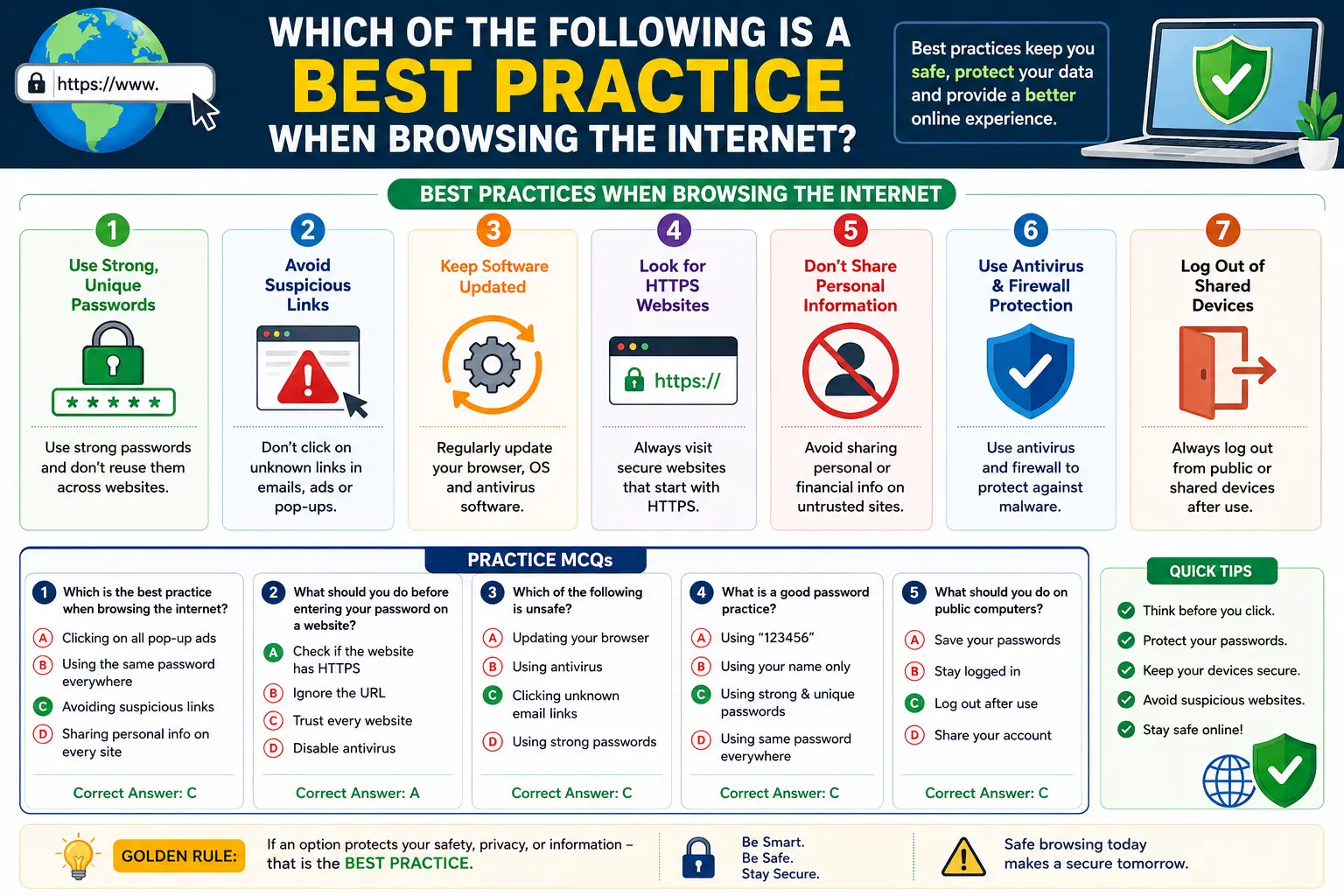
If you’ve come across this question in a cybersecurity awareness training, a quiz, or a workplace security module, you already know the format: a list of options, and only one (or a few) actually describe safe behavior. The short answer to which of the following is a best practice when browsing the internet is this: verifying a website’s legitimacy before entering personal information, checking URLs carefully before clicking, and avoiding unknown links or attachments are the behaviors that count as genuine best practices — not convenience shortcuts like saving passwords in a browser or clicking links without checking where they lead.
This article breaks down exactly what counts as a best practice, why the wrong answers on these quizzes are wrong, and how to actually apply this knowledge day to day — including a common follow-up question: how should you approach a compressed URL, which trips up almost as many people as the original question.
Table of Contents
What “Best Practice” Actually Means in This Context
A best practice isn’t just “a good idea.” In cybersecurity training, it specifically means a habit that reduces your risk of falling for phishing, malware, data theft, or account compromise — habits that security professionals and organizations like CISA (the Cybersecurity and Infrastructure Security Agency) recommend as standard behavior.
That distinction matters because a lot of quiz options are designed to sound reasonable while actually describing risky behavior. “Clicking a link because it looks official” sounds harmless. It isn’t. That’s exactly the framing that makes these questions useful — they test whether you can spot the difference between convenient and safe.
The Core Best Practices When Browsing the Internet
Here’s the direct list, the kind of answer that satisfies both a quiz and real-world use.
- Verify the website’s legitimacy before entering any personal or financial information. Check the domain name carefully — attackers often use lookalike domains (like “arnazon.com” instead of “amazon.com”) that are easy to miss at a glance.
- Check the URL structure before clicking, especially in emails, texts, or social media posts. Understanding what a URL actually is and how its different segments work makes it much easier to spot something that doesn’t belong.
- Look for HTTPS and a valid security certificate before submitting sensitive data. The padlock icon in your browser’s address bar indicates an encrypted connection, though it doesn’t guarantee the site itself is trustworthy — encryption and legitimacy are two separate things.
- Avoid clicking links or downloading attachments from unknown senders, even if the message creates urgency (“your account will be suspended,” “verify now”). Urgency is one of the most common manipulation tactics in phishing.
- Type the website address directly or use a bookmark rather than clicking a link from an email when accessing sensitive accounts like banking or email. This is actually the safer version of a habit many people already have — some prefer to search Google or type a URL directly, and for anything involving login credentials, typing it yourself is the more reliable choice.
- Keep your browser and operating system updated. Security patches close vulnerabilities that attackers actively look for, and outdated software is one of the most common entry points for malware.
- Use strong, unique passwords and enable multi-factor authentication wherever it’s offered, so a single leaked password doesn’t compromise every account you own.
- Be cautious with compressed or shortened URLs, since they hide the actual destination. This deserves its own full explanation below, because it’s one of the most commonly misunderstood parts of safe browsing.
Best Practices vs. Common Bad Habits: A Quick Comparison
| Behavior | Best Practice or Risk? | Why |
| Checking the domain name before logging in | Best practice | Confirms you’re on the real site, not a lookalike |
| Clicking a link in an unexpected email because it “looks official” | Risky habit | Visual design is easy to fake; the URL is what matters |
| Typing sensitive account URLs directly instead of clicking email links | Best practice | Removes the risk of a spoofed link entirely |
| Saving passwords in an unsecured, shared browser profile | Risky habit | Anyone with device access can retrieve them |
| Hovering over a link to preview the destination before clicking | Best practice | Reveals the real URL without visiting the page |
| Ignoring browser security warnings to “just get to the page” | Risky habit | These warnings usually flag expired certificates or known threats |
| Using multi-factor authentication | Best practice | Blocks account access even if a password is stolen |
| Downloading attachments from unfamiliar senders out of curiosity | Risky habit | A leading cause of malware infection |
How Should You Approach a Compressed URL?
This is the question that usually follows the first one in training modules, and it deserves a clear, standalone answer: you should not click a compressed or shortened URL unless you can verify where it leads, since the shortened link hides the actual destination address.
A compressed URL — sometimes called a shortened link — takes a long web address and compresses it into a short one, often through services like bit.ly or tinyurl.com. These services aren’t inherently malicious; marketers and social media platforms use them constantly to keep links tidy. The problem is that a compressed URL gives you no visible information about where it’s actually taking you, which is exactly what attackers exploit.
Safe Ways to Handle a Compressed URL
- Use a link preview tool (many URL shorteners offer an official “preview” version, like adding a “+” to a bit.ly link) to see the destination before clicking.
- Hover over the link on desktop to see if your browser or email client shows a preview of the destination in the status bar.
- Ask the sender directly if the link came from a known contact but looks out of character for them.
- Avoid compressed links in unsolicited messages entirely, particularly ones creating urgency or offering something that sounds too good to be true.
- Paste the link into a URL expander site if you’re unsure and need to check it before clicking, rather than clicking blind.
Understanding how a compressed URL differs from a standard one is easier once you understand the parts of a URL and how a full web address is normally structured — a shortened link strips away almost all of that visible structure, which is precisely why it can’t be judged just by looking at it.
Why These Questions Show Up in Training Modules
Cybersecurity awareness training — including programs like the DoD Cyber Awareness Challenge — uses this exact question format because phishing and malicious links remain among the most common ways attackers gain access to systems. It’s not testing obscure trivia. It’s testing whether a habit has actually formed, because knowing the right answer on a quiz and applying it under time pressure in a real inbox are two different skills.
If you’ve seen this question phrased slightly differently across quiz sites, that’s normal — the underlying concept stays the same regardless of exact wording.
Real-World Example: Spotting the Difference
Imagine two emails land in your inbox, both claiming to be from your bank:
Email A asks you to click a link to “verify your account immediately,” the link text says “yourbank.com,” but hovering over it reveals a destination like “yourbank-secure-login.net.” The wording creates urgency, and the domain doesn’t match.
Email B simply notifies you that a statement is ready and tells you to log in through the bank’s app or by typing the URL directly, without embedding a clickable login link at all.
Email B reflects how legitimate financial institutions typically communicate, precisely because they know embedded login links are a common phishing vector. Recognizing that difference — checking the actual destination rather than the display text — is the single most useful skill covered by this entire topic.
Common Mistakes People Make While Browsing
- Trusting a link because the email looks professionally designed. Visual polish is trivial to fake and says nothing about legitimacy.
- Assuming HTTPS means a site is safe. It only means the connection is encrypted — a phishing site can have a valid certificate too.
- Clicking compressed URLs without checking them first, especially in text messages, where there’s less context to judge legitimacy.
- Reusing the same password across multiple sites, so one breach compromises several accounts at once.
- Ignoring browser warnings about expired certificates or flagged sites just to get past them faster.
- Entering personal information on a site reached through a search ad without confirming it’s the official domain — attackers sometimes buy ads for lookalike domains.
Best Practices Checklist
Use this as a quick reference before entering information anywhere online:
- [ ] Confirm the domain name matches the legitimate organization exactly
- [ ] Check for HTTPS, but don’t treat it as proof of legitimacy on its own
- [ ] Hover over or preview any link before clicking, especially compressed URLs
- [ ] Type sensitive account URLs directly instead of clicking email links
- [ ] Keep browser and OS updated with the latest security patches
- [ ] Use unique passwords and enable multi-factor authentication
- [ ] Avoid downloading attachments from unfamiliar senders
- [ ] Pause before acting on any message that creates urgency or pressure
Final Word
Which of the following is a best practice when browsing the internet comes down to a consistent theme across every version of this question: verify before you trust. Check the domain, check the URL, check where a compressed link actually leads before clicking it, and never let urgency in a message rush you past that check. These aren’t complicated habits — they just need to become automatic, the same way locking a door becomes automatic without a second thought.
FAQs
1. Which of the following is a best practice when browsing the internet? Verifying a website’s legitimacy before entering personal information, checking URLs carefully, using HTTPS connections, and avoiding unknown links or attachments are the core best practices recognized across cybersecurity training programs.
2. How should you approach a compressed URL? You should avoid clicking a compressed URL unless you can verify its actual destination first, since shortened links hide the real web address and are commonly used to disguise phishing links.
3. Is it safe to click links in emails from known contacts? Generally safer than unknown senders, but not automatically safe — attackers can spoof known contacts or compromise their accounts, so unexpected or unusual links still deserve a quick check.
4. Does HTTPS mean a website is completely safe? No. HTTPS only confirms the connection is encrypted, not that the website itself is legitimate. Phishing sites can and do use valid HTTPS certificates.
5. What’s the difference between a compressed URL and a regular URL? A compressed URL shortens a long web address into a brief link using a service like bit.ly, hiding the actual destination, while a regular URL shows the full address and domain directly.
6. Why do cybersecurity training programs ask this exact question? Because phishing and malicious links remain among the most common attack methods used to compromise accounts and systems, making browsing habits a critical, testable skill.
7. What should I do if I accidentally click a suspicious link? Close the page immediately, avoid entering any information, run a security scan on your device, and change passwords for any accounts you’re concerned may be affected.
8. Are link preview tools reliable for checking compressed URLs? Yes, most official URL shortening services offer a preview option that shows the destination without visiting the page, which is one of the safest ways to check a compressed link.
9. Is saving passwords in a browser a best practice? It’s a convenience feature, not a best practice, especially on shared or unsecured devices. A dedicated password manager with strong encryption is generally considered safer.
10. Should I type a URL directly instead of clicking a link for sensitive accounts? Yes, this is considered one of the safest habits for banking, email, and other sensitive accounts, since it completely removes the risk of a spoofed or malicious link.
11. What is multi-factor authentication, and why does it matter for safe browsing? Multi-factor authentication requires a second verification step beyond your password, such as a code sent to your phone, which blocks unauthorized access even if your password is stolen.
12. Can a website look legitimate but still be a phishing site? Yes. Attackers frequently copy the design, logos, and layout of real websites almost exactly, which is why checking the actual domain name matters more than how the page looks.
13. What are common signs of a phishing link? Mismatched or misspelled domain names, urgent or threatening language, unexpected attachments, and links that don’t match the display text are the most common red flags.
14. Does this question appear in official cybersecurity training like the DoD Cyber Awareness Challenge? Yes, versions of this question appear across various cybersecurity and internet safety training programs, since safe browsing habits are considered foundational security knowledge.
15. What’s the single most important habit for safe browsing? Verifying where a link actually leads before clicking it, rather than trusting how the message or display text looks, prevents the majority of common phishing and malware attempts.


