
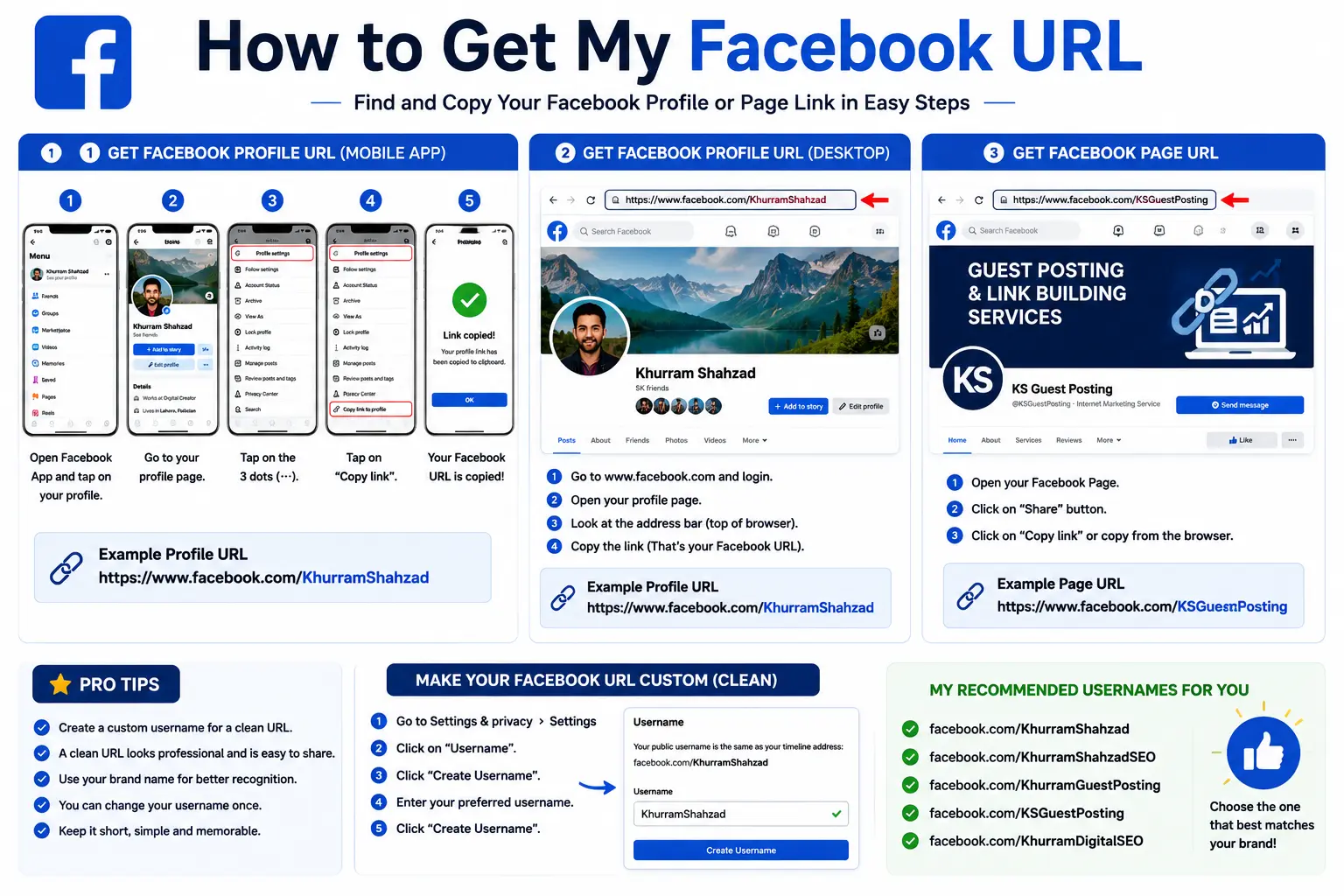
If you’ve ever needed to share your Facebook profile or business page and realized you don’t actually know your link, you’re not alone. A lot of people ask how to get my Facebook URL simply because Facebook doesn’t display it as clearly as other platforms do.
The good news: it takes less than a minute to find, whether you’re looking for your personal profile link or your business page link, and whether you’re on desktop or mobile.
This guide covers every method, explains what a proper Facebook URL should look like, and shows you how to set a custom one if you don’t already have it.
Table of Contents
What Is a Facebook URL?
A Facebook URL is simply a URL — a unique web address — that points directly to a specific Facebook profile, business page, group, or piece of content. It works exactly like any other web link: click it, and it takes you straight to that destination.
Facebook URL example (with a custom username):
Facebook URL example (without a custom username):
Every Facebook account is assigned a long numeric ID automatically when it’s created. If you never set a custom username, that number stays visible in your link. Once you claim a username, it replaces the number, giving you a much cleaner, more shareable URL.
How to Get My Facebook URL on Desktop
This is the fastest and most reliable way to find your link.
Steps:
- Log in to Facebook at facebook.com.
- Click your profile picture in the top-right corner.
- Select your name to open your profile page.
- Look at your browser’s address bar — your full profile URL is displayed there.
- Click into the address bar, select the URL, and copy it.
Whatever appears in that address bar — whether it’s a custom username or a numeric ID — is your official Facebook profile URL.
How to Get My Facebook URL on Mobile (iPhone & Android)
The mobile app doesn’t show a visible address bar, so the process works a little differently.
Steps:
- Open the Facebook app and tap your profile picture.
- This opens your profile page.
- Tap the three-dot menu (⋯) near your name or cover photo.
- Select Copy Link (sometimes listed as Share Profile).
Your profile link is now copied to your clipboard, ready to paste into a message, email, or another app.
Alternative method (mobile browser):
- Open Safari or Chrome on your phone.
- Go to facebook.com and log in.
- Open your profile the same way you would on desktop.
- Tap and hold the address bar, then choose Copy.
Where Can I Find My Facebook URL Without a Custom Username?
If you haven’t personalized your link yet, your URL will look something like this:
facebook.com/profile.php?id=100012345678901
This still works perfectly fine as a shareable link — it’s just longer and harder to remember than a name-based version. If you’d rather have a cleaner link, the next section shows exactly how to set one.
How to Set a Custom Facebook Username (For a Cleaner URL)
Steps:
- Log in to Facebook and go to Settings.
- Look for the Username section under your account or profile settings.
- If you don’t already have one, select the option to add a username.
- Type your desired username and check that it’s available.
- Save your changes.
Once approved, your Facebook URL will update to facebook.com/yourusername — a short, professional, and easy-to-remember link.
A few rules to keep in mind:
- Usernames can include letters, numbers, periods, and hyphens.
- Usernames must be unique across all of Facebook.
- Once claimed, changing an existing username later isn’t as flexible as changing it for the first time, so choose carefully.
This concept — turning a long, generic link into something short and brand-relevant — is the same principle behind a vanity URL, where the goal is simply making a link easier to read and share.
How to Find Your Facebook Business Page URL
Business page links follow the exact same underlying structure, but the steps to reach them are slightly different since pages are managed separately from personal profiles.
Steps:
- Log in to Facebook and click your profile picture in the top-right corner.
- Click See all profiles.
- Select the business page you want the link for.
- Once the page loads, look at your browser’s address bar to see the URL.
To set or change your Page’s username:
- From your Page, go to Settings and privacy → Settings.
- Click Page setup.
- Next to Name, click View.
- Under General Page settings, click Edit next to your Page username.
- Enter your desired username and click Save changes.
Once saved, your Page URL will follow the same clean format: facebook.com/yourbusinessname.
How to Find Someone Else’s Facebook URL
You can find the link to any public profile or page the same way you’d find your own, as long as you know their name.
Steps:
- Use the Facebook search bar to look up the person or business by name.
- Click their profile or page from the search results.
- Once it loads, copy the URL from your browser’s address bar (desktop) or use the three-dot menu to Copy Link (mobile).
If the exact name doesn’t return the right result, using quotation marks around the full name in the search bar can help narrow it down to an exact match.
Facebook URL Format Cheat Sheet
| What You’re Looking For | URL Format Example |
| Personal profile (with username) | facebook.com/yourusername |
| Personal profile (no username) | facebook.com/profile.php?id=123456789 |
| Business Page | facebook.com/yourbusinessname |
| Facebook Group | facebook.com/groups/groupname |
Common Mistakes to Avoid
- Assuming every profile has a name-based URL. Without a custom username set, your link will always show a numeric ID instead.
- Confusing a personal profile link with a Page link. These are managed in completely separate settings areas, even though they look similar.
- Sharing an outdated link after a username change. Updating your username changes your URL, so previously shared links using the old username may stop working correctly.
- Typing the username incorrectly. Since usernames can include periods and hyphens, even a small typo will lead to the wrong profile or an error page.
- Not checking privacy settings. Even with the correct link, a profile with restricted visibility may not display full information to people outside your friends list.
Frequently Asked Questions
How do I get my Facebook URL? Log in to Facebook, open your profile, and copy the link directly from your browser’s address bar on desktop, or use the three-dot menu and select Copy Link on mobile.
How do I find my URL on Facebook if I don’t have a username? Your URL will show a numeric ID instead, formatted like facebook.com/profile.php?id=123456789. This still works as a valid link, though you can set a custom username for a cleaner version.
What is a Facebook URL example? A typical example is facebook.com/yourusername for a personalized link, or facebook.com/profile.php?id=123456789 for an account without a custom username set.
How do I find my Facebook business page URL? Click your profile picture, select See all profiles, choose your business page, and copy the link from your browser’s address bar once the page loads.
Where can I find my Facebook URL on mobile? Open your profile in the app, tap the three-dot menu, and select Copy Link. This works the same way for both personal profiles and business pages.
Can I change my Facebook URL after I set a username? Yes, though Facebook may apply certain restrictions on how often or how easily you can change it once a username has already been claimed.
Final Thoughts
Once you know where to look, getting your Facebook URL takes seconds — whether you’re grabbing it from your browser’s address bar, using the mobile app’s Copy Link option, or setting a custom username for the first time. Keeping your profile and business page links clean, current, and easy to share makes a real difference whenever you’re promoting a business, connecting with friends, or listing your Facebook page across other platforms and marketing materials.


