If links in your emails keep opening in Microsoft Edge no matter what you do, you’re not imagining it — and you’re definitely not alone. Knowing how to change default browser in Outlook takes a couple of extra steps beyond simply changing your Windows default browser, because Outlook has its own separate setting that can override the rest of your system.
This guide covers every version you might be running — Classic Outlook for Windows, the newer “New Outlook,” and Outlook for Mac — along with the specific Microsoft 365 quirk that causes links to open in Edge even after you’ve done everything right elsewhere.
Table of Contents
Why Outlook Links Keep Opening in Edge
Before jumping into the fix, it helps to understand why this happens, since it explains why changing your Windows default browser alone often doesn’t work.
Outlook has its own internal setting for which browser handles hyperlinks, separate from the Windows-wide default browser setting. If Outlook’s own setting is pointed at Edge (or set to a specific browser instead of “Default Browser”), it will keep opening links in Edge regardless of what you’ve set at the operating system level.
On top of that, Microsoft has specifically configured Microsoft 365 subscriptions (Personal and Family plans in particular) so that links from Outlook and Teams open in Edge by design, tied to a feature that displays your email alongside the linked page in Edge’s sidebar. This was a deliberate change Microsoft made, not a bug — which is exactly why so many people search this exact question even after checking their Windows settings.
How to Change Default Browser in Outlook (Classic Outlook for Windows)
This is the version most desktop Outlook users are running, and it has a dedicated setting built directly into Outlook’s own options menu.
- Open Outlook.
- Click File in the top-left corner.
- Click Options.
- Select Advanced from the menu on the left.
- Scroll down to the section labeled File and browser preferences (sometimes labeled Browsing in older versions).
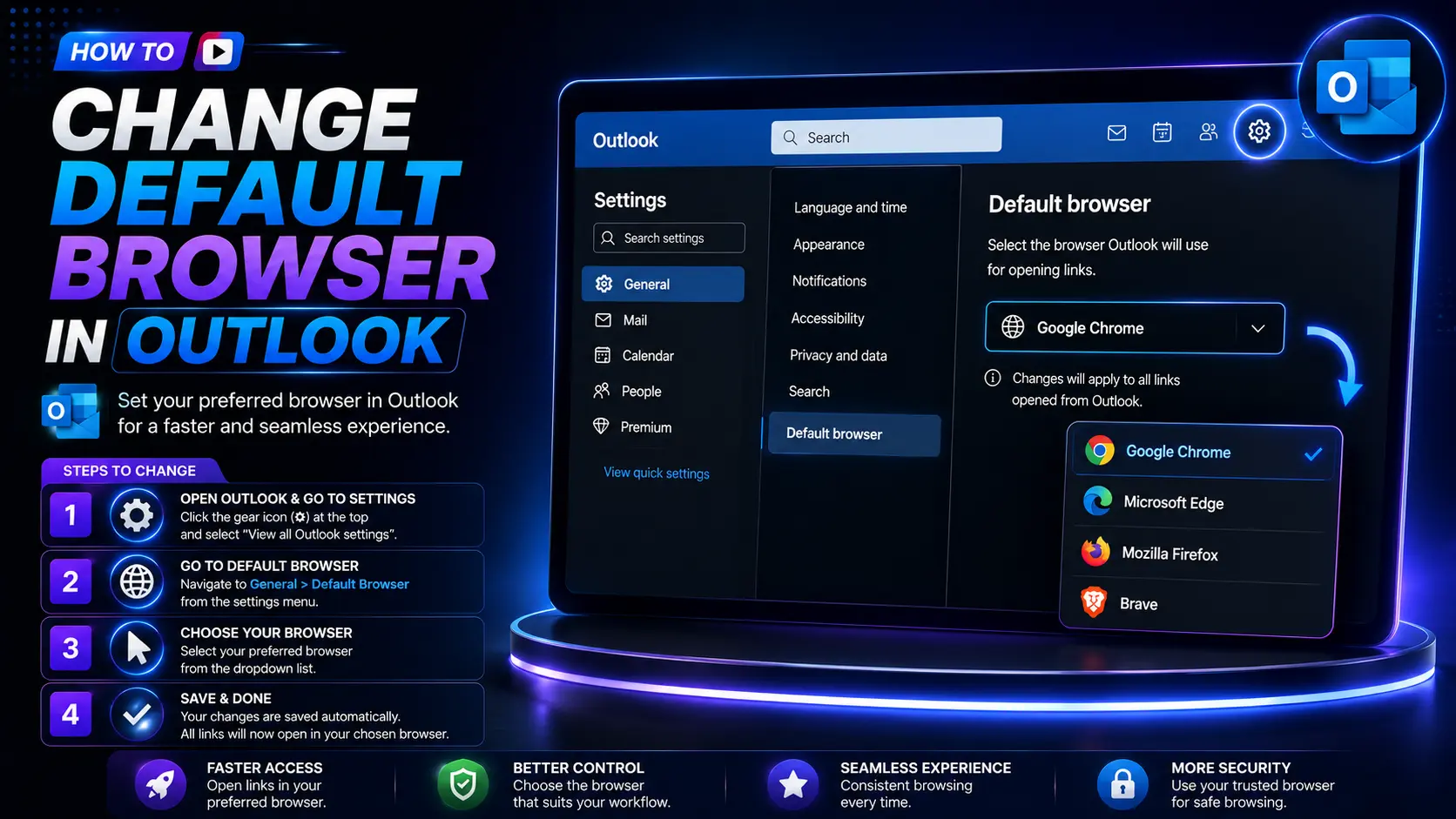
- Find the dropdown labeled Open hyperlinks from Outlook in:
- Select Default Browser to match your Windows-wide default, or choose a specific browser directly from the list.
- If you see a checkbox labeled Use Microsoft Edge to open HTML messages and attachments, uncheck it as well.
- Click OK, then fully close and reopen Outlook for the change to apply.
This single setting is the most common fix, and it’s the one most competing guides mention. But if links are still opening in Edge after this, keep reading — there’s a second layer to this problem.
How to Change Default Browser for Outlook Links in New Outlook (Windows)
The newer “New Outlook for Windows” app has a simplified interface, and it doesn’t include the same File > Options > Advanced browser dropdown that Classic Outlook has. Instead, it relies more heavily on your Windows system-wide default settings.
- Open Settings on Windows (press Windows key + I).
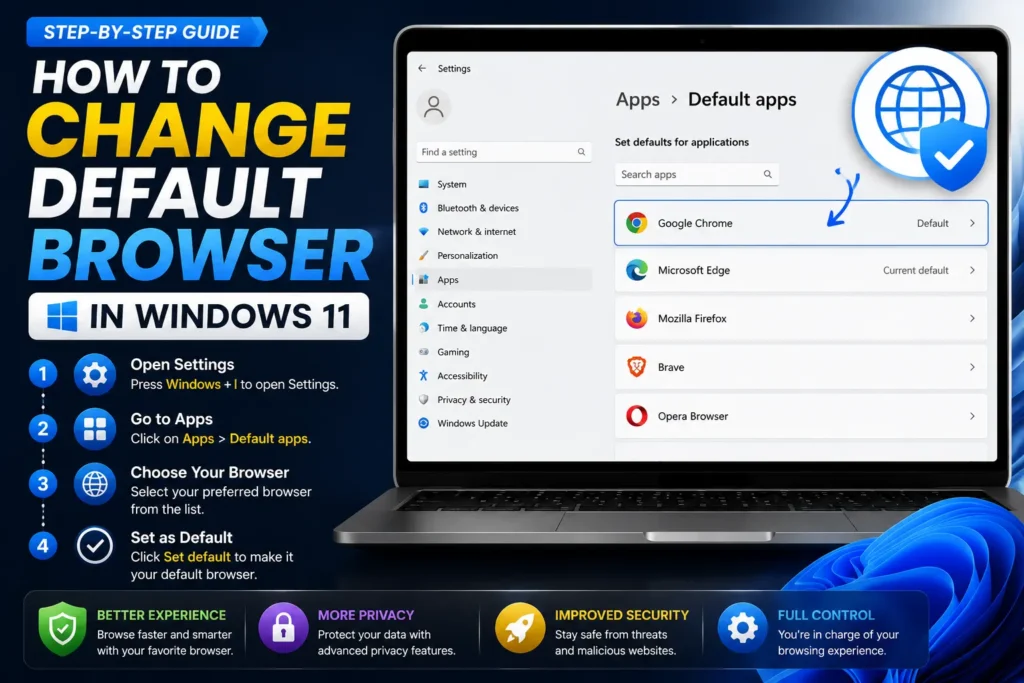
- Click Apps, then Default apps.
- Scroll down to the Web browser section.
- Click your currently selected browser, then choose your preferred browser from the list.
- If links are opening a webmail/Outlook-on-the-web version instead of your browser as expected, also check the Mail section in Default apps and confirm your intended mail handler is selected.
Because New Outlook is built more like a web app wrapped in a desktop shell, changing the Windows-level default browser has a more direct effect here than it does in Classic Outlook.
How to Set Default Browser in Outlook on Mac
- Open Outlook on your Mac.
- Click Outlook in the top menu bar, then Preferences.
- Under Personal Settings, look for General.
- Locate the option for opening links or web pages, and choose your preferred browser if it’s available directly there.
- If Outlook’s own preferences don’t offer a browser choice, set your default browser at the macOS level instead: open System Settings, go to Desktop & Dock (or General on older macOS versions), find Default web browser, and select your preferred browser there.
On Mac, the operating system-level default typically takes priority for Outlook links, so this step usually resolves it even if Outlook’s own settings menu doesn’t offer a dedicated browser dropdown.
Fixing the Microsoft 365 “Links Always Open in Edge” Issue
If you’ve completed the Outlook-level fix above and links are still forcing their way into Edge, this is very likely the Microsoft 365-specific behavior mentioned earlier. Since February 2023, Outlook and Teams links have opened in Edge by design for many Microsoft 365 subscriptions, tied to a sidebar feature that shows your email content alongside the webpage.
To turn that specific behavior off:
- Open Microsoft Edge.
- Click the three-dot menu in the top-right corner.
- Select Settings.
- Click Sidebar in the left menu.
- Under App and notification settings, find Outlook.
- Toggle off Automatically open Outlook email context in the side pane.
This won’t change your default browser setting directly, but it stops Edge from automatically taking over Outlook links via the sidebar feature — which, combined with the earlier steps, resolves the issue for most Microsoft 365 users.
Quick Reference: Where the Setting Lives
| Outlook Version | Setting Location |
| Classic Outlook (Windows) | File → Options → Advanced → File and browser preferences |
| New Outlook (Windows) | Windows Settings → Apps → Default apps → Web browser |
| Outlook (Mac) | Outlook → Preferences → General, or macOS System Settings → Default web browser |
| Microsoft 365 sidebar override | Edge → Settings → Sidebar → App and notification settings → Outlook |
Common Mistakes When Changing Outlook’s Default Browser
- Only changing the Windows-level default browser. Classic Outlook has its own separate setting that can override your system default entirely — both may need to be checked.
- Not restarting Outlook after the change. The new setting often doesn’t take effect until Outlook is fully closed and reopened, not just the current window closed.
- Forgetting the HTTP and HTTPS protocol settings. In Windows, “Default apps” sometimes requires setting your browser as default for the HTTP and HTTPS protocols specifically, not just the general web browser field.
- Overlooking the Microsoft 365 sidebar feature. This is the step most other guides skip entirely, and it’s often the actual reason links keep opening in Edge even after every other setting has been changed correctly.
- Confusing New Outlook with Classic Outlook instructions. The two versions have different settings menus entirely — following Classic Outlook’s steps in New Outlook won’t find the option described, since it isn’t there.
Best Practices After Switching Your Default Browser
- Test the change immediately by clicking a link inside an actual email, rather than assuming the setting saved correctly.
- If you use Outlook across multiple devices, repeat the relevant steps on each one individually — these settings aren’t synced between your desktop and laptop automatically.
- Bookmark or export important bookmarks from your previous default browser if you’re switching permanently, so you don’t lose quick access to frequently used sites.
- If your organization manages your computer through IT policy, check with your IT department first — some organizations lock the default browser setting at a system level, which would explain why personal changes don’t stick.
Frequently Asked Questions
Why does Outlook keep opening links in Edge even after I changed my default browser?
Outlook has its own internal browser setting under File > Options > Advanced that can override your Windows-wide default. Additionally, many Microsoft 365 subscriptions are specifically configured to open Outlook links in Edge through a sidebar feature, which requires a separate setting change in Edge itself to fully resolve.
How do I change the default browser in Outlook on Windows 11?
For Classic Outlook, go to File > Options > Advanced > File and browser preferences, and set “Open hyperlinks from Outlook in” to your preferred browser. For New Outlook, the setting instead lives in Windows Settings > Apps > Default apps > Web browser.
Does New Outlook have the same browser setting as Classic Outlook?
No. New Outlook for Windows doesn’t include the same File > Options > Advanced browser dropdown found in Classic Outlook, and instead relies more directly on your Windows system-wide default browser setting.
How do I stop Outlook from opening links in the Edge sidebar?
Open Edge, go to Settings > Sidebar > App and notification settings > Outlook, and toggle off “Automatically open Outlook email context in the side pane.” This is separate from your default browser setting and specifically addresses the Microsoft 365 sidebar behavior.
Can I set a different browser for Outlook than my system default?
Yes, in Classic Outlook. The “Open hyperlinks from Outlook in” dropdown lets you choose a specific browser directly, rather than only matching whatever your Windows-wide default browser is set to.
Will changing my default browser in Outlook affect other apps?
No, if you change it through Outlook’s own settings (Classic Outlook), it only affects links opened from within Outlook. Changing the Windows-level default browser, on the other hand, affects every app that opens links system-wide, not just Outlook.
Final Thoughts
Getting Outlook to respect your preferred browser usually takes two steps rather than one: changing Outlook’s own internal setting (for Classic Outlook) or your Windows default browser (for New Outlook), and — for many Microsoft 365 users — separately disabling the Edge sidebar feature that overrides everything else. Once both are set correctly and Outlook has been restarted, links should consistently open in whichever browser you’ve actually chosen.