Every Android phone ships with a browser already installed, so most people never think to look for a best browser for Android alternative — until something about the default one starts to bother them. Maybe it’s battery drain, intrusive ads, syncing issues across devices, or a nagging sense that too much of your browsing activity is being tracked.
There isn’t one single best Android browser for everyone, because “best” depends on what you actually prioritize — speed, privacy, extension support, or battery life. This guide compares the strongest options on those exact factors, with clear picks for different types of users, so you’re not stuck guessing which app actually fits how you browse.
Table of Contents
What to Actually Look For in an Android Browser
Before comparing specific apps, it helps to know what separates a genuinely good browser from a mediocre one:
- Speed — how quickly pages load and how smoothly scrolling and tab-switching feel.
- Privacy — how much tracking and data collection happens by default, without you configuring anything.
- Battery and data usage — how efficiently the browser handles background processes and page loading on mobile data.
- Extension support — most Android browsers don’t support desktop-style extensions at all, which is a bigger limitation than people expect.
- Sync — whether your bookmarks, passwords, and open tabs carry over cleanly from your computer.
- Ad blocking — whether tracker and ad blocking is automatic, requires setup, or isn’t available at all.
Chrome, for context, is the default on most Android phones simply because Google makes both the phone’s operating system and the browser — not necessarily because it wins in every category above.
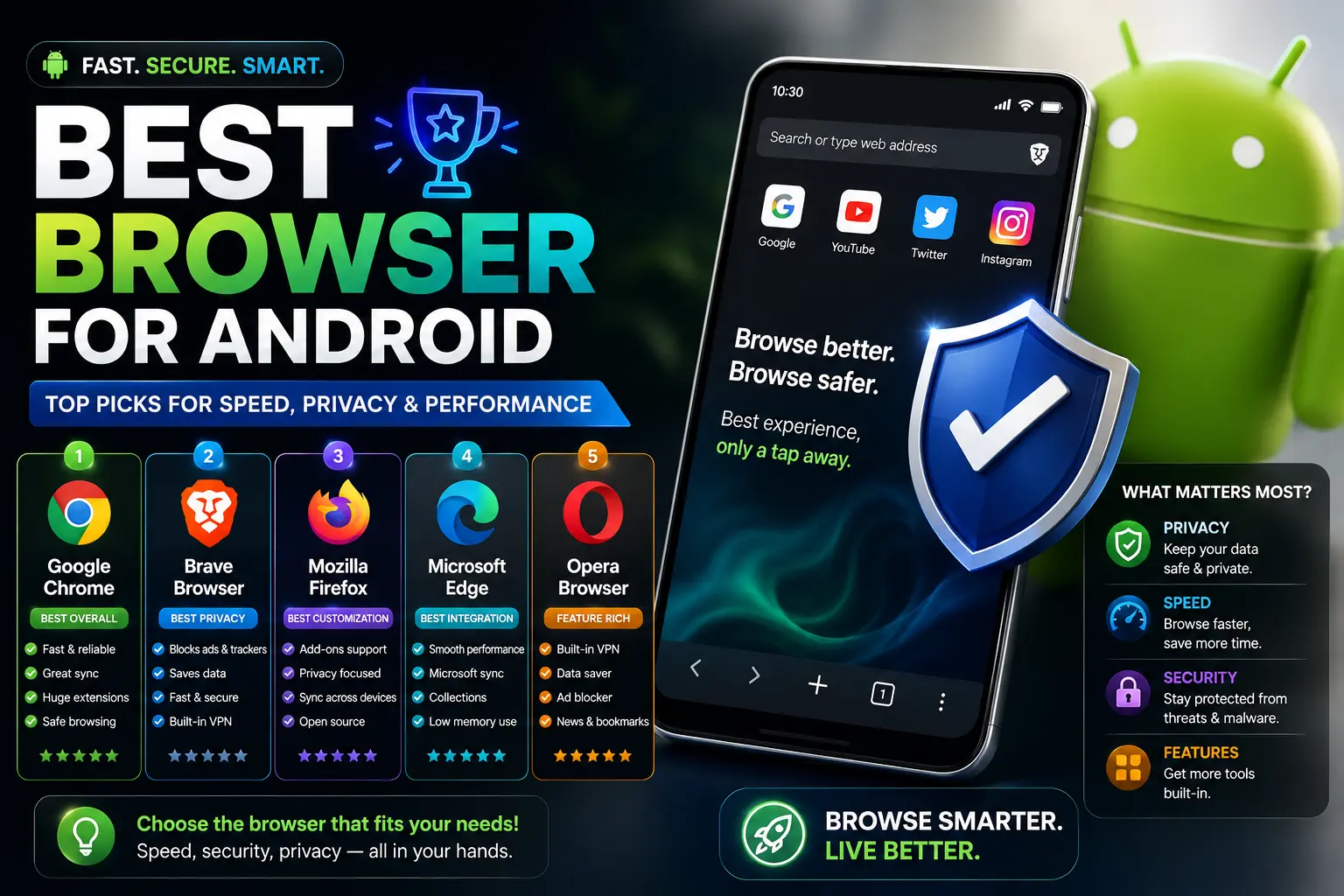
The Best Android Browser for Every Type of User
| If you care most about… | Best Pick | Why |
| Overall balance and habit | Google Chrome | Pre-installed everywhere, syncs seamlessly with your Google account |
| Privacy with zero setup | Brave | Blocks ads and trackers automatically, no configuration needed |
| Samsung phone integration | Samsung Internet | Deep integration with Samsung’s ecosystem, strong battery optimization |
| Battery life | Samsung Internet or Opera | Both include dedicated power-saving modes |
| Full extension support | Kiwi Browser | One of the only Android browsers that supports desktop Chrome extensions |
| Open-source and non-profit backed | Mozilla Firefox | Strong tracking protection, transparent codebase |
| Simplicity with automatic privacy | DuckDuckGo Browser | Zero-configuration tracker blocking with a built-in privacy grade for each site |
| Data-saving on limited plans | Opera | Built-in data compression reduces mobile data usage |
Head-to-Head Comparison
Google Chrome
Chrome remains the most widely used mobile browser simply because it’s the default on nearly every Android phone. It syncs effortlessly with your Google account, carrying over bookmarks, passwords, and even open tabs from your computer automatically. Page loading is fast and compatibility with websites is close to universal, since most sites are built and tested against Chrome first.
The tradeoff is the same one Chrome has on desktop: it collects meaningful browsing data as part of its underlying business model, and it doesn’t block ads or trackers automatically.
Best for: People who want zero setup and already live inside the Google ecosystem.
Brave
Brave blocks ads and trackers the moment you install it, with no settings menu required. It’s built on the same Chromium engine as Chrome, so it loads websites identically and feels immediately familiar. Because it strips out ads before they load, pages often feel noticeably faster and use less mobile data than the same pages in Chrome.
Best for: Anyone who wants Chrome-level compatibility with privacy switched on from the start.
Samsung Internet
If you own a Samsung phone, Samsung Internet is worth a real look rather than dismissing it as a manufacturer default. It includes a genuinely effective battery-saving mode, built-in ad-blocking extensions you can enable, and tight integration with Samsung’s ecosystem (like Samsung Pass for password management). It’s built on the same underlying engine as Chrome, so compatibility is strong.
Best for: Samsung device owners who want strong battery performance without switching to a third-party app.
Mozilla Firefox
Firefox for Android is built by the same non-profit organization behind the desktop version, and it carries over the same philosophy: strong tracking protection, an open codebase anyone can inspect, and no reliance on selling your browsing data. It also supports a genuine (if smaller) library of mobile extensions, which most Android browsers don’t offer at all.
Best for: Users who want a privacy-respecting browser with real extension support.
DuckDuckGo Browser
Built by the company behind the privacy-focused search engine, this browser blocks hidden trackers automatically and assigns each website a privacy grade so you can see at a glance how it handles your data. It requires no configuration at all, making it one of the simplest privacy-focused options available.
Best for: Beginners who want automatic privacy without learning any settings.
Opera
Opera includes built-in data compression, which actually reduces the amount of mobile data a page uses by processing it through Opera’s servers before sending it to your phone. This makes it a strong pick if you’re on a limited data plan. It also bundles a free VPN feature for basic IP masking.
Best for: Users on limited mobile data plans who want built-in compression.
Kiwi Browser
Kiwi is one of the few Android browsers that supports installing actual desktop Chrome extensions — ad blockers, password managers, and productivity tools you’d normally only find on a computer. This is a genuine gap most Android browsers don’t fill.
Best for: Power users who specifically want desktop-style extensions on their phone.
Vivaldi
Vivaldi brings heavy customization to mobile, including gesture controls, tab management features closer to a desktop browser, and a built-in ad blocker. It’s a niche pick, but a strong one for users who found Chrome’s interface too limiting.
Best for: Users who want deep customization over how the browser looks and behaves.
Browser Privacy Comparison: What Each One Actually Blocks
| Browser | Blocks Ads/Trackers by Default | Extension Support | Data-Saving Mode |
| Chrome | No | Limited | No |
| Brave | Yes | Limited | Built-in (via ad blocking) |
| Samsung Internet | Optional (enable manually) | Limited | Yes |
| Firefox | Yes | Yes (real extensions) | No |
| DuckDuckGo Browser | Yes | No | No |
| Opera | Partial | Limited | Yes (compression) |
| Kiwi Browser | Depends on extensions installed | Yes (full Chrome extensions) | No |
| Vivaldi | Yes (built-in) | Limited | No |
A quick note on terminology: most Android browsers don’t support the same extension ecosystem as their desktop counterparts, because managing extensions on a small touchscreen interface is genuinely harder to design well. Kiwi Browser is the clear exception, and Firefox offers a smaller but functional set.
Common Mistakes When Choosing an Android Browser
- Assuming the pre-installed browser is automatically the best option. It’s the default because of the phone manufacturer’s partnerships, not necessarily because it wins on speed, privacy, or battery life.
- Installing multiple browsers and never picking a primary one. This splits your saved passwords, bookmarks, and history across apps, making none of them fully useful.
- Overlooking battery and data usage. Some browsers (particularly ones with heavy ad content or no compression) noticeably drain battery and mobile data faster than lighter alternatives.
- Expecting extension support that isn’t there. Most Android browsers, including Chrome and Brave, don’t support the same extensions as their desktop versions — check for this specifically if extensions matter to you.
- Ignoring sync settings after switching. Moving to a new browser without confirming your bookmarks and passwords transferred correctly is one of the most common post-switch frustrations.
Best Practices for Android Browsing
- Pick one primary browser and actually use its settings, rather than switching apps repeatedly without configuring any of them.
- If privacy matters, choose a browser with automatic tracker blocking (Brave, Firefox, or DuckDuckGo) rather than relying on private/incognito tabs alone, which only hide local history.
- Check your browser’s data usage settings if you’re on a limited mobile plan — Opera’s compression and most browsers’ “Lite” modes can meaningfully reduce data consumption.
- Periodically review and remove unused saved passwords and browsing history, regardless of which browser you settle on.
- Keep your chosen browser updated, since security and privacy patches are released on an ongoing basis.
Frequently Asked Questions
What is the best browser for Android phones overall?
For most people, Chrome offers the smoothest, zero-setup experience thanks to deep Google account integration, while Brave offers the same compatibility with automatic privacy protection built in. The better fit depends on whether syncing convenience or built-in privacy matters more to you.
Is Brave really better than Chrome on Android?
Brave blocks ads and trackers automatically, which Chrome doesn’t do by default, and this often makes pages load faster and use less mobile data. Chrome still has an edge in ecosystem integration if you’re heavily invested in Google services like Gmail and Google Drive.
Which Android browser uses the least battery?
Samsung Internet and Opera generally perform best on battery life, both including dedicated power-saving or data-compression features designed specifically to reduce background resource use.
Does Android have a browser that supports real extensions?
Kiwi Browser is the most notable option, supporting actual desktop Chrome extensions rather than a limited mobile-only add-on library. Firefox also supports a smaller, genuine set of mobile extensions, which is more than most other Android browsers offer.
Is Samsung Internet actually good, or should I switch away from it?
Samsung Internet is a genuinely capable browser, especially for Samsung device owners, with strong battery optimization and solid Chromium-based compatibility. It’s often overlooked simply because it’s pre-installed rather than downloaded deliberately, not because it underperforms.
What’s the safest browser for Android in terms of privacy?
DuckDuckGo Browser and Brave are typically considered the strongest zero-configuration options for privacy, since both block trackers automatically without requiring any manual setup from the user.
Final Thoughts
There’s no single best browser for Android that wins across every category — the right pick depends on whether you value seamless Google integration, automatic privacy, battery efficiency, or genuine extension support. Chrome and Brave cover the widest range of everyday needs, Samsung Internet and Opera lead on battery and data efficiency, and Kiwi Browser fills the extension gap that most Android browsers leave open. Match the pick to what actually slows you down or bothers you about your current browser, rather than defaulting to whichever one came pre-installed.