
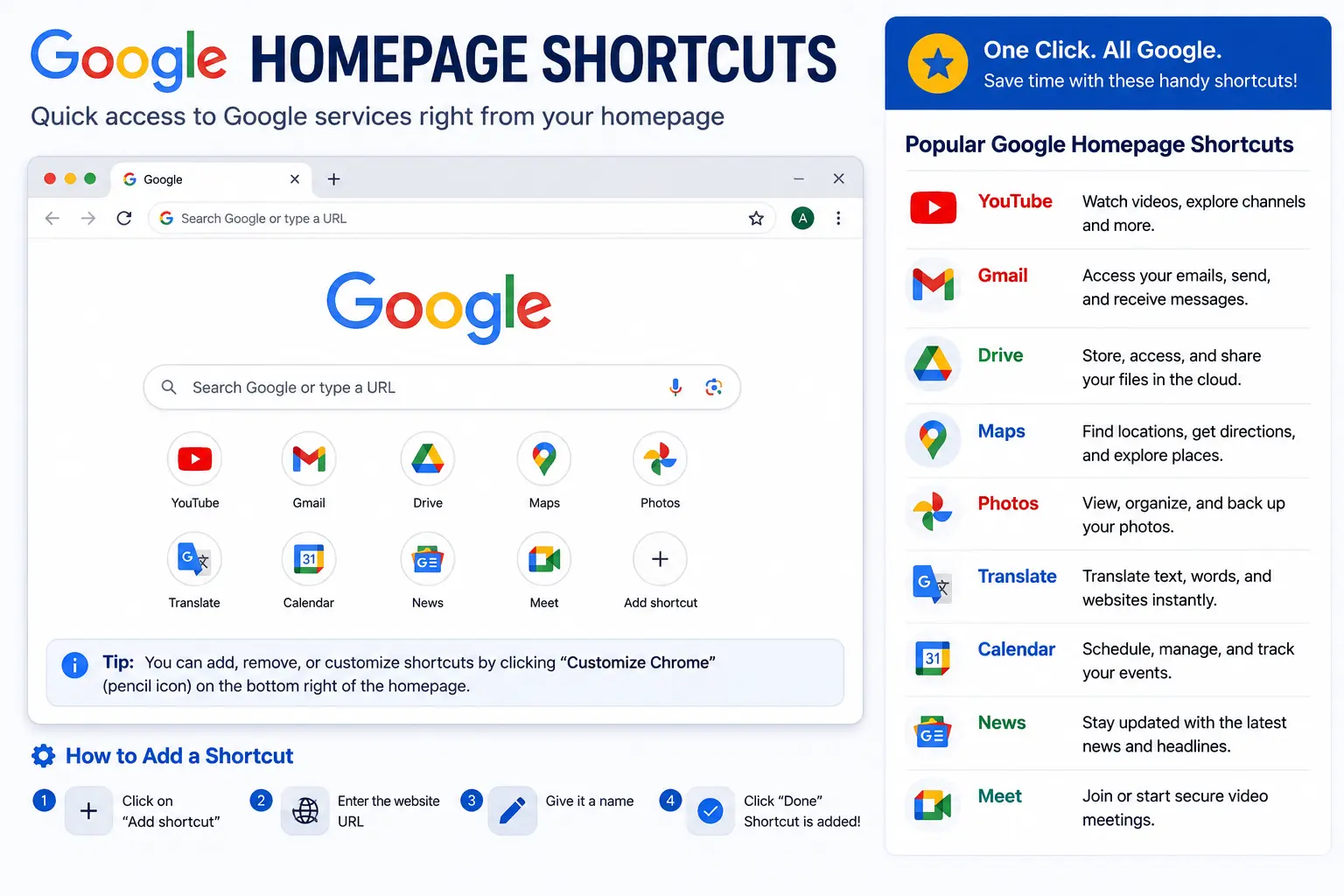
Google Homepage Shortcuts: How to Add, Edit, and Remove Them
Google homepage shortcuts are the small site icons — sometimes called “Most Visited” tiles — that appear below the search box every time you open a new tab in Chrome. They’re one of the most useful features for skipping repetitive typing, but a surprising number of people don’t realize they can add their own or move beyond just the automatically suggested ones.
This guide covers exactly how to add, edit, and remove shortcuts on your Chrome homepage, plus a second, related feature — creating a standalone desktop shortcut for a specific website — since both get searched under similar terms but do genuinely different things.
Table of Contents
What Are Google Homepage Shortcuts, Exactly?
When you open a new tab in Chrome while signed into a Google Account with Google as your default search engine, you’ll typically see a row of small square icons underneath the search bar. These are your shortcuts — quick links to sites you visit often, or ones you’ve manually chosen yourself.
Chrome offers two modes for this row:
- Most visited sites: Automatically populated based on your actual browsing history.
- My shortcuts: A manually curated set you control entirely yourself, adding and removing sites as you like.
Understanding this distinction matters, because it explains why your shortcuts sometimes seem to change on their own (you’re in “Most visited” mode) or stay exactly as you left them (you’re in “My shortcuts” mode).
How to Add Shortcuts to Your Google Homepage
- Open a new tab in Chrome.
- Click Customize Chrome in the bottom-right corner of the New Tab page.
- Under Shortcuts, select My shortcuts.
- Look for an Add shortcut option among the tiles (it typically appears as an empty tile with a plus icon).
- Enter the Name you want displayed and the URL of the site.
- Click Done or Save.
Your new shortcut now appears as a clickable tile every time you open a new tab.
How to Edit or Remove a Shortcut
- Hover your mouse over the shortcut icon you want to change.
- Click the three-dot menu that appears in the top-right corner of that tile.
- Select either Edit shortcut (to change its name or URL) or Remove (to delete it entirely).
Switching Between “My Shortcuts” and “Most Visited Sites”
If your shortcuts row keeps changing automatically based on your browsing, or if you’d prefer a fully custom set instead, you can switch modes at any time:
- Click Customize Chrome on the New Tab page.
- Under Shortcuts, choose either My shortcuts or Most visited sites.
- To hide the row of shortcuts entirely, turn off Show shortcuts.
Most visited sites works well if you want a low-effort, self-updating shortcut list. My shortcuts works better if you have a specific, stable set of sites you always want accessible — a work dashboard, email, and a couple of frequently used tools, for example — regardless of what else you’ve been browsing recently.
Requirements for Google Homepage Shortcuts to Appear
This feature depends on two specific conditions, and missing either one is a common reason people can’t find or customize their shortcuts at all:
- You must be signed in to a Google Account in Chrome.
- Google must be your default search engine.
If either condition isn’t met, the customizable shortcuts row (and the broader New Tab customization options) won’t be available the same way.
Google Homepage Shortcuts vs. Website Shortcuts (Desktop Icons)
This is where a lot of confusion comes from, since both are commonly searched under very similar phrasing, but they do different things.
| New Tab Page Shortcuts | Website Shortcuts (Desktop) | |
| What it is | A tile on Chrome’s New Tab page | A clickable icon on your computer’s desktop or taskbar |
| Where it opens from | Only visible inside Chrome’s New Tab page | Directly from your desktop, without opening Chrome first |
| How to create it | Customize Chrome > Shortcuts | Visit the site > More menu > Cast, save, and share > Create shortcut |
| Requires Google sign-in? | Yes | No |
If you want a site accessible with one click from inside your browser, use New Tab page shortcuts. If you want a site accessible directly from your desktop or taskbar — almost like a mini app — use Chrome’s website shortcut feature instead.
How to create a desktop website shortcut
- Open Chrome and go to the website you want a shortcut for.
- Click the three-dot menu in the top-right corner.
- Select Cast, save, and share, then Create shortcut….
- Choose a name for the shortcut (or keep the default).
- Click Create.
This adds an icon directly to your desktop (or applications area, depending on your operating system) that opens the site immediately, without needing to first open Chrome and a new tab.
Real-World Use Cases
- Students adding their school’s learning portal, email, and a research database as fixed shortcuts for quick access every study session.
- Remote workers using “My shortcuts” to pin their project management tool, company intranet, and email — regardless of what else they’ve browsed that day.
- Online shoppers creating a desktop shortcut for a frequently used shopping site, so it opens instantly without navigating through Chrome first.
- Multi-tasking professionals combining both features — New Tab shortcuts for a handful of daily tools, plus a desktop shortcut for one specific app-like site they use constantly, like a webmail client.
Common Mistakes When Managing Google Homepage Shortcuts
- Not being signed into a Google Account. Custom shortcuts and full New Tab customization require this — without it, the options are limited or unavailable.
- Using a search engine other than Google. Since this feature is tied specifically to Google as the default search engine, switching to a different one changes what’s available on the New Tab page.
- Confusing New Tab shortcuts with desktop shortcuts. These live in completely different places and are created through different menus, even though both are commonly called “shortcuts.”
- Expecting shortcuts to sync automatically without being signed in. If you’re not logged into the same Google Account across devices, your custom shortcuts won’t carry over.
- Forgetting shortcuts can be edited, not just removed. Many people delete and recreate a shortcut instead of using the simpler “Edit shortcut” option to just update the name or URL.
Best Practices
- Use “My shortcuts” for stability if you rely on quick access to the same few sites every day, rather than letting “Most visited” shift based on recent browsing.
- Keep the list focused. A handful of genuinely frequent destinations works better than trying to shortcut everything you occasionally visit.
- Pair New Tab shortcuts with a desktop shortcut for your single most-used, app-like site (like webmail or a chat tool), so it’s accessible even faster, without opening a browser tab first.
- Rename shortcuts for clarity if the default site name is long or unclear — a short, recognizable label speeds up recognition at a glance.
- Revisit your shortcuts occasionally as your habits change, removing ones you no longer use and adding new ones that better reflect your current routine.
Frequently Asked Questions
How do I add a shortcut to my Google homepage?
Open a new tab in Chrome, click “Customize Chrome” in the bottom-right corner, select “My shortcuts” under Shortcuts, then use the “Add shortcut” tile to enter a name and URL for the site you want.
Why don’t I see the option to customize my shortcuts?
This feature requires being signed in to a Google Account in Chrome and having Google set as your default search engine. If either condition isn’t met, the customizable shortcuts and broader New Tab page options won’t be available.
What’s the difference between “My shortcuts” and “Most visited sites”?
“My shortcuts” is a manually curated list you control entirely, staying fixed until you change it. “Most visited sites” automatically updates based on your actual browsing history, so the tiles shown can shift over time without any manual input.
Can I create a shortcut to a website on my desktop, not just in Chrome?
Yes. Visit the site in Chrome, click the three-dot menu, select “Cast, save, and share,” then “Create shortcut.” This adds an icon directly to your desktop that opens the site without needing to open Chrome and a new tab first.
How do I remove a shortcut from my Google homepage?
Hover over the shortcut’s icon on the New Tab page, click the three-dot menu that appears, and select “Remove.”
Do Google homepage shortcuts sync across my devices?
Yes, as long as you’re signed in to the same Google Account with sync enabled on each device. Your custom “My shortcuts” selections will then appear consistently across your signed-in devices.
Final Thoughts
Google homepage shortcuts are a small feature with an outsized impact on everyday browsing speed — once set up, they save you from retyping or searching for the same handful of sites over and over.
Switch to “My shortcuts” if you want full control, keep the list focused on what you genuinely use often, and consider pairing it with a standalone desktop shortcut for your single most frequently used site. Small setup, real time saved, every single day.Google homepage shortcuts are the small site icons — sometimes called “Most Visited” tiles — that appear below the search box every time you open a new tab in Chrome. They’re one of the most useful features for skipping repetitive typing, but a surprising number of people don’t realize they can add their own or move beyond just the automatically suggested ones.
This guide covers exactly how to add, edit, and remove shortcuts on your Chrome homepage, plus a second, related feature — creating a standalone desktop shortcut for a specific website — since both get searched under similar terms but do genuinely different things.
What Are Google Homepage Shortcuts, Exactly?
When you open a new tab in Chrome while signed into a Google Account with Google as your default search engine, you’ll typically see a row of small square icons underneath the search bar. These are your shortcuts — quick links to sites you visit often, or ones you’ve manually chosen yourself.
Chrome offers two modes for this row:
- Most visited sites: Automatically populated based on your actual browsing history.
- My shortcuts: A manually curated set you control entirely yourself, adding and removing sites as you like.
Understanding this distinction matters, because it explains why your shortcuts sometimes seem to change on their own (you’re in “Most visited” mode) or stay exactly as you left them (you’re in “My shortcuts” mode).
How to Add Shortcuts to Your Google Homepage
- Open a new tab in Chrome.
- Click Customize Chrome in the bottom-right corner of the New Tab page.
- Under Shortcuts, select My shortcuts.
- Look for an Add shortcut option among the tiles (it typically appears as an empty tile with a plus icon).
- Enter the Name you want displayed and the URL of the site.
- Click Done or Save.
Your new shortcut now appears as a clickable tile every time you open a new tab.
How to Edit or Remove a Shortcut
- Hover your mouse over the shortcut icon you want to change.
- Click the three-dot menu that appears in the top-right corner of that tile.
- Select either Edit shortcut (to change its name or URL) or Remove (to delete it entirely).
Switching Between “My Shortcuts” and “Most Visited Sites”
If your shortcuts row keeps changing automatically based on your browsing, or if you’d prefer a fully custom set instead, you can switch modes at any time:
- Click Customize Chrome on the New Tab page.
- Under Shortcuts, choose either My shortcuts or Most visited sites.
- To hide the row of shortcuts entirely, turn off Show shortcuts.
Most visited sites works well if you want a low-effort, self-updating shortcut list. My shortcuts works better if you have a specific, stable set of sites you always want accessible — a work dashboard, email, and a couple of frequently used tools, for example — regardless of what else you’ve been browsing recently.
Requirements for Google Homepage Shortcuts to Appear
This feature depends on two specific conditions, and missing either one is a common reason people can’t find or customize their shortcuts at all:
- You must be signed in to a Google Account in Chrome.
- Google must be your default search engine.
If either condition isn’t met, the customizable shortcuts row (and the broader New Tab customization options) won’t be available the same way.
Google Homepage Shortcuts vs. Website Shortcuts (Desktop Icons)
This is where a lot of confusion comes from, since both are commonly searched under very similar phrasing, but they do different things.
| New Tab Page Shortcuts | Website Shortcuts (Desktop) | |
| What it is | A tile on Chrome’s New Tab page | A clickable icon on your computer’s desktop or taskbar |
| Where it opens from | Only visible inside Chrome’s New Tab page | Directly from your desktop, without opening Chrome first |
| How to create it | Customize Chrome > Shortcuts | Visit the site > More menu > Cast, save, and share > Create shortcut |
| Requires Google sign-in? | Yes | No |
If you want a site accessible with one click from inside your browser, use New Tab page shortcuts. If you want a site accessible directly from your desktop or taskbar — almost like a mini app — use Chrome’s website shortcut feature instead.
How to create a desktop website shortcut
- Open Chrome and go to the website you want a shortcut for.
- Click the three-dot menu in the top-right corner.
- Select Cast, save, and share, then Create shortcut….
- Choose a name for the shortcut (or keep the default).
- Click Create.
This adds an icon directly to your desktop (or applications area, depending on your operating system) that opens the site immediately, without needing to first open Chrome and a new tab.
Real-World Use Cases
- Students adding their school’s learning portal, email, and a research database as fixed shortcuts for quick access every study session.
- Remote workers using “My shortcuts” to pin their project management tool, company intranet, and email — regardless of what else they’ve browsed that day.
- Online shoppers creating a desktop shortcut for a frequently used shopping site, so it opens instantly without navigating through Chrome first.
- Multi-tasking professionals combining both features — New Tab shortcuts for a handful of daily tools, plus a desktop shortcut for one specific app-like site they use constantly, like a webmail client.
Common Mistakes When Managing Google Homepage Shortcuts
- Not being signed into a Google Account. Custom shortcuts and full New Tab customization require this — without it, the options are limited or unavailable.
- Using a search engine other than Google. Since this feature is tied specifically to Google as the default search engine, switching to a different one changes what’s available on the New Tab page.
- Confusing New Tab shortcuts with desktop shortcuts. These live in completely different places and are created through different menus, even though both are commonly called “shortcuts.”
- Expecting shortcuts to sync automatically without being signed in. If you’re not logged into the same Google Account across devices, your custom shortcuts won’t carry over.
- Forgetting shortcuts can be edited, not just removed. Many people delete and recreate a shortcut instead of using the simpler “Edit shortcut” option to just update the name or URL.
Best Practices
- Use “My shortcuts” for stability if you rely on quick access to the same few sites every day, rather than letting “Most visited” shift based on recent browsing.
- Keep the list focused. A handful of genuinely frequent destinations works better than trying to shortcut everything you occasionally visit.
- Pair New Tab shortcuts with a desktop shortcut for your single most-used, app-like site (like webmail or a chat tool), so it’s accessible even faster, without opening a browser tab first.
- Rename shortcuts for clarity if the default site name is long or unclear — a short, recognizable label speeds up recognition at a glance.
- Revisit your shortcuts occasionally as your habits change, removing ones you no longer use and adding new ones that better reflect your current routine.
Frequently Asked Questions
How do I add a shortcut to my Google homepage?
Open a new tab in Chrome, click “Customize Chrome” in the bottom-right corner, select “My shortcuts” under Shortcuts, then use the “Add shortcut” tile to enter a name and URL for the site you want.
Why don’t I see the option to customize my shortcuts?
This feature requires being signed in to a Google Account in Chrome and having Google set as your default search engine. If either condition isn’t met, the customizable shortcuts and broader New Tab page options won’t be available.
What’s the difference between “My shortcuts” and “Most visited sites”?
“My shortcuts” is a manually curated list you control entirely, staying fixed until you change it. “Most visited sites” automatically updates based on your actual browsing history, so the tiles shown can shift over time without any manual input.
Can I create a shortcut to a website on my desktop, not just in Chrome?
Yes. Visit the site in Chrome, click the three-dot menu, select “Cast, save, and share,” then “Create shortcut.” This adds an icon directly to your desktop that opens the site without needing to open Chrome and a new tab first.
How do I remove a shortcut from my Google homepage?
Hover over the shortcut’s icon on the New Tab page, click the three-dot menu that appears, and select “Remove.”
Do Google homepage shortcuts sync across my devices?
Yes, as long as you’re signed in to the same Google Account with sync enabled on each device. Your custom “My shortcuts” selections will then appear consistently across your signed-in devices.
Final Thoughts
Google homepage shortcuts are a small feature with an outsized impact on everyday browsing speed — once set up, they save you from retyping or searching for the same handful of sites over and over.
Switch to “My shortcuts” if you want full control, keep the list focused on what you genuinely use often, and consider pairing it with a standalone desktop shortcut for your single most frequently used site. Small setup, real time saved, every single day.


