Knowing how to change default browser Windows 11 used to mean manually setting individual file types one at a time — a process Microsoft has since simplified back into something closer to a single click. This guide covers the current, fastest method, the older file-type-by-file-type approach for when the quick method doesn’t fully work, and the specific fixes for when Edge keeps overriding your choice anyway.
Table of Contents
How to Change Default Browser in Windows 11: The Fast Method
Recent Windows 11 updates reintroduced a streamlined, one-click way to set your default browser, replacing the more tedious per-file-type process required in earlier versions.
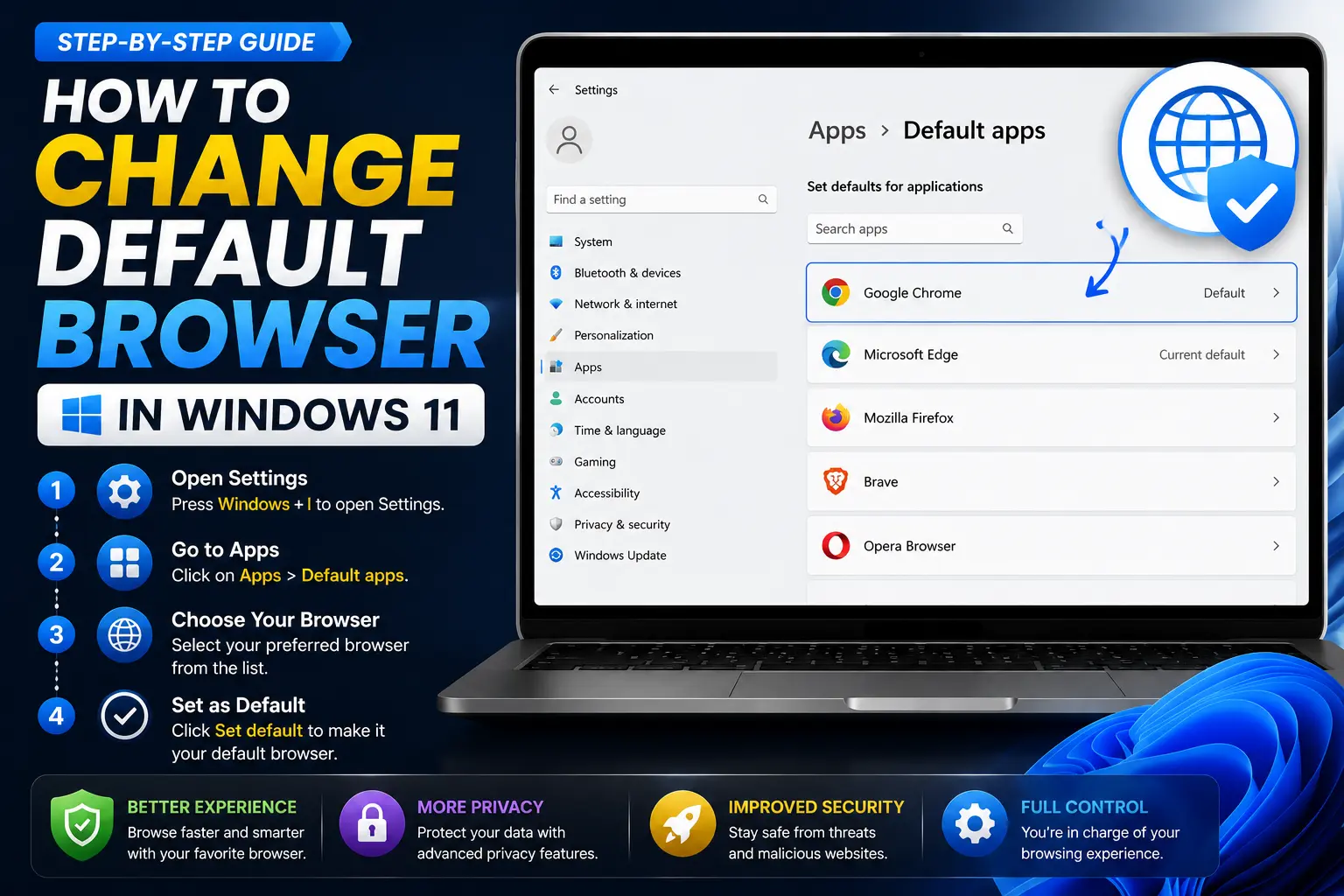
- Press Windows key + I to open Settings, or open the Start menu and select Settings.
- Click Apps in the left sidebar.
- Click Default apps.
- In the Set defaults for applications search box, type the name of your preferred browser (for example, Chrome, Firefox, or Brave).
- Click the browser’s name from the search results.
- Click Set default at the top of the page.
This single button applies your chosen browser across the main file types and link types associated with web browsing in one step, rather than requiring you to configure each one individually. If a pop-up appears asking you to stay with Microsoft Edge, click Switch anyway to confirm your choice.
How to Set Default Browser in Windows 11: The Manual Method (If “Set Default” Doesn’t Fully Work)
If the one-click method above doesn’t fully take effect — links still occasionally open in Edge — some file types or protocols may not have been switched over. This manual method covers every entry individually:
- Open Settings > Apps > Default apps, same as above.
- Search for and select your preferred browser.
- Instead of clicking the single Set default button, scroll through the individual list and manually assign your browser to each of the following:
- HTTP
- HTTPS
- .htm
- .html
- For each entry, click it and choose your preferred browser from the list that appears.
Skipping any one of these — especially HTTP or HTTPS specifically — is the most common reason Edge unexpectedly reopens for certain links even after you thought you’d already switched.
How to Set Edge as Default Browser (If You’re Switching Back)
The same process works in reverse if you want to return to Edge:
- Go to Settings > Apps > Default apps.
- Search for Microsoft Edge.
- Click Set default.
Alternatively, scroll to the bottom of the Default apps page and use the Reset button under Reset all default apps — this reverts every default app, including your browser, back to Windows’ original settings, with Edge restored as the default browser.
Changing Your Default Browser Directly From Chrome or Firefox
Some browsers include a shortcut that opens the same Windows settings page for you, saving a step:
- In Chrome: Click the three-dot menu, go to Settings, and look for a Make default button, typically near the top of the settings page.
- In Firefox: Click the menu (three horizontal lines), go to Settings, and under the General tab’s Startup section, click Make Default.
Both buttons open the same Windows Default Apps settings page described above — they’re a shortcut to get there, not a separate setting.
Windows 11 vs. Windows 10: What’s Different
If you’re specifically looking to change the default browser on Windows 10 rather than Windows 11, the process is simpler and more direct, without the same per-file-type complexity Windows 11 introduced.
| Step | Windows 11 | Windows 10 |
| Menu path | Settings > Apps > Default apps | Settings > Apps > Default apps |
| Selection method | Search for browser, click Set default | Click the current browser icon under “Web browser,” pick new one |
| File-type granularity | Sometimes requires setting HTTP/HTTPS/.htm/.html separately | Single web browser field controls it directly |
In short: Windows 10 handles this with a single, direct field, while Windows 11 has gone through several redesigns of this same settings page, sometimes requiring the more detailed manual method above if the quick button doesn’t fully apply.
Why This Setting Doesn’t Always “Stick” in Windows 11
This is the piece most competitor guides don’t clearly explain, and it’s the actual reason people end up re-searching this exact question. Windows 11 associates default apps with multiple separate entries — the general Web browser category, plus individual HTTP, HTTPS, .htm, and .html associations — rather than one single unified switch in every Windows 11 build. The one-click Set default button generally applies your choice across all of these, but on certain Windows 11 versions or after specific updates, one or two entries can be left unset, which is exactly why links occasionally keep opening in Edge even after you’ve “already changed it.”
Special Case: Windows 11 in S Mode
If your PC is running Windows 11 in S Mode, a restricted version of Windows designed for simplicity and security, Microsoft Edge must remain the default browser, and this cannot be changed while S Mode is active. To use a different default browser, you’ll need to switch out of S Mode first (a one-way process available through Settings), or install an alternative browser through the Microsoft Store specifically, since S Mode restricts app installations to store-verified apps only.
Common Mistakes When Changing Your Default Browser
- Only clicking “Set default” without checking individual file types. If links still open in Edge afterward, go back and manually assign HTTP, HTTPS, .htm, and .html individually, since this is the most common cause of a partial switch.
- Not installing the browser before attempting to set it as default. Your preferred browser needs to be installed and registered with Windows before it will appear in the Default apps search results.
- Assuming the change affects every app equally. Some applications, particularly Outlook and Teams, have historically used their own separate logic for opening links regardless of your system-wide default browser setting.
- Forgetting Windows 11 in S Mode restricts this entirely. If you can’t seem to change your default browser at all, check whether your device is running in S Mode before assuming something else is wrong.
- Not confirming the “Switch anyway” prompt. If Windows shows a pop-up encouraging you to stick with Edge, you need to actively confirm your choice, or the change won’t apply.
Best Practices After Changing Your Default Browser
- Test the change by clicking a link from an email, document, or another app — not just opening the browser directly — to confirm the switch fully applied.
- If issues persist, use the manual method to check each individual file type association rather than assuming the one-click button covered everything.
- Keep your chosen browser updated, since some of these settings can occasionally reset after major Windows updates.
- If you manage a work or school computer, check with your IT department first, since organization-managed devices sometimes lock this setting at a system policy level.
Frequently Asked Questions
How do I change my default browser in Windows 11 quickly?
Go to Settings > Apps > Default apps, search for your preferred browser, select it, and click Set default. This applies your choice across the main file types associated with browsing in a single step on most current Windows 11 versions.
Why does Windows 11 keep switching back to Edge?
This usually happens when only some file types or protocols were updated. Manually check and set HTTP, HTTPS, .htm, and .html individually under Default apps if the quick Set default button hasn’t fully resolved it.
How do I set Edge as my default browser again?
Go to Settings > Apps > Default apps, search for Microsoft Edge, and click Set default — or use the Reset button at the bottom of the Default apps page to revert all default apps, including your browser, back to their original Windows settings.
Can I change my default browser if I’m using Windows 11 in S Mode?
No, not while S Mode remains active — Microsoft Edge is required as the default browser in S Mode. You’ll need to switch out of S Mode, which is a one-way process, before setting a different browser as default.
Is changing the default browser different on Windows 10 versus Windows 11?
Yes, slightly. Windows 10 uses a single, direct field to set your web browser default, while Windows 11 sometimes requires setting individual file type associations (HTTP, HTTPS, .htm, .html) separately if the one-click method doesn’t fully apply.
Will changing my default browser delete my bookmarks or history?
No. Bookmarks, saved passwords, and browsing history are stored separately within each individual browser, so changing which one is set as your system default doesn’t affect or delete any of that data.
Final Thoughts
Changing your default browser in Windows 11 takes under a minute using the current Settings > Apps > Default apps > Set default method — and if links keep sneaking back into Edge afterward, the fix is almost always in the individual HTTP, HTTPS, .htm, and .html entries that the one-click button occasionally misses. Once every entry is set correctly, and assuming your device isn’t restricted by S Mode, your chosen browser should consistently open every link going forward.