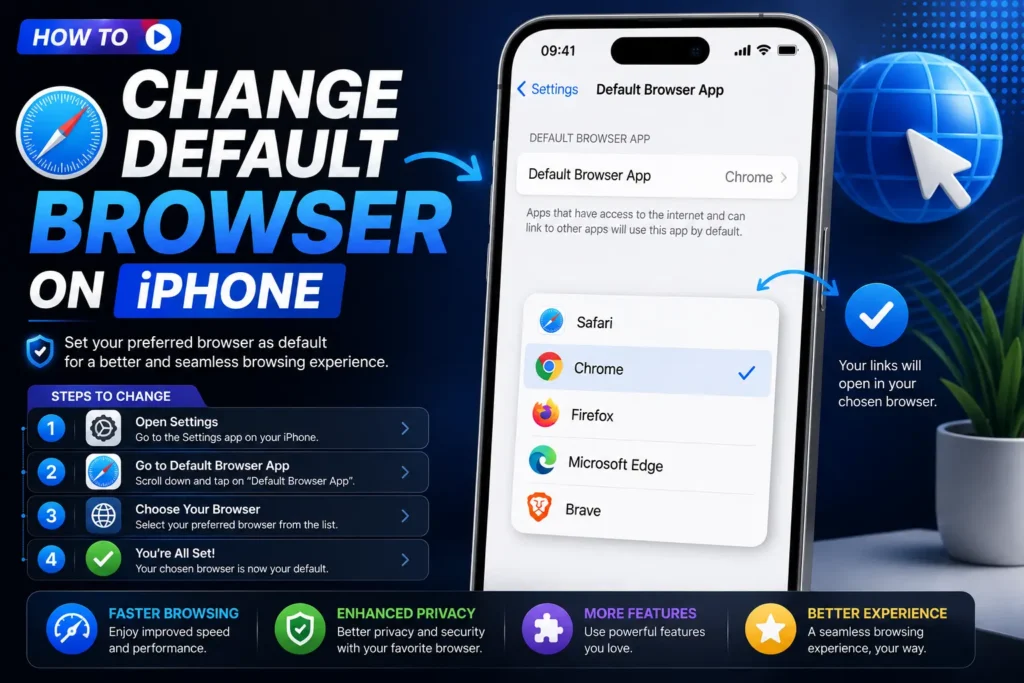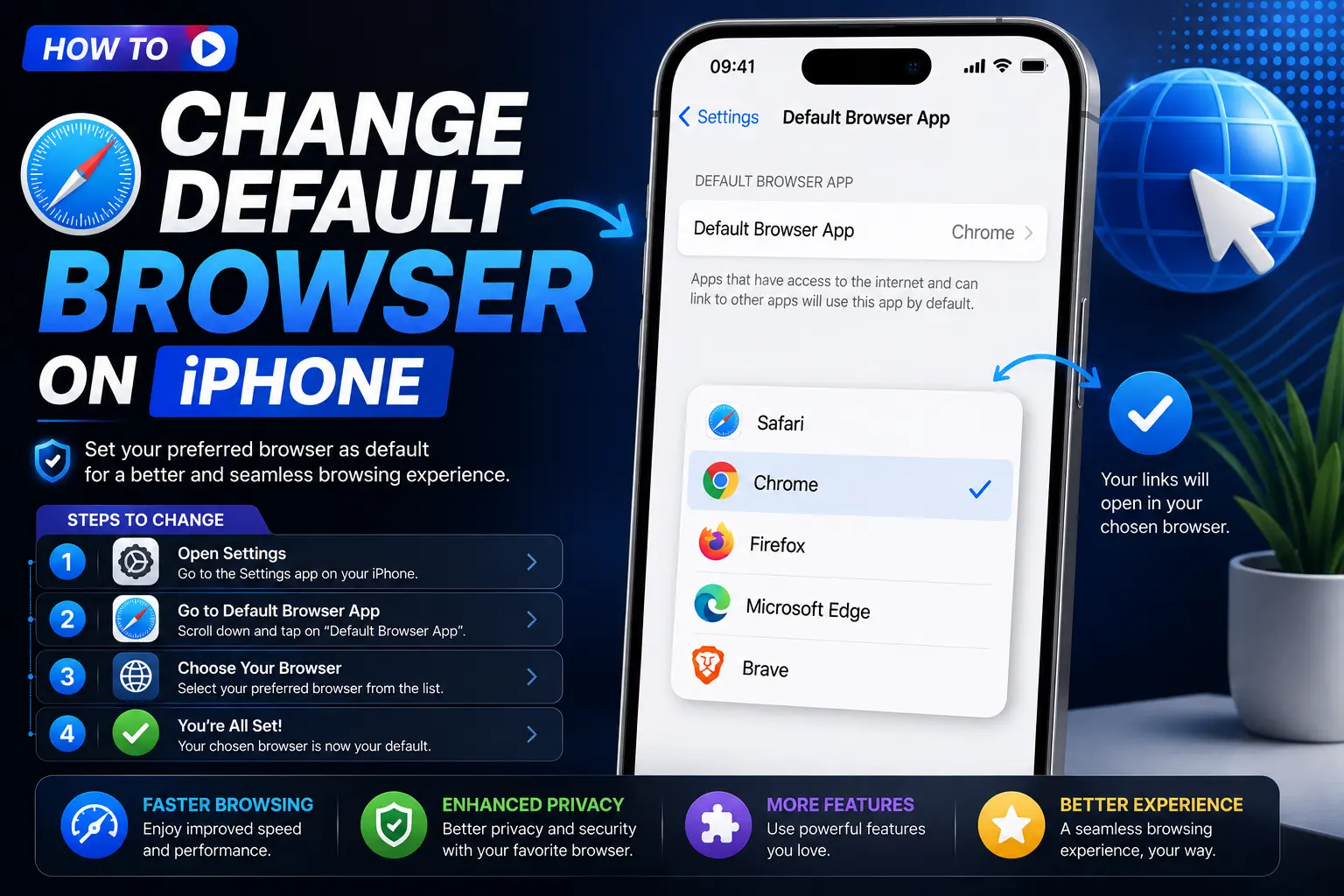
Since iOS 14, iPhones have let you replace Safari with another browser for every link you tap — but Apple has moved exactly where that setting lives more than once, which is why so many people search how to change default browser on iPhone even after finding an old guide. This article covers the current method for 2026, the older method for anyone on an earlier iOS version, and fixes for the specific problems people run into, like the setting reverting to Safari or a browser not showing up as an option at all.
Table of Contents
How to Change Default Browser on iPhone (Current Method)
If your iPhone is running iOS 18.2 or later, Apple has consolidated default app settings into a single, dedicated menu rather than burying the option inside each individual browser’s settings page.
- Make sure your preferred browser (Chrome, Firefox, Edge, Brave, DuckDuckGo, or another supported browser) is installed from the App Store and has been opened at least once.
- Open the Settings app.
- Tap Apps.
- Tap Default Apps near the top of the list.
- Tap Browser App.
- Select the browser you want to use as your default. A checkmark will appear next to your selection.
From this point on, links tapped in Mail, Messages, Notes, and most other apps will open in your newly selected browser instead of Safari.
How to Set Default Browser on iPhone (Older iOS Versions)
If your iPhone is running an iOS version earlier than 18.2, the Default Apps menu described above won’t exist yet. Instead, the setting lives inside the browser app’s own section in Settings.
- Open the Settings app.
- Scroll down past Apple’s built-in apps to the alphabetical list of installed apps.
- Tap the name of the browser you want to use (for example, Chrome or Firefox).
- Tap Default Browser App within that browser’s settings page.
- Select the browser from the list that appears — you’ll see a checkmark next to your choice.
If you’re unsure which method applies to you, check your iOS version first: go to Settings > General > About and look at the Software Version listed there.
How to Make Chrome Default Browser on iPhone (Specific Example)
Since this is one of the most common individual searches, here’s the exact path using Chrome as the example — the same steps apply to any other supported browser, just substitute the app name.
- Install Google Chrome from the App Store if you haven’t already, and open it at least once.
- Go to Settings > Apps > Default Apps > Browser App (iOS 18.2+), or Settings > Chrome > Default Browser App on older versions.
- Select Chrome from the list.
Chrome should now open automatically whenever you tap a standard web link elsewhere on your iPhone.
Why the iPhone Setting Location Keeps Changing
This is worth explaining, since it’s a genuine source of confusion between different guides online — including some that are already outdated. Apple originally introduced default browser selection with iOS 14, tucked inside each browser’s own settings page. With iOS 18.2, Apple reorganized this into a centralized Default Apps menu inside Settings > Apps, which also handles default apps for email, messaging, and other categories in one place going forward.
If you’ve seen instructions telling you to go into a specific browser’s own settings page and they don’t match what you’re seeing, it likely means your iPhone has already been updated to the newer, centralized system — check the Default Apps menu instead.
Troubleshooting: When the Setting Won’t Stick or the Browser Won’t Show Up
The browser doesn’t appear in the Default Apps or Default Browser App list
- Confirm the browser has been installed from the App Store and opened at least once — an app that’s never been launched typically won’t register as an eligible default.
- Update the browser app itself through the App Store, since outdated versions sometimes don’t register correctly with iOS’s default app system.
- Confirm your iOS version supports default browser selection at all (iOS 14 or later is required).
- Not every app that can display a webpage qualifies as an eligible default browser — this depends on the app’s own developer registering it correctly with Apple’s system, so a very obscure or unmaintained app may simply never appear as an option.
The default browser reverts back to Safari on its own
Some users find their chosen default resets to Safari after a major iOS update. If this happens, simply return to the Default Apps (or browser-specific) settings and reselect your preferred browser — it’s a known quirk with iOS updates rather than something you did wrong, and reselecting typically resolves it immediately.
Links still open in Safari or an app’s built-in browser
Not every app respects your iPhone’s default browser setting. Many social media and messaging apps intentionally open links inside their own built-in browser view rather than handing off to your chosen default — this is a deliberate design choice by those apps, not a setting you can override from the iPhone side. Links from Mail, Messages, and most third-party apps, by contrast, generally do respect your default browser choice correctly.
Common Mistakes People Make
- Trying to change the default browser without installing and opening it first. iOS requires the app to have been launched at least once before it becomes eligible to appear in the default browser list.
- Following outdated instructions after an iOS update. If your iPhone has been updated to iOS 18.2 or later, the setting has moved to the centralized Default Apps menu — the older per-browser instructions won’t match what you see.
- Assuming every app will honor the setting. Certain apps, particularly social platforms, use their own embedded browser view regardless of your system-wide default — this is expected behavior, not a bug to troubleshoot.
- Not checking iOS version before troubleshooting. Confirming your Software Version under Settings > General > About first saves time, since the correct steps depend entirely on which version you’re running.
- Forgetting the setting can reset after major updates. If your browser reverts to Safari unexpectedly, simply reselecting your preferred browser in settings usually fixes it right away.
Best Practices After Changing Your Default Browser
- Test the change immediately by tapping a link inside an email or text message to confirm it opens correctly.
- If you use multiple Apple devices, remember this setting doesn’t sync automatically — you’ll need to repeat the process separately on your iPad or Mac if you want the same browser as default everywhere.
- Sign into your new browser with your existing account if it supports sync, so bookmarks and saved passwords carry over from your previous browser or from your computer.
- Recheck your default browser setting after any major iOS update, since it can occasionally reset to Safari.
Frequently Asked Questions
How do I change my default browser on iPhone in 2026?
On iOS 18.2 and later, go to Settings > Apps > Default Apps > Browser App, and select your preferred browser. Make sure the browser is installed and has been opened at least once beforehand.
Why isn’t Chrome or Firefox showing up as an option?
The app needs to be installed from the App Store and opened at least once before it appears as an eligible default browser. Updating the app through the App Store can also resolve this if it’s still not appearing.
Does changing my default browser affect Safari?
No. Safari remains installed on your iPhone and fully functional — changing your default browser only changes which app opens links you tap from other apps like Mail and Messages.
Why does my iPhone keep reverting to Safari as the default?
This can happen after a major iOS update resets certain settings. Simply going back into the Default Apps (or browser-specific) menu and reselecting your preferred browser typically fixes it right away.
Will every app open links in my new default browser?
Most apps, including Mail, Messages, and Notes, will respect your default browser choice. Some apps, particularly certain social media platforms, intentionally use their own built-in browser view instead, regardless of your system setting.
Do I need iOS 18.2 to change my default browser?
No — default browser selection has existed since iOS 14. iOS 18.2 simply moved the setting into a new, centralized Default Apps menu. On earlier versions, you’ll find the same option inside the browser app’s own settings page instead.
Final Thoughts How to Change Default Browser on iPhone
Changing your default browser on iPhone takes under a minute once you know where Apple currently keeps the setting — Settings > Apps > Default Apps > Browser App on iOS 18.2 and later, or inside the browser’s own settings page on earlier versions. If it doesn’t stick, or your chosen browser doesn’t appear as an option, the fixes above cover the handful of reasons that actually causes.