Knowing how to refresh browser pages sounds almost too basic to need a guide — until a page won’t stop showing outdated content, and a normal refresh doesn’t fix it. That’s usually when people search this exact question, because the simple refresh they already know isn’t solving the problem.
This guide covers every method: the one-click refresh everyone knows, the more powerful “hard refresh” that clears stored data, and the exact steps for doing both on Windows, Mac, iPhone, Android, and every major browser. It also explains why a normal refresh sometimes isn’t enough, so you’re not stuck guessing.
Table of Contents
The Two Types of Browser Refresh
There are actually two different things people mean when they say “refresh,” and knowing the difference solves most frustration:
- Normal refresh — reloads the current page, pulling in any new content while still using some previously saved data (called cache) to load faster.
- Hard refresh — reloads the page while ignoring the cache entirely, forcing your browser to download everything fresh from the website’s server.
A cache, if you’re unfamiliar with the term, is a temporary storage area where your browser saves parts of a website — images, styling, scripts — so it doesn’t have to redownload everything every single time you visit. This makes browsing faster, but it can also cause a page to look outdated if the website has changed since your browser last saved that cached version.
How to Refresh Browser: The Basic Method
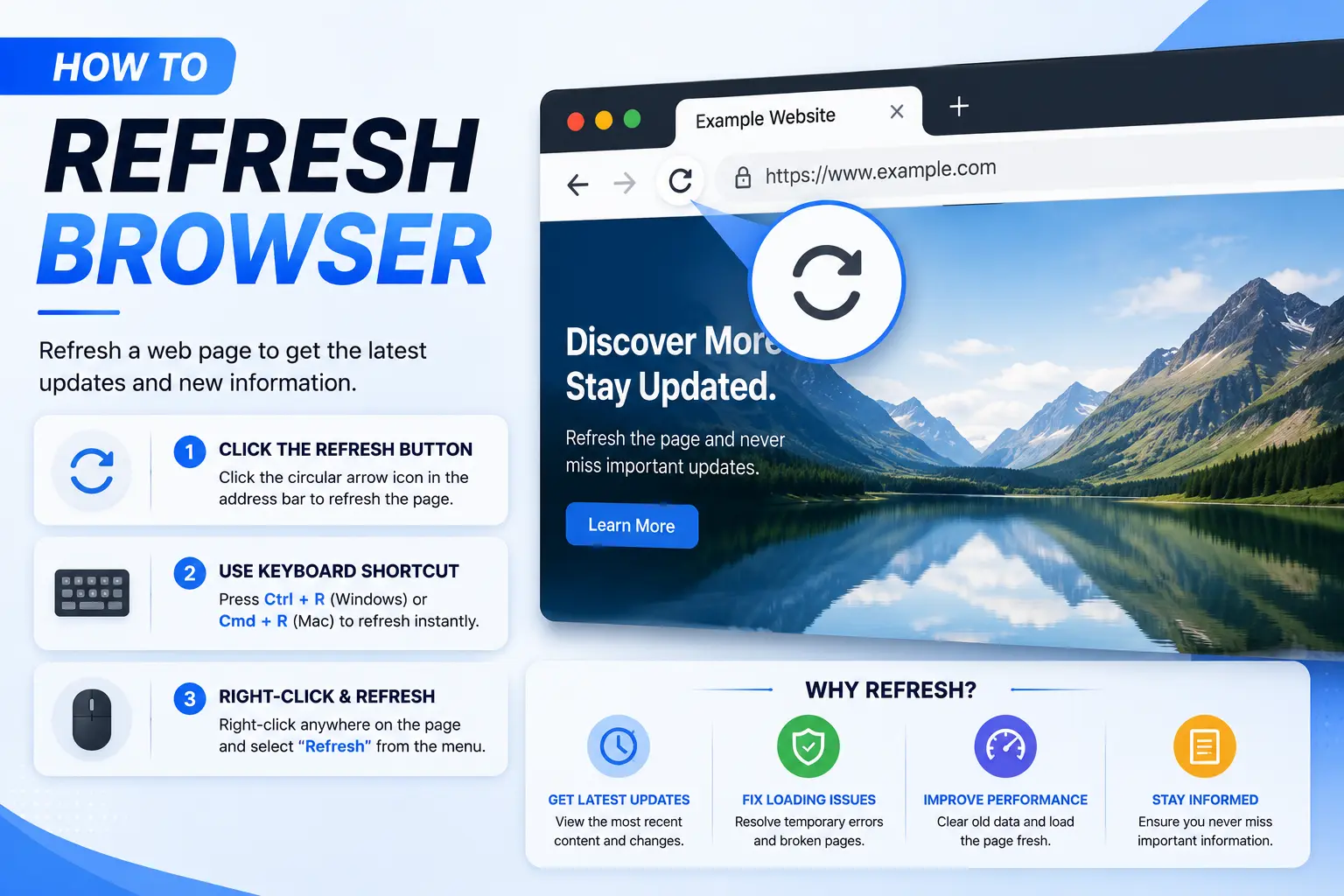
For most everyday situations, a standard refresh is all you need. Every method below does the same thing: reload the current page.
| Method | How to Do It |
| Click the refresh icon | Click the circular arrow icon in your browser’s address bar |
| Keyboard shortcut (Windows/Linux) | Press F5 or Ctrl + R |
| Keyboard shortcut (Mac) | Press Cmd + R |
| Right-click menu | Right-click anywhere on the page and select Reload |
This works identically across Chrome, Firefox, Edge, Safari, and Brave — the interface icon looks the same, and the keyboard shortcuts are standard across nearly all browsers on each operating system.
How to Hard Refresh a Browser (When Normal Refresh Doesn’t Work)
If a page still looks broken, outdated, or is missing content after a normal refresh, a hard refresh forces the browser to ignore its cache and reload everything from scratch. This is the fix for situations like a website update not showing up, a broken layout, or a page that seems “stuck.”
Hard Refresh on Windows (Chrome, Firefox, Edge)
- Press Ctrl + Shift + R, or
- Press Ctrl + F5
Hard Refresh on Mac (Chrome, Firefox, Edge)
- Press Cmd + Shift + R
Hard Refresh on Safari (Mac)
- Press Cmd + Option + R, or
- Hold Shift and click the reload button in the toolbar
Hard Refresh on Chromebook
- Press Shift + Ctrl + R, or
- Press Shift + Reload button (the reload key in the top row)
How Do I Refresh My Browser on Mobile? (iPhone and Android)
Mobile browsers don’t have a keyboard shortcut, but the process is just as quick.
iPhone (Safari)
- Tap the refresh icon (circular arrow) in the address bar. This performs a normal refresh.
- For a stronger refresh, press and hold the refresh icon, then tap Reload Without Content Blockers to bypass ad blockers and extensions that might be interfering.
iPhone (Chrome)
- Tap the three-dot menu in the bottom right.
- Tap Reload.
Android (Chrome)
- Tap the three-dot menu in the top right.
- Tap Reload, or simply pull down on the page and release to refresh.
Android (Samsung Internet or other browsers)
Most Android browsers support the same pull-down-to-refresh gesture as Chrome — pulling down from the top of the page and releasing triggers a reload.
Note that mobile browsers don’t have a true “hard refresh” option the way desktop browsers do. If a mobile page still won’t update after a normal reload, clearing that site’s cached data through your browser’s settings (covered below) is the next step.
When a Refresh Alone Won’t Fix It: Clearing Cache and Cookies
Sometimes even a hard refresh isn’t enough, because the problem isn’t the current page — it’s data your browser has stored for that entire website. Cookies are small files websites use to remember information about you, like login status or site preferences, and they can occasionally cause a site to behave incorrectly if they become outdated or corrupted.
To fully reset a stubborn page:
- Open your browser’s Settings.
- Find Privacy and Security (wording varies slightly by browser).
- Select Clear browsing data or Clear cache and cookies.
- Choose a time range (selecting “All time” clears the most, but also signs you out of most sites).
- Confirm and reload the page.
This is a broader fix than a hard refresh, since it clears data for every site, not just the one currently open. Use it when hard-refreshing a specific page hasn’t solved the problem.
Common Mistakes When Trying to Refresh a Browser
- Confusing a normal refresh with a hard refresh. If you’re troubleshooting a display issue, pressing F5 repeatedly won’t help if the cache itself is the problem — you need Ctrl+Shift+R instead.
- Clearing all browsing data when only one site is misbehaving. This signs you out of every website you were logged into. Try a hard refresh on the specific page first.
- Assuming refreshing fixes an internet connection problem. If a page won’t load at all (not just look outdated), the issue is more likely your Wi-Fi or the website being down, not something a refresh can fix.
- Refreshing repeatedly during a slow-loading page. This restarts the loading process each time and can make a slow page take even longer to finish loading.
- Not knowing mobile browsers lack a hard refresh shortcut. Trying to use a desktop keyboard shortcut on a phone simply won’t do anything — use the in-app reload options instead.
Best Practices for Refreshing a Browser
- Try a normal refresh first — it solves the vast majority of “the page looks wrong” situations with zero risk.
- Move to a hard refresh only if the normal refresh doesn’t fix it, since it takes slightly longer by re-downloading everything.
- Clear cache and cookies for a specific site rather than your entire browser when only one website is causing trouble.
- If you’re a developer or frequently testing a website you’re building, keep your browser’s Developer Tools open with “Disable cache” checked, so every refresh automatically pulls fresh data without needing a manual hard refresh each time.
- Restart the browser entirely (not just refresh a tab) if multiple tabs are frozen or unresponsive, since that points to a browser-wide issue rather than a single page problem.
Frequently Asked Questions
How do I refresh my browser without losing my form data?
Most browsers will prompt you with a warning if refreshing would discard unsaved form data, giving you the option to cancel. If you don’t see a warning, it’s safest to copy any typed text elsewhere before refreshing, since a normal or hard refresh will clear an unsubmitted form.
What’s the difference between refresh and reload?
Nothing — “refresh” and “reload” refer to the exact same action of reloading the current page. Different browsers simply use different wording for the same button.
Why does a hard refresh sometimes not fix a broken page?
If a hard refresh doesn’t help, the issue may be stored in cookies or site data rather than the page cache, which requires clearing that site’s cookies specifically, or the problem may be on the website’s server rather than your browser at all.
How do I refresh my browser if the keyboard shortcut isn’t working?
Click the circular refresh icon directly in the address bar, or right-click anywhere on the page and select Reload — both work identically to the keyboard shortcut and don’t rely on any specific key combination.
Does refreshing my browser delete my saved passwords or bookmarks?
No. A normal or hard refresh, and even clearing cache and cookies, does not delete saved passwords or bookmarks, since those are stored separately from cached page data and cookies.
How often should I refresh my browser cache?
There’s no set schedule — clear it only when you notice a specific site behaving oddly, since cached data is what makes browsing fast, and clearing it unnecessarily just slows down your next few page loads while everything re-downloads.
Final Thoughts How to Refresh Browser Pages
Now that you know how to refresh browser pages properly — from a simple click to a full hard refresh and cache clear — you have a fix for nearly every “why does this page look wrong” situation. Start with the basic refresh, escalate to a hard refresh if the page still looks outdated, and only clear your full browsing data when a specific site continues misbehaving after both.