
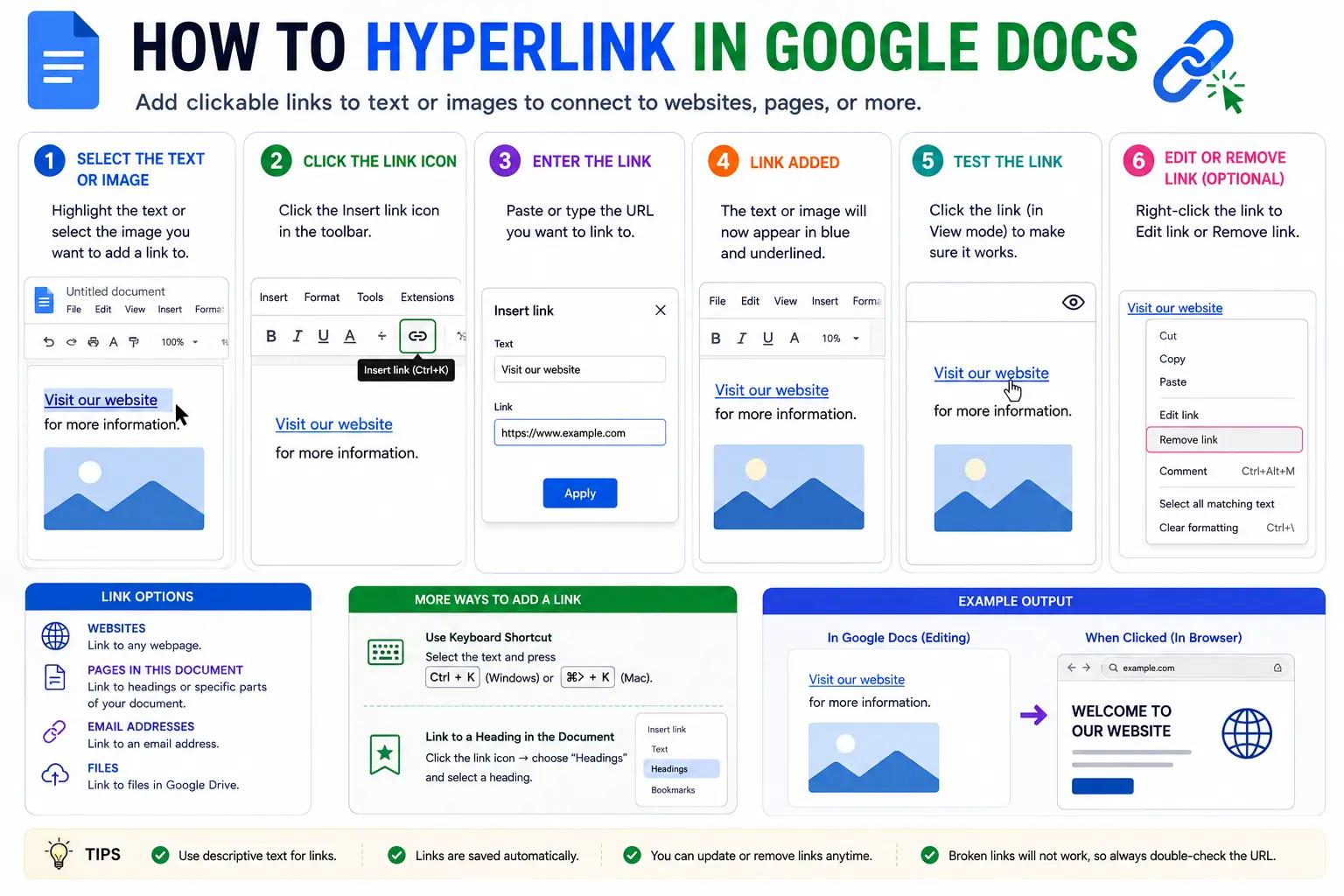
Learning how to hyperlink in Google Docs takes just a few seconds once you know where the option lives — and Google Docs actually offers three different ways to do it, including a keyboard shortcut most people never discover.
This guide covers every method: using the toolbar menu, the keyboard shortcut, linking to a specific section within the same document using bookmarks, and how the process differs slightly on mobile. We’ll also cover how to edit or remove a link afterward, since that trips up almost as many people as adding one in the first place.
Table of Contents
Method 1: Add a Hyperlink Using the Insert Menu
This is the most straightforward method and works well whether you’re linking new text or text you’ve already written.
- Open your document and either click where you want the link to appear, or highlight existing text you want to turn into a link.
- Click Insert in the top menu, then select Link.
- A small box appears with two fields: Text (the visible, clickable words) and Link (the destination).
- If you highlighted text beforehand, the Text field is already filled in — otherwise, type what you want displayed.
- In the Link field, paste a URL, type an email address, or start typing to search for a website directly within the box.
- Click Apply.
The linked text turns blue and underlined by default, the standard visual signal that it’s clickable.
Method 2: Use the Keyboard Shortcut
If you’d rather skip the menu entirely, Google Docs supports a direct keyboard shortcut for inserting a link.
- Windows/Chrome OS: Select your text, then press Ctrl + K.
- Mac: Select your text, then press ⌘ + K.
This opens the exact same link box as the Insert menu method, just without needing to click through the menu first — the fastest option once you’re used to it.
Method 3: Auto-Linking by Typing a URL Directly
If you simply type a full web address (like www.example.com) directly into your document and press Enter or the spacebar afterward, Google Docs automatically converts it into a clickable hyperlink on its own, without needing to open the Insert Link menu at all.
How to Link to a Specific Section Within the Same Document (Bookmarks)
This is a genuinely useful feature that most basic tutorials skip entirely — the ability to link directly to a specific spot within the same document, rather than an external website. This is especially useful for long documents where you want a clickable table of contents or a “jump to section” link.
Step 1: Create a bookmark at the destination
- Click exactly where you want the bookmark placed (for example, at the start of a specific section).
- Click Insert, then select Bookmark.
A small bookmark icon appears at that spot in the document.
Step 2: Link to that bookmark from elsewhere in the document
- Select the text you want to turn into a link (for example, an entry in a table of contents).
- Click Insert, then Link (or use the Ctrl+K / ⌘+K shortcut).
- In the link box that opens, click Bookmarks — a list of every bookmark currently in your document will appear.
- Select the specific bookmark you want to link to.
- Click Apply.
Clicking that link now jumps the reader directly to the bookmarked section, instead of opening an external page.
Note: if your document already uses headings (Heading 1, Heading 2, etc.), Google Docs also lets you link directly to those headings the same way, without needing to manually place a separate bookmark first — headings show up automatically in that same link list alongside any bookmarks you’ve created.
How to Edit or Remove a Hyperlink in Google Docs
- Click anywhere on the existing hyperlink.
- A small popup box appears showing the link’s destination.
- To change the link, click Change, then update the URL or the linked text.
- To remove the link entirely (while keeping the visible text), click Remove.
How to Hyperlink in Google Docs on Mobile (Android and iPhone/iPad)
The core process is the same across platforms, though the menu path shifts slightly on mobile.
- Open the document in the Google Docs app.
- Tap to place your cursor, or select the text you want to link.
- Tap the plus (+) icon or the Insert option (depending on your device).
- Select Link.
- Enter the URL and tap the checkmark or Insert to apply it.
The same bookmark-linking feature described above is also available within the Google Docs mobile app, following a similar Insert menu path.
Comparison: Ways to Add a Hyperlink in Google Docs
| Method | Best For | Steps Required |
| Insert > Link menu | Beginners, precise control over link text | 3 clicks |
| Keyboard shortcut (Ctrl/⌘+K) | Frequent link creation, faster workflow | 1 shortcut + fill-in |
| Auto-link by typing a URL | Quick, plain link with no custom text needed | Type + Enter |
| Bookmark linking | Jumping to a specific section within the same document | Bookmark first, then link to it |
Real-World Use Cases
- Clickable table of contents: Using bookmark links so readers can jump directly to any section of a long document without scrolling manually.
- Citing sources: Linking specific phrases or claims directly to the original article, study, or webpage being referenced.
- Shared team documents: Linking to related files, spreadsheets, or project pages stored elsewhere in Google Drive.
- Resumes and portfolios: Linking a name or header directly to a LinkedIn profile or personal website.
- Meeting notes: Linking action items to relevant reference documents or previous meeting notes for quick follow-up.
Common Mistakes When Hyperlinking in Google Docs
- Forgetting to select text before opening the link menu. Without a selection, Google Docs uses your typed link as both the visible text and the destination, which can look messy for long URLs.
- Not using bookmarks for internal navigation. Many people manually retype section titles as unlinked text instead of using the built-in bookmark-linking feature for actual clickable navigation.
- Deleting text instead of removing just the link. Clicking the wrong option (or manually deleting the text) removes more than intended — use “Remove” in the link popup to keep the text while dropping the link.
- Typing a URL without https://. While Google Docs usually auto-detects common formats, including the full prefix avoids inconsistent auto-linking behavior.
- Assuming mobile and desktop menus are identical. The core steps are similar, but the exact icons and menu labels differ slightly between the Docs mobile app and the desktop/web version.
Best Practices
- Use the Ctrl+K / ⌘+K shortcut once you’re comfortable with the process — it’s meaningfully faster than navigating the Insert menu every time.
- Use bookmarks for any document longer than a page or two, especially reports, guides, or anything with a clear section structure.
- Write descriptive link text rather than pasting a raw URL directly into the document — “read the full report” is more useful and professional-looking than a long, unedited link.
- Test links after adding them, especially in shared documents, to confirm they open the correct destination.
- Keep external links up to date in documents that get reused or referenced repeatedly, since outdated links can quietly break over time.
Frequently Asked Questions
How do I add a hyperlink in Google Docs?
Select the text you want to link (or click where you want it), go to Insert > Link, enter the destination URL or email address, and click Apply. You can also use the keyboard shortcut Ctrl+K (Windows) or ⌘+K (Mac) to open the same link box directly.
Is there a keyboard shortcut to insert a hyperlink in Google Docs?
Yes. Select your text, then press Ctrl+K on Windows or Chrome OS, or ⌘+K on Mac, to open the link insertion box immediately.
How do I link to a specific section within the same Google Doc?
Place a bookmark at the destination (Insert > Bookmark), then select the text you want to use as the link, open the link menu (Insert > Link or Ctrl/⌘+K), click “Bookmarks,” and select the one you want to link to.
How do I remove a hyperlink in Google Docs without deleting the text?
Click on the hyperlink to open its popup box, then click “Remove.” This removes the clickable link while keeping the visible text exactly in place.
Does typing a web address automatically create a hyperlink in Google Docs?
Yes. Typing a full URL and pressing Enter or the spacebar afterward automatically converts it into a clickable hyperlink without needing to use the Insert Link menu.
Can I hyperlink in Google Docs on my phone?
Yes. In the Google Docs mobile app, select your text, tap the plus icon or Insert option, choose Link, enter the URL, and confirm. The bookmark-linking feature for internal navigation is also available on mobile.
Final Thoughts How to Hyperlink in Google Docs
Hyperlinking in Google Docs is quick no matter which method you use — the Insert menu, the Ctrl+K/⌘+K shortcut, or simply typing a URL directly all get the job done in seconds.
The bookmark-linking feature is worth learning specifically if you regularly work with longer documents — it turns a static table of contents into a genuinely clickable navigation system, something most people don’t realize Google Docs can do until they go looking for it.


