
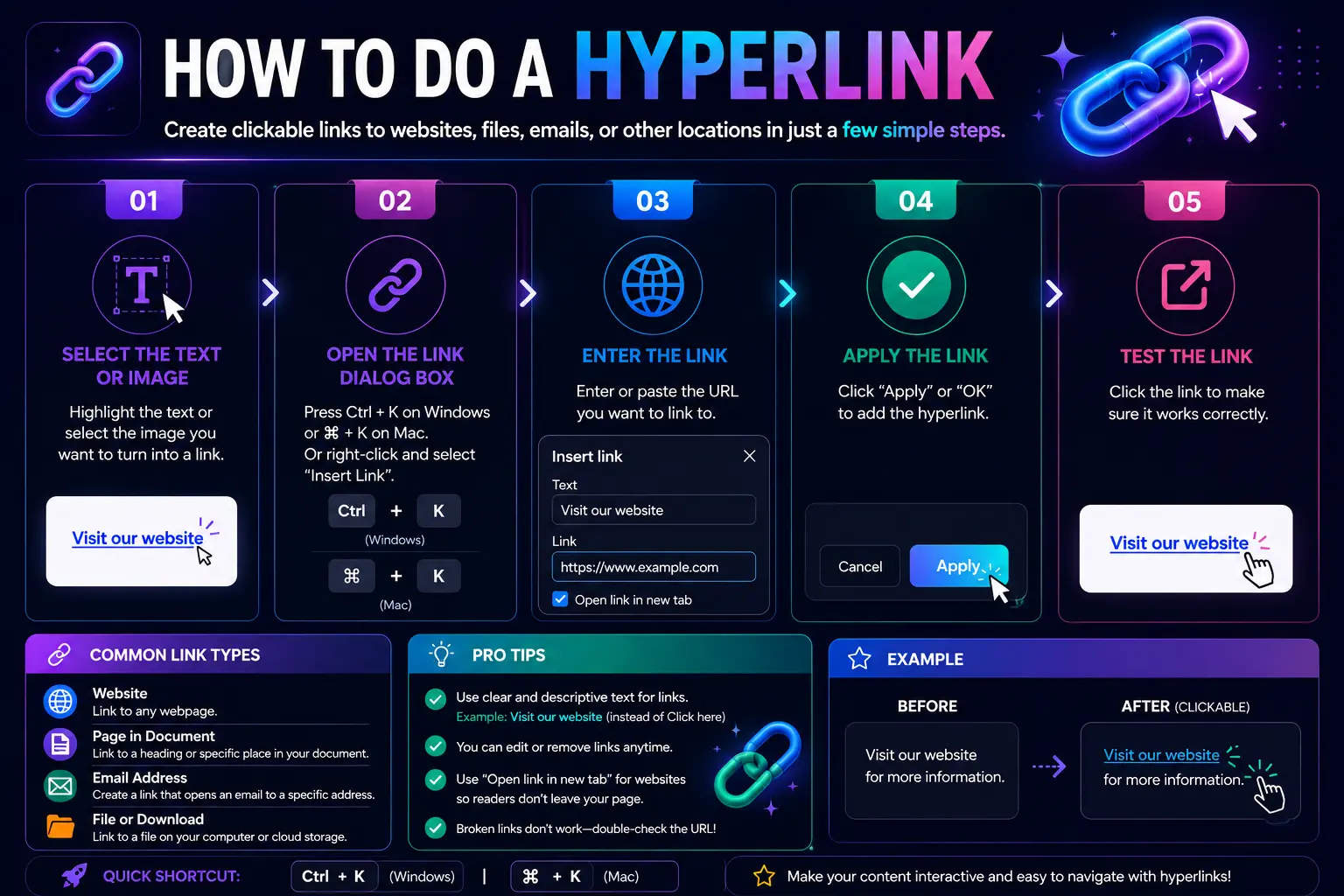
Learning how to do a hyperlink — turning a word, phrase, or image into something clickable that takes you to a website, another document, or an email address — is one of those small skills that comes up constantly, whether you’re writing a Word document, sending an email in Outlook, or working almost anywhere else online.
The good news: the process is nearly identical everywhere you’ll need it. This guide covers the exact steps for Word and Outlook specifically (since these come up most often), plus the underlying principle that applies universally, so you’ll know how to make something a hyperlink no matter what program you’re working in.
Table of Contents
What Does It Mean to “Do” a Hyperlink?
A hyperlink is made of two connected pieces: the visible text (or image) that someone actually sees and clicks, and the hidden destination — a web address, file, or email address — that opens when they click it.
“Doing a hyperlink” simply means connecting those two pieces: choosing what visible text or image will be clickable, and telling the program where that click should lead. Nearly every program that handles text — word processors, email clients, website builders — includes a built-in tool for exactly this, usually found under an Insert menu or accessible through a keyboard shortcut.
How to Create a Hyperlink in Word
- Highlight the text you want to turn into a hyperlink (or click where you want a new hyperlink to appear).
- Go to the Insert tab on the ribbon, then click Link (in some versions, this appears as Hyperlink).
- In the dialog box that opens, choose what you’re linking to:
- Existing File or Web Page — for a website URL or a file saved on your device.
- Place in This Document — for jumping to a specific heading or bookmarked spot within the same file.
- Create New Document — for linking to a brand-new file.
- E-mail Address — for linking to an email address.
- For a website link, paste the full URL into the Address field.
- Adjust the Text to display field if you want different visible wording than the raw URL.
- Click OK.
Shortcut version: Highlight your text, then press Ctrl+K (Windows) or ⌘+K (Mac) to open the same dialog box instantly, without clicking through the Insert tab.
How to Create a Hyperlink in Outlook
Outlook uses a nearly identical process to Word, since both are part of the same Microsoft Office family — though the exact menu can vary slightly depending on whether you’re using classic Outlook, New Outlook, or Outlook on Mac.
- Open a new email or reply, and type the text you want to make clickable.
- Highlight that text.
- Right-click the selection and choose Link (or go to Insert > Link in the ribbon).
- In the Insert Hyperlink dialog, paste the destination URL into the Address box.
- Click OK.
Shortcut version: Select your text, then press Ctrl+K (Windows) or ⌘+K (Mac) to open the same dialog directly.
Creating an email hyperlink (mailto link) in Outlook
If you want the link to open a new pre-addressed email instead of a webpage:
- Open the Insert Hyperlink dialog as above.
- Under Link to, select E-mail Address.
- Enter the destination email address, and optionally a pre-filled subject line.
- Confirm the dialog.
A few Outlook-specific things worth knowing
- Outlook also auto-links typed URLs. Typing a web address directly and pressing spacebar or Enter converts it into a clickable link automatically, without opening any menu.
- Make sure your URL includes https://. A bare address starting with just “www.” may not reliably register as a clickable link in every email client the recipient might use.
- Plain Text messages can’t display styled hyperlinks. If your email is set to Plain Text format rather than HTML or Rich Text, links won’t be clickable the same way — switch the message format first if this applies.
- Signature links are edited separately. If you want to change a hyperlink inside your Outlook signature specifically, that needs to be updated in Signature settings, not the message body itself.
The Universal Steps (Apply to Nearly Any Program)
Once you understand the pattern, you can figure out how to do a hyperlink almost anywhere, even in a program not specifically covered here:
- Select the text or image you want to make clickable.
- Find the link tool — usually under an “Insert” menu, or accessible by right-clicking the selected text.
- Enter the destination — a URL, file, email address, or specific location within the document.
- Confirm or apply the link.
Most modern programs — Google Docs, Canva, website builders, and even social media bios — follow this same basic structure, even if the exact menu names differ slightly.
Comparison: Hyperlink Shortcuts and Menus by Program
| Program | Shortcut | Menu Path |
| Microsoft Word | Ctrl+K / ⌘+K | Insert > Link |
| Microsoft Outlook | Ctrl+K / ⌘+K | Insert > Link (or right-click > Link) |
| Google Docs | Ctrl+K / ⌘+K | Insert > Link |
| Google Sheets | Ctrl+K / ⌘+K | Insert > Link |
| PowerPoint | — | Insert > Link > Insert Link |
The Ctrl+K / ⌘+K shortcut has become a near-universal standard across Microsoft and Google products specifically, which makes it worth memorizing if you frequently create hyperlinks across multiple programs.
How to Write Good Hyperlink Text
Regardless of which program you’re using, the wording you choose for the clickable text matters just as much as getting the technical steps right.
Weak: “Click here to see our pricing.” Strong: “See our pricing” (with the entire phrase hyperlinked).
Descriptive link text tells readers exactly what to expect before they click, and it’s also more accessible for screen reader users, who often navigate a page or document by jumping between links — a list of links that all say “click here” gives them no useful context.
Real-World Use Cases
- Business emails: Linking a phrase like “view the attached proposal” directly to a shared document, rather than pasting a long raw URL into the email body.
- Reports and documents: Linking a citation or reference phrase to its original source.
- Email signatures: Linking a name, job title, or company logo to a website or scheduling page.
- Internal navigation: Linking a table of contents entry to a specific heading further down in a long document.
- Newsletters: Linking a call-to-action phrase like “read the full article” to a blog post or landing page.
Common Mistakes When Creating a Hyperlink
- Forgetting to select the text first. Opening the link tool without any text selected often results in the raw URL being inserted as the visible text, rather than a cleaner custom phrase.
- Using vague link text like “click here” repeatedly. This makes it harder for readers — especially those using assistive technology — to understand what each individual link actually leads to.
- Leaving off https:// in the URL. Some programs and email clients may not reliably register a link typed without the full protocol prefix.
- Sending Plain Text emails and expecting styled hyperlinks. Plain Text format in Outlook and similar email clients doesn’t support clickable, styled links the same way HTML or Rich Text does.
- Not testing the link before sending or publishing. A mistyped URL is easy to miss until someone actually clicks it and lands somewhere unexpected.
Best Practices
- Learn the Ctrl+K / ⌘+K shortcut — it works across most Microsoft and Google programs and is significantly faster than navigating menus each time.
- Write descriptive, specific link text rather than generic phrases, both for clarity and accessibility.
- Double-check the destination URL before finalizing, especially when copying and pasting from another source.
- Test every link after creating it, particularly in documents or emails you’re about to send or publish.
- Use internal document links (bookmarks or headings) for long files, rather than manually describing where a section is — a clickable link is always faster for the reader.
Frequently Asked Questions
How do I turn text into a hyperlink?
Select the text, then use your program’s link tool — typically found under an Insert menu or accessible with the keyboard shortcut Ctrl+K (Windows) or ⌘+K (Mac) — and enter the destination URL or address.
How do I create a hyperlink in Word?
Select the text, go to Insert > Link (or press Ctrl+K / ⌘+K), choose your destination type (web page, a place in the document, a new document, or an email address), enter the URL or details, and click OK.
How do I insert a hyperlink in Outlook?
Highlight the text, right-click and choose Link (or use Insert > Link, or press Ctrl+K / ⌘+K), paste the destination URL into the Address box, and click OK.
Why isn’t my hyperlink clickable in my Outlook email?
This is often caused by the message being set to Plain Text format, which doesn’t support clickable, styled hyperlinks. Switch the message format to HTML or Rich Text, then re-add the link if needed.
Is there a keyboard shortcut for creating a hyperlink?
Yes. Ctrl+K on Windows, or ⌘+K on Mac, opens the link insertion dialog in most Microsoft and Google programs, including Word, Outlook, and Google Docs.
How do I make an email address into a clickable hyperlink?
In most programs, use the same link tool, but choose the “Email Address” option instead of a web page, then enter the destination email address. Clicking the resulting link typically opens a new, pre-addressed email draft.
Final Thoughts how to do a hyperlink
Doing a hyperlink follows the same basic pattern no matter where you’re working: select your text, open the link tool (or use the Ctrl+K / ⌘+K shortcut), enter the destination, and confirm. Word and Outlook share this process almost exactly, since they’re both part of the same Microsoft ecosystem.
Once you know this pattern, you can apply it confidently in nearly any program you encounter — the menu names might shift slightly, but the underlying steps rarely do.


