
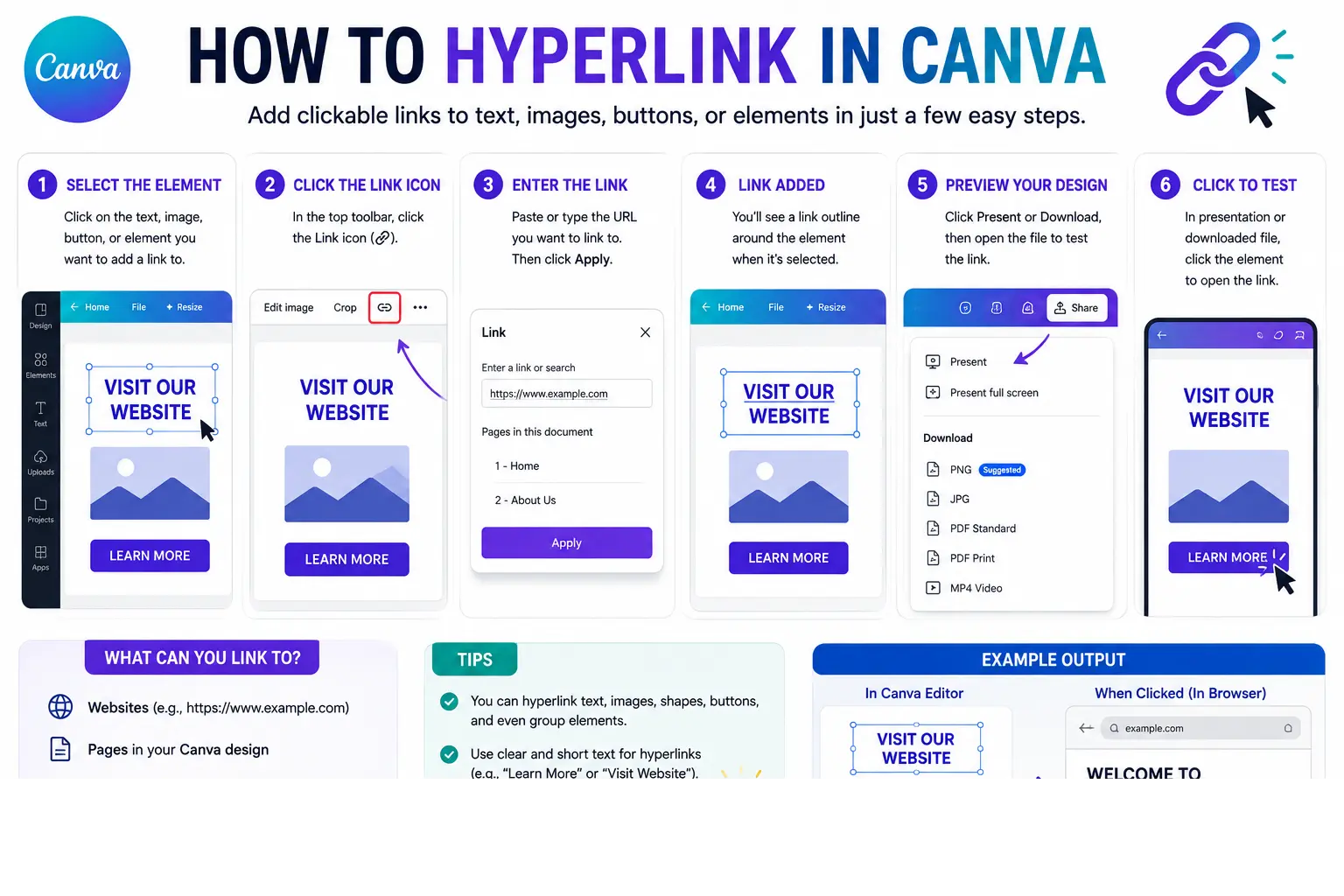
Learning how to hyperlink in Canva takes just a few clicks, but there’s one detail that trips up almost everyone: the link only stays clickable in certain export formats — not in the image files most people default to downloading.
This guide covers exactly how to add a hyperlink to text, images, and other elements in Canva, which file formats actually preserve clickable links (and which ones silently strip them out), how to test that a link works before sharing it, and how to remove or edit a link once it’s added.
Table of Contents
Can You Add a Hyperlink in Canva?
Yes — Canva fully supports adding clickable hyperlinks to text, images, shapes, icons, and even videos within a design. You can link to an external website, a specific page within the same multi-page design, or one of your other recent Canva projects.
The catch: the hyperlink only remains clickable depending on how you export or share the finished design. This is the single most important thing to understand before you start adding links, so it’s worth covering before the actual steps.
Which Canva File Formats Keep Hyperlinks Clickable?
| Export Format | Hyperlinks Clickable? |
| PDF Standard / PDF Print | Yes |
| Sharing directly via a Canva link (Present or view-only link) | Yes |
| PNG | No |
| JPG | No |
| MP4 (video) | No (except during Presenter view for video-embedded links) |
| Social media post uploads (Instagram, Facebook, LinkedIn, etc.) | No |
In short: if you want the hyperlink to actually work for whoever opens your design, export as a PDF or share the design directly through Canva’s own share link — never as an image file. Image formats like PNG and JPG flatten the design into a static picture, which strips out any clickable functionality entirely.
How to Hyperlink Text in Canva
- Open your design in the Canva editor.
- Click into the text box, then highlight the specific words you want to hyperlink (or select the entire text box if you want the whole thing clickable).
- Look at the floating toolbar that appears above your selection — find the link icon (a small chain-link symbol). If you don’t see it directly, click the three-dot menu in that same toolbar to reveal it.
- Click the link icon. A small box appears with the prompt “Enter a link or search.”
- Paste or type the destination URL (make sure it includes https:// at the start).
- Press Enter on your keyboard to apply the link.
The linked text typically appears underlined by default, signaling to viewers that it’s clickable — though this formatting can be adjusted afterward if you prefer a different visual style.
How to Hyperlink an Image or Element in Canva
The process is nearly identical to linking text, just applied to a different type of element.
- Click once on the image, icon, shape, or graphic you want to hyperlink.
- In the toolbar that appears, click the link icon (or the three-dot menu, then Link, if it isn’t immediately visible).
- Enter the destination URL in the box that appears.
- Press Enter to apply it.
Unlike hyperlinked text, an image or shape won’t visually change once linked — there’s no automatic underline or color shift. Because of this, it’s worth adding a small visual cue of your own (like a border, icon, or nearby label) if you want viewers to recognize that a specific image is clickable.
How to Link to a Different Page Within the Same Design
For multi-page designs (like a presentation or a multi-page PDF document), you can link directly to another page in the same file, rather than an external website.
- Select the element you want to use as the link.
- Open the link menu the same way as above.
- Instead of entering a URL, look for the Pages in this document section within the dropdown.
- Select the specific page you want the element to jump to.
This is especially useful for building a clickable table of contents, a “back to top” link, or a navigation menu within a longer PDF.
How to Test That Your Canva Hyperlink Actually Works
This step matters because Canva’s own editor doesn’t let links function while you’re still designing — clicking a hyperlink inside the editor just selects the element, rather than opening the destination.
- Export your design as a PDF (Standard or Print).
- Open the downloaded PDF file directly (using your computer’s PDF viewer or browser).
- Click each hyperlink to confirm it opens the correct destination.
Testing after export — not during editing — is the only reliable way to confirm a Canva hyperlink is working correctly.
How to Edit or Remove a Hyperlink in Canva
- Click on the element containing the hyperlink.
- Open the link menu again (the chain-link icon or three-dot menu, as before).
- To edit the link, simply replace the existing URL with a new one and press Enter.
- To remove the link entirely, look for a trash/bin icon within that same link menu and select it.
Real-World Use Cases
- Digital resumes and portfolios: Linking a name, header, or icon directly to a LinkedIn profile, personal website, or portfolio piece.
- Interactive lead magnets: Adding clickable links throughout a downloadable PDF guide, directing readers to a website, product page, or email sign-up.
- Clickable presentation menus: Using linked text or shapes on a title slide to let a self-guided viewer jump directly to a specific section.
- Social icon links: Linking small icon graphics (Instagram, TikTok, email) within a design to their respective profiles or contact methods.
- Digital business cards: Creating a Canva-designed card with a clickable link to a scheduling page, website, or contact form, shared as a PDF or Canva link.
Common Mistakes When Hyperlinking in Canva
- Exporting as PNG or JPG and expecting the link to work. Image formats strip out hyperlink functionality entirely — always export as a PDF, or share directly via a Canva link, if clickability matters.
- Trying to test the link inside the Canva editor. Links don’t function during editing; clicking one just selects the element. Always test after exporting.
- Forgetting the https:// prefix when entering a URL. Some links may not register correctly without the full address format.
- Assuming a hyperlinked image will look visually different. Unlike text, images and shapes don’t automatically show any visual indicator of being linked — add your own cue if it matters for your design.
- Expecting links to work when uploaded directly to social media. Even a PDF exported with working links loses that functionality once uploaded as a post on platforms like Instagram or LinkedIn, since these platforms don’t support clickable elements within uploaded files.
Best Practices
- Always export as PDF (Standard or Print) when hyperlinks need to remain functional in the final file.
- Test every link after exporting, not just visually confirming it was added, to catch typos or broken URLs before sharing.
- Add a visual cue to linked images or shapes, since they don’t automatically indicate clickability the way linked text does.
- Use internal page links for longer, multi-page designs, creating an easy way for viewers to navigate without scrolling through the entire document manually.
- Share via Canva’s own link option as an alternative to PDF export when you want viewers to interact with the design directly in a browser, since Canva-hosted share links also preserve hyperlink functionality.
Frequently Asked Questions
Can you add a hyperlink in Canva?
Yes. Canva supports adding hyperlinks to text, images, shapes, and other elements. The link stays clickable specifically when the design is exported as a PDF or shared directly through a Canva share link — not when exported as an image file like PNG or JPG.
How do I add a hyperlink to text in Canva?
Highlight the text you want to link, click the chain-link icon in the floating toolbar (or the three-dot menu if it’s not immediately visible), enter the destination URL, and press Enter.
Why doesn’t my Canva hyperlink work after downloading?
This almost always means the design was exported as an image format (PNG or JPG), which doesn’t support clickable links. Re-export the design as a PDF instead to preserve the hyperlink’s functionality.
Can I hyperlink an image in Canva, not just text?
Yes. Select the image, click the link icon in the toolbar, enter the URL, and press Enter — the same basic process used for hyperlinking text.
How do I link to another page within the same Canva design?
Open the link menu on the element you want to use, and instead of entering an external URL, choose the specific page from the “Pages in this document” section in the dropdown.
Do Canva hyperlinks work when I click them inside the editor?
No. Clicking a hyperlinked element while still editing in Canva just selects that element rather than opening the link. You need to export the design (typically as a PDF) and test the link in the downloaded file.
Final Thoughts how to hyperlink in canva
Hyperlinking in Canva is a simple, quick process — select an element, click the link icon, and enter your URL — but the real key to getting it right is exporting correctly afterward. PDFs and direct Canva share links preserve clickable hyperlinks; image formats like PNG and JPG do not.
Always test your links in the actual downloaded or shared file, not inside the editor itself, and you’ll avoid the most common frustration people run into with this feature.


