
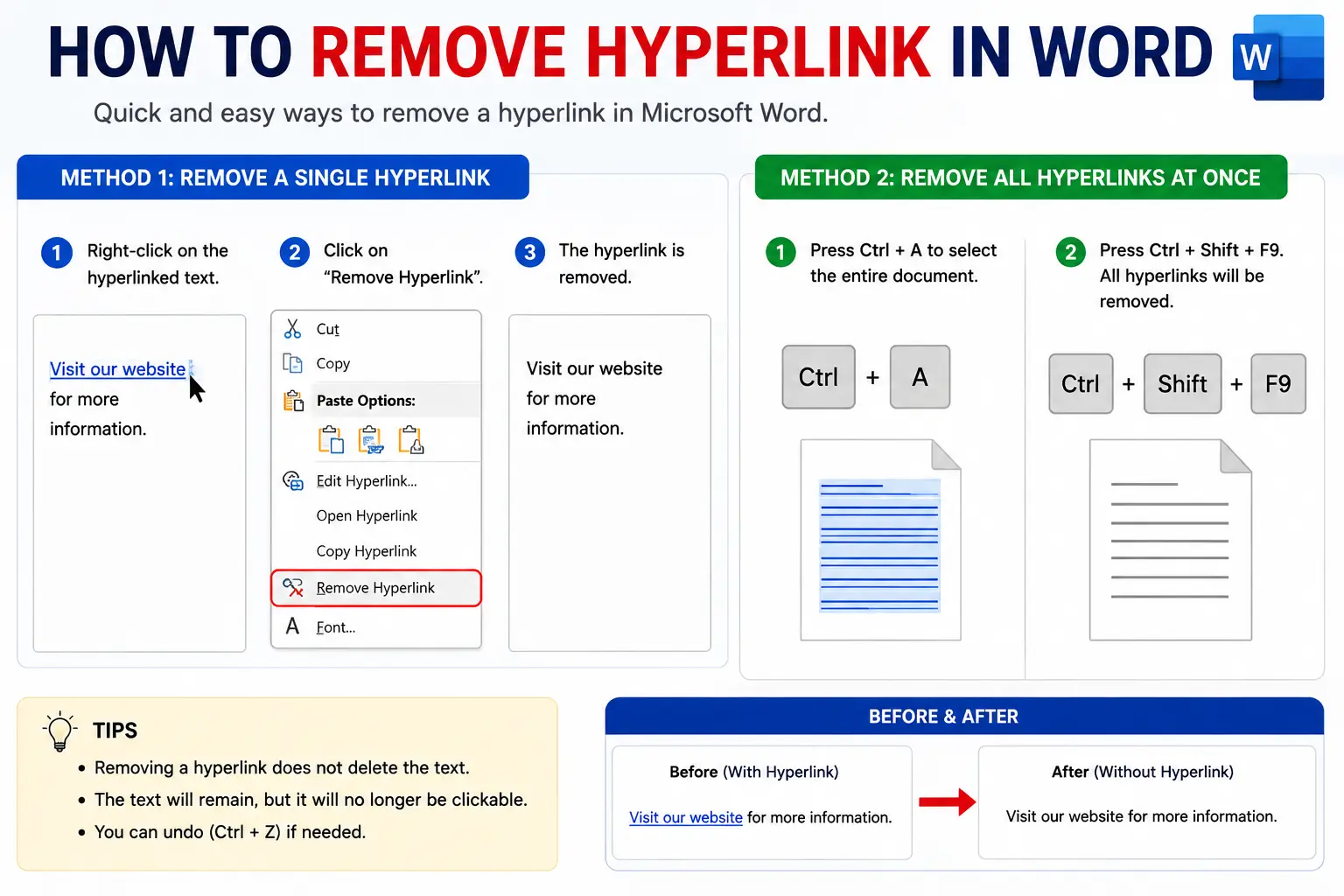
If a hyperlink keeps showing up as blue, underlined text you didn’t mean to create — or you’re cleaning up pasted content full of unwanted links — learning how to remove a hyperlink in Word takes just a couple of clicks, whether you want to remove one link or every link in the entire document at once.
This guide covers the exact steps for Word, plus Excel and PowerPoint (since removing hyperlinks works slightly differently in each), and — importantly — how to stop Word from automatically turning text into hyperlinks in the first place, so you’re not stuck removing the same kind of link over and over.
Table of Contents
How to Remove a Single Hyperlink in Word
There are two slightly different outcomes depending on what you want: keep the text but remove the link, or delete both the link and the text entirely.
Option 1: Remove the hyperlink but keep the text
- Right-click directly on the hyperlink.
- Select Remove Hyperlink from the menu that appears.
The text stays exactly where it was, but it’s no longer clickable and typically reverts to normal black, non-underlined formatting.
Option 2: Remove the hyperlink and the text together
- Click and drag to select the entire hyperlink (the visible text).
- Press Delete on your keyboard.
This removes both the clickable link and the text itself — use this option only if you don’t need to keep the visible words on the page.
How to Remove All Hyperlinks in Word at Once
If a document is full of hyperlinks — common after pasting content copied from a website or email — removing them one at a time is impractical. Word has a built-in shortcut for clearing every hyperlink in the entire document in one move.
- Press Ctrl+A to select all the text in the document.
- Press Ctrl+Shift+F9.
This instantly removes every hyperlink throughout the document while leaving all the visible text exactly in place — no need to right-click each one individually.
How to Undo a Hyperlink in Word Right After Creating It
If Word automatically converts something into a hyperlink the moment you type it (which happens often with web addresses and email addresses), you can undo that specific action immediately:
- Press Ctrl+Z right after the automatic hyperlink appears.
This undoes just the auto-formatting step, converting the text back to plain, non-linked formatting, without undoing anything else you’ve typed.
How to Stop Word From Automatically Creating Hyperlinks
This is the fix that actually prevents the problem, rather than just cleaning it up after the fact — genuinely useful if you’re constantly removing the same auto-generated links.
- Go to File > Options > Proofing.
- Click AutoCorrect Options, then open the AutoFormat As You Type tab.
- Uncheck Internet and network paths with hyperlinks.
- Click OK to save.
From this point on, typing a web address or email address in Word will no longer automatically convert it into a clickable hyperlink.
How to Remove Hyperlinks in Excel
Excel handles hyperlink removal a bit differently from Word, and the exact steps depend on how the hyperlink was originally created.
Removing a standard hyperlink (created by pasting a link or using Insert > Link)
- Right-click the cell containing the hyperlink.
- Select Remove Hyperlink.
Removing all hyperlinks in a worksheet at once
- Select all the cells containing hyperlinks — or press Ctrl+A to select the entire sheet.
- Right-click and choose Remove Hyperlinks.
Removing a hyperlink created with the HYPERLINK function
If the link was generated using Excel’s HYPERLINK() formula rather than a standard inserted link, the two options above won’t fully remove it, since the link is embedded in a formula. Instead:
- Select the cell containing the hyperlink formula.
- Press Ctrl+C to copy it.
- Right-click the same cell and choose Paste Values (an option that pastes only the calculated result, not the underlying formula).
This replaces the formula with plain, static text, eliminating the hyperlink function entirely.
How to Remove a Hyperlink in PowerPoint
- Right-click the hyperlinked text, shape, or image.
- Select Remove Hyperlink from the menu.
The visible text or object stays in place, but it’s no longer clickable. Unlike Word, PowerPoint doesn’t include a single built-in keyboard shortcut to remove every hyperlink across an entire presentation at once — each one currently needs to be removed individually, slide by slide.
Comparison: Removing Hyperlinks Across Office Apps
| App | Remove One Link | Remove All at Once | Special Case |
| Word | Right-click > Remove Hyperlink | Ctrl+A, then Ctrl+Shift+F9 | — |
| Excel | Right-click > Remove Hyperlink | Select all cells, right-click > Remove Hyperlinks | HYPERLINK() formula needs Paste Values instead |
| PowerPoint | Right-click > Remove Hyperlink | Not available — must remove individually | — |
| Outlook | Right-click > Remove Hyperlink | Ctrl+A, then Ctrl+Shift+F9 (same as Word) | — |
Real-World Use Cases
- Cleaning up pasted content. Copying text from a webpage or email into Word or Excel often brings along unwanted hyperlink formatting that needs to be stripped out before the document looks clean.
- Preparing a document for print. Hyperlinks are irrelevant in a printed document and can look visually distracting (blue, underlined text) if not removed beforehand.
- Fixing accidental auto-links. Typing an email address or web-like text in Word often auto-converts it into a clickable link even when that wasn’t intended — quick removal (or turning off the feature entirely) fixes this.
- Reusing an old template. A document template with outdated or broken hyperlinks (like links to a previous website version) often needs those links stripped before reuse.
- Protecting sensitive information. Removing a hyperlink to an internal or private URL before sharing a document externally, while keeping the surrounding descriptive text intact.
Common Mistakes When Removing Hyperlinks
- Selecting and deleting the text when you only meant to remove the link. Right-click and choose “Remove Hyperlink” specifically if you want to keep the visible text — pressing Delete removes both.
- Not realizing Excel’s HYPERLINK function needs a different removal method. The standard “Remove Hyperlink” option doesn’t fully work on links generated by the formula — use Paste Values instead.
- Forgetting hyperlink formatting can remain even after the link is removed. Occasionally, the blue, underlined visual style persists even after the actual clickable link is gone — this can be manually cleared using standard font formatting tools (font color and underline settings).
- Expecting a “remove all” shortcut in PowerPoint. Unlike Word and Excel, PowerPoint currently requires removing hyperlinks one at a time, slide by slide.
- Not turning off auto-hyperlinking after repeatedly removing the same kind of link. If you’re constantly deleting auto-generated hyperlinks, adjusting the AutoCorrect setting saves ongoing effort.
Best Practices
- Use Ctrl+Shift+F9 for bulk cleanup in Word or Outlook whenever a document has many unwanted hyperlinks, rather than removing them individually.
- Turn off automatic hyperlink creation in AutoCorrect settings if you regularly type web addresses or emails you don’t want automatically linked.
- Use Paste Values in Excel specifically when dealing with formula-based hyperlinks, since the standard removal option won’t fully clear them.
- Double-check formatting after removing a link, since leftover blue or underlined styling sometimes needs a separate manual fix.
- Save a copy before bulk-removing hyperlinks in an important document, in case you need to reference the original links later.
Frequently Asked Questions
How do I remove a hyperlink in Word without deleting the text?
Right-click directly on the hyperlink and select “Remove Hyperlink.” This removes the clickable link while keeping the visible text exactly in place.
How do I remove all hyperlinks in a Word document at once?
Press Ctrl+A to select the entire document, then press Ctrl+Shift+F9. This removes every hyperlink in the document in a single step, without deleting any text.
How do I remove a hyperlink in Excel?
Right-click the cell containing the hyperlink and select “Remove Hyperlink.” To remove all hyperlinks in a worksheet at once, select all cells (or press Ctrl+A), right-click, and choose “Remove Hyperlinks.”
Why won’t “Remove Hyperlink” work on a link in Excel?
If the hyperlink was created using the HYPERLINK() function rather than a standard inserted link, it’s embedded in a formula. Copy the cell, then right-click and choose “Paste Values” to replace the formula with plain text instead.
How do I stop Word from automatically turning text into a hyperlink?
Go to File > Options > Proofing > AutoCorrect Options > AutoFormat As You Type, and uncheck “Internet and network paths with hyperlinks.” This stops Word from auto-converting typed URLs and email addresses into clickable links going forward.
Can I remove all hyperlinks in PowerPoint at once?
Not with a single built-in shortcut. Unlike Word and Excel, PowerPoint currently requires removing hyperlinks individually — right-click each one and select “Remove Hyperlink.”
Final Thoughts how to remove hyperlink in word
Removing a hyperlink in Word, Excel, or PowerPoint follows the same basic idea across all three — right-click and select “Remove Hyperlink” — with Word and Excel offering additional shortcuts for clearing many links at once, which PowerPoint currently doesn’t include.
If you find yourself repeatedly removing the same type of auto-generated hyperlink in Word, turning off automatic link creation in AutoCorrect settings solves the problem at its source, rather than requiring cleanup every time.


