Knowing how to clear browser history is one of the most common things people search for, whether it’s to free up storage, fix a glitchy website, protect privacy on a shared computer, or simply tidy up months of accumulated browsing data. The steps are slightly different depending on your browser and device, which is exactly why so many people end up searching for it instead of just guessing.
This guide covers every major browser — Chrome, Edge, Safari, and Firefox — across every device you’re likely using: Windows, Mac, Chromebook, iPhone, and Android. It also explains what actually gets deleted, what stays behind, and the mistakes that trip people up most often.
Table of Contents
What “Browser History” Actually Includes
Before clearing anything, it helps to know what you’re actually deleting. Browsing history is the record your browser keeps of every website you’ve visited, along with the date and time. It’s separate from a few other types of stored data that are often cleared at the same time:
- Cookies — small files websites save on your device to remember you between visits (like staying logged in).
- Cache — temporary files (images, scripts, page layouts) your browser saves so sites load faster on repeat visits.
- Saved passwords and autofill data — usually stored separately and not deleted unless you specifically select them.
- Downloads history — a record of files you’ve downloaded, which is distinct from your browsing history.
Most “Clear browsing data” menus let you choose exactly which of these to delete, so you’re not forced to wipe everything at once.
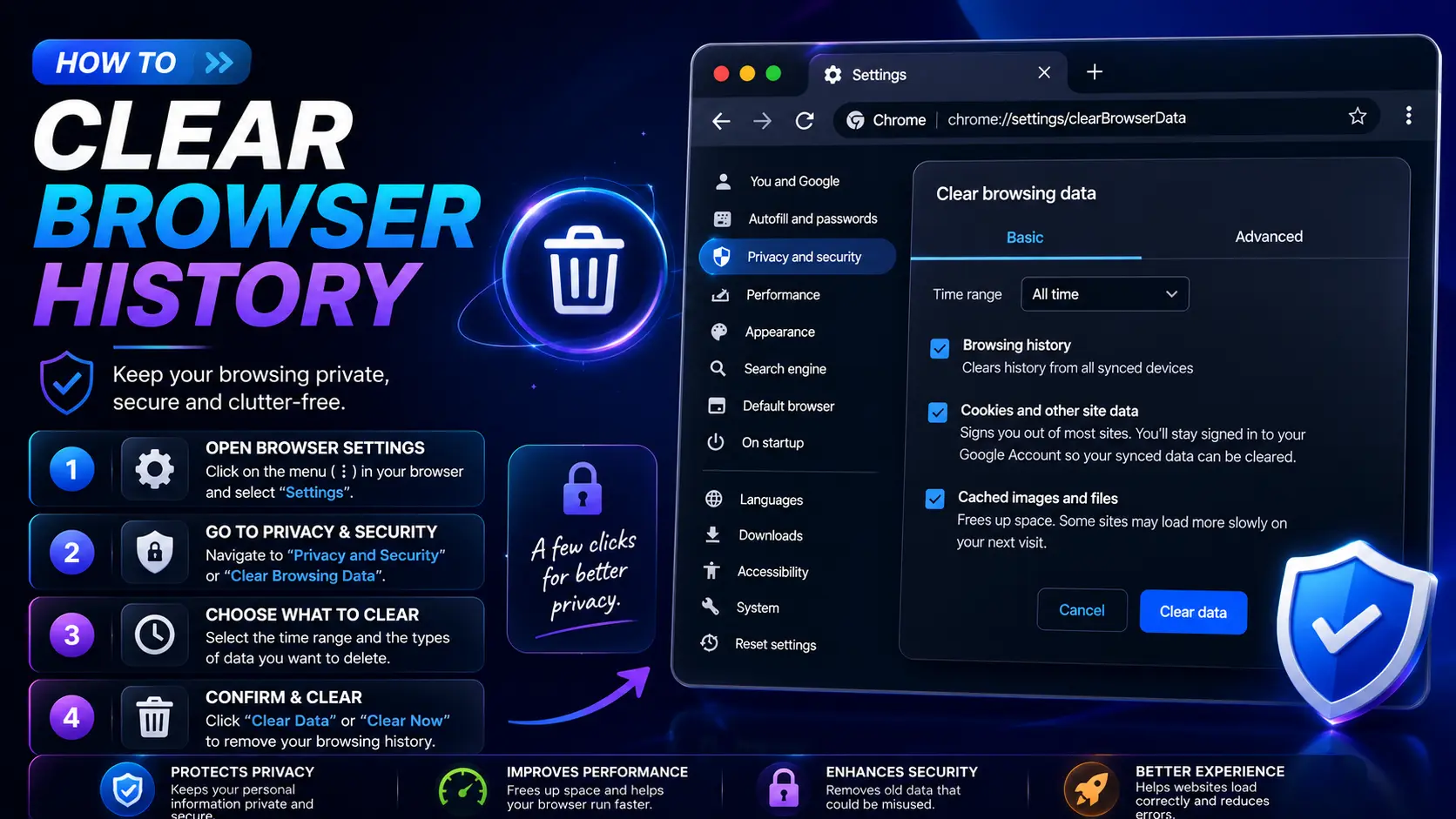
How to Clear Browser History on Chrome (Windows, Mac, Chromebook)
Chrome uses nearly identical steps across every operating system, since the settings menu itself is the same regardless of the computer it’s running on.
- Open Chrome and click the three-dot menu in the top-right corner.
- Hover over History, then click History again in the submenu (or press Ctrl+H on Windows/Chromebook, Cmd+Y on Mac).
- Click Clear browsing data on the left side of the History page.
- Choose a time range — Last hour, Last 24 hours, Last 7 days, Last 4 weeks, or All time.
- Check the boxes for what you want cleared: Browsing history, Cookies and other site data, and/or Cached images and files.
- Click Clear data.
How to Clear Browser History on Chromebook Specifically
Since Chromebooks run ChromeOS, which is built entirely around the Chrome browser, the process is identical to the desktop Chrome steps above — there’s no separate “system-level” history to worry about beyond what’s in Chrome itself.
How to Delete Browser History on Microsoft Edge (Windows)
- Open Edge and click the three-dot menu in the top-right corner.
- Select Settings, then Privacy, search, and services.
- Under “Clear browsing data,” click Choose what to clear.
- Select a time range and check the boxes for Browsing history, Cookies and other site data, and Cached images and files.
- Click Clear now.
A faster shortcut: press Ctrl+Shift+Delete in Edge to jump straight to this menu.
How to Clear Browser History on Safari (Mac and iPhone)
On Mac
- Open Safari and click History in the top menu bar.
- Select Clear History.
- Choose a time range from the dropdown (the last hour, today, today and yesterday, or all history).
- Click Clear History to confirm.
On iPhone
- Open the Settings app (not Safari itself).
- Scroll down and tap Safari.
- Tap Clear History and Website Data.
- Confirm by tapping Clear History and Data.
Note that on iPhone, this single option clears history, cookies, and cache together — Safari’s mobile settings don’t offer the same granular checkboxes as the desktop version.
How to Clear Browser History on Firefox
- Open Firefox and click the three-line menu in the top-right corner.
- Select History, then Clear Recent History.
- Choose a time range from the dropdown menu.
- Check the boxes for Browsing & Download History, Cookies, and Cache.
- Click Clear Now.
How to Clear Browser History on Android
Steps vary slightly by browser, but for Chrome on Android (the most common default):
- Open Chrome and tap the three-dot menu.
- Tap History.
- Tap Clear browsing data.
- Select a time range and check what you want cleared.
- Tap Clear data.
Quick Reference Table
| Browser | Shortcut Key | Menu Path |
| Chrome (Windows/Chromebook) | Ctrl+H, then Clear browsing data | Three-dot menu → History → Clear browsing data |
| Chrome (Mac) | Cmd+Y | Three-dot menu → History → Clear browsing data |
| Edge | Ctrl+Shift+Delete | Three-dot menu → Settings → Privacy → Clear browsing data |
| Safari (Mac) | None | History menu → Clear History |
| Safari (iPhone) | None | Settings app → Safari → Clear History and Website Data |
| Firefox | Ctrl+Shift+Delete | Menu → History → Clear Recent History |
What Clearing History Does and Doesn’t Do
This is the part most guides skip, and it matters if your goal is privacy rather than just tidiness.
- It does remove the list of sites from your browser’s local history.
- It does log you out of most websites, since it typically clears cookies at the same time if you select that option.
- It does not remove your activity from your internet provider’s records, your employer’s network logs, or the websites themselves.
- It does not affect your Google Account’s separate Web & App Activity if you’re signed in and that setting is turned on — that’s stored on Google’s servers, not in your browser, and needs to be cleared separately through your Google Account settings.
- It does not delete saved passwords or bookmarks unless you specifically check those boxes.
Common Mistakes When Clearing Browser History
- Assuming “Clear browsing data” also deletes account-level history. If you’re signed into Chrome or Safari with a Google or Apple account, some activity may be synced and stored separately, requiring a second step to fully remove.
- Selecting “All time” without realizing it signs you out of everything. Clearing all cookies along with history logs you out of every website you were signed into, not just the ones you wanted to forget.
- Forgetting that other devices stay synced. If your browser syncs history across devices, clearing it on your phone may not remove it from your laptop unless sync settings are configured to match.
- Confusing “Clear browsing data” with deleting saved passwords. These are separate categories in every major browser’s menu — clearing history alone won’t touch stored logins.
- Not checking cache separately. Clearing history alone sometimes leaves cached files behind, which is why sites can still look outdated even after your history shows as cleared — check the cache box specifically if a page looks wrong.
Best Practices for Managing Browser History
- Clear history on a regular schedule (weekly or monthly) rather than letting months of data pile up, especially on a shared or work computer.
- Use a private/incognito window for one-off sensitive searches instead of relying on clearing history afterward — it avoids saving the record in the first place.
- If privacy from your internet provider or network matters, know that clearing browser history alone doesn’t address that — a VPN is the appropriate tool for that separate concern.
- Turn off sync for history if you’re using a shared or public computer, so your browsing doesn’t get carried over to your personal devices unintentionally.
- Review your Google Account’s Web & App Activity settings separately if you want to fully stop history from being stored outside your browser as well.
Frequently Asked Questions
How do I clear my browser history without deleting my passwords?
In every major browser’s “Clear browsing data” menu, leave the passwords or autofill checkbox unchecked — history, cookies, and cache are listed as separate options from saved passwords, so you can clear one without touching the other.
How do I clear browser history on Chrome specifically?
Click the three-dot menu, go to History, then click Clear browsing data, choose your time range and what to delete, and click Clear data. The same steps work identically on Windows, Mac, and Chromebook.
Does clearing browser history delete my bookmarks?
No. Bookmarks are stored completely separately from history, cookies, and cache, so clearing your browsing data never affects saved bookmarks unless you use a different, specific tool to remove them.
Will clearing my history log me out of my accounts?
Only if you also clear cookies at the same time, since staying logged in depends on cookies rather than history itself. If you clear history alone and leave cookies unchecked, you’ll typically stay signed in.
How do I clear browser history on a Chromebook?
Chromebooks run ChromeOS, which uses the same Chrome browser and settings menu as Chrome on Windows or Mac, so the steps are identical: three-dot menu → History → Clear browsing data.
Can someone recover my browser history after I clear it?
Under normal circumstances, no — once cleared through the browser’s settings, the history isn’t recoverable through the browser itself. However, technically skilled recovery methods on the underlying operating system sometimes exist, and separate records may still exist with your internet provider or employer’s network if applicable.
Final Thoughts
Now that you know how to clear browser history across Chrome, Edge, Safari, and Firefox — on every device from a Chromebook to an iPhone — you can clean up your browsing data confidently, whatever your reason for doing it. Just remember that history, cookies, cache, and saved passwords are separate categories in every browser’s settings, so double-check which boxes you’re actually checking before you click clear.