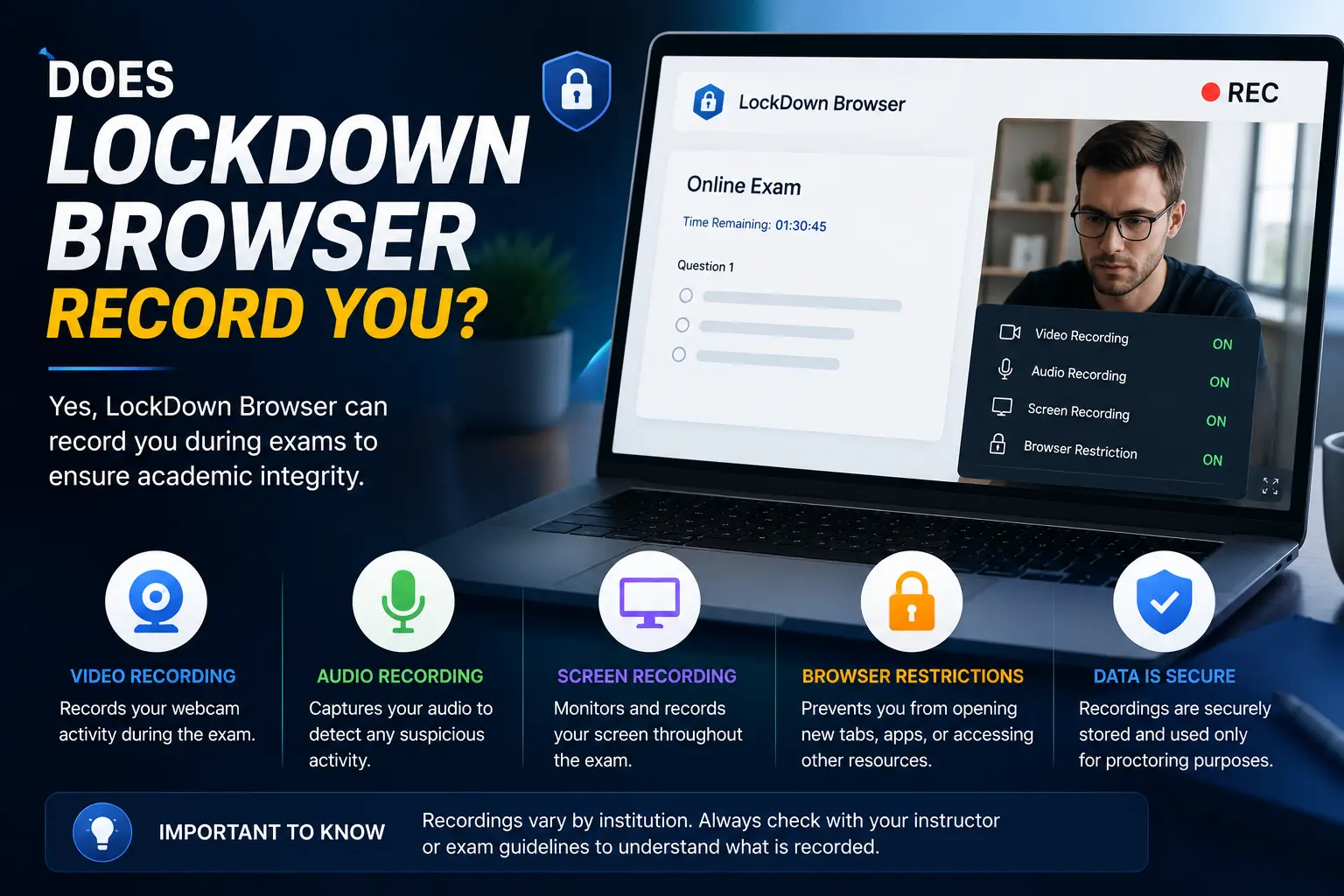
Does LockDown Browser record you? The honest answer is: it depends on which tool your instructor actually turned on. LockDown Browser by itself does not use your webcam or record you at all — it simply locks down your computer during a test, blocking other apps, tabs, and shortcuts. The recording only happens if your instructor has also enabled a separate add-on called Respondus Monitor.
That distinction matters, because most students searching this question are really asking whether they’re being filmed right now, or are about to be. This guide breaks down exactly what each tool does, what gets recorded when Monitor is active, who can see it afterward, and what students consistently misunderstand about how it works.
Table of Contents
LockDown Browser vs. Respondus Monitor: They’re Not the Same Thing
This is the single most important thing to understand, and it’s where most confusion comes from.
| Tool | What It Does | Uses Your Webcam? |
| Respondus LockDown Browser | A locked-down version of your web browser that blocks printing, copying, other applications, and other websites during a test | No |
| Respondus Monitor | An optional add-on that works alongside LockDown Browser to record you via webcam during the exam | Yes |
LockDown Browser is best thought of as a strict, temporary replacement for your normal browser. While it’s running, you can’t open other tabs, minimize the window, take a screenshot, copy and paste, or switch to another application until you submit the test. It doesn’t touch your camera or microphone on its own.
Respondus Monitor is a completely separate feature your instructor has to specifically turn on for a given test. When it’s active, it does exactly what the name suggests: it monitors you through your webcam while you take the exam.
So if you’re wondering does Pearson LockDown Browser use webcam, or asking about any specific school’s version — the answer always comes down to the same thing: check whether your instructor enabled Monitor for that particular test, since LockDown Browser alone never activates your camera, regardless of which learning platform (Canvas, Blackboard, Brightspace, MyLab) is hosting the exam.
Does LockDown Browser Use Webcam? Only With Monitor Enabled
To be direct about the secondary question people search alongside this one: does LockDown Browser use webcam access on its own? No. Webcam access only happens when Respondus Monitor has been specifically required for that exam. You’ll know Monitor is active because the startup process will ask you to complete a webcam and microphone check before the test begins.
If your exam only uses LockDown Browser without Monitor, your webcam light should never turn on during the test.
What Actually Gets Recorded When Monitor Is Enabled
If your instructor has turned on Respondus Monitor, here’s exactly what happens, based on how the tool is documented across university IT departments that use it:
- Webcam video of you for the entire exam session, from start to submission.
- Microphone audio for the same duration.
- Facial detection, which tracks whether your face stays in frame — if you move out of view repeatedly, this raises the video’s review priority for your instructor.
- A startup sequence, which typically includes a webcam check, sometimes a student photo, sometimes an ID photo, and a face-detection check before the exam actually begins.
- Screen recording, in some newer configurations — a more recent addition that captures what’s on your screen in addition to the webcam feed, though this feature doesn’t yet work on iPads.
The recording stops automatically the moment you submit your exam.
Can LockDown Browser See You Through Other Means?
Beyond the webcam feed itself (only active with Monitor), LockDown Browser does not have separate hidden methods of watching you. It doesn’t access your files, browsing history from other sessions, or anything on your computer outside of the locked exam window. Its restrictions — blocking other apps, copy/paste, and screenshots — are about preventing you from using other resources, not about surveillance beyond the webcam feed Monitor provides.
Who Actually Sees the Recording?
This is another common concern, and the answer is straightforward: your instructor. After the exam, recordings are made available through your course’s learning platform (Canvas, Blackboard, Brightspace, or similar), where the instructor can review the video, audio, and any flagged moments Monitor’s facial detection identified as suspicious. Recordings are not published publicly or shared outside the course, and Respondus itself doesn’t manually review individual student videos — it’s an automated flagging system, with the actual human review left entirely to your instructor.
Common Mistakes and Misunderstandings Students Have
- Assuming LockDown Browser always uses the webcam. It only does when Monitor is separately enabled — many exams use LockDown Browser alone with no camera involved at all.
- Panicking over facial detection flags. Looking away briefly, adjusting your seat, or a poor lighting angle can trigger a flag, but a flag simply raises review priority — it doesn’t automatically mean an academic integrity violation.
- Not testing your webcam and internet beforehand. Most instructors provide a practice test specifically so technical issues (webcam not detected, poor lighting, weak Wi-Fi) get caught before the real exam, not during it.
- Trying to use a tablet when it’s not supported. LockDown Browser and Monitor generally support Windows, Mac, and Chromebook, with iPad support more limited (and screen recording specifically not available on iPads) — using an unsupported device can cause the exam to fail to load correctly.
- Assuming a VPN or virtual machine will bypass detection. LockDown Browser is specifically built to block virtual machines and remote desktop tools, and attempting to bypass it this way is generally treated as an academic integrity violation itself.
Best Practices Before a LockDown Browser + Monitor Exam
- Take the practice test your instructor provides well before the real exam, so any webcam or connectivity issues surface with time to fix them.
- Test in a well-lit, quiet room with a stable internet connection, ideally wired rather than Wi-Fi if possible.
- Close all other applications before starting, even ones LockDown Browser might not immediately flag, to avoid interruptions mid-exam.
- Keep your face reasonably centered in frame throughout the exam to avoid unnecessary facial-detection flags.
- Check your specific school’s device compatibility page before the exam if you plan to use a Chromebook or iPad, since support varies by configuration.
Frequently Asked Questions
Does LockDown Browser record your face?
Only if your instructor has also enabled Respondus Monitor for that specific exam. LockDown Browser alone does not access your webcam or record your face.
Does LockDown Browser use your webcam without telling you?
No. If Monitor is enabled, you’re required to go through a webcam and microphone check as part of the startup sequence before the exam begins, so it’s never activated silently or without your knowledge.
Can LockDown Browser see other tabs or applications I have open?
It prevents you from opening other tabs or applications while the exam is active, and it can detect attempts to switch away from the exam window, but this is a restriction on your activity rather than webcam-based surveillance.
Does Pearson LockDown Browser use webcam access?
Exams built on Pearson’s platforms that require LockDown Browser follow the same rule as any other platform: webcam access only activates if Respondus Monitor has specifically been enabled for that exam by your instructor.
How long does Respondus Monitor keep my recorded video?
Retention periods are set by your institution rather than by Respondus itself, so how long a recording is kept varies by school. Check your specific university or course’s academic technology policy for their retention timeline.
Does the recording stop as soon as I submit my exam?
Yes. Recording ends automatically the moment you submit the test, so nothing is captured once you’ve finished and submitted your answers.
Final Thoughts Does LockDown Browser Record You
So, does LockDown Browser record you? On its own, no — it’s a restricted browser environment, not a camera-based monitoring tool. The recording only happens when your instructor has separately required Respondus Monitor for that exam, and even then, the webcam check at the start makes it obvious when that’s the case. Knowing this distinction should clear up most of the uncertainty: if you weren’t asked to complete a webcam check before your test began, your camera was never involved.