If Wave Browser showed up on your computer without you clearly choosing to install it, you’re not alone. It’s commonly bundled with free software downloads, which means many people find it running on their system without remembering how it got there.
Knowing how to uninstall Wave Browser properly matters because a standard drag-to-trash or basic uninstall often isn’t enough — it can leave behind extensions, changed homepage settings, or background processes that keep it running. This guide walks through a complete removal process for both Windows and Mac, plus how to undo any browser settings it changed along the way.
Table of Contents
What Is Wave Browser?
Wave Browser is a Chromium-based web browser, meaning it’s built on the same underlying engine as Google Chrome. On its own, it functions similarly to any standard browser. The issue most users run into isn’t the browser’s functionality — it’s how it typically gets installed.
Wave Browser is frequently bundled as an additional offer during the installation of unrelated free software. If you click through an installer quickly without unchecking optional add-ons, Wave Browser can end up installed alongside the program you actually wanted, often becoming your default browser or homepage without a clear, separate confirmation.
This installation pattern is why many users search for how to remove it entirely, rather than just closing it.
Before You Start: Back Up Anything You Need
If you’ve been using Wave Browser and have bookmarks or saved passwords stored in it, export or note them down before uninstalling, since removing the browser will also remove its locally stored data.
How to Uninstall Wave Browser on Windows
Step 1: Close Wave Browser Completely
Make sure Wave Browser isn’t running in the background. Right-click the Windows taskbar, open Task Manager, and check the Processes tab for any Wave Browser entries. If you see one, select it and click End Task.
Step 2: Uninstall Through Windows Settings
- Click the Start menu and open Settings.
- Go to Apps → Installed apps (this may appear as “Apps & features” on older versions of Windows).
- Type “Wave” into the search box to locate Wave Browser in the list.
- Click the three-dot menu next to it and select Uninstall.
- Follow the on-screen prompts to confirm removal.
Step 3: Remove Leftover Wave Browser Files
Standard uninstalls sometimes leave residual folders behind. To clear these out:
- Press Windows key + R to open the Run dialog.
- Type %LocalAppData% and press Enter.
- Look for a folder named “Wave” or “WaveBrowser” and delete it if present.
- Repeat the process using %AppData% in the Run dialog, checking for the same folder name.
Step 4: Check for Leftover Shortcuts
Right-click any Wave Browser icons still sitting on your desktop, taskbar, or Start menu, and select Delete or Unpin.
How to Uninstall Wave Browser on Mac
Step 1: Quit Wave Browser
Right-click the Wave Browser icon in the Dock and select Quit, or press Cmd + Q while the browser is active.
Step 2: Move It to the Trash
- Open Finder.
- Click Applications in the sidebar.
- Locate Wave Browser in the list.
- Drag it to the Trash, or right-click and select Move to Trash.
Step 3: Remove Leftover Support Files
Dragging an app to the Trash on Mac doesn’t always remove every associated file. To clear out the rest:
- In Finder, click Go in the menu bar, then select Go to Folder.
- Enter ~/Library/Application Support and press Enter. Delete any folder labeled Wave or WaveBrowser.
- Repeat using ~/Library/Caches, checking for the same folder name.
- Repeat again using ~/Library/Preferences, looking for files that start with “com.wavebrowser” or similar.
Step 4: Empty the Trash
Right-click the Trash icon in the Dock and select Empty Trash to permanently remove the files.
How to Remove Wave Browser From Chrome
In some cases, Wave Browser installs itself as an extension inside Chrome rather than (or in addition to) a standalone application. If Wave-related toolbars, search redirects, or pop-ups appear specifically inside Chrome, remove the extension directly:
- Open Chrome and click the three-dot menu in the top-right corner.
- Go to Extensions → Manage Extensions.
- Look for any extension related to Wave or an unfamiliar search/toolbar add-on you don’t recognize installing yourself.
- Click Remove next to it.
Resetting Your Default Browser and Homepage
After uninstalling Wave Browser, check that your system’s default browser and search settings weren’t left pointing to something unexpected.
On Windows:
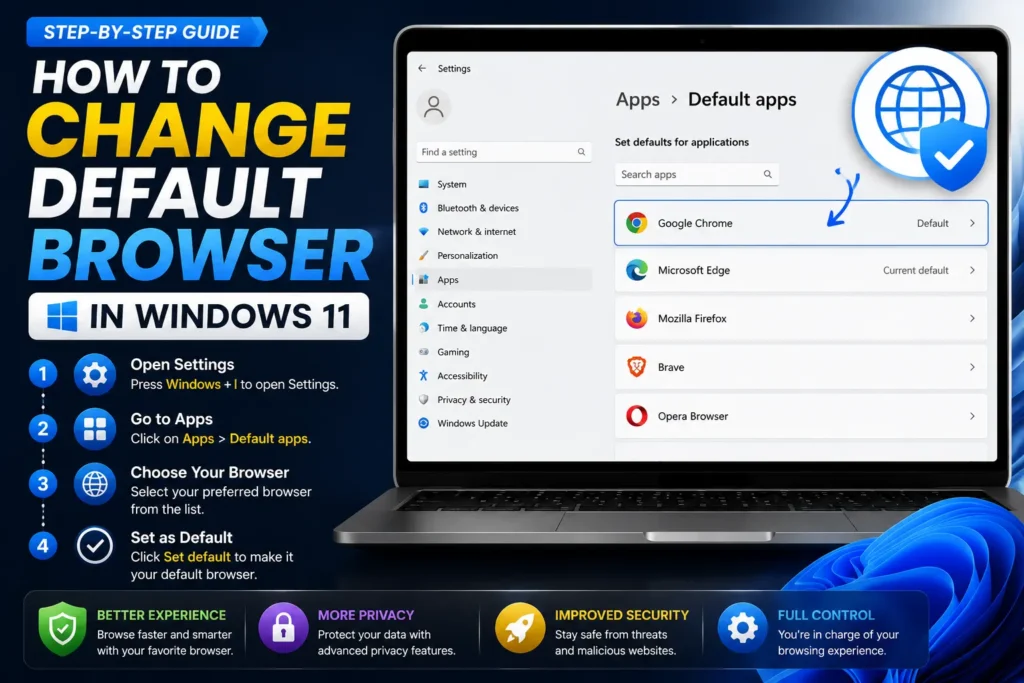
- Go to Settings → Apps → Default apps.
- Search for web browser and set your preferred browser (such as Chrome, Firefox, or Edge) as the default.
On Mac:
- Open System Settings → Desktop & Dock.
- Scroll to Default web browser and select your preferred browser from the dropdown.
Inside your browser (Chrome example):
- Go to Settings → Search engine.
- Confirm your preferred search engine (like Google) is selected, not an unfamiliar one.
- Go to Settings → On startup, and check that your homepage or startup pages weren’t changed to a Wave-related site.
Common Mistakes When Removing Wave Browser
Only deleting the app icon or shortcut. Removing a shortcut doesn’t uninstall the actual program — you need to go through Windows’ “Installed apps” list or drag the full application folder to Trash on Mac.
Skipping the leftover files step. Background processes, cached data, or preference files can sometimes persist after a basic uninstall, occasionally causing the browser to reappear or settings to revert.
Not checking other installed browsers for Wave-related extensions. If you had Wave Browser installed alongside Chrome or Firefox, it may have added extensions or changed settings in those browsers too — these need to be removed separately.
Forgetting to reset the default browser and search engine. After removal, your system may still be pointed at Wave Browser or an unfamiliar search engine until you manually reset these in your settings.
Reinstalling unrelated software without reading installer screens carefully. Since Wave Browser is commonly bundled with other downloads, skipping through installation prompts can reintroduce it even after a clean removal.
Best Practices to Avoid Reinstalling It
- Choose “Custom” or “Advanced” installation instead of “Quick” or “Express” when installing free software, so you can see and uncheck any bundled offers.
- Download software only from official developer websites rather than third-party download aggregators, which are more likely to bundle extra programs.
- Periodically review your installed apps list and browser extensions for anything unfamiliar.
- Keep your operating system and browsers updated, since updates often improve detection of unwanted bundled installers.
Frequently Asked Questions
How do I completely remove Wave Browser from my computer? Uninstall it through Windows’ “Installed apps” settings or by dragging the app to Trash on Mac, then manually delete any leftover folders in AppData (Windows) or Library (Mac) to ensure nothing remains behind.
Why can’t I find Wave Browser in my list of installed programs? If it isn’t listed as a standalone application, it may have installed itself as a browser extension instead. Check your browser’s Extensions menu, particularly in Chrome, for anything related to Wave.
Will uninstalling Wave Browser delete my bookmarks? Yes, uninstalling the browser removes its locally stored data, including bookmarks and saved passwords. Export anything important before uninstalling if you want to keep it.
Is Wave Browser dangerous or a virus? Wave Browser itself is generally classified as a legitimate but unwanted bundled program (sometimes called a PUP, or “potentially unwanted program”) rather than malware. The concern for most users is that it installs without clear consent and changes browser defaults, not that it’s inherently malicious.
Why does Wave Browser keep reappearing after I uninstall it? This usually happens when leftover files weren’t fully removed, or when it gets reinstalled through another software bundle. Double-check for residual folders and be cautious with future software installations.
Do I need to reset my browser after removing Wave Browser? It’s a good idea to check your default search engine, homepage, and startup pages afterward, since Wave Browser can change these settings in other browsers during installation.
Key Takeaways
- Wave Browser typically installs through software bundles, which is why many users don’t remember installing it directly.
- A full removal requires uninstalling the application itself, plus clearing leftover files in AppData (Windows) or Library folders (Mac).
- Check Chrome and other browsers for related extensions, since Wave Browser can install itself as an add-on as well as a standalone app.
- After uninstalling, reset your default browser, homepage, and search engine settings to make sure nothing was left pointing to Wave Browser.
- Choosing “Custom” installation options for future software downloads helps prevent bundled programs like this from reinstalling.