Every time you open Chrome, Safari, or Firefox to check email, watch a video, or search Google, you’re using a web browser. It’s one of the most-used pieces of software in the world, yet many people who use one every day couldn’t fully explain what it actually does behind the scenes.
In simple terms, a web browser is a program that lets you find, open, and view websites on the internet. This guide breaks down exactly what a web browser is, how it works, the most common examples, and what makes one browser different from another.
Table of Contents
Web Browser Definition
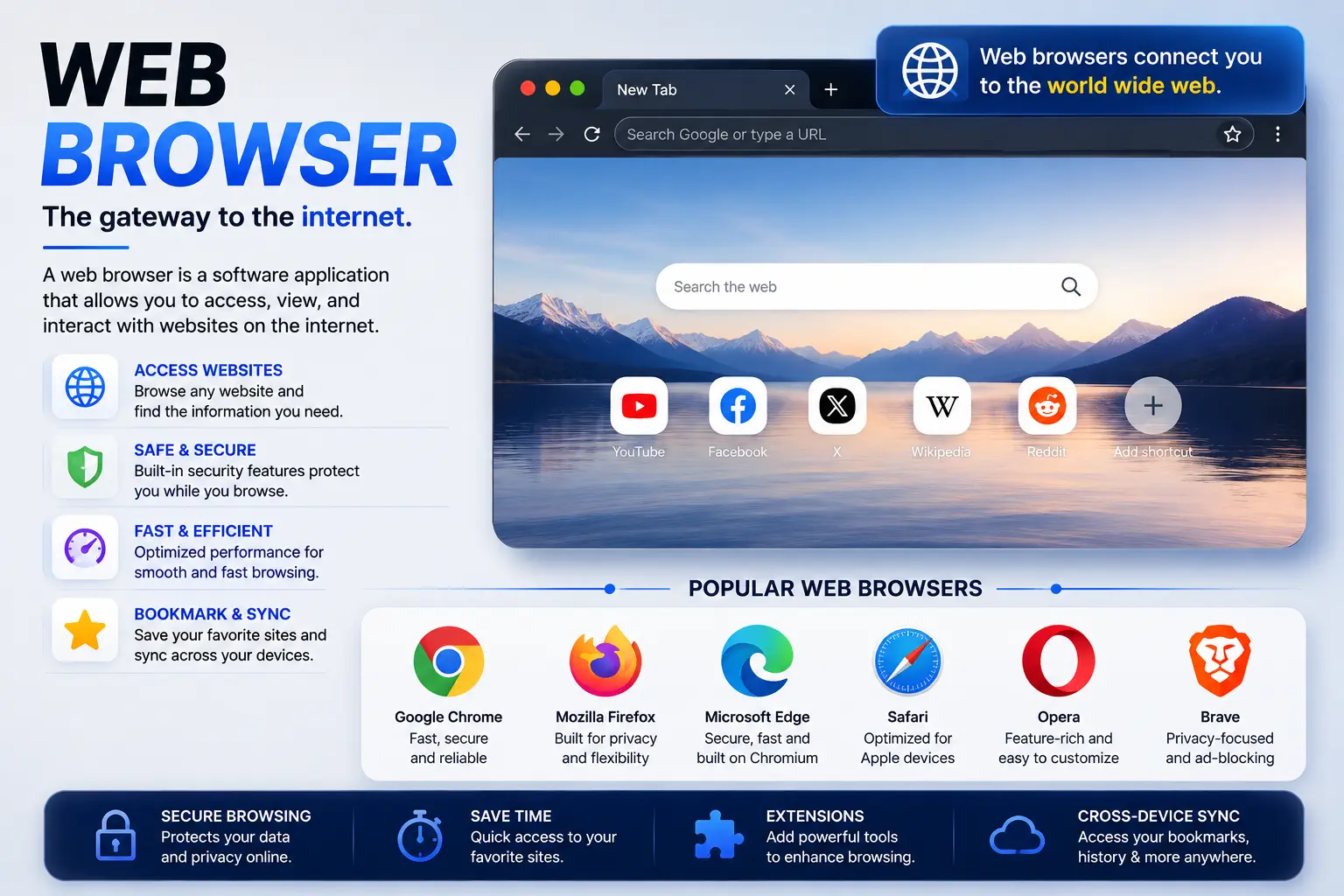
A web browser is a software application that retrieves and displays web pages so you can view and interact with them. When you type a website address or search term into a browser, it fetches the requested page’s data from a server somewhere on the internet and translates that data into the text, images, and layout you see on your screen.
In short: a browser is your window into the internet. Without one, the raw code that makes up a website would just be unreadable text — the browser is what turns that code into something you can actually read, click, and use.
What Does a Web Browser Do?
At its core, a browser performs four main jobs:
- Sends a request to a website’s server asking for a specific page.
- Receives the page’s data, usually written in HTML, CSS, and JavaScript.
- Translates that code into a visually readable page with text, images, buttons, and links.
- Lets you interact with that page — clicking links, filling out forms, watching videos, and navigating to new pages.
How Does a Web Browser Work?
Understanding how a browser works is easier with an analogy. Think of a browser as a translator standing between you and a foreign-language document. The document (a website) is written in code your eyes can’t naturally interpret, so the browser reads that code and instantly translates it into something visual and usable.
Here’s a simplified step-by-step of what happens when you visit a website:
- You enter a web address (like example.com) or type a search into the address bar.
- The browser looks up the address, using a system called DNS (Domain Name System), which works like a phone book that converts a readable web address into the numerical location of the server hosting that site.
- The browser sends a request to that server, asking for the website’s files.
- The server sends back the page’s code — typically HTML for structure, CSS for styling, and JavaScript for interactivity.
- The browser renders the page, turning that code into the layout, images, and text you see and interact with.
This entire process usually takes less than a second, even though it involves multiple steps happening across different computers.
You type a web address
↓
Browser looks up the site’s location (DNS)
↓
Browser requests the page from the server
↓
Server sends back the page’s code
↓
Browser displays the finished page
Common Examples of Web Browsers
Some of the most widely used web browsers today include:
- Google Chrome — the most widely used browser worldwide, built by Google.
- Safari — Apple’s default browser, built into Mac, iPhone, and iPad devices.
- Mozilla Firefox — an open-source browser known for privacy-focused features.
- Microsoft Edge — the default browser on Windows, built on the same underlying engine as Chrome.
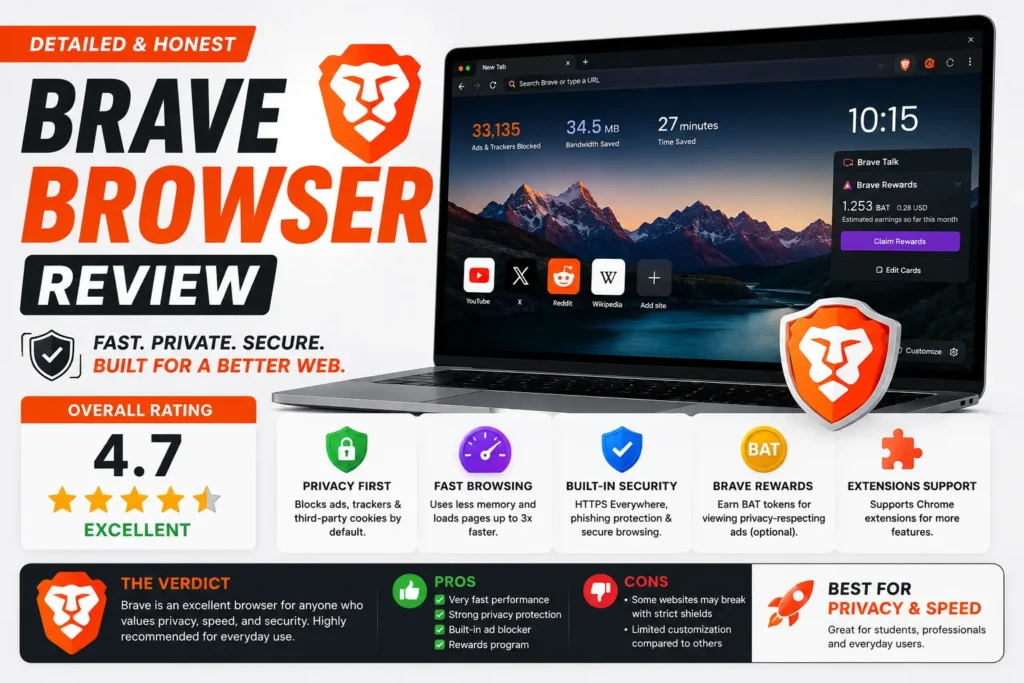
- Brave — a privacy-focused browser that blocks ads and trackers by default.
- Opera — a lesser-known browser with built-in tools like a free VPN and ad blocker.
Even though these browsers look and feel different, they all perform the same basic job: requesting, translating, and displaying web pages.
What Is a Web Browser Used For?
A browser isn’t just for viewing static pages — it’s the gateway to almost everything people do online. Common everyday uses include:
- Searching the internet through search engines like Google or Bing.
- Reading and sending email through webmail services.
- Watching videos on platforms like YouTube or streaming services.
- Shopping online, including browsing products and completing checkouts.
- Using web-based apps, such as online document editors, banking portals, or project management tools.
- Communicating, through browser-based messaging and video call platforms.
Because so much everyday activity now happens through a browser tab instead of a dedicated app, browsers have become one of the most important pieces of software on any device.
Browser vs. Search Engine: What’s the Difference?
This is one of the most common points of confusion for beginners, and it’s worth clearing up directly.
| Web Browser | Search Engine | |
| What it is | A software application | A website/service |
| Example | Chrome, Safari, Firefox | Google, Bing, Yahoo |
| What it does | Opens and displays any website | Helps you find websites by searching keywords |
| Where it lives | Installed on your device | Accessed through a browser |
In simple terms: the browser is the car, and the search engine is one of many destinations you can drive to. Google is a website you visit using a browser — it isn’t the browser itself, even though many people use the two terms interchangeably.
Browser vs. Operating System: What’s the Difference?
Another common mix-up is confusing a browser with an operating system. Your operating system (like Windows, macOS, or Android) is the core software that runs your entire device and manages everything on it, including which apps you can open. A web browser is just one of many applications that runs on top of that operating system, dedicated specifically to accessing the internet.
You can typically install multiple browsers on the same device and switch between them freely, since they’re separate applications rather than part of the operating system itself.
Key Features Found in Modern Web Browsers
Most modern browsers share a common set of core features, though the exact tools and design vary:
- Address bar — where you type website addresses or search terms.
- Tabs — let you have multiple web pages open at once within a single window.
- Bookmarks — save website addresses for quick access later.
- Browsing history — a record of previously visited pages.
- Extensions/add-ons — small programs that add extra functionality, like ad blockers or password managers.
- Private/incognito mode — a browsing mode that doesn’t save history or cookies after the session ends.
- Cookie and privacy settings — control over what data websites can store about your visit.
Common Mistakes People Make About Web Browsers
Confusing a browser with the internet itself. The internet is the global network of connected computers; the browser is simply the tool you use to access parts of it.
Assuming all browsers are basically the same. While they perform the same core function, browsers differ significantly in speed, privacy protections, extension support, and resource usage.
Not updating the browser regularly. Outdated browsers miss important security patches, making them more vulnerable to malicious websites.
Overloading the browser with too many extensions. Extensions add functionality but can also slow down browsing speed and, in some cases, introduce privacy or security risks if installed from untrusted sources.
Ignoring browser storage buildup. Cached files, cookies, and browsing history accumulate over time and can eventually slow down browser performance if never cleared.
Best Practices for Using a Web Browser
- Keep your browser updated to the latest version for security and performance improvements.
- Only install extensions from official, trusted sources.
- Use private/incognito mode when using a shared or public computer.
- Periodically clear cache and cookies to maintain speed and free up storage.
- Enable built-in security features, such as warnings for unsafe or deceptive websites.
Frequently Asked Questions
What is a web browser in simple terms? A web browser is a program that lets you access and view websites on the internet. It’s the software you open — like Chrome or Safari — to search Google, watch videos, or visit any website.
What is a browser used for? A browser is used to access nearly everything on the internet, including searching, emailing, streaming, shopping, and using web-based tools and apps.
What is the difference between a browser and the internet? The internet is the global network of connected computers and servers. A browser is the software application you use to access and interact with websites hosted on that network.
Is Google a web browser? No. Google is a search engine — a website you access using a web browser. Google Chrome, on the other hand, is the actual browser made by Google.
What is a browser on a computer, specifically? On a computer, a browser is an installed application — such as Chrome, Firefox, Edge, or Safari — that you open to visit websites, just as you’d open any other program.
Do I need more than one web browser? Not necessarily, but many people keep a second browser installed as a backup or for testing websites, since different browsers can sometimes display the same page slightly differently.
What does a web browser mean for mobile devices? On phones and tablets, a browser works the same way as on a computer — it’s an app (like Chrome or Safari) that lets you access websites, just optimized for a smaller touchscreen.
Key Takeaways
- A web browser is software that requests, translates, and displays web pages so you can view and interact with them.
- Popular examples include Chrome, Safari, Firefox, Edge, and Brave.
- A browser is not the same as a search engine or the internet itself — it’s the tool that lets you access both.
- Modern browsers share common features like tabs, bookmarks, extensions, and private browsing modes.
- Keeping your browser updated and managing extensions carefully helps maintain both speed and security.