
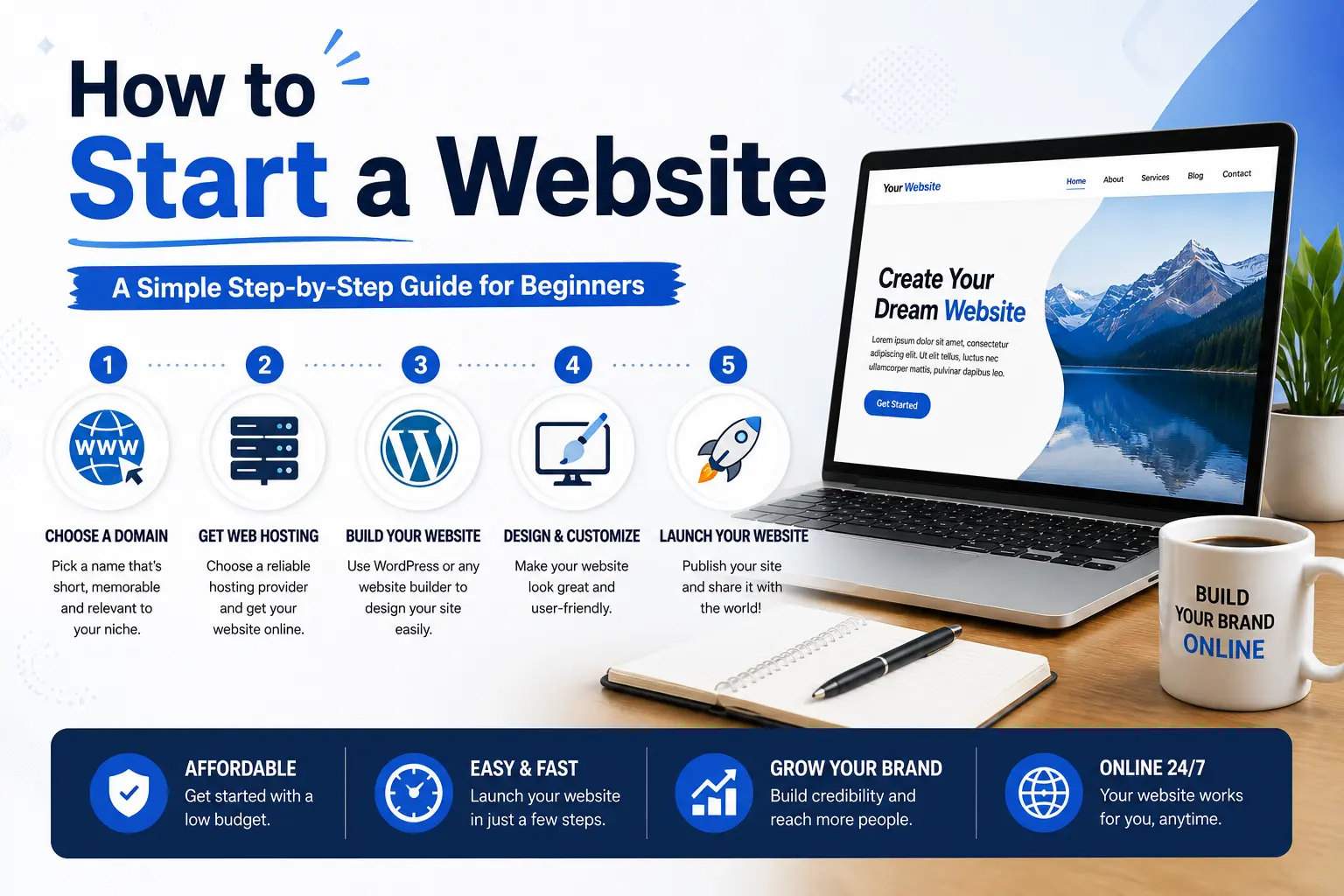
Learning how to start a website feels intimidating the first time, but the actual process only has a handful of real decisions to make. Everything else is just following steps. This guide walks through the entire process from a blank idea to a live website — including a completely free path if your budget is zero.
By the end, you’ll understand exactly what a domain and hosting are, which building method fits your situation, and how to avoid the mistakes that trip up most first-time website owners.
Table of Contents
What You Need Before You Start
Every website, no matter how simple, is built from the same core pieces:
- A domain name — your website’s address, like yourbusiness.com.
- Web hosting — the service that stores your website’s files and makes them accessible online. Think of a domain as your street address and hosting as the actual house sitting on that land.
- A platform to build it — the tool or code you use to design and manage your pages.
- Content — the actual text, images, and pages people will see.
Once you understand these four pieces, the rest of the process is just filling them in.
Step 1: Define What Your Website Is For
Before touching any tool, get clear on your website’s purpose. This single decision shapes everything that follows — your platform choice, your design, and even your domain name.
Common purposes include:
- A portfolio to showcase your work (photography, writing, design).
- A business site to represent a local shop, service, or brand.
- A blog to publish articles on a topic you know well.
- An online store to sell physical or digital products.
- A personal site just to have your own space on the internet.
Write down your purpose in one sentence. “A site where local customers can see my bakery’s menu and place custom orders” is specific enough to guide every decision ahead.
Step 2: Choose a Domain Name
Your domain name is what people type into their browser to find you. A few practical rules:
- Keep it short and easy to spell. If someone has to ask “is that spelled with a Z or an S?”, it’s too complicated.
- Stick to .com when possible. It’s the extension people default to typing, even if you register a different one.
- Avoid hyphens and numbers, which are easy to mistype or forget.
- Match your brand or business name if you have one already.
Domain names typically cost somewhere between $10 and $25 per year for standard extensions like .com, .net, or .org, though many hosting providers and website builders include a free domain for your first year when you sign up for an annual plan.
Step 3: Choose How You’ll Build Your Website
This is the most important decision in the whole process, because it determines how much time, money, and technical skill the project will take. There are three realistic paths.
Option A: Use a Website Builder (Best for Most Beginners)
A website builder is a drag-and-drop tool that handles hosting, design, and publishing all in one place — no coding required. Many now use AI to generate a starting layout from a short description of your business, which you then customize.
Good for: Small businesses, portfolios, and anyone who wants a live site quickly without learning code.
Option B: Use WordPress (Best for Long-Term Flexibility)
WordPress is a content management system — software that runs on your own hosting and lets you build and manage a website through a dashboard, using themes and plugins instead of writing code from scratch. It powers a huge share of websites on the internet because it’s flexible and has thousands of free and paid add-ons for nearly anything you’d want to do.
Good for: Blogs, content-heavy sites, and anyone who might need advanced features later (memberships, complex e-commerce, custom functionality).
Trade-off: You’ll need to choose and manage your own hosting separately, and there’s a steeper learning curve than a pure drag-and-drop builder.
Option C: Code It Yourself From Scratch
If you want full control, you can build a website using HTML, CSS, and JavaScript — the core languages of the web. HTML structures your content, CSS controls how it looks, and JavaScript adds interactivity.
Good for: Developers, students learning to code, or anyone who wants a website with zero platform limitations.
Trade-off: This is the slowest path and requires real technical skill, though it’s also how to build a website from scratch for free if you’re comfortable writing code and using free hosting for static sites.
Comparing the Three Options
| Method | Skill Needed | Typical Cost | Time to Launch | Flexibility |
| Website builder | None | Free–$30/month | Under a day | Moderate |
| WordPress | Basic | ~$5–$25/month (hosting) | A few days | High |
| Code from scratch | Advanced | Free–low cost | Weeks | Unlimited |
Step 4: Set Up Hosting (If You’re Not Using an All-in-One Builder)
If you chose a website builder, hosting is already included — you can skip this step. If you chose WordPress or coding from scratch, you’ll need to buy hosting separately.
Hosting costs vary by type:
- Shared hosting (fine for most beginners): roughly $2–$10/month.
- WordPress-specific hosting (optimized for WordPress sites): roughly $3–$25/month.
- VPS hosting (more power and control, for growing sites): roughly $10–$100/month.
For a first website, shared or WordPress-specific hosting is almost always enough. You can upgrade later if your traffic grows.
Step 5: Design Your Website
Whether you’re using a builder, WordPress, or code, good design comes down to the same fundamentals:
- Pick a simple, readable layout. Cluttered pages overwhelm visitors and hurt how long they stay.
- Use consistent colors and fonts. Two or three colors and one or two fonts is usually enough for a clean look.
- Make navigation obvious. Visitors should find your main pages (Home, About, Contact) within a few seconds.
- Design for mobile first. More visitors will likely view your site on a phone than a desktop, so check the mobile layout before anything else.
Most website builders and WordPress themes handle the technical side of responsive design automatically — your job is choosing a clean starting template and not overcrowding it.
Step 6: Build Your Core Pages
Every website, regardless of purpose, benefits from these foundational pages:
- Home page — a clear summary of who you are and what you offer, with obvious next steps (like a “Contact” or “Shop” button).
- About page — builds trust by explaining who’s behind the site.
- Contact page — a way for visitors to reach you, whether that’s a form, email, or phone number.
- Services or products page — details on what you’re offering, if applicable.
Add other pages (blog, portfolio gallery, FAQ) based on your specific purpose from Step 1.
Step 7: Add Basic SEO So People Can Find You
SEO (search engine optimization) is the practice of structuring your site so search engines like Google can understand it and show it to the right people. You don’t need to be an expert to cover the basics:
- Give each page a clear, descriptive title (this becomes your page’s title tag).
- Write a short meta description summarizing each page for search results.
- Use one clear heading (H1) per page that describes what it’s about.
- Add descriptive alt text to your images.
These four habits alone put you ahead of a large share of small websites that skip them entirely.
Step 8: Test Everything Before You Launch
Before making your site public, check:
- Every link works — nothing leads to a broken or blank page.
- Contact forms actually send — test one yourself.
- The site loads correctly on mobile, not just your computer screen.
- Spelling and grammar are clean throughout.
Step 9: Publish and Maintain Your Site
Once you’re satisfied, publish through your builder or hosting dashboard. Starting a website isn’t a one-time task — plan to:
- Update content regularly, especially if you’re running a blog.
- Check your site every few months for broken links or outdated information.
- Keep software (if using WordPress) updated for security.
- Monitor visitor traffic through a free tool like Google Analytics to understand what’s working.
How to Build a Website From Scratch for Free
If your budget is genuinely zero, here’s a realistic path:
- Use a free-tier website builder. Most major builders offer a free plan — you’ll get a site live, though it usually comes with the builder’s branding and a subdomain (like yoursite.builder.com) instead of your own domain.
- Or code a static site and host it free. If you’re comfortable writing basic HTML and CSS, several platforms offer free hosting for simple static websites, which is a genuinely free way to build a website from scratch, domain name aside.
- Add a custom domain later. Once you have income or a fixed budget, a domain name (roughly $10–$25/year) is usually the first upgrade worth making, since a free subdomain looks less professional to visitors.
Free is a completely valid way to start — just know the trade-offs (branding, limited customization, no custom domain) going in.
What Starting a Website Actually Costs
| Item | Free Option | Typical Paid Cost |
| Domain name | Free trial/subdomain via builder | $10–$25/year |
| Hosting | Free tier (with builder) | $2–$25/month |
| Website builder or CMS | Free plan available | $0–$30/month |
| Design/theme | Free templates | $0–$100 one-time |
| Total to start | $0 | Roughly $10–$300/year |
Common Mistakes When Starting a Website
- Picking a platform before defining the site’s purpose. The right tool depends on what you’re building — decide the “what” before the “how.”
- Overcomplicating the design early on. A clean, simple site that launches beats a “perfect” site that never does.
- Skipping mobile testing. A site that looks great on a laptop can be unusable on a phone if you never check.
- Forgetting to buy the domain you actually want. Popular names get taken quickly — register your domain early, even before the rest of the site is finished.
- Publishing without a Contact page. Visitors who can’t reach you often just leave instead of searching for another way to contact you.
- Ignoring basic SEO from day one. Titles and headings are far easier to set up correctly at launch than to fix across dozens of pages later.
Best Practices for a Strong First Website
- Start smaller than you think you need. A five-page site that’s finished and live beats a fifteen-page plan that never gets built.
- Write real content before worrying about design polish. A site with genuine, useful content and a basic design outperforms a beautiful site with empty pages.
- Back up your site regularly, especially if you’re using WordPress or custom code.
- Use a password manager for your accounts. Domain registrars, hosting dashboards, and website builders are common targets — protect them with strong, unique passwords.
Frequently Asked Questions
How much does it cost to start a website? You can start completely free using a website builder’s free plan, though most people spend somewhere between $10 and $300 a year once you add a custom domain, hosting, and a paid design plan.
Can I make a website on my own without knowing how to code? Yes. Website builders and WordPress themes are both designed for people with no coding experience — you’ll use visual editors and pre-built templates instead of writing code.
How long does it take to build a website from scratch? With a website builder, you can have a basic site live within a few hours. WordPress typically takes a few days to set up properly. Coding a site from scratch can take anywhere from a few days to several weeks, depending on complexity and your experience level.
What’s the difference between a domain and hosting? A domain is your website’s address (like yoursite.com); hosting is the server space that stores your website’s files and serves them to visitors. You need both, though many services bundle them together.
Is it better to use a website builder or WordPress? Website builders are faster and easier for beginners who want a simple site live quickly. WordPress takes more setup but offers more flexibility if you expect to add advanced features later, like memberships, complex product catalogs, or custom functionality.
Do I need a business to start a website? No. You can start a personal blog, portfolio, or hobby site without any business registration. A business is only required if you’re planning to sell products or services and need to handle things like payment processing under a company name.
Final Thoughts How to Start a Website
Starting a website comes down to four decisions — your purpose, your domain, your building method, and your hosting — followed by filling in real content and testing before launch. Whether you go with a free website builder today or plan to code a fully custom site down the road, the fastest way to actually get a website live is to pick the simplest option that fits your current skill level and budget, and improve it over time instead of waiting for a perfect first version.


