By default, every link you click on a Mac — in Mail, Messages, or any other app — opens in Safari. If you’d rather use Chrome, Firefox, or Edge instead, changing your default browser on Mac takes less than a minute once you know where to look.
This guide walks you through the exact steps for every recent version of macOS, shows you how to switch back to Safari, and covers the common problems people run into along the way.
Table of Contents
What “Default Browser” Actually Means
Your default browser is the app that automatically opens whenever you click a web link — whether that link is in an email, a text message, a PDF, or a Spotlight search result. It’s different from just having a browser installed. You can have Chrome, Firefox, and Safari all sitting in your Applications folder, but only one of them is set as the system-wide default that handles those clicks.
Changing this setting doesn’t delete or uninstall Safari. It simply tells macOS which app to hand link-clicks over to.
Before You Start
Make sure the browser you want to switch to is already installed on your Mac. macOS can only set an app as the default browser if it recognizes that app as capable of opening web pages — so if Chrome or Firefox isn’t installed yet, download it first.
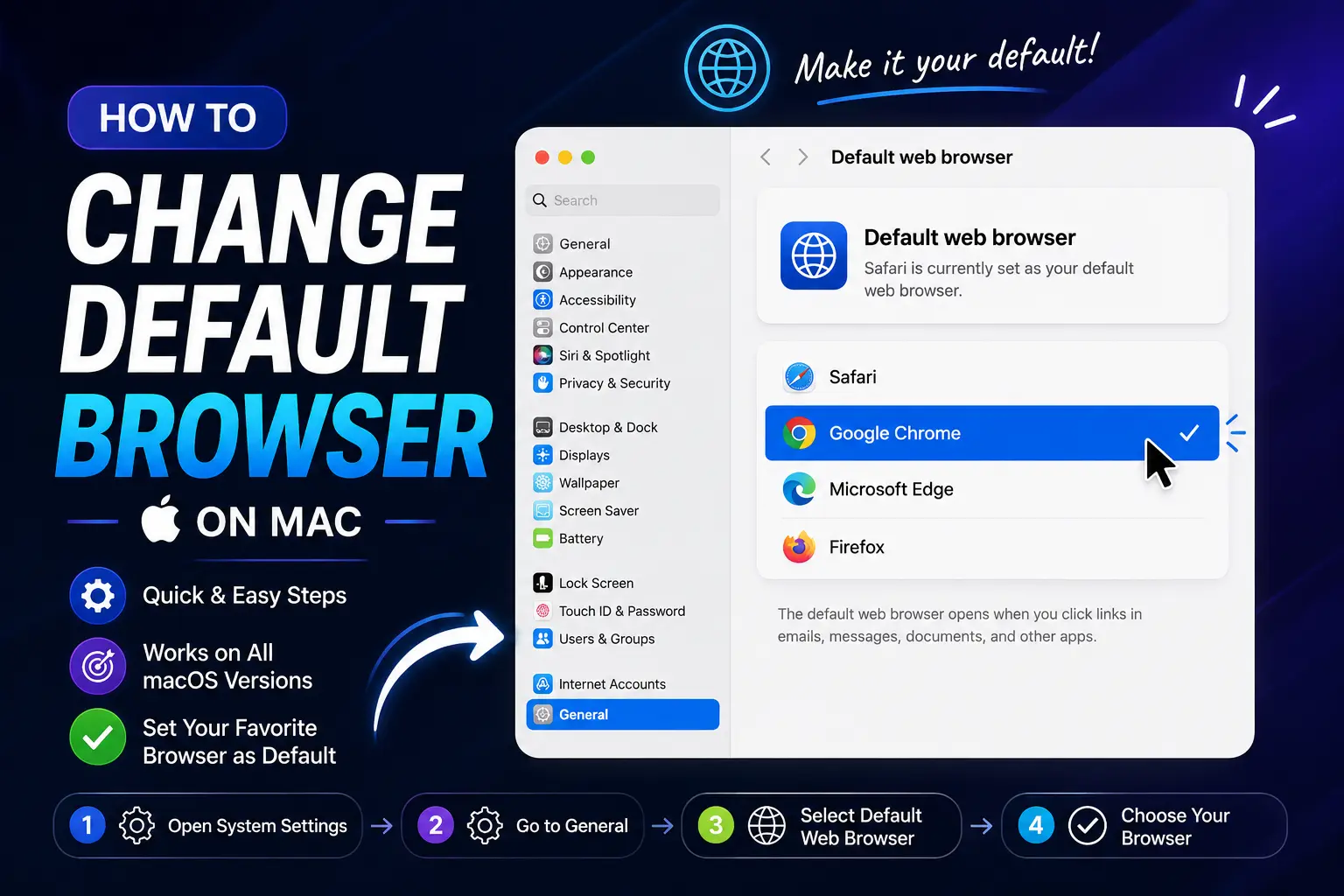
How to Change Default Browser on Mac (macOS Ventura and Later)
If your Mac is running macOS Ventura (13), Sonoma (14), Sequoia (15), or macOS 26 (Tahoe), follow these steps:
- Click the Apple menu () in the top-left corner of your screen.
- Select System Settings.
- In the sidebar, click Desktop & Dock. (You may need to scroll down to find it.)
- Scroll to the bottom of the right-hand panel until you see Default web browser.
- Click the dropdown menu and select the browser you want to use — for example, Chrome, Firefox, or Safari.
That’s it. The change takes effect immediately, and every link you click from now on will open in your newly selected browser. There’s no confirmation button to press — macOS saves the setting the moment you choose it.
How to Make Chrome the Default Browser on Mac
The steps above work for any installed browser, including Chrome. Simply make sure Google Chrome is installed, then choose Google Chrome from the “Default web browser” dropdown in Desktop & Dock settings.
Alternatively, Chrome itself can prompt you to do this:
- Open Chrome.
- Click the three-dot menu in the top-right corner.
- Go to Settings.
- Under the Default browser section, click Make default.
macOS may show a system prompt asking you to confirm — click Use “Google Chrome” to finish.
How to Change Default Browser on Older macOS Versions (Monterey and Earlier)
If your Mac is running macOS Monterey (12) or an earlier version, the setting lives in System Preferences instead of System Settings:
- Click the Apple menu () in the top-left corner.
- Select System Preferences.
- Click General.
- Find Default web browser and click the dropdown menu.
- Choose the browser you want to set as default.
Not sure which macOS version you’re running? Click the Apple menu and choose About This Mac — the version number is listed right at the top.
How to Make Safari the Default Browser on Mac
If you’ve switched away from Safari and want to set it as your default again, the process is identical — just select Safari instead of a third-party browser.
On macOS Ventura and later:
- Apple menu → System Settings.
- Click Desktop & Dock in the sidebar.
- Scroll to Default web browser and choose Safari from the dropdown.
On macOS Monterey and earlier:
- Apple menu → System Preferences.
- Click General.
- Choose Safari from the “Default web browser” dropdown.
Quick Reference Table
| macOS Version | Path to Setting |
| macOS 26 (Tahoe) | System Settings → Desktop & Dock → Default web browser |
| macOS 15 (Sequoia) | System Settings → Desktop & Dock → Default web browser |
| macOS 14 (Sonoma) | System Settings → Desktop & Dock → Default web browser |
| macOS 13 (Ventura) | System Settings → Desktop & Dock → Default web browser |
| macOS 12 (Monterey) and earlier | System Preferences → General → Default web browser |
Common Mistakes When Setting a Default Browser on Mac
Trying to change it from within the browser only. Some browsers show their own “set as default” prompt, but this doesn’t always register correctly with macOS. If a link still opens in the wrong app afterward, go through System Settings directly to confirm the change.
Not installing the browser first. If a browser doesn’t appear in the dropdown list, it usually means it isn’t installed, or it isn’t recognized by macOS as a web browser. Reinstalling the app often fixes this.
Expecting every app to respect the system default. A small number of apps are built to always open links in a specific browser regardless of your system setting. This is an app-level choice, not a sign that your default browser change failed.
Confusing “default browser” with “default search engine.” Changing your default browser controls which app opens links. It does not change your default search engine — that’s a separate setting found inside each browser’s own preferences.
Troubleshooting: Links Still Opening in Safari
If you’ve changed the default browser but links keep opening in Safari, try these fixes in order:
- Re-select the browser. Go back into Desktop & Dock (or General) settings and choose a different browser, then switch back to your intended one. This refreshes the system setting.
- Restart the app that isn’t respecting the change. Quit and reopen Mail, Messages, or whichever app is still using Safari.
- Check for a system prompt. When you first open your new default browser, macOS sometimes shows a pop-up asking you to confirm it as default — if you accidentally dismissed it, the change may not have saved.
- Restart your Mac. This clears up most cases where the setting appears to have “stuck” on the old browser.
Setting a Default Browser via Terminal (Advanced Users)
For users comfortable with the command line, a free tool called defaultbrowser lets you switch browsers without opening System Settings at all. This isn’t necessary for most people, but it’s useful if you frequently toggle between browsers for testing or development work:
brew install defaultbrowser
defaultbrowser chrome
Running this command still triggers a macOS confirmation prompt the first time, which you’ll need to approve manually unless you set up additional automation.
Frequently Asked Questions
How do I change my default browser on Mac? Go to the Apple menu, open System Settings, click Desktop & Dock, then choose your preferred browser from the “Default web browser” dropdown. On macOS Monterey or earlier, this setting is found under System Preferences → General instead.
How do I make Chrome my default browser on Mac? Install Chrome, then go to System Settings → Desktop & Dock → Default web browser, and select Google Chrome from the dropdown. You can also do this from inside Chrome’s own Settings menu under “Default browser.”
How do I make Safari my default browser again? Open System Settings → Desktop & Dock → Default web browser, and choose Safari from the dropdown list. The same steps work in reverse if you’re switching away from Safari.
Why isn’t my browser showing up in the default browser list? This usually means the browser isn’t installed on your Mac, or macOS hasn’t registered it as a browser app yet. Try reinstalling it, then check the dropdown again.
Does changing my default browser delete Safari? No. Safari stays installed on your Mac and can still be opened manually anytime. Changing the default only affects which app automatically opens links.
Will changing my default browser affect my bookmarks or history? No. Your bookmarks, saved passwords, and browsing history stay within each individual browser. Switching the system default doesn’t move or delete any of that data.
Key Takeaways
- On macOS Ventura and later, change your default browser through System Settings → Desktop & Dock → Default web browser.
- On macOS Monterey and earlier, use System Preferences → General → Default web browser instead.
- The browser you want must be installed before it will appear in the dropdown list.
- Switching your default browser doesn’t uninstall Safari or erase any browsing data — it only changes which app opens links by default.