
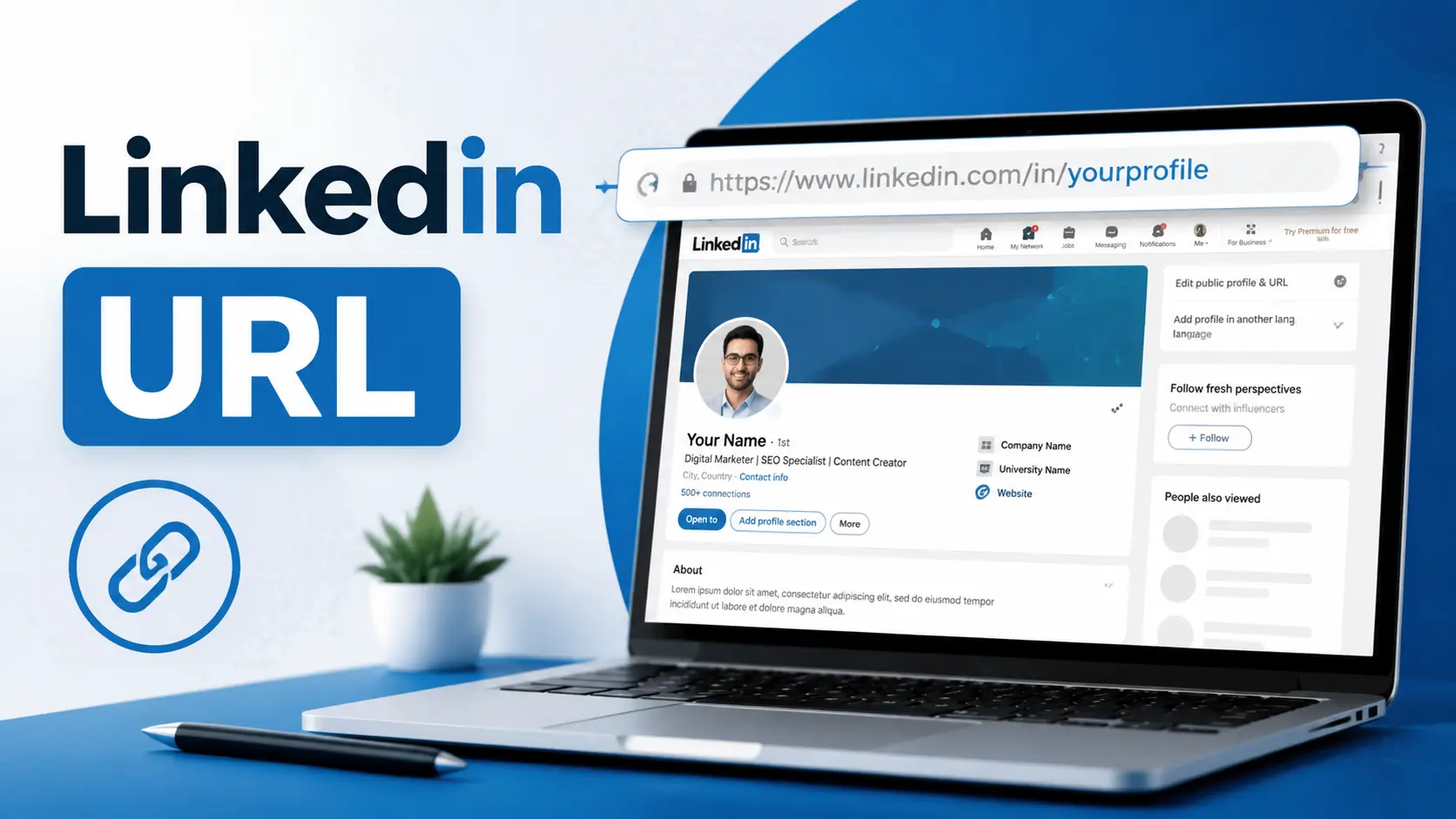
Your LinkedIn URL is the web address that points directly to your professional profile — the link you drop into a resume, an email signature, or a job application. If you’ve ever stared at your LinkedIn homepage wondering “where is that thing?”, you’re not alone. LinkedIn tucks this link in a slightly different spot depending on whether you’re on a laptop, an iPhone, or an Android phone.
This guide shows you exactly where to find it, how to copy it, how to customize it, and how to avoid the small mistakes that make a profile link look unprofessional.
Table of Contents
What Is a LinkedIn URL?
A LinkedIn URL is the unique public profile URL — a specific type of URL, which is simply the address a browser uses to load a page — assigned to your LinkedIn account. Every member gets one automatically when they sign up, and every profile URL follows the same basic pattern:
The /in/ part tells LinkedIn (and Google) that this is an individual’s profile, as opposed to a company page (which uses /company/) or a post (which uses /posts/).
By default, LinkedIn generates this link from your name plus a random string of letters and numbers, something like linkedin.com/in/john-smith-4a7b21. You can leave it as-is, or customize it into a clean version like linkedin.com/in/johnsmith.
LinkedIn URL Format
Here’s a quick reference for how LinkedIn structures its links across profiles, companies, and posts:
| Link Type | Format Example |
| Personal profile (default) | linkedin.com/in/john-smith-4a7b21 |
| Personal profile (custom) | linkedin.com/in/johnsmith |
| Company page | linkedin.com/company/microsoft |
| Individual post | linkedin.com/posts/johnsmith_topic-activity-1234567890 |
| Profile from a specific country | ca.linkedin.com/in/johnsmith (country prefix based on location) |
If your profile is set to public, this URL is what shows up in Google search results and what recruiters click when they see your name attached to a comment or post.
How to Find Your LinkedIn URL on Desktop
This is the fastest method, and it works whether you’re on Windows, Mac, or Linux.
- Log in to linkedin.com in your browser.
- Click your profile photo (labeled “Me”) in the top navigation bar.
- Select View Profile from the dropdown.
- Look at your browser’s address bar. That entire address — starting with https://www.linkedin.com/in/ — is your LinkedIn URL.
- Click inside the address bar to highlight the full link, then copy it with Ctrl+C (Windows) or Cmd+C (Mac).
You can also find it through the profile page itself: on the right side of your profile, click Edit public profile & URL. This opens a dedicated panel that displays your current public profile link and gives you the option to customize it.
How to Find Your LinkedIn URL on the Mobile App
The mobile app doesn’t have a visible address bar, so LinkedIn built a specific menu path for this instead. The steps are nearly identical on iPhone and Android since both run the same LinkedIn app interface.
How to Find LinkedIn URL on iPhone
- Open the LinkedIn app and tap your profile photo in the top-left corner.
- Tap View Profile.
- Tap the three dots (⋯) icon near your name, or tap Contact Info just below your headline.
- Under Your Profile, you’ll see your public profile URL listed. Tap it to copy the link automatically.
How to Find LinkedIn URL on App (Android)
The Android app mirrors the iOS experience:
- Tap your profile picture, then tap View Profile.
- Tap the three dots (⋯) button next to the “Open to” or Message area.
- Choose Share profile via…, or tap Contact Info to see the raw link.
- Copy the URL from the Contact Info screen, or use the built-in Share option to send it directly via text, email, or another app.
One limitation worth knowing: you can’t create or edit a custom URL from the mobile app. Customization is a desktop-only feature — if you need to change your link, switch to a browser.
How to Copy Your LinkedIn URL
Regardless of device, you have two reliable ways to copy it:
- Address bar copy (desktop only): Click into the address bar while viewing your profile, select the full text, and copy it.
- Contact Info copy (desktop and mobile): Open Contact Info from your profile, find the link listed under “Your Profile,” and tap or click to copy it directly to your clipboard.
The Contact Info method is the most consistent across devices because it always shows the exact public-facing link, even if you’ve customized it.
How to Customize (Change) Your LinkedIn URL
A custom LinkedIn URL replaces the random string of characters with something clean and memorable — useful for resumes, business cards, and personal branding.
- On desktop, go to your profile and click Edit public profile & URL on the right panel.
- In the panel that opens, click the pencil (edit) icon next to your current URL.
- Type your preferred custom ending — LinkedIn allows 3 to 100 characters, letters and numbers only (no spaces or special symbols beyond a hyphen).
- Click Save.
If your name is already taken, try adding your middle initial, profession, or industry, such as johnsmith-marketing or john-smith-cpa.
Best practices for choosing a custom URL:
- Use your real name whenever possible — it’s what recruiters search for.
- Avoid underscores and random numbers; they look automated and are harder to read aloud.
- Keep it short. A URL under 30 characters is easier to fit on a business card or say out loud at a networking event.
- Don’t change it often. LinkedIn allows edits, but changing your link repeatedly can break old bookmarks, résumés, or email signatures that reference the previous version.
LinkedIn URL Examples
To make the difference concrete:
| Before Customizing | After Customizing |
| linkedin.com/in/sarah-chen-8823ba1 | linkedin.com/in/sarahchen |
| linkedin.com/in/david-park-b2914c | linkedin.com/in/david-park-data |
| linkedin.com/in/priya-patel-9x21kq | linkedin.com/in/priyapatel |
A clean, custom link instantly looks more intentional — it signals that you’ve actively managed your professional presence rather than left it on default settings.
Where to Use Your LinkedIn URL
Once you have a link you’re happy with, put it to work:
- Resume header — next to your email and phone number.
- Email signature — so every message doubles as a networking touchpoint.
- Business cards — printed or digital.
- Job applications — most online forms have a dedicated field for it.
- Personal website or portfolio footer.
- Author bios — for guest posts, podcast show notes, or speaker profiles.
A well-placed LinkedIn URL turns a static document into an interactive one — anyone reading your resume can click straight through to your full work history and recommendations.
How to Find Someone Else’s LinkedIn URL
Sometimes you need a colleague’s or a prospect’s link rather than your own.
- Search LinkedIn directly. Type their name into the search bar at the top of LinkedIn, optionally adding their company (e.g., “Jane Doe Google”) to narrow results.
- Open their profile and copy the address bar link, the same way you’d copy your own.
- Use a Google search. If you already know the person’s name, searching site:linkedin.com/in/ “Full Name” in Google will often surface their public profile directly in the results. This is a case where typing a search query is faster than guessing a direct address — see our guide on when it makes more sense to search Google or type a URL directly for more on that distinction.
- Check shared connections or messages. If you’ve exchanged a LinkedIn message or seen the person comment on a post, clicking their name anywhere it appears opens their profile and reveals the URL in your address bar.
Keep in mind: you can only view the full public URL of a profile if that person has their visibility settings open to the public.
Common Mistakes to Avoid
- Copying a shortened or tracking link instead of the real URL. Some share buttons generate a redirect link (lnkd.in/…). These work, but they’re less trustworthy-looking on a resume than your actual linkedin.com/in/ address.
- Leaving the default random-character URL on a resume. It works, but it looks unfinished next to a custom one.
- Changing your custom URL too frequently. Old links stop working, which breaks anything that referenced the previous address.
- Assuming mobile lets you edit the URL. Customization only happens on desktop.
- Forgetting to set your profile to public. If visibility is restricted, your link won’t display fully to people outside your network — or to Google.
LinkedIn URL FAQs
What is a LinkedIn URL? It’s the unique web address assigned to your LinkedIn profile, always starting with linkedin.com/in/, used to share or link to your professional profile.
What is my LinkedIn URL? Log in, click your profile photo, select View Profile, and copy the address shown in your browser’s address bar — that’s your personal LinkedIn URL.
How do I find my LinkedIn URL on the app? Tap your profile photo, tap View Profile, then tap Contact Info or the three-dot menu. Your public profile URL is listed there and can be copied with a tap.
How do I copy my LinkedIn URL? On desktop, highlight the link in the address bar and copy it. On mobile, open Contact Info and tap the link to copy it to your clipboard.
What does a LinkedIn URL look like? A standard example is https://www.linkedin.com/in/johnsmith/. Uncustomized profiles include extra numbers and letters after the name.
How do I get a custom LinkedIn URL? From desktop, go to your profile, click Edit public profile & URL, click the pencil icon, and type your preferred ending.
Can I find my LinkedIn URL on iPhone the same way as Android? Yes. Both platforms use the same LinkedIn app layout — profile photo, View Profile, then Contact Info or the share menu.
Why can’t I customize my LinkedIn URL on the app? LinkedIn currently limits URL editing to the desktop version of the site. You’ll need to switch to a browser to make changes.
Does changing my LinkedIn URL affect my SEO? It can, briefly. A new custom URL replaces the old one, so any external links pointing to the old address will need to be updated. Once changed, however, your new link indexes normally in search engines.
Should I put my LinkedIn URL on my resume? Yes. It’s standard practice and gives recruiters instant access to your full professional background beyond what fits on one page.
Final Thoughts
Your LinkedIn URL is a small detail with outsized impact — it’s often the first click a recruiter, client, or new connection makes after seeing your name. Whether you’re grabbing it quickly from the app’s Contact Info screen or customizing it into a clean, personal-brand-ready link on desktop, the steps above cover every device and every version of “how do I find this thing” you might run into.


