If you’re searching for a web browser for Roku, here’s the direct answer up front: Roku does not offer an official, general-purpose web browser. There’s no “Chrome for Roku” or built-in way to type a website address and load any page you want, the way you can on a laptop or smart TV with Android TV built in.
That said, the full picture is more nuanced than a flat “no.” There are a few Channel Store apps that offer limited, search-focused browsing, and there are reliable workarounds using your phone or laptop that let you view any website on your TV screen through your Roku device. This guide covers all of it — what’s real, what’s a workaround, and what to actually use depending on what you’re trying to do.
Table of Contents
Why Doesn’t Roku Have a Web Browser?
Roku devices are built around a remote control, not a keyboard and mouse. A general web browser — the kind that loads any website with full navigation, forms, and video playback — is genuinely difficult to use with only a directional pad and a handful of buttons. Typing a URL one letter at a time with an on-screen keyboard and a remote is slow and frustrating, and most websites aren’t designed with TV-sized screens or remote navigation in mind.
There’s also a practical business reason. Roku’s entire platform is built around its Channel Store — a curated collection of streaming apps. A full, open web browser would let users route around that model entirely (for example, using a browser to reach services Roku doesn’t officially support), which isn’t something Roku or its content partners are eager to encourage.
Does Roku TV Have an Internet Browser Built In?
No — a Roku TV web browser isn’t part of the standard Roku operating system on any Roku TV model, whether it’s made by TCL, Hisense, Sharp, or another Roku TV partner brand. The Roku operating system is identical across these TVs and Roku streaming devices, so the answer is the same regardless of which brand of Roku TV you own.
This is different from some competing smart TV platforms. Android TV and Google TV, for instance, allow sideloading a browser app relatively easily. Roku’s more closed system doesn’t offer that same flexibility.
Roku Browser App Options That Do Exist
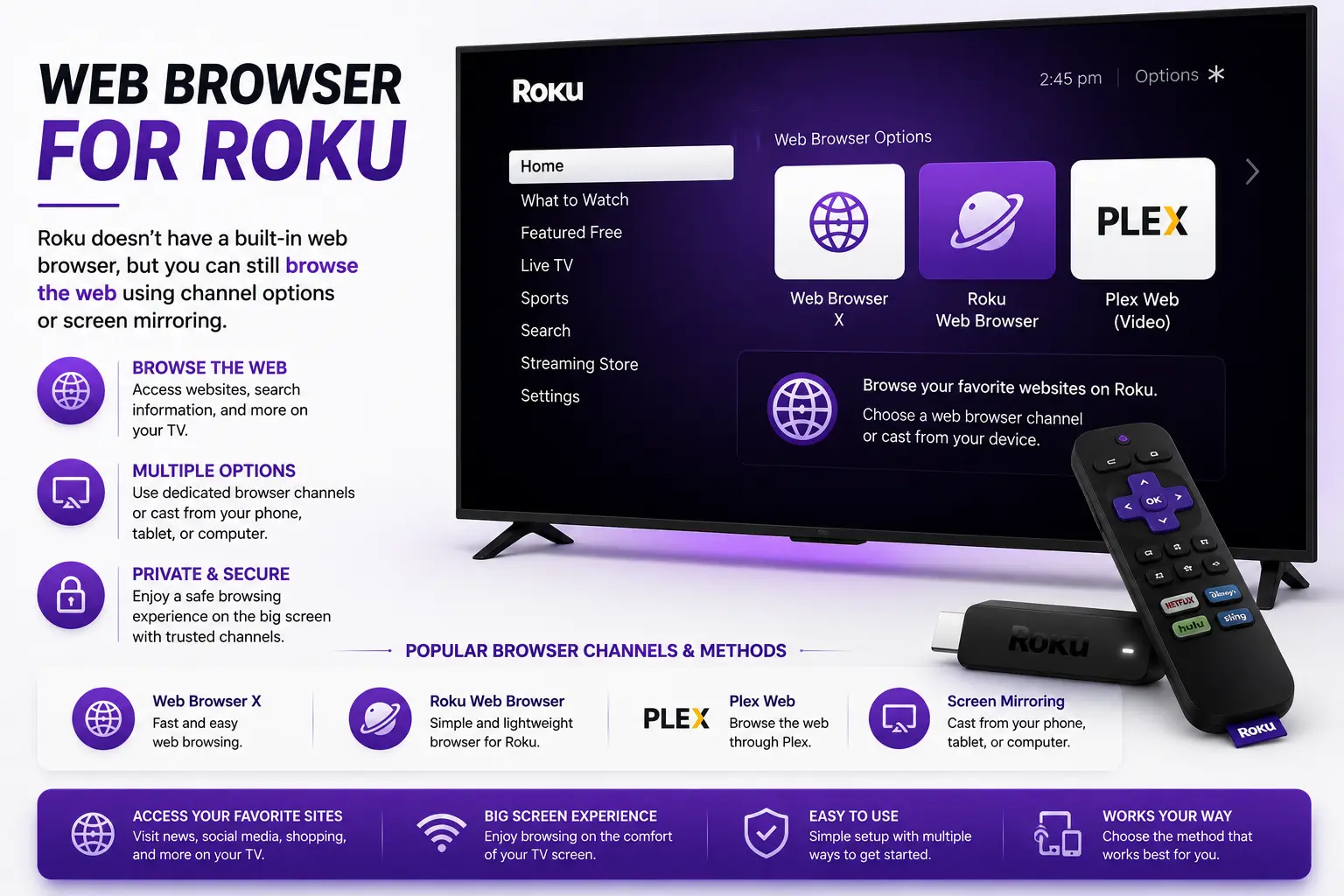
While there’s no full browser, a small number of Channel Store apps attempt to fill the gap with limited functionality. These typically fall into one of two categories:
| App Type | What It Actually Does | Limitations |
| Search-and-display channels | Let you search the web and display basic, mostly text-based results | No full page navigation, clunky remote-based typing, inconsistent video support |
| Screen mirroring apps | Mirror your phone or computer’s screen (including its browser) onto your TV | Requires a second device; not a native browser on the Roku itself |
Search-focused apps in the Channel Store change frequently — some get pulled, replaced, or stop being updated — so treat any specific app name as something to verify current availability and reviews for before installing, rather than a permanent fixture. In practice, most of these apps handle basic searches and simple, text-heavy pages reasonably well, but struggle with video playback, login forms, and anything resembling normal desktop browsing.
The Best Way to “Browse the Web” on Roku: Screen Mirroring
If your actual goal is viewing a website on your TV screen — not necessarily using Roku’s own interface to do it — screen mirroring is by far the most reliable method, and it works today with zero guesswork.
How to Mirror Your Phone or Laptop’s Browser to Roku
- Confirm your Roku device supports screen mirroring. Most Roku streaming devices and Roku TVs from the last several years support this feature.
- Turn on your Roku and go to Settings.
- Select System, then Screen mirroring.
- Set screen mirroring mode to Prompt or Always allow, so your phone or laptop can connect.
- On your Android phone, open Quick Settings and look for Cast or Screen Cast, then select your Roku device.
- On Windows, open Action Center and choose Connect, or search for “Cast to Device” and select your Roku.
- Once connected, open any browser app on your phone or laptop as normal — everything on that screen, including full website browsing, now displays on your TV.
Note that this method mirrors your entire device screen, not just a browser window, and iPhones require a slightly different approach since Apple’s AirPlay isn’t natively supported by all Roku models the same way Android and Windows casting is.
Comparing Your Options for Web Browsing on Roku
| Method | Full Website Access | Setup Difficulty | Best For |
| Channel Store search/browser apps | Limited | Easy | Quick text-based lookups without grabbing another device |
| Screen mirroring from phone/laptop | Full | Easy-Moderate | Watching a video from a site Roku doesn’t support, or genuinely browsing |
| Plugging in a laptop via HDMI | Full | Easy | One-time or occasional full-screen browsing with a keyboard and mouse |
| Switching to a different streaming device (e.g., Fire TV, Google TV) | Full via sideloaded browser | Requires new hardware | Users who need frequent, reliable on-device browsing |
Common Mistakes to Avoid
- Downloading unofficial “browser” channels from outside the Roku Channel Store. Roku doesn’t support sideloading unauthorized apps the way Android TV does, so anything claiming to bypass this is very likely a scam or a fake listing.
- Expecting search-focused Channel Store apps to behave like a real browser. These are built for quick lookups, not full web navigation, video streaming, or logging into accounts.
- Assuming screen mirroring requires extra hardware or a paid app. Both Android and Windows include built-in casting tools at no extra cost — a third-party app usually isn’t necessary.
- Forgetting that mirroring uses your phone or laptop’s battery and Wi-Fi connection. For long sessions, keep your mirrored device plugged in and close to your router.
Best Practices If You Need Regular Web Access on Your TV
- If you only need occasional access, screen mirroring from your phone is the simplest no-cost solution.
- If you need reliable, frequent browsing on your TV, consider pairing your Roku with an inexpensive streaming stick that runs Android TV or Google TV, both of which support installable browser apps.
- For a permanent setup, connecting a laptop to your TV over HDMI gives you a full desktop browser experience with a real keyboard and mouse, something no TV-remote-based method can match.
- Keep your Roku software updated, since Channel Store app availability and screen mirroring compatibility both depend on your Roku’s current software version.
Frequently Asked Questions
Does Roku have an internet browser?
No, Roku does not include a built-in, general-purpose web browser. A small number of limited search apps exist in the Channel Store, but none offer full website browsing the way a phone, laptop, or Android TV device does.
Can I install Chrome or another browser on Roku?
No. Roku’s Channel Store doesn’t support Chrome, Firefox, or any mainstream desktop browser, and Roku doesn’t allow sideloading outside apps the way Android-based streaming devices do.
How can I browse the internet on my Roku TV screen?
The most reliable method is screen mirroring your phone or laptop to your Roku through the built-in Cast or Screen Mirroring feature. This displays your device’s actual browser, including full websites and videos, directly on your TV.
Is there a hidden or secret web browser on Roku like some other devices have?
No. Unlike some gaming consoles that have unofficial ways to access a hidden browser, Roku’s closed software platform doesn’t have an equivalent workaround built into the system itself.
Why did Roku remove or never add a full web browser?
Roku was designed around remote-control navigation and a curated app-based Channel Store model from the start, rather than open web access. A full browser would be difficult to use without a keyboard and doesn’t fit how Roku’s content partnerships are structured.
Do Roku TVs from different brands (TCL, Hisense, etc.) have different browser support?
No. All Roku TVs run the same Roku operating system regardless of manufacturer, so browser availability is identical across every Roku TV brand.
Final Thoughts web browser for roku
If you came here hoping for a straightforward web browser for Roku you could just open and start typing into, the honest answer is that one doesn’t officially exist — and the limited Channel Store apps that try to fill that gap won’t replace a real browser. Screen mirroring from your phone or laptop remains the most dependable way to get any website onto your TV screen through a Roku device, and for anyone who needs frequent, full browsing on their television, pairing Roku with an Android TV or Google TV device — or simply plugging in a laptop — is a far more practical long-term solution.