
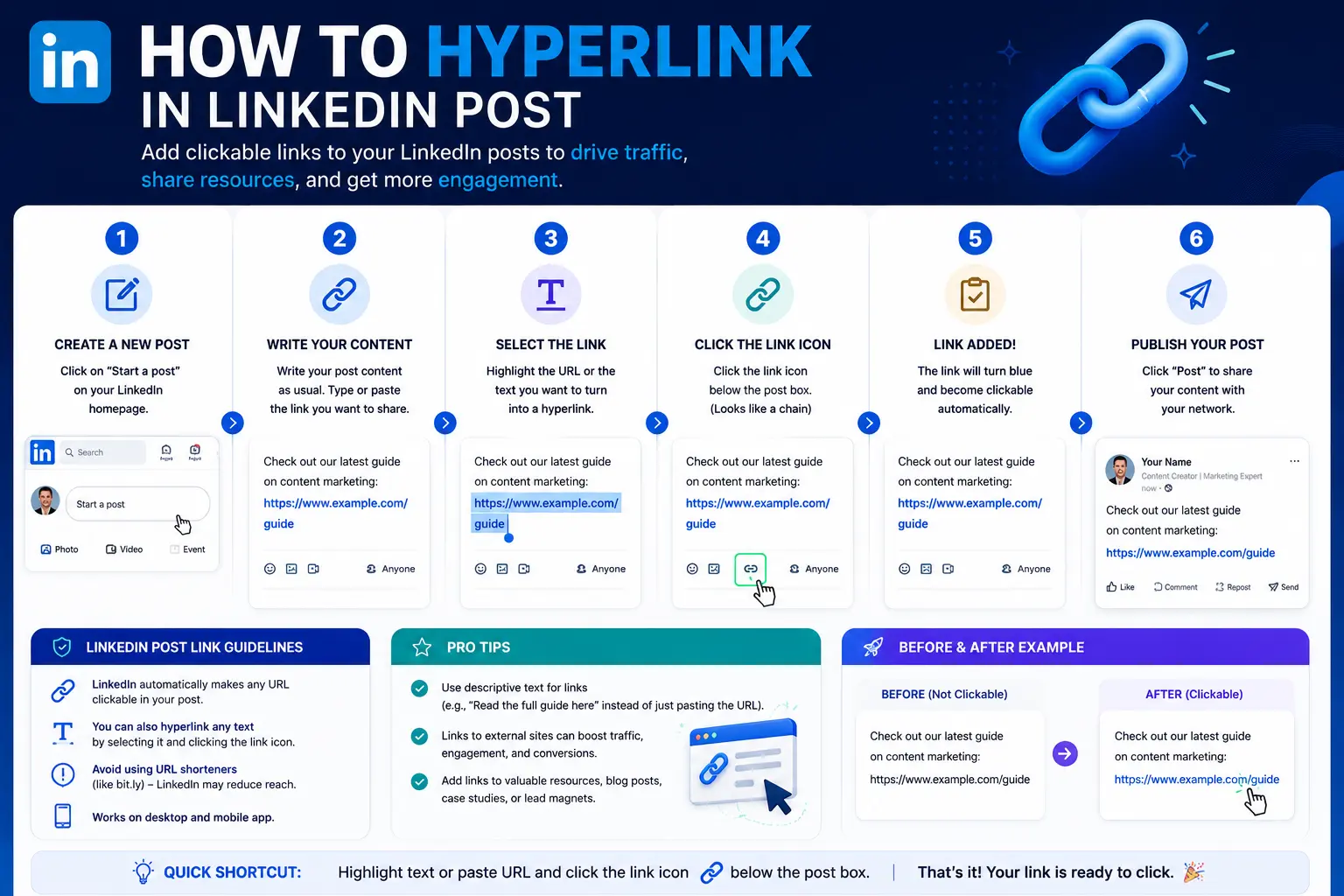
If you’re searching for how to hyperlink in a LinkedIn post expecting to turn a phrase like “check this out” into clickable text, here’s the honest answer upfront: you can’t — not in a standard feed post. LinkedIn doesn’t support true anchor-text hyperlinking in regular posts, and this hasn’t changed as of 2026, despite how common the request is.
That said, you absolutely can still add working, clickable links to your posts — just not by attaching a URL to custom words the way you would in an email or Word document. This guide covers exactly what LinkedIn does support, where genuine anchor-text hyperlinks are actually available on the platform, and how to add links to your posts without quietly tanking your reach.
Table of Contents
Can You Hyperlink Text in a LinkedIn Post? The Direct Answer
No. LinkedIn’s standard post composer does not let you select a word or phrase and attach a separate URL to it, the way you can in Word, Google Docs, or email. What you can do is paste a full, raw URL directly into your post text, and LinkedIn automatically converts it into a clickable link.
The distinction matters: a true hyperlink hides a URL behind custom text (“read the full report”). What LinkedIn allows in posts is closer to auto-linking — the visible link text is the URL itself, not a phrase you choose.
How to Add a Clickable Link to a LinkedIn Post
- Start writing your post as usual.
- When you want to include a link, paste the full URL — including https:// — directly into the post text.
- Wait a few seconds. LinkedIn typically generates a preview card automatically, showing an image, title, and short description pulled from the linked page.
- You can either keep this preview card, or remove it by clicking the small X in its corner. Removing the card does not remove the link — the pasted URL text itself remains clickable in your post.
- Publish your post as normal.
A quick formatting tip: attaching an image to your post before pasting the link will typically prevent the preview card from generating in the first place, since LinkedIn can’t show two visual elements at once.
Where You Can Actually Create True Hyperlinks on LinkedIn
This is the detail most basic guides leave out entirely: LinkedIn’s restriction on custom anchor text applies specifically to the standard post composer — not to every part of the platform.
| LinkedIn Surface | Supports Custom Anchor-Text Hyperlinks? |
| Standard feed post | No — only raw, auto-linked URLs |
| LinkedIn Articles (long-form posts) | Yes — full rich-text editor |
| LinkedIn Newsletters | Yes — full rich-text editor |
| Comments | No — same auto-link behavior as posts |
| Direct messages | No — same auto-link behavior as posts |
| Profile “Featured” section | Yes — links can be added with custom titles |
| Profile “Website” field | Yes — a custom label can be added alongside the URL |
If genuinely clickable, custom-worded hyperlinks are important for what you’re publishing, LinkedIn Articles and Newsletters are the actual answer — both use a full rich-text editor where you can highlight any word or phrase and attach a link to it, exactly like a typical blog post or Word document.
Why Links in Regular Posts Hurt Your Reach
This is worth understanding before you decide how to structure your next post, since it directly affects how many people actually see it.
LinkedIn’s algorithm generally favors content that keeps people on the platform. Posts containing an outbound link in the main body tend to get shown to fewer people than similar posts without one — industry estimates commonly put this reduction somewhere in the range of 20% to 50%, since a link invites readers to leave LinkedIn entirely, which the platform’s ranking system treats as a negative signal.
The “link in the first comment” workaround — and its current limits
For years, a common tactic was writing a link-free post, then adding the actual link in the first comment instead. This is still used in 2026, but it’s become less reliable: LinkedIn has increasingly started dampening the reach of posts that seem to exist purely to funnel readers toward a comment-based link. The workaround still has some benefit, but it’s no longer the guaranteed reach-saver it once was — the post itself now needs to hold up as genuinely worth reading on its own, not just as bait pointing toward the comments.
Best Ways to Add Links to a LinkedIn Post Without Killing Reach
Given the trade-off above, here’s how to approach it practically:
- Lead with value, not the link. Write a post that’s genuinely useful or interesting on its own, with the link as a supporting resource rather than the entire point of the post.
- Consider the first comment for lower-stakes links. It still offers some reach benefit, though less reliably than in past years — pair it with a clear signpost in the post itself (“full breakdown in the comments”) so readers know to look.
- Use your profile’s Featured section for evergreen links. Resources you want visible long-term — a portfolio, a lead magnet, a key article — belong in your profile rather than a single post that will eventually scroll out of view.
- Save true hyperlinked anchor text for Articles and Newsletters. If the specific wording of your link matters (rather than just the URL being visible), publish that particular piece of content there instead of as a standard post.
- Track link performance with UTM parameters. Adding tracking tags to your URL before pasting it lets you see, in your analytics, exactly how much traffic a specific post actually drove — useful regardless of which linking method you use.
Real-World Use Cases
- Promoting a blog post: Pasting the article’s URL directly into a LinkedIn post, accepting the reach trade-off because driving traffic to that specific article is the post’s main goal.
- Sharing a resource without hurting reach: Writing a genuinely useful post on its own, then placing the related link in the first comment for those who want to go deeper.
- Building a long-form guide: Publishing as a LinkedIn Article specifically because it needs multiple custom-worded hyperlinks throughout the text.
- A recurring newsletter: Using LinkedIn’s Newsletter feature to include several properly anchored links to related resources, tools, or past editions.
- A professional profile: Adding a portfolio link with a custom label (“View my design portfolio”) in the Featured section, so it’s always visible to profile visitors.
Common Mistakes When Trying to Add Links to LinkedIn Posts
- Expecting to hyperlink custom text in a normal post. This isn’t currently possible in the standard composer — only raw URLs auto-link, and understanding this upfront avoids frustration.
- Forgetting the https:// prefix. A URL missing this prefix may not be reliably detected and converted into a clickable link.
- Not accounting for the reach trade-off. Posting a link without considering its likely impact on visibility can quietly limit how many people ever see an otherwise strong post.
- Overusing the first-comment trick as if it’s a guaranteed workaround. As of 2026, LinkedIn appears to dampen posts that look like they exist purely to funnel toward a comment, reducing the tactic’s reliability.
- Publishing link-heavy content as a standard post when it should be an Article. If a piece genuinely needs multiple properly worded hyperlinks, the standard post format was never the right container for it.
Best Practices
- Match the format to the content. A single supporting link fits a normal post; multiple custom-worded links belong in an Article or Newsletter instead.
- Write posts that stand alone, with or without the link being clicked. This protects engagement and reach even if the algorithm deprioritizes the post somewhat for containing a link.
- Use your profile’s Featured section for anything evergreen, rather than relying on a single post to keep an important link visible over time.
- Test both approaches (link in post vs. link in first comment) and track actual results with UTM parameters, since the reach impact can vary based on your specific audience and content.
- Keep raw URLs clean and readable — using a link shortener can help when a full URL looks cluttered within a post’s text.
Frequently Asked Questions
Can you hyperlink on LinkedIn?
Not within a standard feed post — LinkedIn only auto-links raw, pasted URLs there, without letting you attach a link to custom text. True anchor-text hyperlinks are available in LinkedIn Articles, Newsletters, and certain profile fields like the Featured section.
Why can’t I turn text into a clickable hyperlink in my LinkedIn post?
LinkedIn’s standard post composer doesn’t include a hyperlink tool the way word processors or email clients do. It only auto-detects and links full, raw URLs typed or pasted directly into the post.
Does adding a link to a LinkedIn post hurt its reach?
Generally yes. LinkedIn’s algorithm tends to reduce visibility for posts containing outbound links, since they encourage readers to leave the platform. Estimates for this reduction commonly range from roughly 20% to 50%, depending on the specific post and account.
Is putting a link in the first comment still effective in 2026?
It still offers some benefit, but it’s become less reliable than in previous years, since LinkedIn now appears to also reduce reach for posts that seem built purely to funnel readers toward a comment-based link.
How do I create a real hyperlink with custom text on LinkedIn?
Use LinkedIn’s Article or Newsletter format instead of a standard post — both use a full rich-text editor that lets you highlight any word or phrase and attach a specific URL to it.
Can I remove the preview card that appears after pasting a link?
Yes. Click the small X in the corner of the preview card after it loads. This removes the visual card, but the pasted URL text itself remains a clickable link in your post.
Final Thoughts How to Hyperlink in a LinkedIn Post
The most important thing to know about hyperlinking in a LinkedIn post is that traditional, custom-worded hyperlinks simply aren’t available in the standard composer — only raw, auto-linked URLs are. For genuine anchor-text hyperlinks, LinkedIn Articles and Newsletters are the actual tools built for that.
For everyday posts, the real decision isn’t how to hyperlink — it’s whether the reach trade-off of including any link at all is worth it for that specific piece of content, and whether the first comment or the post body is the better place for it given your goals.


