
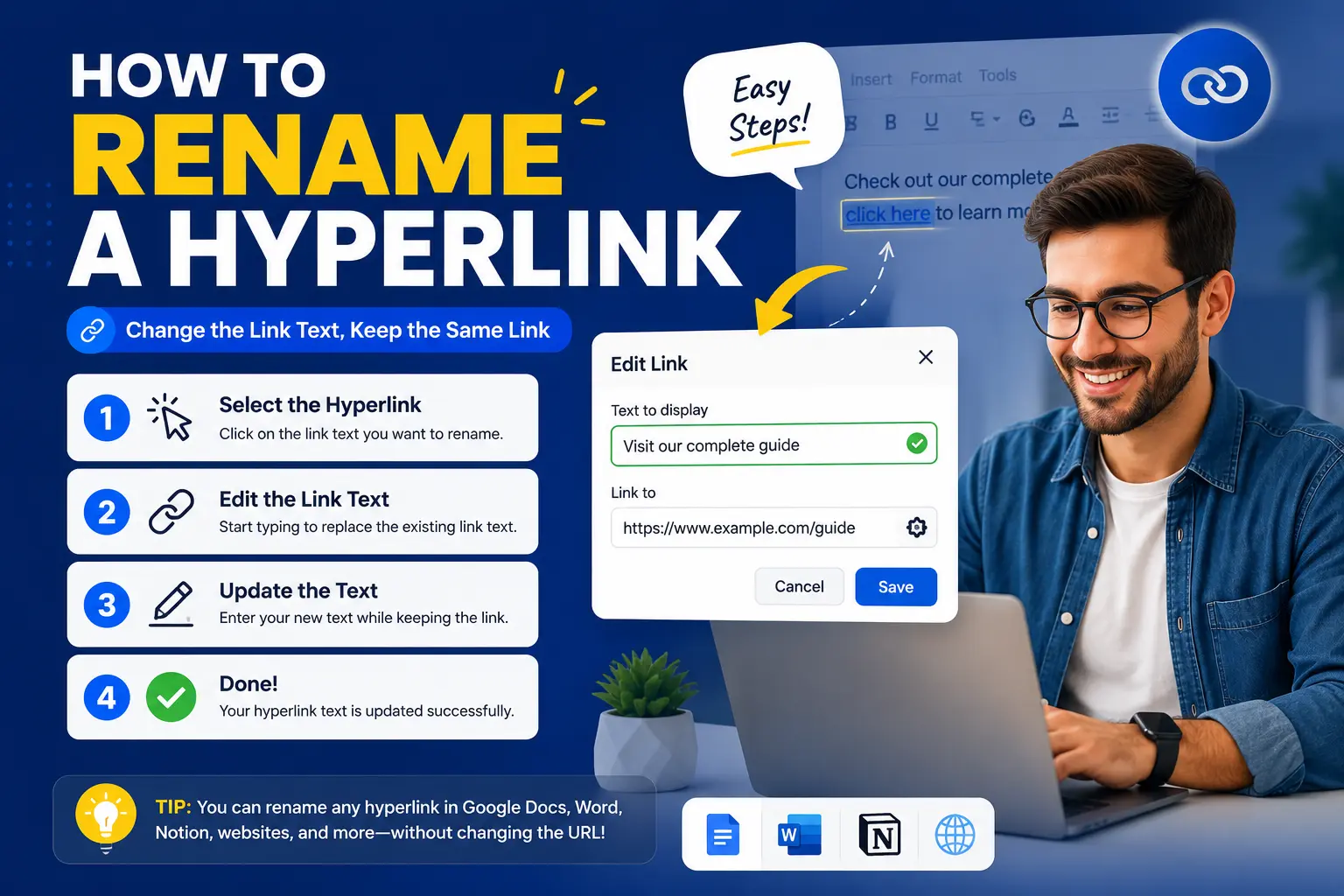
Learning how to rename a hyperlink — changing the visible, clickable text without breaking or changing the actual destination it links to — is a small but genuinely useful skill, especially when you’ve pasted a long, ugly URL directly into a document and want it to read as something cleaner instead.
This guide covers exactly how to rename a hyperlink in Word, Outlook, and Google Docs, plus the one core concept that makes this easy once you understand it: a hyperlink’s visible text and its actual destination are two completely separate things, and you can change one without touching the other.
Table of Contents
Understanding What “Renaming” a Hyperlink Actually Means
A hyperlink has two parts: the display text (what a reader actually sees and clicks) and the destination URL (the hidden web address it leads to). “Renaming” a hyperlink means editing that display text while leaving the destination untouched — the link still goes exactly where it did before, it just reads differently on the page.
Example: A hyperlink might currently display as the full, raw address https://example.com/blog/2024/how-to-guide-for-beginners-updated. Renaming it changes only what’s visible — to something like “Read our beginner’s guide” — while clicking it still takes the reader to that exact same page.
This is different from editing a hyperlink’s destination, which changes where the link actually goes. Both are common tasks, but they solve different problems — this guide focuses specifically on changing the display text.
How to Rename a Hyperlink in Microsoft Word
- Right-click directly on the existing hyperlink in your document.
- Select Edit Hyperlink from the menu that appears.
- In the dialog box that opens, look for the Text to display field near the top.
- Delete the current text in that field and type your new display text.
- Leave the Address field exactly as it is, since this is the actual destination and shouldn’t be touched.
- Click OK.
The hyperlink now shows your new text, while still linking to the same original destination.
Alternative method: editing the text directly
For a hyperlink you created yourself, you can sometimes simply click directly into the linked text and edit it like normal text — as long as you’re careful not to accidentally delete the entire link in the process. The Edit Hyperlink method above is more reliable, especially for links you didn’t create yourself or aren’t fully sure how to safely edit inline.
How to Rename a Hyperlink in Outlook
Since Outlook shares much of its formatting toolkit with Word, the process is nearly identical.
- Right-click on the hyperlink within your email draft.
- Select Edit Hyperlink (sometimes labeled just Link, depending on your Outlook version).
- In the dialog box, update the Text to display field with your new wording.
- Leave the Address field unchanged.
- Click OK.
If you’re creating a new hyperlink in Outlook with custom display text from the start
This is worth covering directly, since “how to hyperlink in Outlook email” is a related and common question. Rather than pasting a raw URL and renaming it afterward, you can set the display text upfront:
- Highlight the exact words you want to appear as your link before opening the link tool (this pre-fills the Text field automatically).
- Right-click and choose Link, or press Ctrl+K (Windows) / ⌘+K (Mac).
- Paste the destination URL into the Address field.
- Click OK.
Doing it this way from the start skips the renaming step entirely, since the display text is set correctly the first time.
How to Rename a Hyperlink in Google Docs
- Click directly on the hyperlink to select it.
- A small popup box appears showing the link’s current destination.
- Click Change (sometimes shown as an edit/pencil icon) within that popup.
- Update the Text field with your new display wording.
- Leave the Link field as-is.
- Click Apply.
Comparison: Renaming a Hyperlink Across Programs
| Program | How to Access | Field to Change |
| Microsoft Word | Right-click > Edit Hyperlink | “Text to display” |
| Microsoft Outlook | Right-click > Edit Hyperlink (or Link) | “Text to display” |
| Google Docs | Click link > Change | “Text” |
| Most website builders/CMS platforms | Click or double-click the link element | Varies (often labeled “Link Text” or “Anchor Text”) |
The underlying pattern is consistent across nearly every program: there’s always a separate field for the visible text versus the destination address, and editing one never automatically changes the other.
Why Renaming Hyperlinks Matters (Beyond Just Aesthetics)
Cleaning up how a hyperlink displays isn’t just a cosmetic preference — it has real, practical benefits worth knowing.
- Readability. A long, raw URL breaks up the flow of a sentence and looks cluttered compared to a short, natural phrase.
- Professionalism. Documents and emails read as more polished when links are labeled clearly, rather than showing an unedited web address.
- Accessibility. Screen reader users hear the link’s display text read aloud — descriptive text like “download the report” is far more useful to them than a long string of characters in a raw URL.
- Context for the reader. Renamed, descriptive link text tells a reader what to expect before they click, rather than requiring them to guess based on an unfamiliar URL.
Real-World Use Cases
- Cleaning up a pasted URL in a report: Replacing a long, raw link with a short phrase like “view the full data set.”
- Rebranding a link after a company name change: Updating a hyperlink’s display text to reflect a new brand name, while keeping the underlying URL (which may not have changed) intact.
- Fixing inconsistent link wording: Standardizing multiple hyperlinks throughout a document that currently show mismatched phrasing for similar destinations.
- Making an email link clearer: Changing a raw pasted URL in an Outlook email to a more natural phrase like “click here to register” (using genuinely descriptive text, not the vague version of that phrase).
- Preparing a document for translation or localization: Updating hyperlink display text to a translated phrase while keeping the same destination URL for every language version.
Common Mistakes When Renaming a Hyperlink
- Accidentally editing the Address field instead of the Text field. This changes where the link actually goes, rather than just what it displays — always double-check which field you’re updating.
- Deleting the entire hyperlink while trying to edit it inline. Editing linked text directly (without using the Edit Hyperlink dialog) can sometimes break the link if not done carefully.
- Forgetting to update all instances of a repeated link. If the same URL appears multiple times throughout a document, each instance needs to be renamed individually unless you’re using a find-and-replace approach.
- Using vague renamed text like “click here.” Renaming a link is a good opportunity to make it more descriptive — don’t waste it on generic phrasing that tells the reader nothing.
- Not testing the link after renaming. Always click the renamed link afterward to confirm it still leads to the correct destination.
Best Practices
- Set display text correctly the first time when creating a new hyperlink, rather than pasting a raw URL and renaming it as a separate step afterward.
- Use descriptive, specific renamed text rather than generic phrases, both for readability and accessibility.
- Double-check the destination field remains unchanged any time you’re only trying to update the display text.
- Test renamed links immediately after making the change, to confirm the destination is still correct.
- Keep renamed link text reasonably short. A renamed hyperlink works best as a natural, concise phrase — not a full sentence.
Frequently Asked Questions
How do I rename a hyperlink without changing where it goes?
Right-click the hyperlink and select “Edit Hyperlink” (or “Change,” depending on the program). Update only the display text field, and leave the address/URL field exactly as it is.
How do I rename a hyperlink in Word?
Right-click the hyperlink, select “Edit Hyperlink,” update the “Text to display” field with your new wording, and click OK. The Address field stays unchanged.
Can I rename a hyperlink in an Outlook email after it’s already inserted?
Yes. Right-click the hyperlink, choose “Edit Hyperlink” (or “Link”), update the display text field, and click OK — the underlying destination remains the same.
What’s the difference between renaming a hyperlink and editing it?
Renaming changes only the visible, clickable text a reader sees. Editing typically refers to changing the actual destination URL the link points to. Both are done through the same dialog box in most programs, just using different fields.
Why did my hyperlink disappear when I tried to rename it?
This usually happens when editing the linked text directly rather than using the program’s dedicated “Edit Hyperlink” or “Change” option, which can accidentally delete the link itself along with the old text.
How do I rename a hyperlink in Google Docs?
Click the hyperlink to open its popup box, click “Change,” update the “Text” field with your new display wording, and click Apply. The link destination remains unchanged.
Final Thoughts How to Rename a Hyperlink
Renaming a hyperlink comes down to one simple idea: the visible text and the actual destination are two separate pieces of information, and nearly every program gives you a dedicated way to edit one without touching the other.
Whether you’re cleaning up a long, ugly URL in Word, standardizing link text across an Outlook email, or tidying up a Google Doc, the process is quick — find the “Edit Hyperlink” or equivalent option, update the display text, and leave the address field alone.


