
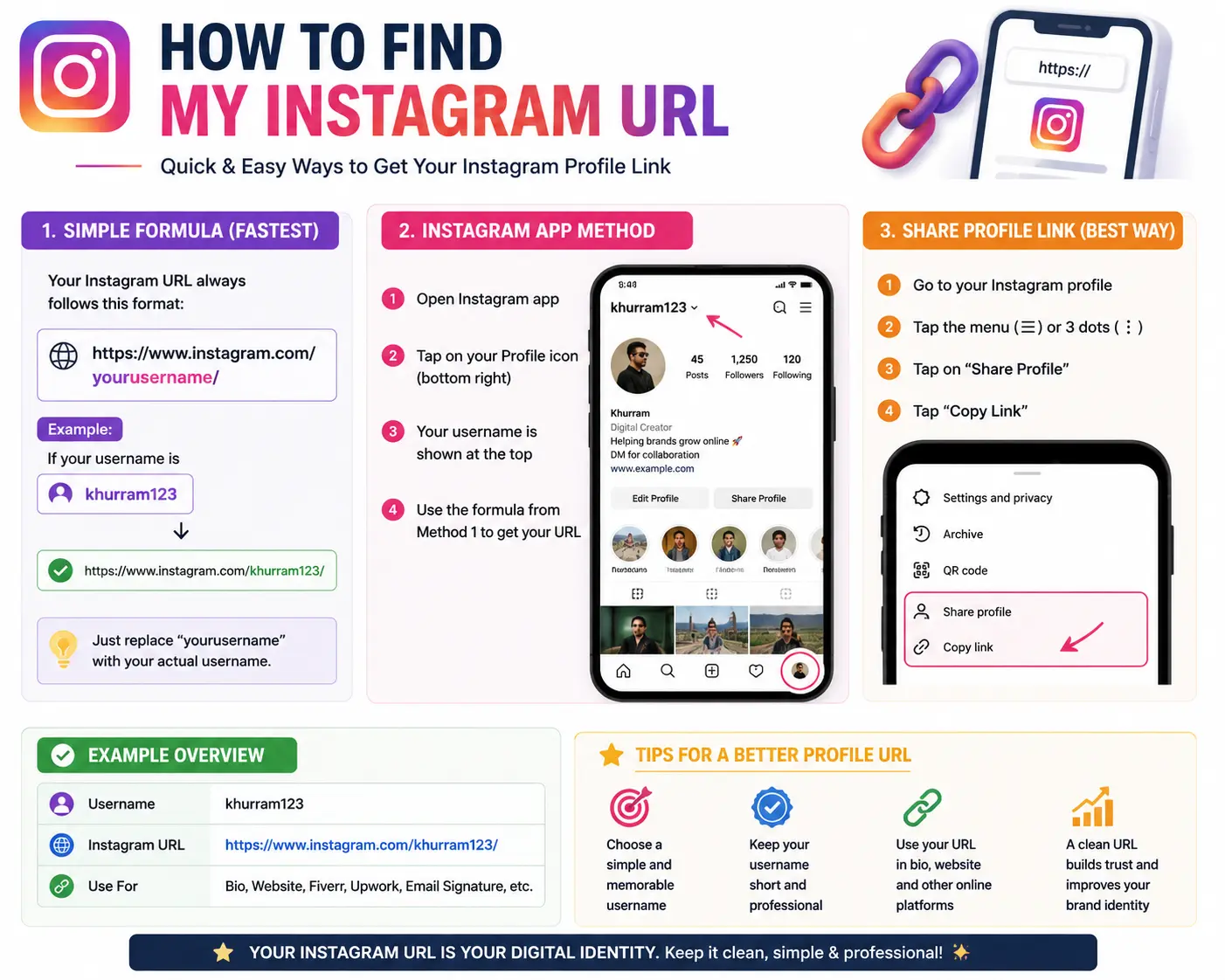
If you’ve typed “how to find my Instagram URL” into Google, you’re probably trying to share your profile somewhere — a bio link, a resume, a business card, or a message to a friend — and you’re not sure where that link actually lives. The good news: every Instagram profile has one fixed, predictable web address, and finding it takes less than a minute once you know where to look.
This guide walks through exactly how to find and copy your Instagram URL on the app and on desktop, explains what the link should look like, and covers the mistakes that cause a copied link to stop working.
Table of Contents
What Is an Instagram URL?
An Instagram URL is the web address that points directly to your profile. Anyone who opens that link — in a browser or by tapping it — lands on your Instagram page.
Every Instagram profile link follows the same format:
Your username replaces yourusername, with no spaces, no @ symbol, and no capital letters required (Instagram usernames aren’t case-sensitive in the URL). For example, an account with the username traveldiaries22 has the profile URL https://www.instagram.com/traveldiaries22.
This structure is a small example of a much broader concept. If you want the full breakdown of how web addresses are built — the protocol, domain, and path — see what a URL is and the parts of a URL explained.
How to Find Your Instagram URL on the Mobile App
The fastest method is directly inside the app, using the Share Profile feature.
- Open the Instagram app and log in if needed.
- Tap your profile picture in the bottom-right corner to go to your profile.
- Tap “Share Profile” (usually shown as a button under your bio, or accessible via the menu icon in the top corner).
- Select “Copy Link.” Instagram copies your full profile URL to your clipboard.
- Paste it wherever you need it — a text message, email, or another app’s bio field.
If you don’t see a direct “Share Profile” button, look for a three-dot menu (⋯) in the top-right corner of your profile. Tapping it usually reveals a “Copy Profile URL” option that does the same thing.
No internet-based workaround needed: since the link format never changes, you can also just check your username under “Edit Profile” and manually type it after instagram.com/ — useful if the share menu is glitching or an app update has moved things around.
How to Find Your Instagram URL on Desktop
If you’re at a computer — which is often easier for pasting a link into a resume, website, or email signature — the process is even more direct:
- Go to instagram.com in your browser and log in.
- Click your profile picture in the top-right corner to open your profile.
- Once your profile page loads, look at the browser’s address bar — it displays your full Instagram URL.
- Click into the address bar, select the full URL, and copy it (Ctrl+C on Windows, Cmd+C on Mac).
Desktop is worth using specifically when accuracy matters, since it’s easier to spot an accidental extra character or typo in the address bar than on a small phone screen.
How to Copy Someone Else’s Instagram URL
The same logic works for finding any public account’s link, not just your own:
- On mobile: Open their profile, tap the three-dot menu, and select “Copy Profile URL.”
- On desktop: Open their profile page and copy the link directly from the address bar.
One limitation to know: if the account is set to private, the link will still copy, but anyone who doesn’t already follow that account won’t be able to view the profile after clicking it.
Instagram URL Format at a Glance
| Element | Example | Notes |
| Full profile URL | https://www.instagram.com/traveldiaries22 | Works in any browser |
| Username only | traveldiaries22 | What you enter in “link in bio” tools |
| Post URL | https://www.instagram.com/p/DFajyOqvS07/ | Different from a profile URL — links to one specific post |
| Shortened/tracking link | Varies | Sometimes added by third-party sharing tools, not by Instagram itself |
This distinction matters because a profile URL and a post URL look similar but behave very differently — pasting a post link where a profile link belongs will send visitors to the wrong place.
Common Mistakes When Finding or Sharing Your Instagram URL
- Confusing your username with your display name. Your display name can contain spaces and special characters; your username (the part that goes into the URL) cannot. Always double-check under “Edit Profile.”
- Adding the “@” symbol into the URL. The @ symbol is used when tagging someone inside Instagram, not in the web address itself. instagram.com/@username will not work — it should be instagram.com/username.
- Copying a post link instead of a profile link. If you meant to share your whole profile but grabbed a link from inside a specific photo or Reel, people will land on that one post instead.
- Sharing a private account’s link and expecting anyone to view it. A private profile’s link only works for people who already follow that account.
- Typing the URL from memory and mistyping the username. Even one wrong character sends visitors to a different account, or to a “Page Not Found” screen. Copying directly from the app or address bar avoids this entirely.
Where People Use Their Instagram URL
Once you have your link copied, the most common places to use it include:
- A link-in-bio tool on another platform, similar to how people share their LinkedIn URL or Facebook page URL on a resume or business card
- Email signatures, alongside other social handles
- QR codes generated for print materials, business cards, or event signage
- Cross-platform bios — for instance, adding your Instagram link to a TikTok or Twitter/X profile
If you manage multiple client or personal accounts and regularly need several profile links at once, a multiple URL opener can save time by opening a batch of saved Instagram links in separate tabs instead of pasting them one at a time.
Can You Customize Your Instagram URL?
Not directly — Instagram doesn’t offer a separate “custom link” feature the way some platforms let you set a branded, shortened address (sometimes called a vanity URL). On Instagram, your profile URL is always tied to your current username.
That means the only way to change your Instagram URL is to change your username itself:
- Go to Edit Profile.
- Tap the username field and enter a new one.
- Confirm the change.
Keep in mind: once you change your username, your old profile link stops working immediately, and anyone who saved the old URL will hit a dead link. If your Instagram link is printed anywhere — business cards, packaging, a bio elsewhere — update it everywhere at the same time you change your username.
FAQs About Finding How to Find My Instagram URL
What is my URL for Instagram? It’s https://www.instagram.com/ followed by your exact username, with no spaces or the @ symbol. You can find your exact username under Edit Profile if you’re unsure of the spelling.
Where is my Instagram URL on my phone? Go to your profile, tap Share Profile (or the three-dot menu), and select Copy Link. The full URL is copied to your clipboard automatically.
Why does my copied Instagram link not work? The most common reasons are: the account is private, the link was copied from a specific post instead of the profile, or the username was changed after the link was originally copied.
Can I see my Instagram URL without opening the app? Yes — go to instagram.com in any browser, log in, open your profile, and read the URL directly from the address bar.
Is my Instagram URL the same as my username? Not exactly. Your username is just the text (e.g., traveldiaries22). Your URL is the full clickable web address that includes that username (https://www.instagram.com/traveldiaries22).
How do I copy someone else’s Instagram profile link? Open their profile, tap the three-dot menu on mobile (or copy from the address bar on desktop), and select Copy Profile URL — the same method used for your own profile.


