
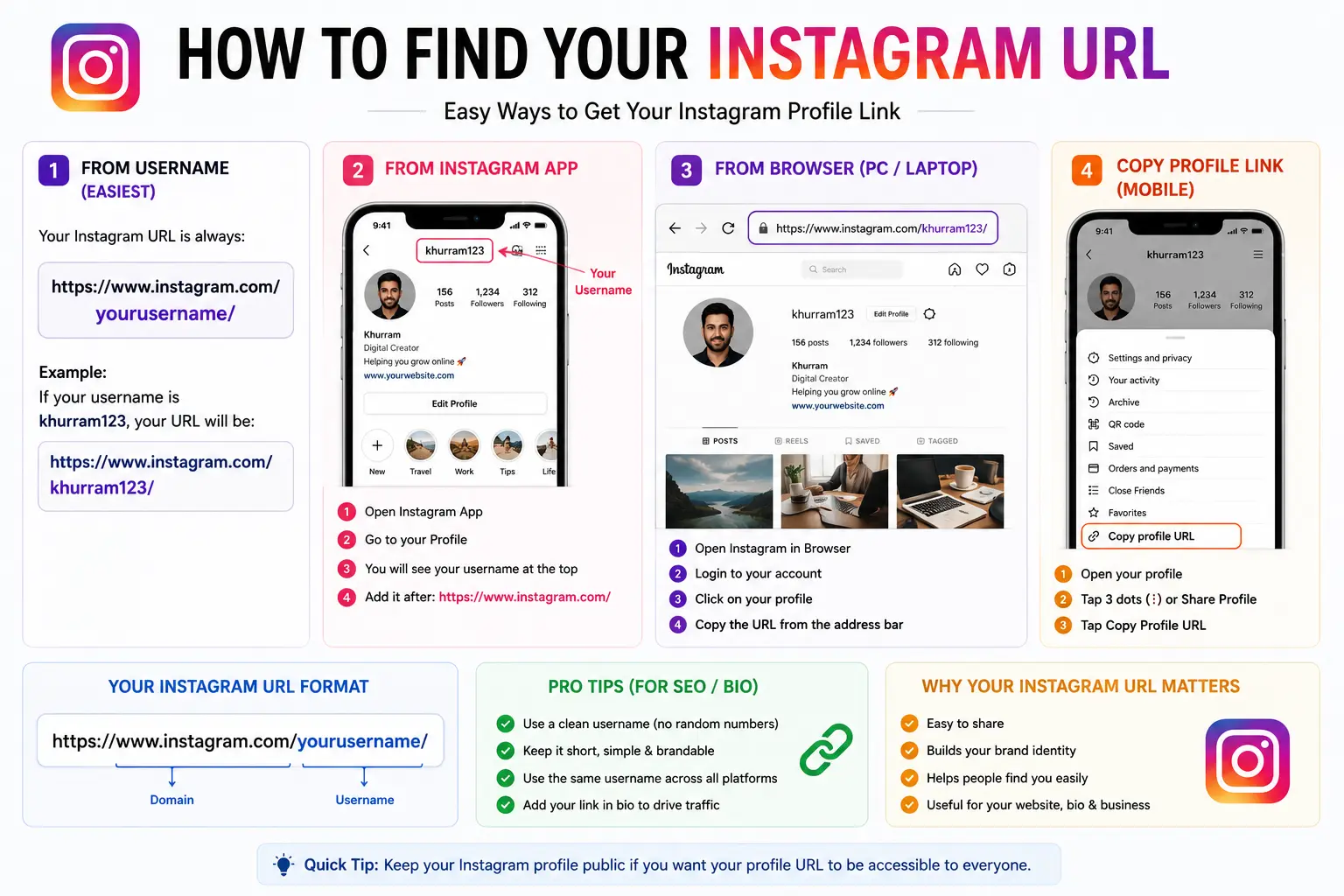
Wondering How to Find Instagram URL? Every Instagram profile has its own unique web address, and getting it takes less than a minute once you know exactly where Instagram hides the option.
Table of Contents
The tricky part isn’t the format — it’s that Instagram doesn’t display this link openly the way a regular website does. This guide walks through every method for finding it: from the mobile app, a mobile browser, desktop, and even for someone else’s profile or a specific post.
What Is an Instagram URL, Exactly?
Before jumping into the steps, it helps to understand what you’re actually looking for. An Instagram URL is simply a URL — a web address — that points directly to a specific Instagram profile, post, or piece of content.
Like any standard web address, it’s built from a few key parts of a URL: the protocol (https://), the domain (instagram.com), and a path that contains your unique username.
https:// instagram.com /yourusername
Protocol Domain Path (username)
Because Instagram builds every profile link from this same predictable structure, you can always reconstruct your own URL manually — even without using any copy button at all — as long as you know your exact username.
How to Find Instagram URL From the Mobile App
The mobile app is where most people manage their account, but the link isn’t shown directly on the profile screen. Instead, it’s tucked inside the Share Profile option.
Steps:
- Open the Instagram app and log in.
- Tap your profile icon in the bottom-right corner.
- Tap the Share Profile button, located under your bio.
- A panel will open showing a QR code and sharing options.
- Tap Copy Link at the bottom of that panel.
Your profile link is now copied to your clipboard, ready to paste into a message, email, or another app.
One thing to watch for: when copied this way, the link sometimes includes extra tracking text after a question mark, such as ?igsh=abc123. This tracking snippet is safe to delete — everything from the question mark onward can be removed without breaking the link, leaving you with a clean instagram.com/yourusername.
How to Find Instagram URL on Desktop
Finding your link through a desktop browser is usually the simplest and cleanest method, since it doesn’t add any tracking parameters.
Steps:
- Go to instagram.com and log in.
- Click your profile icon in the top-right corner (or the Profile option in the left-hand menu).
- Once your profile page loads, look at the browser’s address bar — your full profile URL is displayed there.
- Click into the address bar, select the full URL, and copy it (right-click → Copy, or Ctrl+C / Cmd+C).
Unlike the app version, this desktop link comes out clean, with no extra tracking characters attached.
How to Get Your Instagram URL From a Mobile Browser
If the app is acting up, or you simply prefer not to open it, you can get the exact same clean link through a browser on your phone.
Steps:
- Open Safari, Chrome, or another browser on your phone.
- Go to instagram.com and log in.
- Tap your profile icon to load your profile page.
- Tap and hold the address bar, then choose Copy.
This method is especially useful when the app’s Share Profile option isn’t loading correctly or feels glitchy.
How to Build Your Instagram URL Manually
If none of the copy buttons are working, you don’t actually need them. Since every Instagram profile follows the exact same link structure, you can construct the URL yourself using just your username.
Steps:
- Open the app and go to your profile.
- Tap Edit Profile to view your exact username.
- Combine it with Instagram’s base URL like this:
instagram.com/yourusername
For example, if your username is traveldiaries22, your profile URL is:
instagram.com/traveldiaries22
This manual method works every time, regardless of app updates or interface changes, since the underlying URL pattern never changes.
How to Find Someone Else’s Instagram URL
You can find the profile link for any public account the same way you’d find your own — you just need to know their username first.
Steps:
- Open the Instagram app and search for their username.
- Tap to open their profile.
- Tap the three dots in the top-right corner.
- Select Copy Profile URL (if available), or use the Share button.
On desktop, the process is even simpler: search for the profile, open it, and copy the link directly from your browser’s address bar.
How to Get the URL of a Specific Instagram Post or Image
Sometimes you don’t need a full profile link — you need the URL for one specific photo, reel, or post. This works differently from getting your profile link.
Steps:
- Open the specific post, reel, or photo.
- Tap the three dots (⋯) above the post.
- Select Copy Link.
This gives you a direct link to that individual piece of content, rather than your general profile page — useful for sharing a specific photo in an email, article, or another platform.
Instagram URL Format Cheat Sheet
| What You Want | URL Format Example |
| Your profile | instagram.com/yourusername |
| Someone else’s profile | instagram.com/theirusername |
| A specific post | instagram.com/p/POST_ID |
| A specific reel | instagram.com/reel/REEL_ID |
Common Mistakes When Finding or Sharing an Instagram URL
- Sharing a link with tracking text attached. Links copied through the app sometimes include extra characters after a ?, which look messy in a bio, resume, or email signature.
- Typos in the username. A single missing letter or extra character will lead to a broken or completely different profile.
- Forgetting the link changes if you change your username. Since your URL is built directly from your username, updating your handle means your old link will stop working.
- Assuming private accounts don’t have a URL. Private accounts still have a working profile link — visitors just need to request access before seeing your content.
- Confusing a post URL with a profile URL. These are two different link types and aren’t interchangeable.
Quick Troubleshooting
“Copy Profile URL” option is missing. Instagram updates its layout frequently. If the option isn’t visible, use the QR code screen instead, or build the link manually using your username.
The link shows “user not found.” This usually means the username was changed after the link was shared, or there’s a small typo. Double-check the exact spelling.
The link opens the wrong profile. Clear your browser cache or try the link in a private/incognito window to rule out outdated cached data.
Where to Use Your Instagram URL
Once you have your link, it’s genuinely useful in more places than just Instagram itself:
- Email signatures
- Resumes and professional portfolios
- Other social media bios
- Business cards and printed materials
- Linked directly in your website
Many businesses even turn this link into a shorter, branded version — the same concept behind a vanity URL — to make it easier to remember and share across marketing materials.
If you’re placing your Instagram link on your own website, following solid URL SEO practices for the surrounding page can also help that page rank better when people search for your brand or profile.
Frequently Asked Questions
How do I get my Instagram URL? Open the Instagram app, tap your profile icon, tap Share Profile, then tap Copy Link. On desktop, simply copy the address shown in your browser’s address bar while on your profile page.
How do I find my Instagram URL on the app? Go to your profile, tap Share Profile under your bio, and tap Copy Link in the panel that appears.
What does an Instagram URL look like? It follows the format instagram.com/yourusername, using your exact, current Instagram handle.
Can I get someone else’s Instagram URL? Yes, as long as their username is known. Open their profile and use the Copy Profile URL option, or copy the link directly from your browser’s address bar.
Does my Instagram URL change if I change my username? Yes. Since the link is built from your username, changing your handle changes your entire profile URL, and any previously shared links will stop working.
How do I get the URL of a specific Instagram photo or post? Open the individual post, tap the three dots above it, and select Copy Link — this gives you the URL for that specific piece of content, not your full profile.
Final Thoughts
Once you know How to Find Instagram URL, sharing your profile becomes effortless — whether you’re grabbing it through the Share Profile button, copying it straight from a browser’s address bar, or simply building it manually from your username. Since every Instagram link follows the same predictable structure, you’ll never be stuck without access to your own profile URL again.


