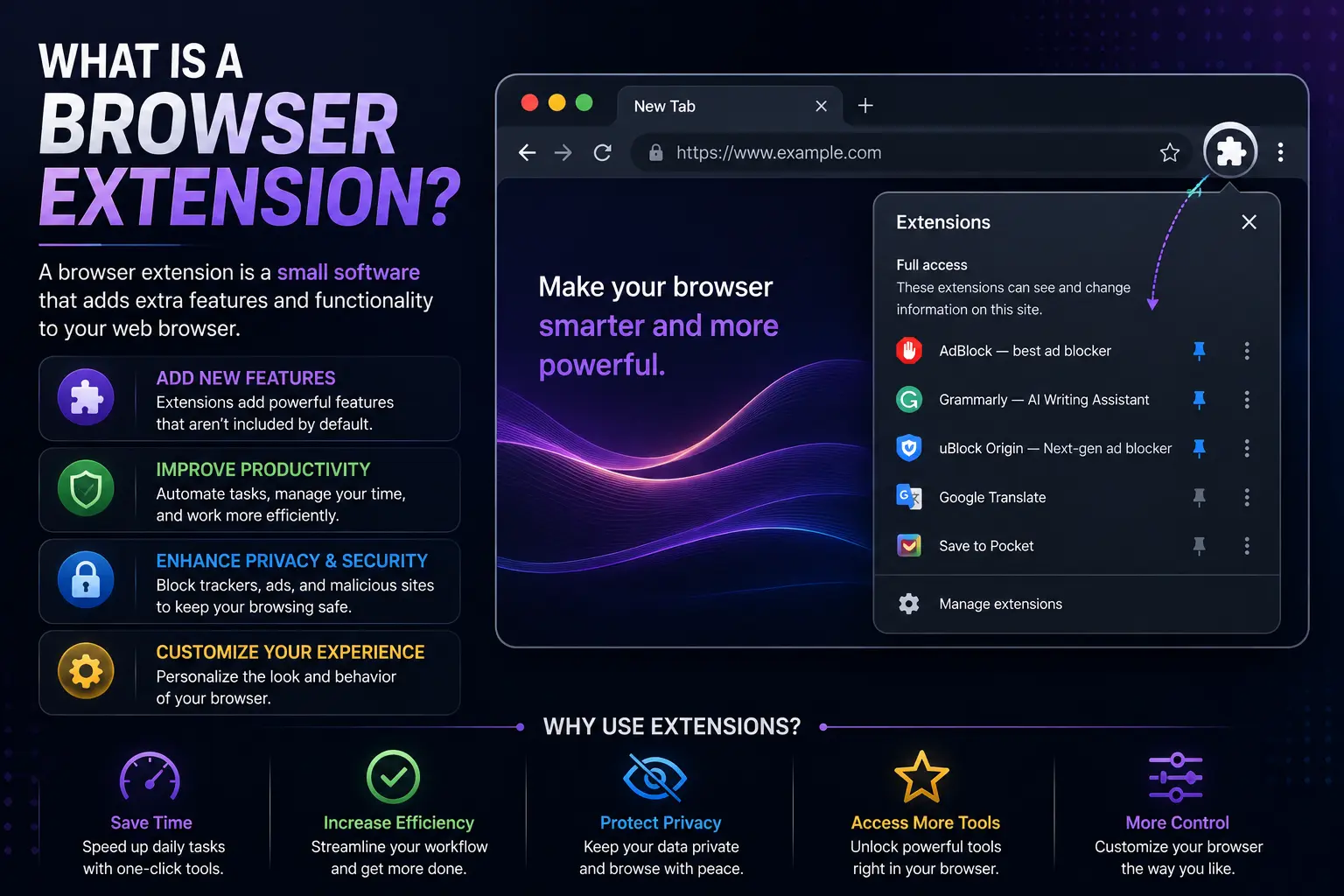
What is a browser extension? In simple terms, it’s a small piece of software you install inside your web browser to add a feature that isn’t built in by default — things like blocking ads, saving passwords, checking spelling, or clipping articles to read later.
Think of your browser as a smartphone. Out of the box, a phone can make calls and send texts, but you install apps to do more — order food, track your steps, edit photos. A browser extension works the same way, except instead of adding apps to your phone, you’re adding small tools directly into Chrome, Firefox, Edge, or Safari.
This guide covers exactly how extensions work, how they differ from similar terms like “plugin” and “add-on,” real examples you’ve probably already used, and — most importantly — the security risks most articles gloss over.
Table of Contents
Browser Extension Definition, Explained Simply
A browser extension is a small software program built using standard web code (HTML, CSS, and JavaScript) that runs inside your browser and modifies or adds to how it works. Extensions don’t run as separate programs on your computer the way a typical app does — they live inside the browser itself and only work while that browser is open.
Here’s the core idea in one sentence: a browser extension changes what your browser can do, without you needing to change browsers.
A Simple Real-World Example
Say you’re reading a long article and want to remove distracting ads. Without an extension, you’re stuck seeing every banner and pop-up the site includes. Install an ad-blocking extension, and the browser now automatically hides those ads on every site you visit afterward — no coding, no settings menus buried three layers deep. That’s the entire value proposition of an extension: one install, ongoing benefit, every time you browse.
What Are Browser Extensions Used For?
Extensions generally fall into a handful of common categories:
- Ad and tracker blocking — hide ads and stop sites from tracking your activity (example: uBlock Origin)
- Password management — automatically fill in saved logins (example: Bitwarden, 1Password)
- Productivity — capture notes, manage tasks, or block distracting sites during work hours (example: Todoist, StayFocusd)
- Writing and grammar help — check spelling and tone as you type into any webpage (example: Grammarly)
- Shopping and coupons — automatically apply discount codes at checkout (example: Honey, Capital One Shopping)
- Accessibility — adjust text size, contrast, or add screen-reader support for easier browsing
- Developer tools — inspect website code, test APIs, or debug page performance (example: React Developer Tools)
Browser Extension vs. Add-on vs. Plugin: What’s the Difference?
This is where a lot of confusion comes from, because these three terms get used almost interchangeably online — but they aren’t quite the same thing.
| Term | What It Means | Still Common Today? |
| Extension | Small program built with web code (HTML/CSS/JavaScript) that adds features to the browser itself | Yes — the standard term used by Chrome, Firefox, and Edge |
| Add-on | Historically Firefox’s term for the same concept; also used more loosely to describe themes and extensions together | Yes, mainly in Firefox’s own terminology |
| Plugin | Older third-party software (like Adobe Flash Player or Java) that ran inside the browser to handle specific file types | No — plugins have been phased out and blocked by modern browsers for security reasons |
So if you’ve been wondering what is a browser add on versus an extension, the honest answer is: for almost all practical purposes today, they’re the same thing, just named differently depending on which browser you’re using. What is a browser plugin, on the other hand, refers to older technology that modern browsers no longer support at all.
How Do Browser Extensions Actually Work?
Extensions request specific permissions when you install them — access to read and change data on websites you visit, access to your browsing history, or access to your downloads, for example. Once granted, the extension’s code runs in the background or activates when you click its icon, and it can read, modify, or add content to the pages you visit.
This permission system exists because extensions are genuinely powerful. An ad blocker needs to see every page you load to know what to hide. A password manager needs to detect login forms to fill them in. That power is exactly why extension security deserves real attention, not an afterthought.
Browser Extension Security: What You Actually Need to Know
This is the section most competing articles either skip or bury at the bottom — and it’s arguably the most important part of understanding extensions.
Why Extensions Can Be Risky
Because an extension can read and modify the content of pages you visit, a malicious or compromised one can:
- Log everything you type, including passwords entered on other sites.
- Inject ads or redirect links without your knowledge.
- Sell your browsing history to data brokers.
- Get bought out by a new owner who quietly changes what the extension does in an update, without you ever reinstalling anything.
That last point matters more than people realize. Extensions update automatically in the background. A tool that was safe and well-reviewed a year ago can be sold to a different company and turned into something that tracks or monetizes your data — all without a new install prompt.
How to Tell If an Extension Is Safe
- Check the permissions it requests. A simple calculator extension asking for permission to “read and change all your data on all websites” is a red flag.
- Look at the developer. Extensions from known companies (Google, Mozilla, LastPass, Grammarly) carry more accountability than an anonymous single-developer tool with a generic name.
- Read recent reviews, not just the star rating. A sudden wave of one-star reviews mentioning ads or redirects is a strong signal something changed.
- Check the last update date. An extension that hasn’t been updated in years may have unpatched vulnerabilities, or may simply be abandoned.
- Install only what you’ll actually use. Every extension is one more thing with access to your browsing — fewer installed extensions means a smaller attack surface.
Best Browser Extensions Worth Knowing (By Category)
If you’re looking for a practical starting point rather than a definition alone, here are widely trusted picks by category:
| Category | Extension | What It Does |
| Ad/tracker blocking | uBlock Origin | Blocks ads and trackers with minimal impact on browser speed |
| Password management | Bitwarden | Open-source password manager with a free tier |
| Writing assistance | Grammarly | Checks grammar, spelling, and tone across most websites |
| Productivity | Todoist | Adds a task list accessible from any tab |
| Privacy | Privacy Badger | Automatically learns and blocks invisible trackers over time |
| Developer tools | React Developer Tools | Lets developers inspect React component structure directly in the browser |
Common Mistakes People Make With Extensions
- Installing too many at once. Each extra extension slows down page loading and increases security risk, even if each one is individually safe.
- Granting broad permissions without reading them. Most people click “Accept” without noticing an extension asked for access far beyond what it needs to function.
- Never removing unused extensions. An extension you installed once and forgot about is still running and still has access, even if you never open it.
- Assuming official app stores guarantee safety. Chrome Web Store and Firefox Add-ons both host verified extensions, but malicious ones do occasionally slip through review and get caught later.
- Confusing an extension with a full app. Extensions only work inside the browser they’re installed in — they won’t protect you or add features anywhere else on your device.
Frequently Asked Questions
What is a browser extension example?
A browser extension example would be something like uBlock Origin, which blocks ads and trackers, or Grammarly, which checks your writing directly inside text boxes on websites. Both are small programs that add a specific feature to your browser after installation.
What are browser extensions built with?
Most modern browser extensions are built using standard web technologies — HTML, CSS, and JavaScript — the same languages used to build websites. This is part of why they’re lightweight compared to full desktop applications.
Are browser extensions safe to use?
Most extensions from reputable developers are safe, but any extension can technically see and modify the pages you visit, depending on the permissions it requests. Checking permissions, developer reputation, and recent reviews before installing meaningfully reduces the risk.
What is the difference between a browser extension and an app?
An app is a standalone program that runs independently on your device, while an extension only runs inside your browser and stops working the moment that browser is closed. Extensions are also generally lighter and more focused on a single task.
Do browser extensions slow down my computer?
Yes, to some degree — each active extension uses a small amount of memory and processing power, and having many installed at once can noticeably slow down page loading. Removing extensions you no longer use is one of the simplest ways to speed up your browser.
Can a browser extension steal my passwords?
A malicious extension with broad permissions could technically capture what you type, including passwords, which is why permission requests matter. Reputable password managers are built specifically to protect this data, but an unverified extension asking for unrelated broad access is a legitimate risk.
Final Thoughts
So, what is a browser extension, really? It’s a small, focused tool that lives inside your browser and adds exactly one capability your browser didn’t have on its own — nothing more, nothing less. Used carefully, extensions can genuinely improve how you browse, from blocking ads to managing passwords to catching typos before you hit send.
The tradeoff is trust: every extension you install is a small piece of software with real access to your browsing activity. Choosing reputable developers, checking permissions before installing, and periodically clearing out extensions you no longer use will keep that tradeoff firmly in your favor.