
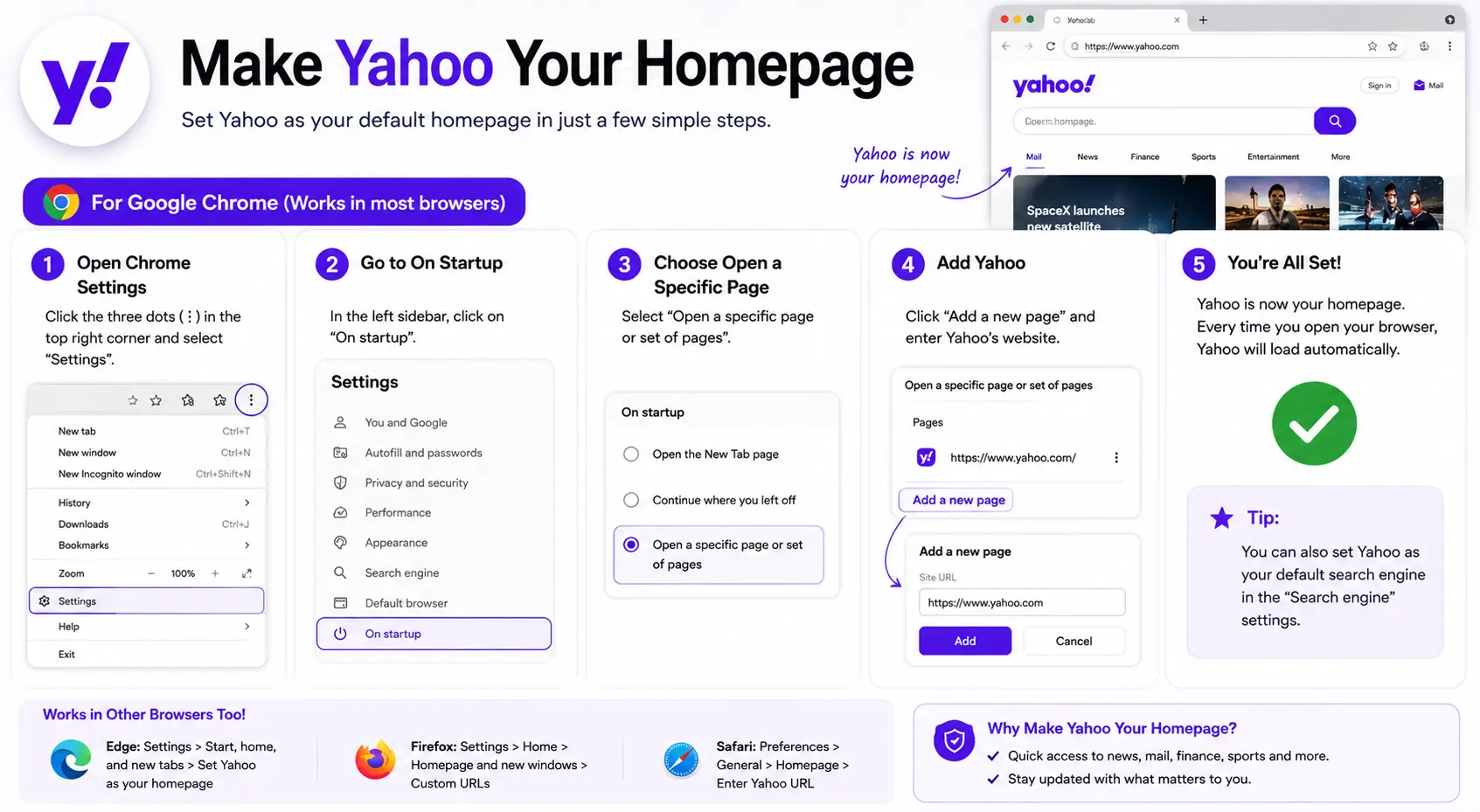
If you want Yahoo’s news, mail, and search all waiting for you the moment you open your browser, learning how to make Yahoo my homepage takes less than two minutes — the process is the same one used to set any site as a homepage, just pointed at Yahoo’s address instead.
This guide covers the exact steps for every major browser, how to do it specifically on Windows 10, and what to know if you’re expecting Yahoo’s older, classic layout rather than what the homepage looks like today.
What Setting Yahoo as Your Homepage Actually Does
Your homepage is the page your browser opens to — either automatically when you launch it, or when you click the small house icon next to the address bar. Setting Yahoo as this page means every new browsing session (or every click of the Home button) takes you straight to Yahoo’s homepage, rather than a blank tab or a different search engine.
Yahoo’s homepage today functions as a personalized news and information hub — combining top news headlines, weather, finance updates, sports scores, and quick access to Yahoo Mail, all in one landing page. This is different from the earlier, more minimal directory-style layout Yahoo used in its early years, and it’s worth knowing in case you’re expecting an older design.
How to Make Yahoo Your Homepage on Chrome
- Open Chrome and click the three-dot menu in the top-right corner, then select Settings.
- Click Appearance in the left sidebar.
- Turn on Show home button.
- Select Enter custom web address, and type yahoo.com.
- To also load Yahoo automatically when Chrome launches, click On startup in the left sidebar, choose Open a specific page or set of pages, click Add a new page, and enter yahoo.com there as well.
Setting both ensures Yahoo appears whether you’re starting fresh or clicking the Home button mid-session.
How to Make Yahoo Your Homepage on Microsoft Edge
- Open Edge and click the three-dot menu (“Settings and more”), then select Settings.
- Click Start, home, and new tab page in the left sidebar.
- Turn on Show home button on the toolbar, select Enter URL, and type yahoo.com.
- Scroll to When Edge starts, select Open these pages, click Add a new page, and enter yahoo.com.
How to Make Yahoo Your Homepage on Firefox
- Click the menu icon (three horizontal lines) in the top-right corner, then select Settings.
- Click Home in the left sidebar.
- Under Homepage and new windows, click the dropdown and select Custom URLs.
- Type https://www.yahoo.com in the field provided.
How to Make Yahoo Your Homepage on Safari (Mac)
- Click Safari in the menu bar, then select Settings.
- Click the General tab.
- In the Homepage field, type yahoo.com, or visit Yahoo first and click Set to Current Page.
- Set both “New windows open with” and “New tabs open with” to Homepage, so Yahoo actually appears automatically rather than only through History > Home.
How to Make Yahoo My Homepage on Windows 10 Specifically
This is one of the most common variations of this search, and the good news is there’s no separate Windows 10 system setting involved — the homepage is controlled entirely by whichever browser you’re using, not by Windows itself.
If you’re using the built-in browser that came with Windows 10 (Microsoft Edge), follow the Edge steps above. If you’re using Chrome or Firefox on Windows 10, follow those browser-specific steps instead — the operating system doesn’t change the process.
Comparison: Setting Yahoo as Homepage by Browser
| Browser | Setting Location | Separate Startup Option? |
| Chrome | Settings > Appearance (Home) + On startup | Yes |
| Edge | Settings > Start, home, and new tab page | Yes (combined section) |
| Firefox | Settings > Home | Combined |
| Safari | Settings > General | Combined with “open with” dropdowns |
Did Yahoo Change Their Homepage?
Yes — Yahoo’s homepage has gone through numerous redesigns over the years, and this is worth understanding if the current layout looks unfamiliar compared to what you remember.
In Yahoo’s earliest years, the homepage functioned as a simple, curated web directory — organized links to categories like news, sports, and entertainment, with very little else on the page. Over time, Yahoo shifted toward a denser, more personalized news portal format, incorporating live headlines, trending topics, weather, finance data, and direct access to Yahoo Mail — closer to what most users see today.
This evolution is normal for large portal sites. If Yahoo’s current homepage doesn’t match your memory of an earlier “classic” version, that’s simply a result of ongoing redesigns rather than any setting on your end — setting Yahoo as your homepage will always show you the current, live version of the site, not an older cached layout.
Real-World Use Cases
- News readers who want daily headlines, weather, and finance updates visible the moment they open their browser.
- Yahoo Mail users who want one-click access to their inbox without needing to search for it or click through bookmarks.
- Sports fans using Yahoo’s homepage for quick access to scores and sports news alongside general headlines.
- Long-time Yahoo users who simply prefer its layout and content mix over a search-engine-only homepage.
Common Mistakes When Setting Yahoo as Your Homepage
- Typing an incomplete URL. Entering “yahoo” instead of “yahoo.com” or the full “https://www.yahoo.com” can cause an error in some browsers — always include the full address.
- Only setting the Home button, not the startup page. In Chrome, Edge, and similar browsers, these are separate settings — missing one means Yahoo won’t load automatically at launch, even if the Home button works.
- Expecting the old, classic Yahoo layout. Since Yahoo’s homepage has been redesigned multiple times, setting it as your homepage always shows the current live version, not any earlier design.
- Forgetting the “open with” step in Safari. Setting the Homepage field alone does nothing in Safari unless “New windows” and “New tabs” are also set to open with Homepage.
- Assuming Windows 10 has its own separate homepage setting. The homepage is entirely a browser-level setting, not something controlled by the Windows operating system itself.
Best Practices
- Copy the URL directly from Yahoo’s own address bar rather than typing it manually, to avoid typos.
- Set both the Home button and startup page (where your browser separates them) for consistent behavior every time you open your browser.
- Sign in to Yahoo Mail after setting your homepage if you want your inbox preview or quick access built into the page itself.
- Revisit the setting occasionally, especially if a browser extension or newly installed software changes your homepage without your input.
Frequently Asked Questions
How do I make Yahoo my homepage on Chrome?
Go to Chrome Settings > Appearance, turn on “Show home button,” select “Enter custom web address,” and type yahoo.com. To also load Yahoo automatically at launch, repeat the process under “On startup.”
How do I make Yahoo my homepage on Windows 10?
There’s no separate Windows 10 setting — the homepage is controlled by whichever browser you’re using. Follow the specific steps for Edge, Chrome, or Firefox, since Windows itself doesn’t manage browser homepages.
Did Yahoo change their homepage recently?
Yahoo has redesigned its homepage many times over the years, evolving from a simple directory-style layout into a personalized news and information hub with headlines, weather, finance data, and mail access. If the current design looks different from what you remember, it reflects one of these ongoing updates.
Can I get the old, classic Yahoo homepage back?
No, setting Yahoo as your homepage always loads the current live version of the site. Yahoo doesn’t offer a way to permanently revert to a previous design through browser settings, since the homepage layout is controlled entirely on Yahoo’s end.
Why isn’t Yahoo loading automatically when I open my browser?
This usually means only the Home button setting was changed, not the separate startup page setting. In Chrome and Edge, check both the “Appearance”/”Home” section and the “On startup” section to make sure Yahoo is set in both places.
Is making Yahoo my homepage different from setting Yahoo as my search engine?
Yes, these are separate settings. Your homepage is the page that opens when you launch your browser or click Home. Your default search engine determines what happens when you type a search directly into the address bar — Yahoo can be set as either, both, or neither, independently of each other.
Final Thoughts
Making Yahoo your homepage takes the same simple process across every major browser: turn on the Home button, enter yahoo.com, and set your startup page to match if you want it to load automatically every time.
Keep in mind that Yahoo’s homepage design has evolved considerably over the years, so what you see after setting it will be the current, live version of the site — not any earlier layout you might remember from years past.


