
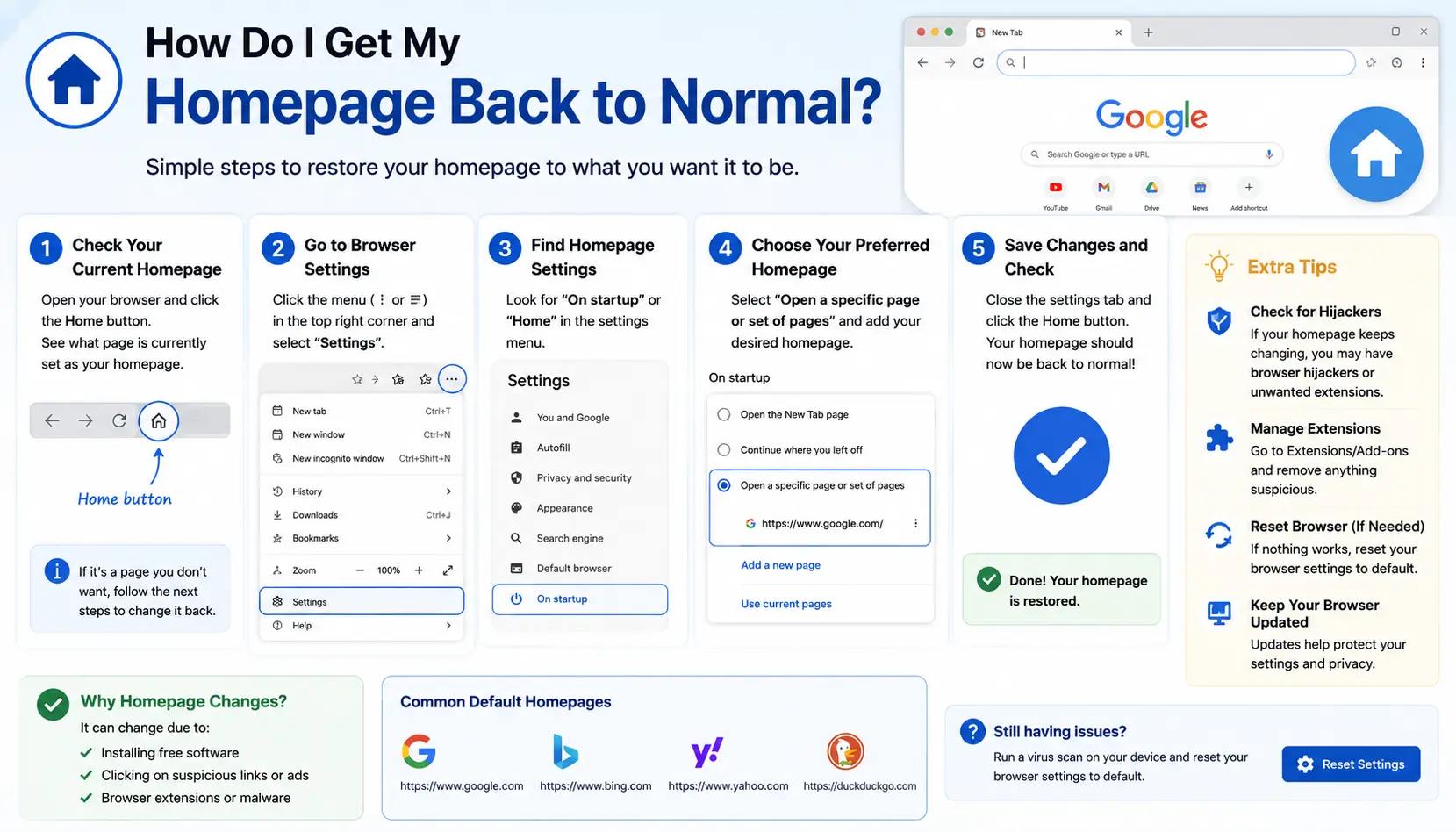
If your browser suddenly opens to a strange search page, a cluttered dashboard, or an unfamiliar site instead of what you’re used to, asking “how do I get my homepage back to normal” is exactly the right question — and the good news is that it’s almost always fixable in a few minutes.
This guide walks through the fix step by step, starting with the simple settings adjustment and moving into the deeper causes — extensions, unwanted software, or sync settings — when a simple fix doesn’t stick. If your homepage keeps reverting after you fix it, that’s a sign the real cause is further down this guide, not in the basic settings.
Table of Contents
First, Figure Out What Actually Changed
Before fixing anything, it helps to pin down exactly what’s different, since “homepage” can mean three separate things in a browser, and mixing them up leads to fixing the wrong setting.
- The Home button page — what opens when you click the small house icon next to the address bar.
- The startup page — what opens automatically every time you launch the browser.
- The New Tab page — what appears when you open a new tab.
Quick test: Click the Home button if it’s visible and note what opens. Then fully close and reopen your browser and note what appears. Then open a brand-new tab and compare it to what you remember. If all three changed at once, something deeper than a simple setting is involved — most likely an extension, unwanted software, or a synced account setting, covered further down.
Step 1: Reset Your Homepage in Chrome Settings
Start here, since this fixes the majority of cases where the homepage was changed accidentally rather than by something else.
- Open Chrome and click the three-dot menu in the top-right corner, then select Settings.
- Click Appearance in the left sidebar.
- Under Show home button, confirm it’s toggled on.
- If a custom web address is set, replace it with the page you want (like google.com), or select New Tab page to restore Chrome’s default behavior.
- Separately, click On startup in the left sidebar and check what’s selected. If it shows an unfamiliar page under Open a specific page or set of pages, remove it and select Open the New Tab page instead, or re-add your preferred page.
If this brings everything back to normal, you’re done. If the homepage reverts again after a restart, or if this section shows options you didn’t set, move to the steps below.
Step 2: Restore the Default New Tab Page
If your New Tab page shows an unfamiliar layout, dashboard, or search bar that isn’t the standard Chrome page, this is usually a separate issue from the homepage setting itself.
- Open a new tab and look for the Customize Chrome button (usually a pencil icon in the bottom-right corner).
- Click it, then review the Background, Shortcuts, and Color and theme options.
- Remove any custom background image and reset the color theme to Chrome’s default.
- Set shortcuts to Most visited sites, or hide them, depending on your preference.
If the New Tab page still doesn’t look like standard Chrome after this — or the Customize Chrome button doesn’t appear at all — an extension is very likely overriding it, which is covered next.
Step 3: Check for Extensions That Changed Your Homepage
This is the single most common cause of a homepage that keeps changing on its own, especially after installing free software, a toolbar, or a “helpful” browser add-on.
- Click the three-dot menu, go to More tools, then Extensions.
- Review the full list, paying close attention to anything you don’t remember installing intentionally — especially ones related to search, shopping deals, wallpapers, or “productivity” dashboards.
- Click Remove on anything unfamiliar or suspicious.
- Restart Chrome and check your homepage and New Tab page again.
Why this happens: Some free downloads bundle a browser extension by default, quietly changing your homepage, new tab page, or default search engine during installation — often without a clear, separate confirmation step.
Step 4: Check for Unwanted Software Outside the Browser
If removing extensions doesn’t fully fix it, or if the extension reinstalls itself after removal, the source may be a program installed on your computer itself, not just inside Chrome.
- Open your computer’s list of installed programs (Control Panel > Uninstall a program on Windows, or Applications on Mac).
- Look for unfamiliar programs, especially ones with names related to “search,” “toolbar,” or “browser assistant.”
- Uninstall anything you don’t recognize or didn’t intentionally install.
- Run a scan with your security software to catch anything the manual review missed.
- Return to Chrome and repeat Steps 1–3, since removing the source program often reveals settings that still need to be manually reset.
Step 5: Check If Chrome Sync Is Carrying Over the Change
If you’re signed into Chrome with a Google account and sync enabled, a homepage change made on one device (or by someone else using that account) can automatically appear on all your other signed-in devices.
- Go to Settings > You and Google > Sync and Google services.
- Review what’s being synced. If Settings is included, a change from another device could be the source.
- If needed, sign out of Chrome sync temporarily, fix your homepage locally, and decide whether to re-enable sync afterward.
Step 6: Check for a Managed Browser Policy
On a work, school, or organization-issued computer, your homepage may be intentionally locked or controlled by an administrator, not by any accidental setting or unwanted software.
- Type chrome://policy into the address bar and press Enter.
- If policies are listed here related to homepage, startup pages, or New Tab settings, the browser is being managed by an organization, and normal settings changes may not stick.
- If this applies to you, contact your IT department or system administrator rather than trying to override it yourself, since managed settings are intentionally locked from user changes.
Step 7: Use Chrome’s Reset Tool as a Last Resort
If none of the above fully resolves the issue, Chrome includes a built-in reset option that restores settings to their original defaults.
- Go to Settings > Reset settings (sometimes listed under “Advanced” or “Reset and clean up,” depending on your Chrome version).
- Select Restore settings to their original defaults.
- Confirm the reset.
This clears your homepage, New Tab page, startup pages, pinned tabs, and default search engine back to Chrome’s out-of-the-box state — but it does not delete your bookmarks, saved passwords, or browsing history, so it’s a safe option even if you’re unsure exactly what caused the problem.
Comparison: Which Fix Applies to Your Situation
| Symptom | Likely Cause | Fix |
| Homepage changed once, no repeat | Accidental setting change | Step 1 |
| New Tab page looks different, but homepage is fine | New Tab customization or extension | Step 2, then Step 3 |
| Homepage keeps reverting after you fix it | Extension or unwanted software | Step 3 and Step 4 |
| Homepage is different across your devices | Chrome sync | Step 5 |
| Settings are grayed out or won’t save | Managed browser policy | Step 6 |
| Nothing above works | Deep or unknown cause | Step 7 (Reset) |
How to Get Your Old Google Homepage Back Specifically
If what you actually miss is Google’s classic, simple search box as your start page (rather than a more recent layout), the fix is the same core process: set your Home button and startup page to google.com using Step 1 above. Google’s basic search homepage design has stayed largely the same for years, so setting the URL directly restores the familiar, minimal search box layout you’re likely picturing.
Common Mistakes When Trying to Fix a Changed Homepage
- Only fixing the Home button setting, while leaving the startup page or New Tab page unchanged — since these are separate settings, fixing one doesn’t automatically fix the others.
- Reinstalling the same free software that caused the problem originally, without noticing the bundled extension checkbox during setup.
- Assuming it’s a virus immediately. Most homepage changes come from a legitimate but overly aggressive extension or bundled installer, not malware — though running a security scan is still a reasonable precaution.
- Not checking sync settings on a personal account that’s signed into multiple devices, leading to the same problem reappearing after being “fixed.”
- Giving up after one fix attempt on a work or school computer, without realizing the homepage may be intentionally managed by policy.
Best Practices to Prevent This From Happening Again
- Read installation screens carefully when installing free software, and uncheck any pre-selected “recommended” browser extensions or search tool offers.
- Review your installed extensions periodically, removing anything you no longer recognize or use.
- Avoid installing multiple “New Tab” or search-related extensions at once, since they often conflict and repeatedly override each other’s settings.
- Bookmark your homepage setting page (chrome://settings/appearance) for quick access if you ever need to check or fix it again.
- Keep your security software updated and run periodic scans, especially after installing new programs from outside official app stores.
Frequently Asked Questions
How do I get my homepage back to normal after it suddenly changed?
Start by checking Settings > Appearance and Settings > On startup in your browser to see what’s currently set. If an unfamiliar page appears, replace it with your preferred site. If the change keeps happening again after fixing it, check your installed extensions and any recently installed software next.
Why does my homepage keep changing back after I fix it?
This usually means an extension or a program installed outside the browser is actively resetting the setting. Removing the extension (Settings > Extensions) and checking your computer’s installed programs list typically resolves this.
How do I restore my original Google homepage?
Set your browser’s Home button and startup page to google.com using your browser’s homepage settings. This brings back Google’s classic, simple search homepage as your default starting page.
Is a changed homepage a sign of a virus?
Not necessarily. It’s more commonly caused by a bundled browser extension from a free software installer, rather than malware. Still, running a security scan is a reasonable step, especially if the change keeps recurring despite your fixes.
Why can’t I change my homepage at all, no matter what I try?
This can happen on a work, school, or managed computer, where an administrator has locked certain browser settings through policy. Checking chrome://policy will show if this applies to you; if so, contact your IT administrator.
Will resetting my browser settings delete my bookmarks or passwords?
No. Chrome’s built-in reset restores settings like your homepage, New Tab page, and default search engine to their defaults, but it does not delete your saved bookmarks, passwords, or browsing history.
Final Thoughts
Getting your homepage back to normal is usually a quick fix — check your homepage and startup settings first, and if the problem keeps coming back, look at your extensions and installed software next, since those are the most common root causes of a homepage that won’t stay fixed.
Work through the steps in order rather than jumping straight to a full reset. In most cases, you’ll find the actual cause — an extension, a leftover installer, or a sync setting — well before you need Chrome’s reset tool as a last resort.


