
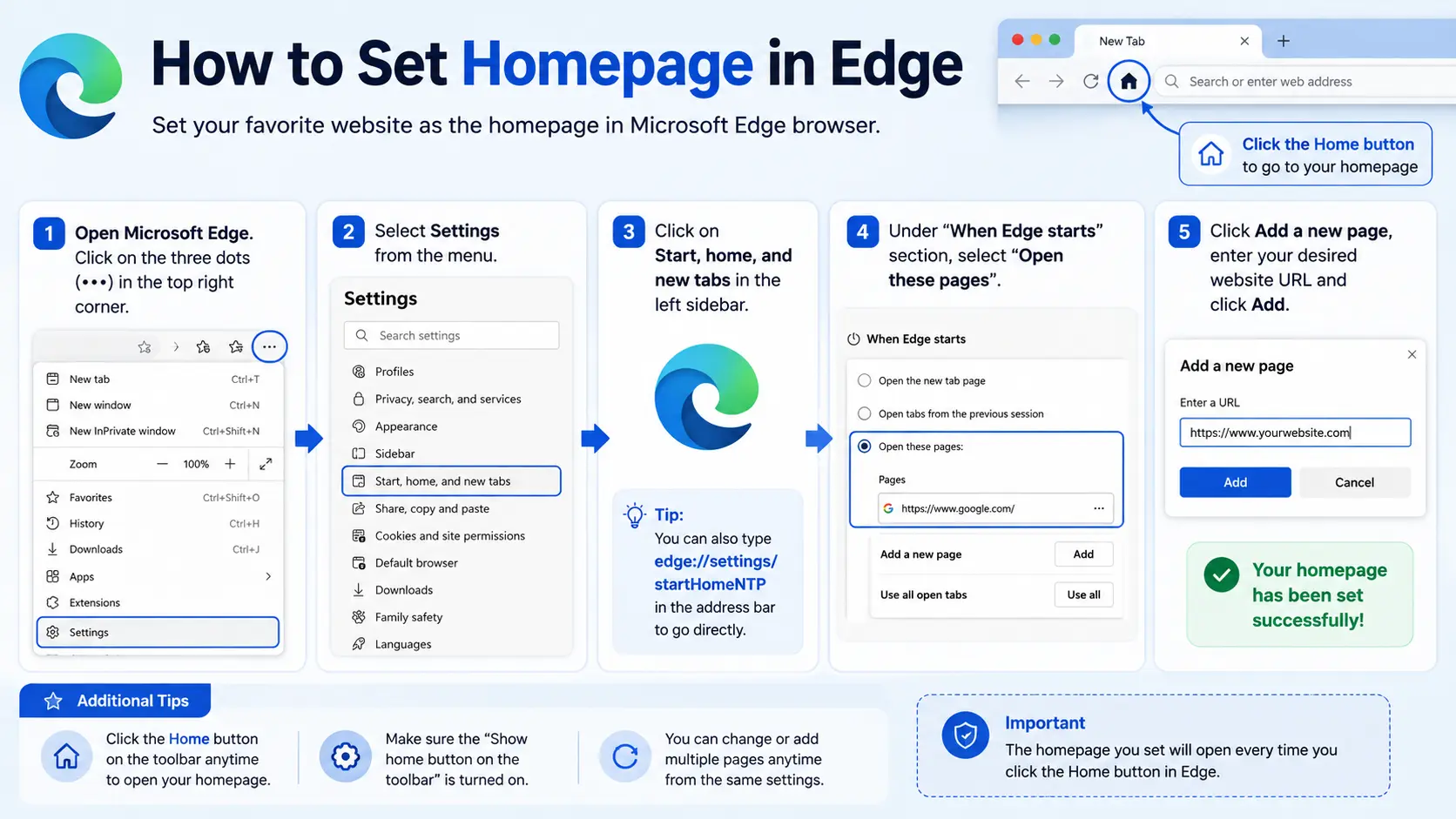
Learning how to set homepage in Edge takes about a minute once you know exactly where the setting lives — and Microsoft has moved it around enough times over the years that even people who’ve done this before sometimes struggle to find it again.
This guide walks through the current, correct steps for Microsoft Edge, explains the difference between the Home button and the startup page (a distinction that trips up a lot of people), and covers how to set a specific website — including Google — as your go-to starting page.
Table of Contents
Homepage vs. Startup Page in Edge: Know the Difference First
Before diving into settings, it helps to understand that Edge, like Chrome, actually separates two related features:
- Homepage: The page that opens when you click the Home button — a small house icon that sits next to the address bar. This button is hidden by default.
- Startup page(s): The page or pages that open automatically every single time you launch Edge, regardless of whether you ever click the Home button.
You can set these to match, or keep them different — for example, using your company’s intranet as a startup page while keeping Google as your Home button destination for quick searches mid-browsing.
How to Set Homepage in Edge (Step-by-Step)
- Open Microsoft Edge and click the three-dot menu (“Settings and more”) in the top-right corner.
- Select Settings.
- Click Start, home, and new tab page in the left sidebar. This single section in Edge now covers homepage, startup, and new tab behavior together.
- Turn on Show home button on the toolbar.
- Choose either:
- New tab page — the Home button leads to Edge’s default new tab screen, or
- Enter URL — type the specific website address you want as your homepage.
Once enabled, the Home icon appears next to the address bar. Clicking it always takes you to this page, no matter what site you’re currently browsing.
Setting the startup page separately
In that same Start, home, and new tab page section:
- Scroll to the section labeled When Edge starts.
- Choose from the available options:
- Open the new tab page
- Continue where you left off (reopens your previous tabs)
- Open these pages — lets you add one or more specific URLs that open automatically every time Edge launches.
- If you choose Open these pages, click Add a new page and enter the URL you want.
This is the setting most people actually mean when they say “make this my homepage,” since it’s what loads automatically without needing to click anything.
How to Make Google Your Homepage in Edge
This is one of the most common reasons people search for this topic, and it uses the exact same steps above.
- Go to Settings > Start, home, and new tab page.
- Turn on Show home button on the toolbar, select Enter URL, and type google.com.
- If you also want Google to load automatically at launch, scroll to When Edge starts, select Open these pages, click Add a new page, and enter google.com there as well.
Setting both ensures Google appears whether you’re starting a fresh browsing session or clicking the Home button mid-session.
How to Make Any Website Your Homepage in Edge
The process is identical regardless of which site you want — only the URL changes.
- Open the website you want to use, and copy its exact address from the address bar.
- Go to Settings > Start, home, and new tab page.
- Paste the copied URL into either the Enter URL field (for the Home button) or under Open these pages (for startup).
Copying the URL directly, rather than typing it from memory, avoids the most common cause of this setting failing — a small typo in the address.
Edge Settings Path: Then vs. Now
Microsoft has reorganized Edge’s settings menu more than once, which is a major source of confusion in older tutorials still circulating online.
| Edge Version Era | Setting Location |
| Legacy Edge (pre-Chromium, discontinued) | Settings > View advanced settings > Home button |
| Early Chromium-based Edge | Settings > Appearance (Home button) + separate On startup section |
| Current Edge | Settings > Start, home, and new tab page (combined section) |
If you’ve followed an older guide and couldn’t find the “Appearance” tab or a separate “On startup” menu, this is why — Microsoft consolidated these into a single settings page.
Comparison: Edge vs. Chrome Homepage Settings
Since Edge and Chrome share the same underlying browser engine, their settings are conceptually similar but organized slightly differently.
| Feature | Microsoft Edge | Google Chrome |
| Settings location | Start, home, and new tab page (combined) | Appearance (Home) + On startup (separate) |
| Home button hidden by default | Yes | Yes |
| Multiple startup pages allowed | Yes | Yes |
| Mobile app has separate settings | Yes (simplified) | Yes (simplified) |
If you’re used to Chrome’s layout, the main adjustment in Edge is that homepage and startup settings live together on one page instead of being split into two separate sections.
How to Set a Homepage in Edge on Mobile
- Open the Edge app and tap the three-dot menu at the bottom (or top, depending on your device).
- Tap Settings.
- Select General or Start page, depending on your app version.
- Choose your preferred starting experience — a specific website, a new tab page, or your Favorites.
Mobile Edge offers fewer granular options than desktop, generally combining the Home button and startup behavior into one simplified setting.
Real-World Use Cases
- Remote workers setting a company intranet or project dashboard as their startup page, so daily priorities are visible the moment Edge opens.
- Students setting a school portal or learning platform as their homepage for quick, one-click access during the semester.
- Small business owners setting their own website as their homepage to catch layout issues or updates as soon as the browser opens.
- Shared family computers using a neutral homepage like a search engine, to avoid defaulting to any one person’s personal accounts.
Common Mistakes When Setting a Homepage in Edge
- Following outdated instructions. Because Edge’s settings menu has changed structure over time, older guides may reference tabs (“Appearance,” “On startup”) that no longer exist as separate sections.
- Forgetting the Home button is off by default. Many people set a homepage but never toggle “Show home button on the toolbar,” so the button never actually appears.
- Entering an incomplete URL. Typing “google” instead of the full “https://www.google.com” can cause the field to reject the entry or load an error.
- Assuming the Home button and startup page are the same setting. They’re related but separate — changing one doesn’t automatically update the other.
- Not checking sync settings. If Edge is signed into a Microsoft account with sync enabled, homepage changes may apply across your other signed-in devices.
Best Practices
- Copy URLs directly from the address bar rather than typing them, to avoid errors.
- Set both the Home button and startup page if you want full consistency across how you use the browser.
- Use “Open these pages” for a multi-tab morning routine — email, calendar, and a news site can all open automatically in separate tabs.
- Revisit the setting occasionally, especially after installing new extensions, since some extensions can alter homepage or new tab behavior without clear notice.
- Bookmark frequently visited pages separately from your homepage setting, so you’re not relying on a single page to access everything you use regularly.
Frequently Asked Questions
How do I make Google my homepage in Microsoft Edge?
Go to Settings > Start, home, and new tab page, turn on “Show home button on the toolbar,” select “Enter URL,” and type google.com. To also load Google automatically at launch, add it under “Open these pages” in the same settings section.
Why can’t I find the “Appearance” tab in Edge to set a homepage?
Microsoft has reorganized Edge’s settings over time. In the current version, homepage, startup, and new tab settings are combined into one section called “Start, home, and new tab page,” rather than being split across separate tabs as in older versions.
What’s the difference between the homepage and the startup page in Edge?
The homepage is the page that opens when you click the Home button next to the address bar. The startup page is what opens automatically every time you launch Edge. They can be set to the same page or kept different.
How do I set multiple pages to open when Edge starts?
Go to Settings > Start, home, and new tab page, choose “Open these pages” under “When Edge starts,” then click “Add a new page” for each additional URL you want to open automatically.
Can I set a homepage in Edge on my phone?
Yes, though mobile Edge offers simpler options than desktop. Open the app, go to Settings, and look for a Start page or General section to choose your preferred starting experience.
Why did my Edge homepage change without me changing it?
This is often caused by a browser extension, other installed software, or a Microsoft account sync setting carrying over from another device. Reviewing your installed extensions and checking the “Start, home, and new tab page” settings directly usually resolves it.
Final Thoughts
Setting a homepage in Microsoft Edge is a quick process once you know it’s now consolidated into one settings section — “Start, home, and new tab page” — rather than split across multiple tabs like older versions of the browser.
Turn on the Home button, choose your page, and decide separately whether you want that same page (or a different one) to load automatically at startup. Once it’s set, your browser opens exactly where you want it, every time.


