
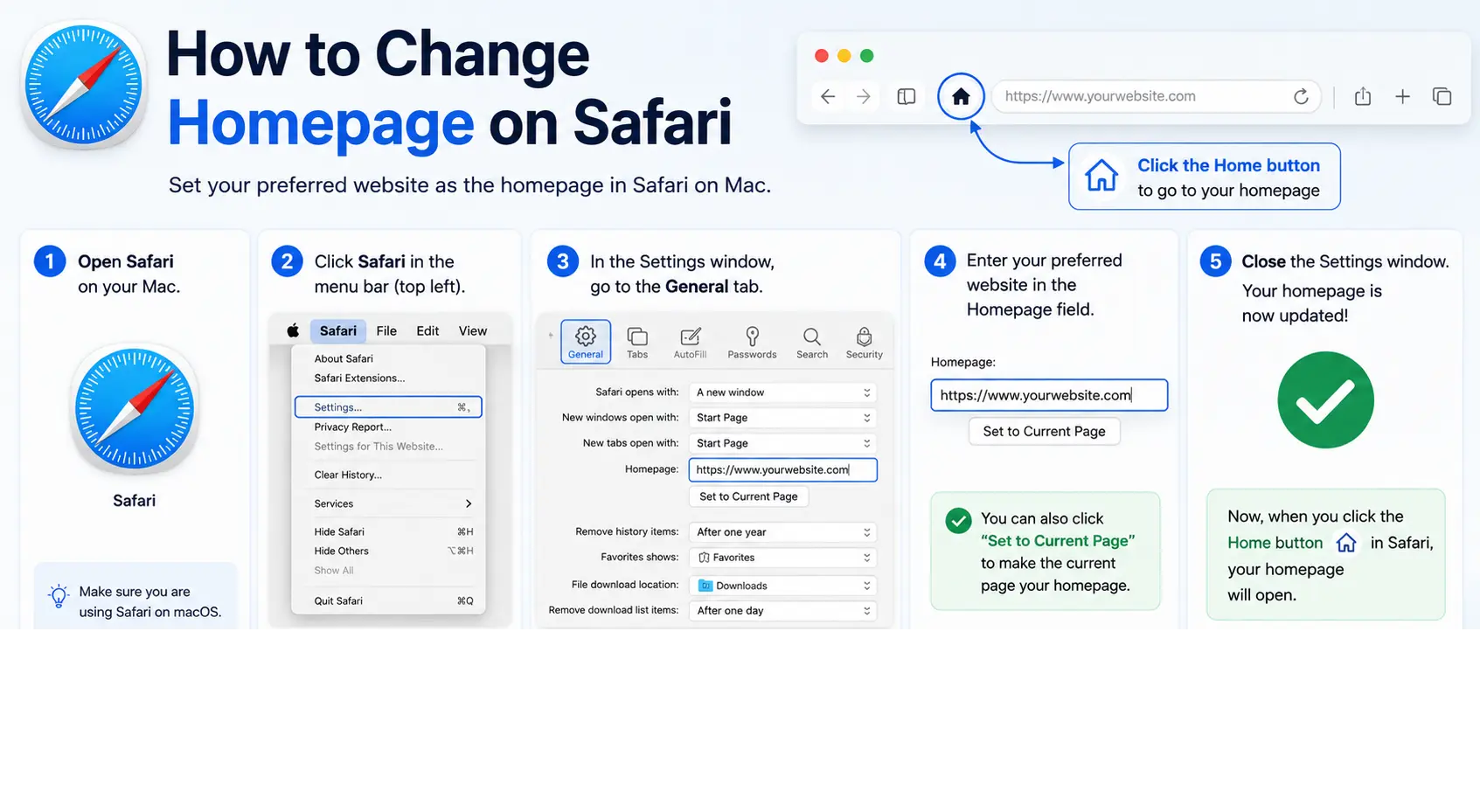
Learning how to change homepage on Safari is quick once you know exactly where the setting lives — though Apple has renamed a few menu items over recent macOS versions, which is why some older tutorials no longer match what you see on screen.
This guide covers the current steps for Safari on Mac, plus how homepage behavior works (or doesn’t) on iPhone and iPad, since Safari treats mobile very differently from desktop. We’ll also cover how to make Google your homepage specifically, and what to do if the setting doesn’t seem to be working.
Table of Contents
How to Change Homepage on Safari on Mac
- Open the Safari app on your Mac.
- Click Safari in the menu bar at the top of the screen, then select Settings. (On older macOS versions, this menu item was called “Preferences” — Apple renamed it to “Settings” in more recent releases, though the function is identical.)
- Click the General tab.
- In the Homepage field, type the web address you want to use.
- If you’re already on the page you want to set, click Set to Current Page instead of typing the URL manually — this avoids any typing errors.
Choosing when your homepage actually appears
Setting the homepage field alone doesn’t guarantee it opens automatically — you also need to tell Safari when to use it, in the same General settings tab:
- For new windows: Click the “New windows open with” dropdown and select Homepage.
- For new tabs: Click the “New tabs open with” dropdown and select Homepage.
This step is the one most tutorials skip, and it’s exactly why some people set a homepage but still see a blank new tab page instead. The homepage field and the “open with” dropdowns work together — skipping either one means the homepage won’t actually show up where you expect it.
Quickly opening your homepage anytime
Once set, you can jump to your homepage at any point by clicking History in the menu bar, then selecting Home. This works regardless of what page you’re currently browsing.
How to Make Google Your Homepage on Safari
This uses the exact same process above, just with a specific address.
- Go to Safari > Settings > General.
- In the Homepage field, type google.com.
- Set the “New windows open with” and “New tabs open with” dropdowns to Homepage, so Google actually appears when you open a new window or tab, not just when you manually navigate to History > Home.
How to Set a Homepage on a MacBook
If you’re specifically searching for “how to change homepage on MacBook,” the process is identical to any other Mac — the homepage setting lives in Safari’s app settings, not in a separate MacBook-specific system setting. The same steps above apply whether you’re on a MacBook Air, MacBook Pro, iMac, or Mac mini, since it’s controlled by the Safari application itself.
Does Safari on iPhone or iPad Have a Homepage Setting?
This is where Safari differs meaningfully from Mac, and it’s worth explaining clearly since it trips up a lot of people switching between devices.
Safari on iOS and iPadOS does not have a traditional “homepage” setting the way the Mac version does. Instead of a custom homepage field, mobile Safari opens to a Start Page — a customizable screen showing Favorites, Frequently Visited sites, and a Siri Suggestions section, rather than one single fixed URL.
How to customize the Start Page on iPhone/iPad instead
- Open Safari and tap the new tab button to view the Start Page.
- Tap Edit at the bottom of the screen.
- Toggle on or off sections like Favorites, Frequently Visited, Privacy Report, and Siri Suggestions to customize what appears.
- To set specific “Favorite” sites (the closest equivalent to a homepage shortcut), go to Bookmarks, then add sites to the Favorites folder — these appear as quick-access icons on the Start Page.
If your goal is having one specific site always ready to tap, adding it to Favorites is the closest equivalent iOS offers to a Mac-style homepage.
Comparison: Homepage Behavior, Mac vs. iPhone/iPad
| Feature | Safari on Mac | Safari on iPhone/iPad |
| Custom homepage URL field | Yes | No |
| Opens to a fixed page automatically | Yes (if configured) | No (opens to Start Page) |
| Closest equivalent | Homepage field + “open with” settings | Favorites section on Start Page |
| Quick access via History > Home | Yes | Not applicable |
Anyone switching from Mac to iPhone and expecting the same “type a URL and it’s your homepage” experience will be surprised — the mobile version is built around a curated Start Page rather than a single fixed destination.
Why Your Safari Homepage Might Not Be Working
If you’ve set the Homepage field but Safari still opens to something else, one of these is almost always the reason:
- The “open with” dropdowns weren’t changed. Setting the Homepage field alone does nothing unless “New windows open with” and/or “New tabs open with” are both set to Homepage.
- A typo in the URL. Always use “Set to Current Page” when possible, rather than typing the address manually.
- You’re on iPhone or iPad expecting Mac-style behavior. As covered above, mobile Safari uses a Start Page model instead of a single custom homepage.
- iCloud sync is carrying over a different setting from another Mac signed into the same Apple ID, if Safari sync is enabled.
Real-World Use Cases
- Students setting their school’s learning portal as their Mac homepage so it’s the first thing visible in every new window.
- Remote workers setting a project management tool as their homepage to open directly into their task list each morning.
- Researchers setting a specific database or reference site as their homepage for quick, repeated access throughout the day.
- Anyone sharing a family Mac setting a neutral homepage (like a search engine) rather than a personal account page, to keep the shared browser simple for all users.
Common Mistakes When Changing Your Safari Homepage
- Forgetting to update the “open with” dropdowns. This is the single most common reason the homepage doesn’t seem to work after being set.
- Looking for “Preferences” instead of “Settings.” Recent macOS versions renamed this menu — if you can’t find “Preferences,” look for “Settings” instead.
- Expecting the same feature on iPhone. Mobile Safari doesn’t offer a custom homepage URL field; it uses the Start Page and Favorites instead.
- Typing the URL instead of using “Set to Current Page.” This increases the chance of a typo that causes an error or blank page.
- Not accounting for iCloud sync. If Safari settings sync across devices, a change made elsewhere might override what you just set locally.
Best Practices
- Use “Set to Current Page” whenever possible instead of typing a URL manually, to avoid entry errors.
- Set both “New windows” and “New tabs” to Homepage if you want fully consistent behavior across the browser.
- Add frequently used sites to Favorites on mobile, since this is the closest practical equivalent to a Mac-style homepage on iPhone or iPad.
- Check iCloud sync settings if your homepage keeps reverting, since another signed-in device may be overriding your change.
- Use History > Home as a quick manual shortcut any time you want to jump back to your homepage without opening a new window.
Frequently Asked Questions
How do I change my homepage on Safari on Mac?
Go to Safari > Settings > General, enter a web address in the Homepage field (or click “Set to Current Page”), then set both “New windows open with” and “New tabs open with” to Homepage so it actually appears automatically.
How do I make Google my homepage on Safari?
Follow the same steps as changing any homepage: go to Safari > Settings > General, type google.com in the Homepage field, and set the “open with” dropdowns to Homepage for both new windows and new tabs.
Can I set a homepage on Safari for iPhone?
Not in the traditional sense. Safari on iPhone and iPad uses a customizable Start Page with Favorites and Frequently Visited sites instead of a single fixed homepage URL. Adding a site to Favorites is the closest equivalent.
Why isn’t my Safari homepage showing up after I set it?
The most common cause is forgetting to set “New windows open with” and “New tabs open with” to Homepage in Safari’s General settings — the Homepage field alone doesn’t trigger this behavior by itself.
Where did the “Preferences” menu go in Safari?
Apple renamed “Preferences” to “Settings” in recent macOS versions. The location and function are the same — just look for Safari > Settings instead of Safari > Preferences.
How do I change my homepage on a MacBook specifically?
The process is identical to any other Mac, since the homepage setting belongs to the Safari app itself, not the specific device. Go to Safari > Settings > General and follow the same steps used on an iMac or Mac mini.
Final Thoughts
Changing your homepage on Safari for Mac takes just a few clicks in Safari > Settings > General — the key detail most guides miss is that you also need to set “New windows” and “New tabs” to open with Homepage, or the setting won’t visibly do anything.
On iPhone or iPad, skip looking for a homepage field entirely and use the Start Page’s Favorites section instead, since Apple designed mobile Safari around a different, more flexible starting experience.


