
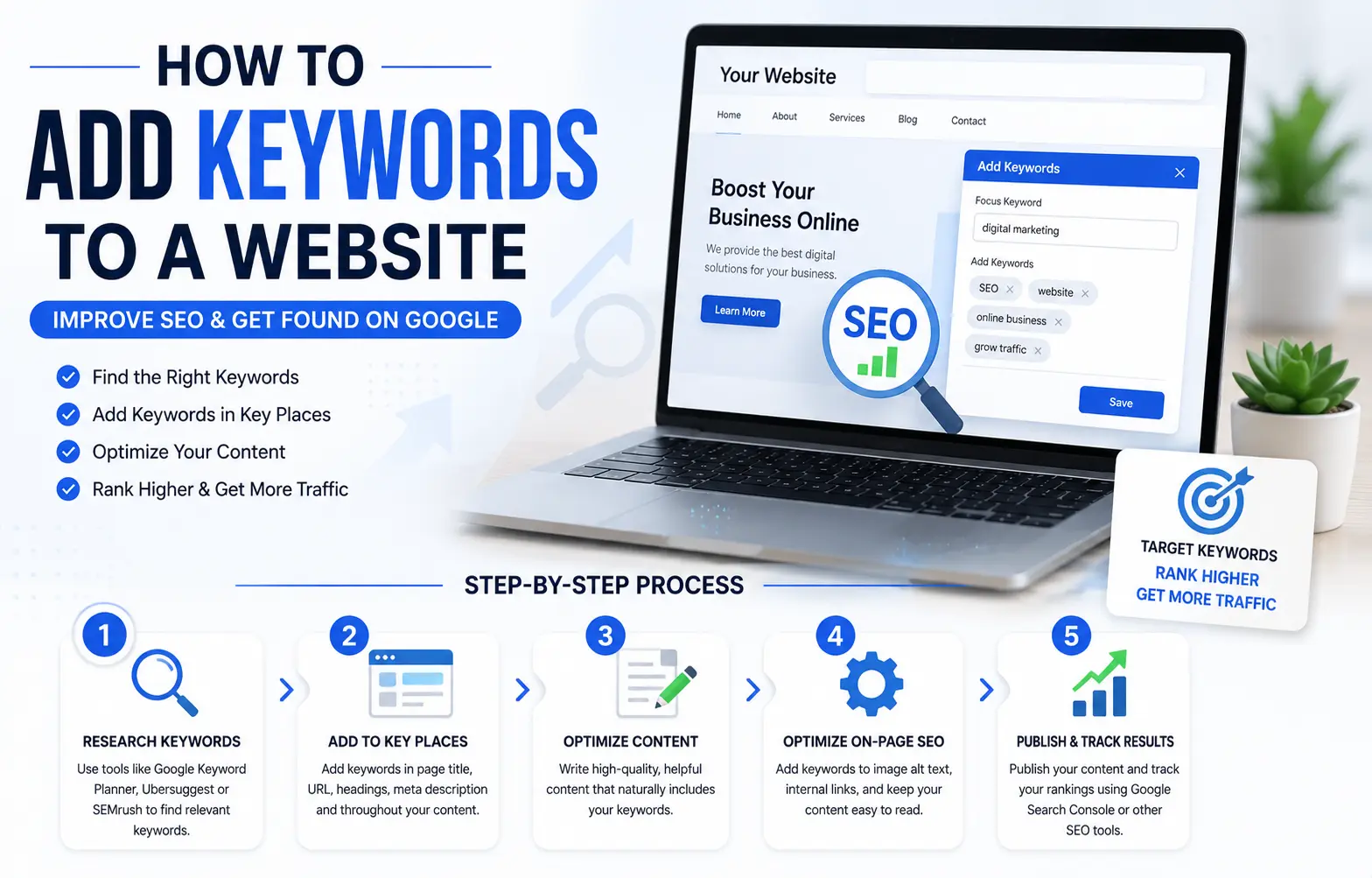
If you’ve written great content but nobody’s finding it on Google, the problem is often simple: your keywords aren’t in the right places. Knowing how to add keywords to website properly is one of the fastest ways to help search engines understand what your page is about — and help the right people find it.
This guide walks through exactly where keywords belong on a webpage, how to add them naturally, and which outdated tactics can actually hurt you. It’s written for beginners, so every term is explained as we go.
Table of Contents
What Is a Keyword, Exactly?
A keyword is simply a word or phrase that people type into Google when they’re looking for something. If you run a bakery in Denver, a potential customer might search “best bakery in Denver” or “custom birthday cakes near me.” Those phrases are your keywords.
There are two main types:
- Short-tail keywords — broad, one-to-two-word phrases like “bakery” or “SEO tips.” They get a lot of searches but are hard to rank for because so many sites compete for them.
- Long-tail keywords — longer, more specific phrases like “gluten-free bakery in downtown Denver.” These get fewer searches individually, but they’re easier to rank for and often bring visitors who are closer to making a decision.
Think of short-tail keywords as fishing in the ocean and long-tail keywords as fishing in a stocked pond. You’ll catch fewer fish overall in the pond, but you’ll catch the right ones.
Why Keyword Placement Matters
Search engines don’t “read” a page the way a human does. They scan the code and structure of your page to figure out its topic. Certain spots on a page carry more weight than others — search engines treat your page title and headings as strong topic signals, for example, while a keyword buried in the fifth paragraph carries much less.
That’s why where you add a keyword matters just as much as whether you add it at all.
Where to Place Keywords on a Website
Here’s a complete breakdown of every spot that matters, in order of SEO impact.
1. Page Title (Title Tag)
The page title is the blue, clickable headline you see in Google’s search results. It’s the single most important place to add your keyword.
Example: Instead of: “Home” Use: “Custom Birthday Cakes in Denver | Sweet Layer Bakery”
Keep titles under about 60 characters so Google doesn’t cut them off in search results.
2. Meta Description
The meta description is the short summary text that appears under your title in search results. It doesn’t directly boost your ranking, but including your keyword here helps it show up in bold when it matches someone’s search, which can improve your click-through rate.
Example: “Order custom birthday cakes in Denver from Sweet Layer Bakery. Same-week delivery, gluten-free options, and flavors made from scratch.”
3. URL Slug
The URL slug is the part of the web address after your domain name. Short, keyword-rich URLs are easier for both users and search engines to understand.
Example: Instead of: yoursite.com/page?id=1029 Use: yoursite.com/custom-birthday-cakes-denver
4. H1 (Main Heading)
Your H1 is the main title displayed on the page itself — different from the title tag, which appears in search results. Every page should have exactly one H1, and it should include your primary keyword naturally.
5. Subheadings (H2, H3)
Subheadings break your content into scannable sections. Adding keyword variations here — not the exact same phrase every time, but related terms — helps search engines understand the full scope of your topic. This is also where secondary keywords fit best.
Example H2s for a bakery page:
- How to Order Custom Birthday Cakes in Denver
- Delivery and Pickup Options
- Frequently Asked Questions About Custom Cakes
6. The First 100 Words of Your Content
Search engines give extra weight to the beginning of your content, since it usually summarizes what the page is about. Mentioning your main keyword naturally within the opening paragraph reinforces your topic early.
7. Body Content (Naturally, Throughout)
This is where most beginners go wrong. You do not need to repeat your exact keyword over and over. Instead:
- Use your primary keyword a handful of times where it fits naturally.
- Use related terms and synonyms throughout (search engines understand context, not just exact matches).
- Write for the person reading it first, and let the keywords fall into place naturally as you explain your topic.
8. Image Alt Text
Alt text is a short description added to an image’s code, originally meant to describe the image for visually impaired users using screen readers. It’s also a legitimate place to include a relevant keyword — but only when it accurately describes the image.
Example: alt=”chocolate custom birthday cake with buttercream flowers”
9. Internal Links
When you link from one page on your site to another, the clickable text (called anchor text) is another small but useful place to include a keyword — as long as it still reads naturally.
Example: Instead of linking the words “click here,” link the phrase “our custom cake flavors.”
Where Keywords Do NOT Belong Anymore
One outdated tactic still confuses beginners: the meta keywords tag, an old piece of HTML code where site owners used to list their target keywords directly. Google stopped using this tag as a ranking factor over a decade ago, because it was too easy to abuse. You don’t need to add one — most modern website builders don’t even include the option anymore.
Keyword Placement Cheat Sheet
| Location | Priority | Notes |
| Page title (title tag) | Highest | Most important single placement |
| H1 heading | High | One per page, matches page topic |
| URL slug | High | Short and readable |
| First 100 words | High | Reinforces topic early |
| Subheadings (H2/H3) | Medium | Great spot for secondary keywords |
| Meta description | Medium | Boosts click-through rate, not rankings directly |
| Body content | Medium | Use naturally, not repetitively |
| Image alt text | Low-Medium | Only if it accurately describes the image |
| Internal link anchor text | Low | Small but helpful signal |
| Meta keywords tag | None | No longer used by Google — skip it |
How to Add Keywords to Your Website: Step-by-Step
Here’s the process from start to finish, whether you’re editing a single page or building keyword strategy across your whole site.
- Find your target keyword. Think about what your customer would actually type into Google, or use a free tool like Google’s Keyword Planner to check search volume.
- Write your page title and H1 around that keyword first, before writing the rest of the page.
- Draft your content naturally, focused on fully answering what the reader is searching for.
- Add secondary and related keywords into your subheadings as you organize the content into sections.
- Write your meta description last, summarizing the page and including the keyword once.
- Set your URL slug to a short, readable version of your title.
- Add alt text to every image, describing it accurately and including a keyword only where it fits.
- Review the page as a reader, not a search engine. If it sounds robotic or repetitive, revise it.
Common Mistakes When Adding Keywords to a Website
- Keyword stuffing. Repeating the same phrase unnaturally (“Our Denver bakery is the best Denver bakery for Denver birthday cakes”) reads poorly and can actually hurt your rankings.
- Ignoring search intent. Adding the keyword “cake recipes” to a page that sells cakes, not recipes, confuses both readers and search engines — match your keyword to what the page actually offers.
- Using the meta keywords tag and expecting results. As covered above, this tag has no effect on modern search rankings.
- Skipping the H1. Some website builders let you accidentally leave a page without a proper H1 — always check.
- Writing titles for search engines, not humans. A title packed with keywords but no clear benefit to the reader won’t earn clicks even if it ranks.
- Forgetting mobile users. Long titles or descriptions can get cut off differently on mobile search results — keep them concise.
Best Practices for Natural Keyword Use
- Write the page for a person first, and treat keyword placement as a final editing pass, not the starting point.
- Use variations and related phrases, not the exact same keyword every time. If your keyword is “custom birthday cakes,” also naturally use phrases like “personalized cakes” or “birthday cake orders.”
- One primary keyword per page. Trying to rank one page for five unrelated topics usually means it doesn’t rank well for any of them.
- Match the keyword to real content. If your page promises information about a keyword, deliver it — thin pages built around a keyword with little real content rarely perform well long-term.
- Update old pages, not just new ones. Revisiting older content to add clearer titles, headings, and keyword-relevant sections can improve performance without writing anything new.
Frequently Asked Questions
How many keywords should I add to a webpage? Focus on one primary keyword per page, along with a handful of closely related secondary keywords used naturally in subheadings and body content. There’s no fixed number — the right amount is whatever fits without sounding forced.
Where do keywords go on a website exactly? The highest-impact spots are the page title, H1 heading, URL, and the first 100 words of content. Secondary placements include subheadings, meta description, image alt text, and internal link text.
Can I still use the meta keywords tag for SEO? No. Google has not used the meta keywords tag as a ranking factor for many years, since it was too easy to manipulate. Focus your effort on title tags, headings, and content instead.
Do I need to repeat my keyword many times in the content? No. Repeating a keyword unnaturally (keyword stuffing) can hurt readability and rankings. A few natural mentions, supported by related terms and synonyms, work better than forced repetition.
How do I add SEO keywords to a website built with Squarespace, WordPress, or Wix? The process is the same across platforms — you’re editing the same elements (title, meta description, headings, URL, alt text) through each platform’s own settings panel or SEO plugin. Look for an “SEO settings” or “page settings” section on the specific page you’re editing.
What’s the difference between a primary and secondary keyword? The primary keyword is the main topic the page is built around and typically appears in the title and H1. Secondary keywords are closely related terms and phrases that support the same topic, usually placed in subheadings and throughout the body content.
Final Thoughts How to Add Keywords to Website
Learning how to add keywords to website isn’t about stuffing a phrase into every sentence — it’s about placing the right words in the spots search engines pay the most attention to, while still writing content real people want to read. Start with your title, H1, and URL, build your headings and content around genuinely answering the searcher’s question, and let keyword placement support good writing rather than replace it.


