
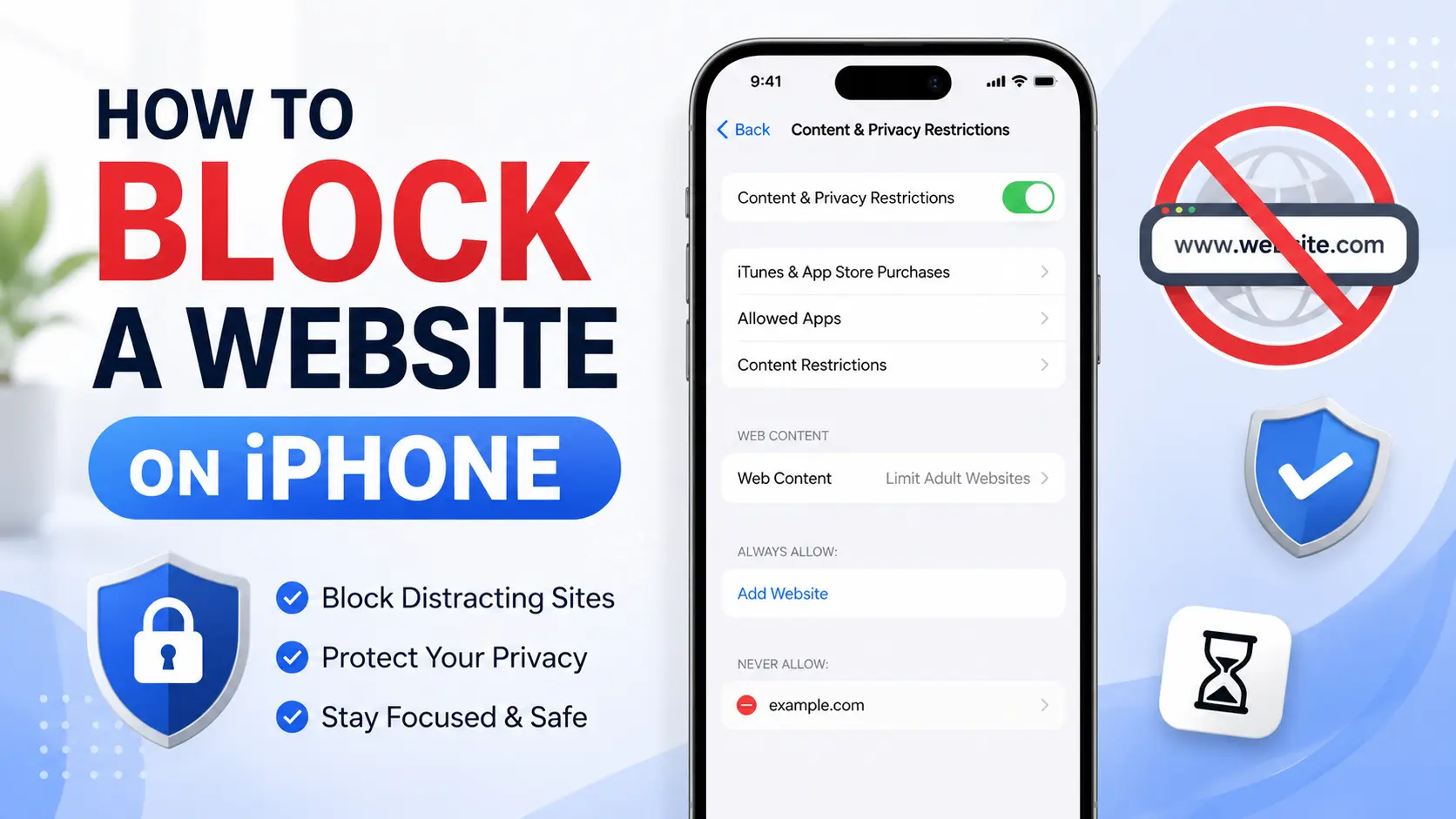
If you want to know how to block a website on iPhone, the good news is you don’t need any special app to do it. Apple built website blocking directly into iOS through a feature called Screen Time, and it takes about two minutes to set up.
This guide walks through every method that actually works in 2026 — from blocking one distracting site in Safari, to locking down every browser on the phone, to blocking a website across your whole home Wi-Fi network. It also covers what to do if a “blocked” site still loads, and how to remove the block later.
Table of Contents
Why Block a Website on iPhone?
People block websites for a few common reasons:
- Parents want to stop kids from reaching adult content or specific apps’ websites.
- Adults want to block their own access to distracting sites (social media, shopping, gambling) during work hours.
- Anyone wants an extra layer of protection against phishing or scam sites.
Whatever the reason, the setup process is the same. Let’s start with the method Apple built for exactly this purpose.
Method 1: Block a Website Using Screen Time (Recommended)
Screen Time is Apple’s built-in system for managing how you or your family use an iPhone. It includes a setting called Content & Privacy Restrictions, which is where website blocking lives. This is the most reliable way to block a website on iPhone because it’s built into iOS itself — no third-party app required.
Step 1: Turn On Screen Time
- Open the Settings app.
- Tap Screen Time.
- If it’s not already on, tap Turn On Screen Time.
Step 2: Set a Screen Time Passcode
This passcode is different from your phone’s unlock code. It’s what stops someone from simply undoing the block you’re about to set.
- Tap Use Screen Time Passcode.
- Enter a 4-digit code — avoid obvious ones like “1234” or your birth year.
- Confirm the code.
- Optionally, add your Apple ID so you can reset the passcode if you forget it.
Important: If you’re setting this up for a child’s phone, choose a passcode they don’t know. If you’re blocking a site for yourself, pick a code you won’t remember easily, or have someone else set it for you — otherwise you’ll just turn it off the moment you’re tempted.
Step 3: Turn On Content & Privacy Restrictions
- Go back to Screen Time.
- Tap Content & Privacy Restrictions.
- Toggle it ON.
Step 4: Block the Specific Website
- Tap Content Restrictions.
- Tap Web Content.
- Choose Limit Adult Websites.
- Under the Never Allow section, tap Add Website.
- Type the site’s address (for example, youtube.com or facebook.com) and tap Done.
- Repeat for any other sites you want to block.
That’s it — the website is now blocked in Safari. If you try to open it, Safari will show a screen saying the site is restricted.
Optional: Block Every Site Except a Chosen Few
If you’d rather allow only specific websites and block everything else — useful for a young child’s phone — choose Allowed Websites Only instead of Limit Adult Websites in Step 4, then add the sites you want to permit.
Does Screen Time Block Websites in Chrome and Other Browsers Too?
This is the part most guides get vague about, so here’s the direct answer: Screen Time’s Web Content filter is built for Safari. Third-party browsers like Chrome, Firefox, or Edge don’t automatically inherit that specific site-blocking list.
If someone can just switch to Chrome to get around your Safari block, you have two solid options:
- Turn off other browsers entirely. In Content & Privacy Restrictions, tap Allowed Apps and turn off Safari, Chrome, or any other browser you don’t want accessible. This is the most airtight fix if you’re managing a child’s phone.
- Block at the network level instead (see Method 3 below), which blocks the site for every app and browser, since it filters the connection itself rather than the app.
Method 2: Block Websites in the Safari App Directly
If you only use Safari and don’t need parental-control-level restrictions, there’s a lighter option using Safari’s own content blocker extensions from the App Store. These work differently from Screen Time — instead of a system-wide restriction, they filter ads and specific sites while you browse.
- Search the App Store for a Safari content-blocking extension.
- Install it and open Settings > Safari > Extensions.
- Turn the extension on and configure which sites to block inside the app.
This method is quick, but keep in mind it’s easy to disable — anyone with access to Settings can turn the extension off. For a block that actually holds up, Screen Time with a passcode (Method 1) is stronger.
Method 3: Block a Website Across Your Whole Network (Router or DNS Level)
If you want to block a website on every device connected to your home Wi-Fi — not just one iPhone — block it at the router instead.
- Open a browser and type your router’s IP address (often printed on a sticker on the router itself, commonly something like 192.168.1.1).
- Log in with your router’s admin username and password.
- Look for a section called Website Filtering, Parental Controls, or Access Restrictions (naming varies by router brand).
- Add the website you want to block to the blocked list and save.
Alternatively, you can change your iPhone’s DNS settings to use a filtering DNS service that blocks categories of sites (like adult content or malware) automatically, without listing each site manually. This is a good middle ground between “block one site” and “set up a full router filter.”
Method 4: Use a Third-Party Blocking App
If Screen Time feels too easy to bypass, or you want features Apple doesn’t offer — like blocking a site only during certain hours — a dedicated app can help. Popular options include:
- Apps that schedule blocks, letting you restrict distracting sites only during work hours (say, 9 a.m. to 5 p.m.) and leave them open the rest of the day.
- Apps that add friction instead of a hard block, prompting you to pause and reconsider before a distracting site opens, rather than blocking it outright.
- Apps that sync across devices, blocking the same site on your iPhone, Mac, and Windows computer at once.
The tradeoff: most of these apps request Screen Time permissions to function, and if you have admin access to your own phone, it’s usually possible to remove that permission and disable the app. They work best as a personal accountability tool, not as a lock a determined person can’t get around.
Comparing the Methods
| Method | Blocks Across All Browsers? | Blocks Whole Network? | Hard to Bypass? |
| Screen Time (Web Content) | No — Safari only, unless you also disable other browsers | No | Yes, with a strong passcode |
| Safari extension | No — Safari only | No | No — easy to toggle off |
| Router / DNS blocking | Yes | Yes | Yes, if router login is secure |
| Third-party app | Depends on the app | No | Moderate — depends on app permissions |
Common Mistakes When Blocking a Website on iPhone
- Using an easy-to-guess Screen Time passcode. A simple “1111” or your unlock code defeats the whole purpose.
- Forgetting other browsers exist. Blocking a site in Safari but leaving Chrome untouched means the block does nothing if the other browser is still available.
- Not testing the block. After setting it up, open the site in Safari to confirm it’s actually restricted before assuming it’s done.
- Losing the passcode with no recovery option set. If you don’t link an Apple ID during setup, forgetting your Screen Time passcode can lock you out of changing settings later.
- Blocking only the main domain, not variations. Some sites are reachable through alternate URLs (like m.site.com or a different top-level domain) — add those too if a determined user might try them.
Best Practices
- Add the site both with and without “www.” (for example, example.com and www.example.com) to close an easy loophole.
- Combine methods for anything important. For a child’s device, pairing Screen Time with a router-level block gives you two layers instead of one.
- Set the Screen Time passcode as a family, not alone, if you’re managing a shared device — this avoids one person quietly turning it off.
- Review the blocked list occasionally. Sites change, and a URL that redirects elsewhere can slip past an outdated block list.
How to Unblock a Website on iPhone
If you need to remove a block later:
- Go to Settings > Screen Time > Content & Privacy Restrictions.
- Enter your Screen Time passcode.
- Tap Content Restrictions > Web Content.
- Under Never Allow, swipe left on the website and tap Delete, or tap Edit to remove multiple sites at once.
What If You Forgot Your Screen Time Passcode?
If you set up an Apple ID recovery option, you can reset the passcode through Settings > Screen Time > Change Screen Time Passcode > Forgot Passcode?, then verify with your Apple ID. If you didn’t link an Apple ID, you may need to erase and restore the device through iTunes/Finder, which will remove the passcode along with your other settings — so back up your phone first if you go this route.
Frequently Asked Questions
Can I block a website on my iPhone without an app? Yes. Apple’s built-in Screen Time feature blocks websites without installing anything extra. It’s the method covered in detail above.
Can you block a website on iPhone for just certain hours of the day? Not directly through Screen Time’s Web Content settings — those apply all the time once set. To block a site only during specific hours, use a third-party app that supports scheduled blocking.
Does blocking a website on iPhone also block it in the App Store or in-app browsers? Not automatically. Screen Time’s Web Content restrictions target browsers, mainly Safari. Some apps use their own in-app browser (called a SafariViewController), which may or may not respect the restriction depending on how the app is built.
How do I block a website on iPhone for my child without them removing it? Set the Screen Time passcode yourself and don’t share it, enable Content & Privacy Restrictions, and consider setting up Family Sharing so you can manage their device settings remotely from your own phone.
Why is a website still loading after I blocked it? Check three things: you added the exact domain correctly (including “www.” variations), you’re testing in Safari and not a different browser, and the Content & Privacy Restrictions toggle is actually turned on.
Is there a way to block websites on iPhone across every app, not just Safari? Router-level or DNS-based blocking is the most reliable way to do this, since it filters the network connection itself rather than relying on each individual app to respect the restriction.
Final Thoughts How to Block a Website on iPhone
Learning how to block a website on iPhone really comes down to picking the right layer for your situation. For most people, Screen Time’s Content & Privacy Restrictions handle the job in under two minutes. If you need the block to hold up across every browser and app on the phone, pair it with a router-level or DNS block for a setup that’s genuinely hard to bypass.


