
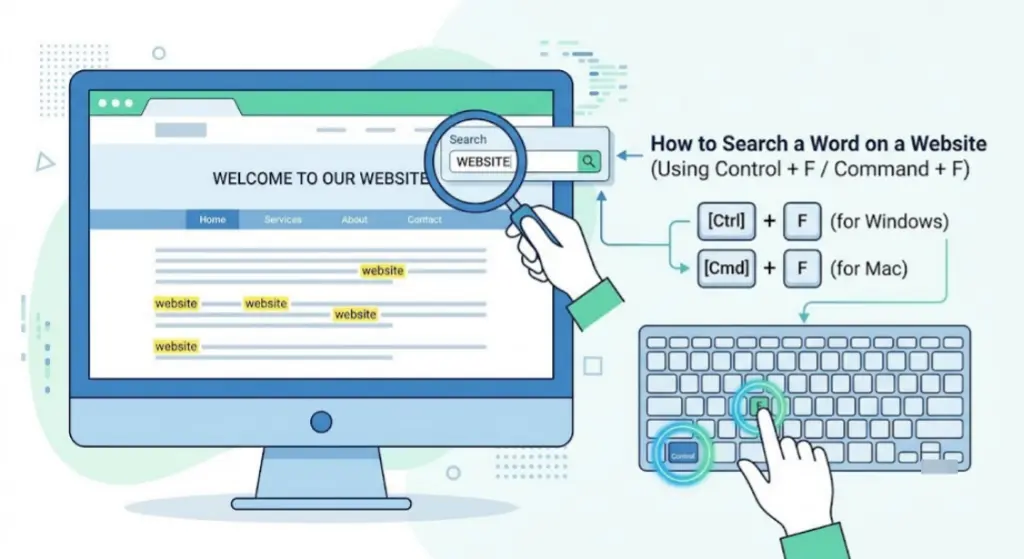
Scrolling through an entire page trying to spot one word wastes time — and it’s completely unnecessary. Every modern browser has a built-in way to search a word on a website instantly, and there are extra tricks for when you need to search an entire site rather than just one page.
This guide covers every method: desktop shortcuts, mobile steps, and how to search across a whole website using Google — plus what to do when the word you’re looking for still doesn’t show up.
Table of Contents
The Fastest Way: Your Browser’s Built-In Find Function
Every major browser — Chrome, Firefox, Safari, and Edge — has a “Find” feature built in. It’s the quickest way to search a word on a website you’re currently viewing.
On Windows or Linux
- Open the webpage.
- Press Ctrl + F.
- Type the word or phrase you’re looking for.
- Press Enter to jump to the next match.
On Mac
- Open the webpage.
- Press Cmd + F.
- Type your search term.
- Press Enter (or the down arrow in the search bar) to move through matches.
Once you search, most browsers highlight every instance of the word on the page and show a counter, like “3 of 12,” so you know how many times it appears and where you are in that list.
How to Search a Word on a Website on Mobile
Mobile browsers don’t have a keyboard shortcut, but the same feature exists through the menu.
On iPhone (Safari)
- Tap the Share icon (the square with an arrow) at the bottom of the screen.
- Scroll down and tap “Find on Page.”
- Type the word you’re searching for.
- Use the arrows to jump between matches.
On Android (Chrome)
- Tap the three-dot menu in the top right corner.
- Tap “Find in page.”
- Type your search term.
- Use the up/down arrows to move through results.
This works the same way regardless of what website you’re on, since it’s a browser feature, not something the website itself needs to support.
How to Search an Entire Website (Not Just One Page)
The browser’s Find function only searches the page currently open — it can’t search a word across an entire website. For that, you need a different approach.
Method 1: Use Google’s Site Search Operator
Google lets you search within a specific website directly from a normal search bar using the site: operator.
Format:
site:example.com “your search term”
Example:
site:searchglossary.com “meta description”
This tells Google: only show results from searchglossary.com that contain the exact phrase “meta description.” Putting your term in quotation marks searches for that exact phrase rather than just related pages.
This method is especially useful when a website doesn’t have its own search bar, since it lets you use Google’s index instead.
Method 2: Use the Website’s Own Search Bar
Many websites — especially blogs, documentation sites, and online stores — include a built-in search bar, usually in the header or accessible through a magnifying glass icon. This searches the site’s own database directly and is often more accurate than Google for very recently published content, since Google may not have indexed brand-new pages yet.
Method 3: Use Your Browser’s Address Bar as a Shortcut
Some browsers let you set up custom search shortcuts (sometimes called “site search keywords”) so typing something like yoursite keyword directly in the address bar searches that specific site. This is a power-user trick worth setting up if you frequently search the same websites.
Comparison: Which Method Should You Use?
| Situation | Best Method |
| You’re already on the page and looking for one word | Browser Find (Ctrl+F / Cmd+F) |
| You don’t know which page on a site has the word | Google site: search |
| The website has its own search bar | Use the website’s search bar |
| You’re on mobile | “Find on Page” from the browser menu |
| The content was just published (very recent) | Website’s own search bar (faster than Google indexing) |
Why the Word Might Not Be Found (Troubleshooting)
If you’ve tried searching a website for a word and nothing shows up, a few things could be happening:
- The word is inside an image, not text. Browser Find only detects real text — it can’t read words inside a picture or scanned document.
- The content hasn’t loaded yet. On pages that load content dynamically as you scroll, the word you’re looking for might not exist on the page yet. Try scrolling down first, then searching again.
- Spelling or spacing differences. Browser Find typically requires an exact text match, so a slightly different spelling, plural form, or extra space can cause a miss.
- The word is on a different page entirely. If Find comes up empty, the content you want may be on another page of the same site — this is where the Google site: search becomes useful.
- The page hasn’t been indexed by Google yet. For very new pages, Google’s site: search might not show results yet, even though the word exists on the live site. In that case, check the site’s own search bar instead.
Common Mistakes When Searching a Website for a Word
- Assuming Ctrl+F searches the whole website. It only searches the single page currently open in your browser tab.
- Forgetting quotation marks in Google’s site search, which causes Google to show loosely related pages instead of an exact match.
- Searching for a word that’s actually inside an image, such as a screenshot or scanned PDF, which text-based search tools can’t detect.
- Not scrolling first on pages that load content dynamically, missing content that hasn’t rendered into the page yet.
- Misspelling the search term, since most Find tools require an exact character match.
Frequently Asked Questions
How do I search for a specific word on a website? Open the page and press Ctrl+F (Windows) or Cmd+F (Mac) to open your browser’s Find tool, then type the word. On mobile, use “Find on Page” from Safari’s share menu or “Find in page” from Chrome’s menu.
Can I search an entire website for a word, not just one page? Yes — use Google’s site: search operator, formatted as site:example.com “your word”, to search across every page Google has indexed on that site. Alternatively, use the website’s own built-in search bar if it has one.
Why isn’t Ctrl+F finding a word I can clearly see on the page? It’s usually because the word is inside an image rather than real text, or because the page loads content dynamically and the section you need hasn’t fully loaded yet.
Does this work on mobile phones too? Yes. iPhone users can use “Find on Page” from Safari’s share menu, and Android users can use “Find in page” from Chrome’s three-dot menu — both work the same way as the desktop version.
Is there a way to search a website for a word without using Google? Yes, if the website has its own built-in search bar (common on blogs, documentation sites, and online stores), which searches its content directly instead of relying on Google’s index.
Final Thoughts
Searching a word on a website doesn’t require any special software — your browser already has the tool built in. Use Ctrl+F (or Cmd+F) for anything on the page in front of you, switch to Google’s site: operator when you need to search an entire website at once, and fall back on the site’s own search bar for very recent content. With these three methods covered, you’ll rarely need to scroll and scan manually again.


