
Knowing how to print a web page sounds simple — press Ctrl+P and go. But anyone who’s printed a recipe, an article, or a boarding pass and ended up with three pages of cut-off text, a giant ad taking up half a sheet, or a nav bar repeated on every page knows it’s not always that clean.
This guide covers the actual printing process on every major browser, plus the settings and fixes most tutorials skip — the ones that turn a messy, wasteful printout into a clean, readable page.
Why Web Pages Don’t Always Print the Way They Look Onscreen
A web page is designed for a screen: it scrolls, it’s often wider than a sheet of paper, and it uses colors, fixed navigation bars, and interactive elements that don’t translate directly to a printed page.
When you print, your browser converts that flexible, scrollable design into a fixed, paginated format sized for paper. This conversion is where most printing problems come from — not from anything wrong with the page itself, but from the translation process between “screen” and “paper.”
Understanding this is the key to fixing printing issues, because most of the settings covered below exist specifically to control that translation.
How to Print a Web Page: The Basic Steps
The core process is nearly identical across every browser.
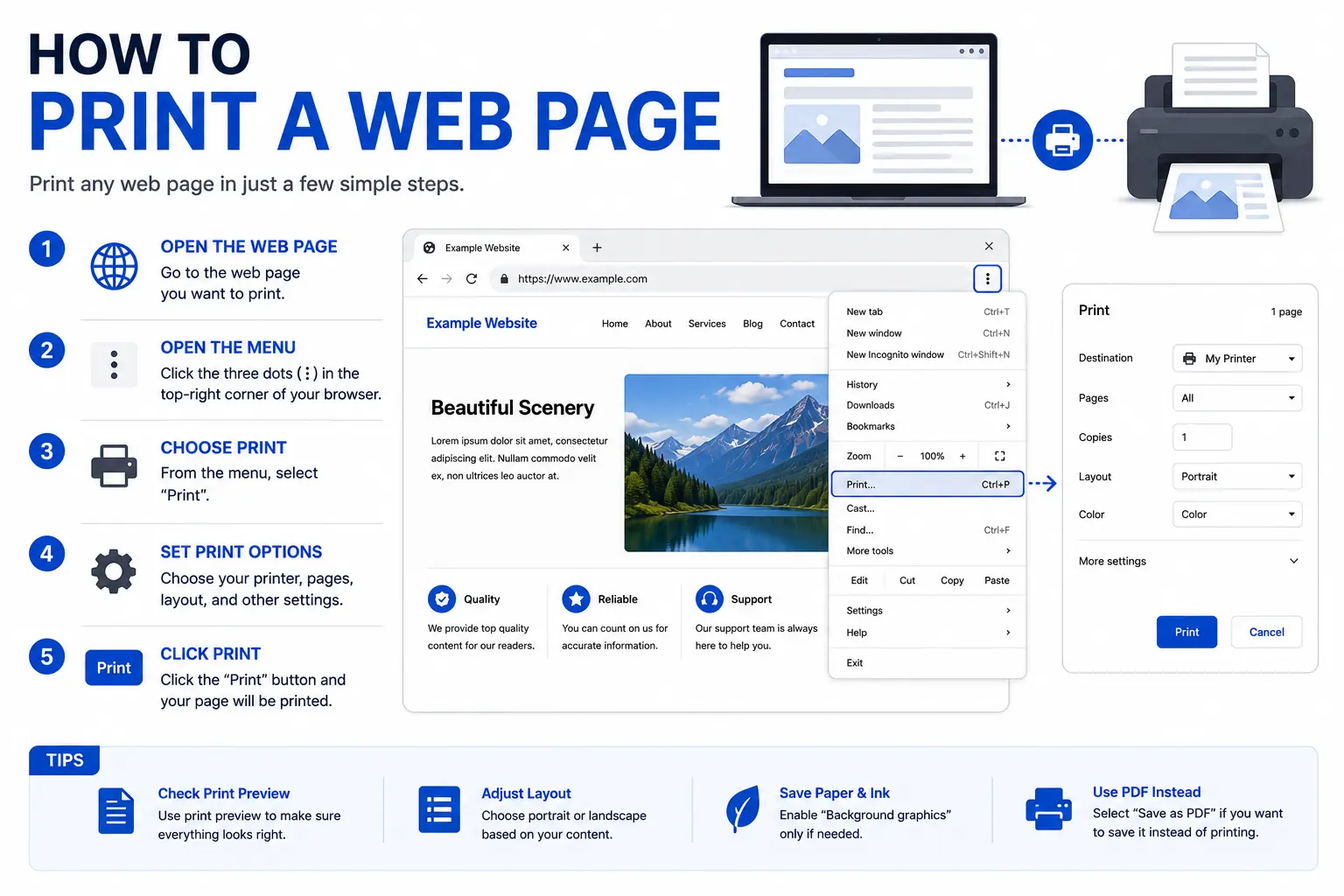
- Open the web page you want to print.
- Press Ctrl+P (Windows/Linux) or Cmd+P (Mac). You can also open the browser’s menu and select Print.
- A print preview window opens, showing exactly how the page will look on paper.
- Choose your actual printer from the Destination or Printer dropdown.
- Review the settings (covered in detail below), then click Print.
Always check the preview before printing. It’s the single most effective habit for avoiding wasted paper, since it shows you cut-off content, missing sections, or layout problems before they end up on a physical page.
Print Settings That Actually Matter
Most of the frustration with printing web pages comes down to a handful of settings that are easy to overlook.
Layout: Portrait vs. Landscape
- Portrait (vertical) works for most articles, blog posts, and text-heavy pages.
- Landscape (horizontal) works better for wide content like tables, spreadsheets embedded in a page, or images and charts that get cut off in portrait mode.
If content looks squeezed or cut off on the sides in the preview, switching to landscape often fixes it instantly.
Scale
Scale controls how large the content appears on the printed page. If text or images run off the edge of the page in the preview, reducing the scale (try 80–90%) usually brings everything back within the printable area.
Background Graphics
Most browsers strip out background colors and background images by default to save ink — this is intentional, but it means colored sections, shaded boxes, or branded backgrounds may print as plain white unless you turn this setting on.
- In Chrome and Edge, this is under More settings > Background graphics.
- In Firefox, look for a similar option labeled Print backgrounds.
Margins
Default margins are usually fine, but reducing them slightly (to “Narrow” or “Minimum,” depending on the browser) can help fit more content per page — useful for long articles you’re trying to print in fewer sheets.
Pages and Page Range
Rather than printing an entire long page, most browsers let you select specific page numbers in the preview, so you only print the section you actually need.
How to Print a Web Page by Browser
Chrome
- Press Ctrl+P (or Cmd+P on Mac).
- Select your printer under Destination.
- Click More settings to access layout, margins, scale, and background graphics.
- Review the preview, then click Print.
Firefox
- Press Ctrl+P (or Cmd+P on Mac), or use the menu and select Print.
- Firefox displays settings in a right-hand sidebar, including a useful Simplify Page option.
- Simplify Page removes ads, sidebars, and navigation clutter, leaving mainly the article text and relevant images — ideal for printing a clean copy of a long article.
- Adjust orientation and scale as needed, then click Print.
Safari (Mac)
- Press Cmd+P.
- Select your printer from the dropdown.
- Use the Pages field to select a specific range if you don’t need the full document.
- Click the arrows near the preview thumbnail to check every page before printing.
- Click Print.
Microsoft Edge
- Press Ctrl+P.
- Since Edge shares Chrome’s underlying engine, the settings menu looks nearly identical — layout, scale, margins, and background graphics are all available under More settings.
- Click Print once the preview looks correct.
Comparison: Print-Friendly Features by Browser
| Browser | Simplify/Reader Mode for Printing | Background Graphics Toggle | Page Range Selection |
| Chrome | No built-in simplify option | Yes | Yes |
| Firefox | Yes (Simplify Page) | Yes | Yes |
| Safari | Reader mode available before printing | Yes | Yes |
| Edge | No built-in simplify option | Yes | Yes |
Firefox’s Simplify Page and Safari’s Reader mode both give a meaningful edge for printing long articles cleanly, since they strip distracting page elements before you even open the print dialog.
Using Reader Mode Before Printing
Several browsers offer a “reader” or “reading” view that strips a page down to just its main text and images, removing ads, sidebars, and navigation menus. Activating this before printing — rather than trying to fix the layout through print settings alone — often produces a far cleaner result with less manual adjustment.
- Safari: Click the reader icon (lines with a small “A”) in the address bar before printing.
- Firefox: Use the Reader View icon in the address bar, or the Simplify Page option inside the print preview itself.
- Chrome and Edge: These browsers don’t include a built-in reader mode by default, though some versions include an experimental reading mode in settings, and browser extensions can add similar functionality.
Common Printing Problems and How to Fix Them
This is the part most guides skip — the actual troubleshooting.
| Problem | Likely Cause | Fix |
| Content cut off on the sides | Page is wider than the printable area | Switch to Landscape or reduce Scale |
| Colors/backgrounds missing | Background graphics disabled by default | Enable Background Graphics in print settings |
| Navigation bar repeats on every page | Sticky header designed for scrolling, not paper | Use Reader/Simplify mode before printing, or crop manually via page range |
| Text split awkwardly across pages | Page is being divided at print-page boundaries | Reduce scale slightly, or use “Simplify Page” to shorten total length |
| Ads or unrelated sections printing | Page’s full layout, not just the article, is being captured | Use Reader Mode or Simplify Page to isolate the main content |
| Images missing entirely | Lazy-loaded images hadn’t rendered before printing | Scroll through the full page first, then print |
Real-World Use Cases
- Recipes — printing a recipe for use in the kitchen, away from a screen.
- Directions and boarding passes — having a physical backup when digital access might fail.
- Legal or reference documents — printing terms, contracts, or forms that need a signature or physical copy.
- Study materials — printing articles or guides for offline reading and annotation.
- Receipts and confirmations — physical copies for expense reports or personal records.
Common Mistakes to Avoid
- Skipping the print preview. This is the single biggest reason people waste paper — the preview shows exactly what will print, before it prints.
- Not scrolling through the page first. Images and content that load as you scroll may not appear if you print before they’ve had a chance to render.
- Printing an entire long page when only one section is needed. Use the page range option to print just the relevant pages instead.
- Forgetting Background Graphics is off by default. This causes shaded sections, colored boxes, and background images to disappear from print.
- Assuming every browser has a Simplify or Reader mode. Chrome and Edge don’t include one by default, so pages with heavy sidebars or ads may need manual scale or margin adjustments instead.
Best Practices for Printing a Clean Web Page
- Always check the preview before printing — every browser shows one, and it catches most problems before they waste paper.
- Use Reader Mode or Simplify Page whenever available, especially for long articles, to strip out ads and navigation clutter automatically.
- Adjust scale first when content looks cut off, before trying more complex fixes.
- Print a test page for long documents if you’re unsure how it will look, rather than sending a 10-page document straight to the printer.
- Save frequently printed reference pages as a PDF instead, so you’re not reprinting the same page repeatedly — a PDF version prints identically every time.
Frequently Asked Questions
What is the best way to print a web page cleanly?
Use your browser’s Reader Mode or Simplify Page option if available (Firefox and Safari both offer this), enable Background Graphics if the page has colors you want to keep, and always check the print preview before printing to catch layout issues first.
Why does my printed web page look different from what I see on screen?
Browsers reformat pages for paper, which strips background colors by default, breaks fixed navigation bars into repeated sections, and reflows the responsive layout. Adjusting scale, enabling background graphics, and using Reader Mode all help close that gap.
How do I print only part of a web page instead of the whole thing?
Use the page range option in the print preview to select specific page numbers, or activate Reader Mode/Simplify Page first to strip out unrelated sections like ads and sidebars before printing.
Why are images missing when I print a web page?
Images that load only as you scroll down (lazy-loaded images) may not have rendered yet when you opened the print dialog. Scroll through the entire page first, then print.
Can I print a web page without ads or sidebars?
Yes. Firefox’s Simplify Page option and Safari’s Reader Mode both strip ads, sidebars, and navigation elements, leaving mostly the main article text and relevant images.
Is it better to print a web page directly or save it as a PDF first?
For a one-time print, printing directly is faster. If you plan to print the same page multiple times or want a version that always looks the same, saving it as a PDF first locks in the layout so it prints identically every time.
Final Thoughts
Printing a web page cleanly comes down to understanding one thing: the page is being reformatted from a flexible screen layout into a fixed paper size, and most printing problems are a direct result of that conversion.
Check the print preview, adjust scale or layout when content looks cut off, turn on background graphics if colors matter, and use Reader Mode or Simplify Page whenever it’s available. With those habits, you’ll consistently get a clean, readable printout instead of a wasted, cut-off page.


