
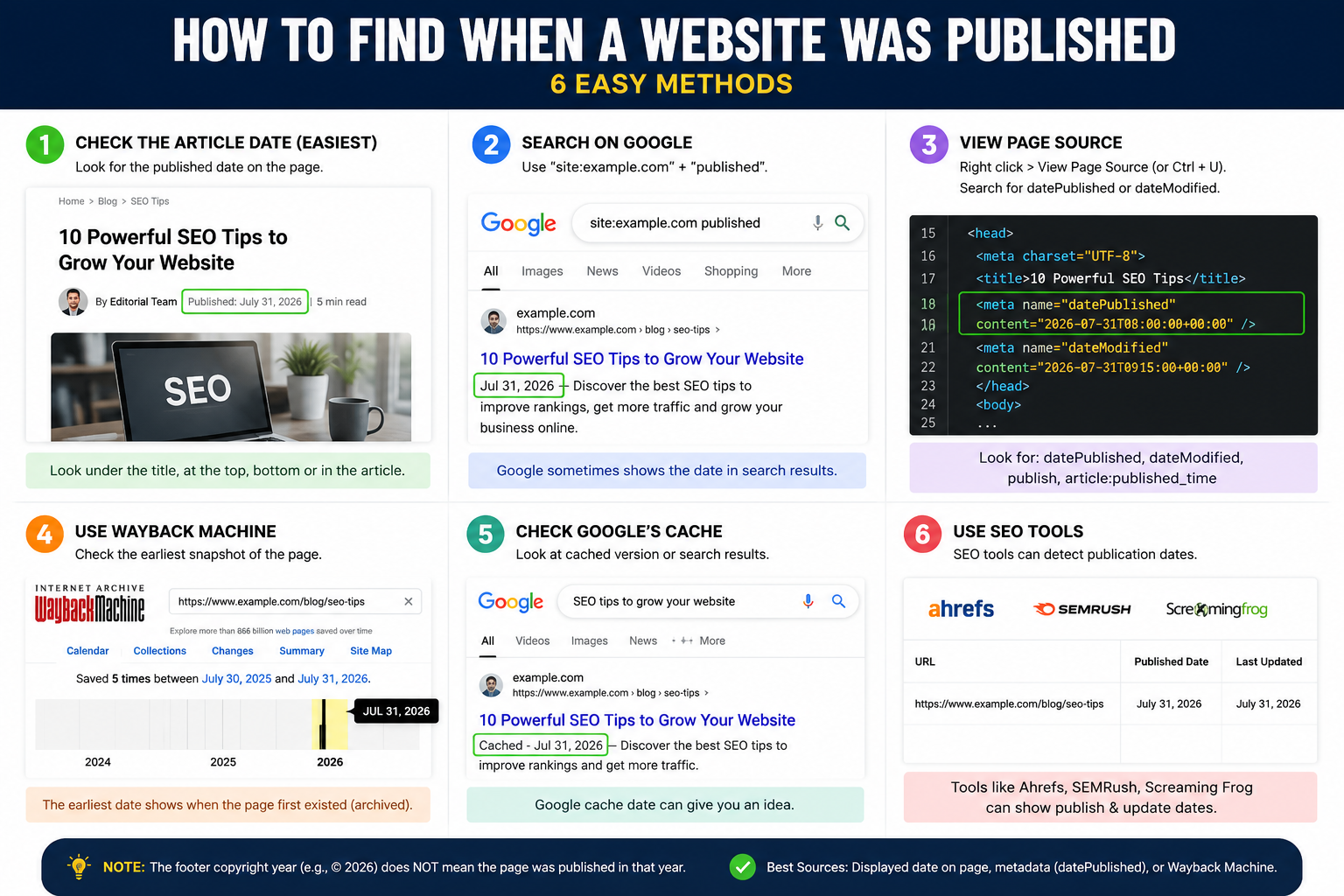
Knowing how to find when a website was published matters more than most people realize. Journalists need it to verify sources, researchers need it to check whether information is current, and everyday readers need it to spot outdated advice before acting on it.
The tricky part is that most websites don’t display a visible publish date — and even when they do, that date can be misleading. This guide walks through every reliable method to uncover a real publication date, starting with the fastest options and moving to more advanced techniques for stubborn cases.
Table of Contents
Why Website Publication Dates Are Often Hidden
Before jumping into methods, it helps to understand why this is even a problem.
Many websites intentionally leave out visible dates because:
- Content marketers want articles to look “evergreen” (always current), even if they’re years old.
- E-commerce and business sites don’t see a publish date as useful to customers.
- Some site owners update content regularly and don’t want an old date to make it look stale.
This means you often need to dig into the page’s underlying code or use third-party tools to find the real answer — rather than trusting whatever date (if any) appears on the page itself.
Method 1: Check the Visible Page First
Before using any tools, scan the page itself. Look for:
- A byline area near the title (“Published on…”, “Last updated…”)
- The footer of the page (copyright years sometimes hint at site age, though not article age)
- An “About” or “Archive” page listing older posts by date
This won’t always work, but it’s the fastest possible check and costs nothing.
Method 2: View the Page Source Code
Even when no date is visible on the page, it’s often hidden in the HTML code that browsers use to build the page. This is one of the most reliable ways to find the publication date of a website.
Here’s how:
- Right-click anywhere on the webpage.
- Select “View Page Source” (or press Ctrl+U on Windows, Cmd+Option+U on Mac).
- Use Ctrl+F (or Cmd+F) to search the source code for these terms:
- datePublished
- article:published_time
- publishdate
- dateCreated
Many websites embed this information using structured data — a standardized format search engines use to understand page content. A common example looks like this:
<meta property=”article:published_time” content=”2024-03-15T09:00:00+00:00″ />
or, within a JSON-LD structured data block:
{
“@type”: “Article”,
“datePublished”: “2024-03-15”,
“dateModified”: “2024-06-02”
}
If you find both datePublished and dateModified, the first is the original publish date, and the second shows when the content was last edited — an important distinction if you’re trying to judge how current the information really is.
Method 3: Use the Wayback Machine
The Wayback Machine, run by the nonprofit Internet Archive, stores historical snapshots of billions of web pages going back decades. It’s one of the most powerful free tools for checking when a website was published, especially for pages with no visible date and no useful source code.
Here’s how to use it:
- Go to web.archive.org.
- Paste the URL of the page you’re investigating.
- Press Enter to see a calendar of all archived snapshots.
- Click the earliest available date with a snapshot to see roughly when the page first existed online.
Keep in mind: the earliest Wayback Machine snapshot tells you when the Archive first crawled the page — not necessarily the exact publish date. If a page was published quietly and wasn’t crawled right away, the earliest snapshot might be days or weeks after the real publish date. Still, it’s usually the closest free estimate available when other methods fail.
Method 4: Check Google’s Cached Version
Search engines also store versions of pages, which can sometimes reveal helpful date clues, especially combined with a targeted search.
Try searching Google using this format:
site:example.com “published”
Replacing example.com with the actual domain narrows results to pages on that site mentioning a publish date, which can help you locate the specific article faster if the site has many pages.
Method 5: Check the Website’s Sitemap
Most websites have a sitemap — a file listing all their pages, originally built to help search engines crawl the site efficiently. Sitemaps often include a lastmod (last modified) tag showing when each page was last updated.
To check it:
- Add /sitemap.xml to the end of the website’s homepage URL (for example: example.com/sitemap.xml).
- Search (Ctrl+F) for the specific page URL you’re investigating.
- Look for a nearby <lastmod> tag.
This shows the last edit date rather than the original publish date, but it’s a useful clue, especially when cross-referenced with a Wayback Machine snapshot.
Method 6: Look Up the Domain’s Registration Date (WHOIS)
If you’re trying to figure out when a website was created as a whole — not just one article — a WHOIS lookup shows when the domain name was first registered.
Free WHOIS lookup tools (available from most domain registrars and dedicated WHOIS sites) will show:
- The domain’s original registration date
- The most recent renewal date
- Sometimes the registrar and hosting provider
This tells you the earliest possible date the domain could have hosted any content — useful context, but not proof of when a specific page went live, since a domain can sit unused for years before content is published on it.
Method 7: Use a Dedicated Website Age Checker Tool
Several free online tools combine WHOIS data, DNS records, and sometimes Wayback Machine data into a single lookup, giving you a quick summary of a domain’s estimated age without manually checking multiple sources. These are useful for a fast first pass, though for a single specific article, checking the page source and Wayback Machine directly is usually more accurate.
Comparing the Methods
| Method | Best For | Accuracy | Effort |
| Visible page date | Sites with a clear byline | High (when available) | Very low |
| Page source (meta tags) | Finding exact publish timestamps | High | Low |
| Wayback Machine | Pages with no visible date | Medium-High (earliest crawl) | Low |
| Google cache/search | Quick clues via search operators | Medium | Low |
| Sitemap lastmod | Checking last update, not original date | Medium | Medium |
| WHOIS lookup | Domain age, not specific pages | High (for domain only) | Low |
| Website age checker tools | Fast domain-level overview | Medium | Very low |
Real-World Example: Finding a Publish Date Step by Step
Suppose you land on a blog post about a health topic, but there’s no visible date anywhere on the page. Here’s a realistic troubleshooting sequence:
- Scroll and scan the page — no byline, no footer date near the article.
- View page source, search for datePublished — nothing found in the HTML.
- Check the sitemap at example.com/sitemap.xml — the page shows a lastmod of last month, but that’s likely just a recent edit.
- Check the Wayback Machine — the earliest snapshot is from three years ago, giving you a much more realistic sense of the article’s true age.
This combination — sitemap plus Wayback Machine — is often the most reliable path when a page hides its original date but keeps getting lightly updated.
Common Mistakes to Avoid
- Trusting the copyright year in the footer. A “© 2026” notice usually just reflects an auto-updating script, not the actual page’s publish date.
- Assuming dateModified equals datePublished. These are different fields — always check for both if they’re present in the source code.
- Relying only on the domain’s WHOIS date. A domain registered in 2015 could have had its content published far more recently.
- Stopping after one failed method. If the page source has no date, don’t give up — the Wayback Machine or sitemap often succeeds where source-code checking fails.
- Confusing crawl date with publish date. The Wayback Machine’s earliest snapshot shows when the page was first archived, which can lag slightly behind the actual publish date.
Best Practices for Verifying Website Dates
- Always cross-check at least two methods (for example, page source plus Wayback Machine) before concluding a date is accurate.
- When citing a source professionally, note whether you found a datePublished or only a dateModified, since the distinction matters for credibility.
- For time-sensitive topics (health, finance, technology), prioritize finding the last modified date over the original publish date, since that tells you how current the information actually is.
- Bookmark the Wayback Machine and a WHOIS lookup tool — together they resolve the vast majority of date-checking needs.
Frequently Asked Questions
How can I tell when a website was created if there’s no date shown anywhere? Use the Wayback Machine to find the earliest archived snapshot of the page, or run a WHOIS lookup to check when the domain itself was first registered. Combining both gives you the most reliable estimate.
Is the Wayback Machine’s earliest snapshot always the exact publish date? Not always. It shows when the Internet Archive first crawled and saved the page, which is sometimes slightly after the actual publish date if the page wasn’t crawled immediately.
How do I find the publication date of a website using page source? Right-click the page, select “View Page Source,” then search for terms like datePublished, article:published_time, or dateCreated. Many sites embed this data even when it isn’t visibly displayed.
Does checking a website’s copyright year tell me when a page was published? No. Copyright years in a website’s footer are usually generated automatically to show the current year and don’t reflect when a specific article or page was actually published.
Can I find the publish date of a page that requires a login? This is harder, since tools like the Wayback Machine and Google can only archive publicly accessible pages. In these cases, checking any visible metadata within the account, or asking the site owner directly, may be your only options.
What’s the difference between a website’s publish date and its last modified date? The publish date marks when the content first went live, while the last modified date reflects the most recent edit. Structured data on a page often lists both separately, and checking which one you’re looking at matters for judging how current the information is.
Final ThoughtsHow to Find When a Website Was Published
Learning how to find when a website was published comes down to knowing where sites tend to hide this information — inside the page’s source code, in a sitemap, or preserved externally by the Wayback Machine. Start with the fastest checks (visible date, then page source), and fall back on the Wayback Machine or a WHOIS lookup when a site gives you nothing to work with.
With these seven methods, you’ll be able to verify the age of almost any web page — even the ones clearly trying to look newer than they actually are.


