Learning how to change hyperlink name — the visible, clickable text a reader actually sees, as opposed to the hidden URL behind it — comes up constantly once you start working with links regularly, whether you’re cleaning up a raw pasted URL or fixing a mislabeled link in an email.
This guide covers exactly how to change a hyperlink’s display name in Outlook, Gmail, and Word, plus how to add a hyperlink to text from scratch with the correct name already in place. The core concept is the same everywhere: a hyperlink’s name and its destination are two separate, independently editable pieces.
Table of Contents
The Core Concept: Hyperlink Name vs. Hyperlink Destination
Every hyperlink is made of two parts:
- The name (display text) — what the reader actually sees and clicks.
- The destination (URL) — the hidden web address the link leads to.
Changing the hyperlink’s name means editing only the visible text, while the underlying destination stays exactly the same. This is genuinely useful any time a raw, ugly URL got pasted somewhere and you want it to read as a clean, natural phrase instead — without needing to rebuild the link from scratch.
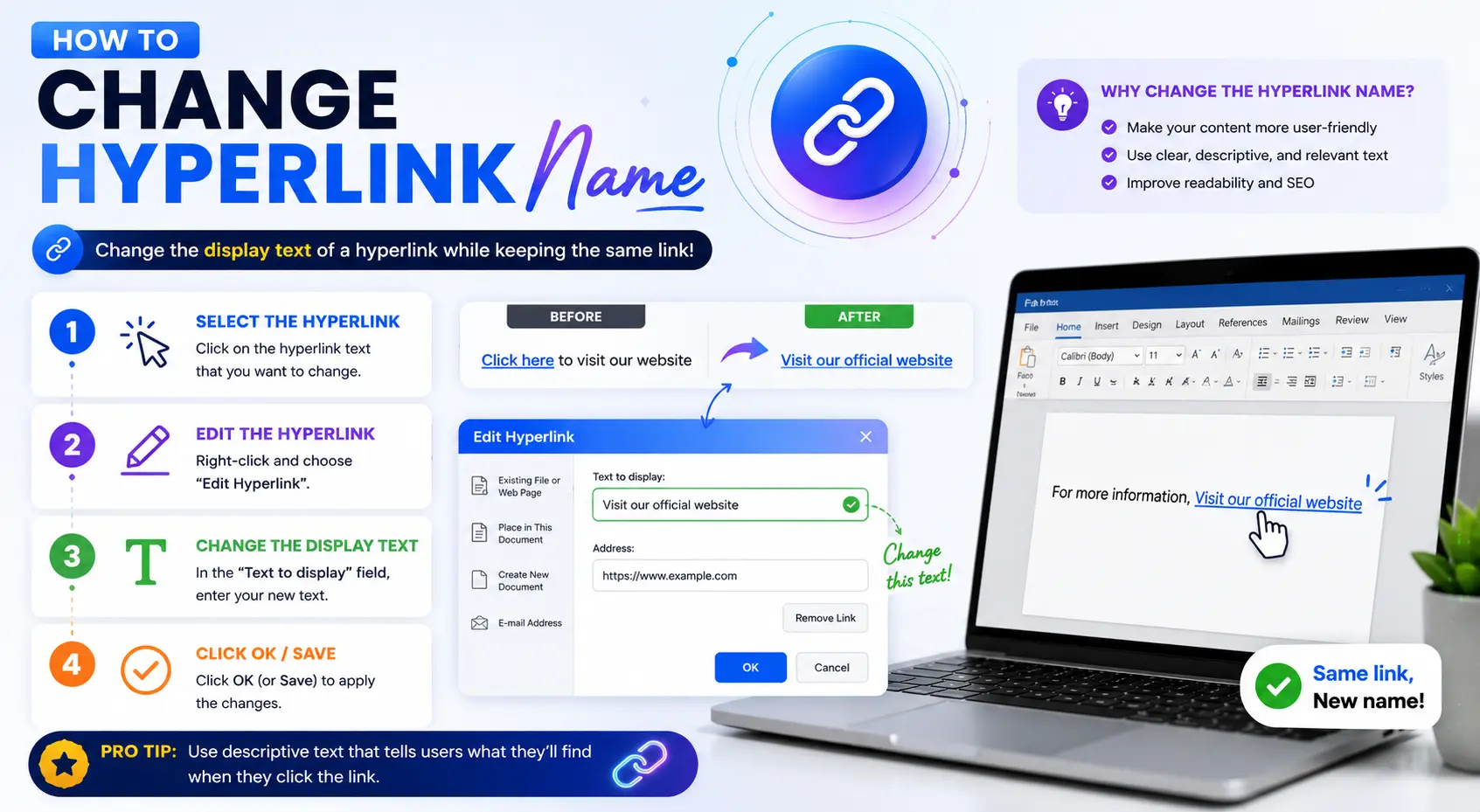
How to Change a Hyperlink Name in Microsoft Outlook
- Right-click directly on the existing hyperlink in your email draft.
- Select Edit Hyperlink (in some versions labeled simply Link).
- In the dialog box, find the Text to display field near the top.
- Delete the current text and type your new hyperlink name.
- Leave the Address field exactly as it is — this is the destination and shouldn’t change.
- Click OK.
Keyboard shortcut version: select the hyperlink first, then press Ctrl+K (Windows) or ⌘+K (Mac) to open the same dialog directly.
How to Change a Hyperlink Name in Gmail
Gmail’s process is similar to Outlook, though the button is labeled slightly differently.
On desktop
- Click directly on the existing hyperlinked text in your email draft.
- A small toolbar appears — click Change.
- In the dialog that opens, update the Text to display field with your new hyperlink name.
- Leave the Web address field unchanged.
- Click OK.
Shortcut alternative: highlight the hyperlinked text, then press Ctrl+K (Windows) or ⌘+K (Mac) to open the same edit dialog.
On the Gmail mobile app
This is worth calling out specifically, since Gmail’s mobile app doesn’t offer the same direct hyperlink editing tool as desktop. The reliable workaround:
- Open your draft and locate the existing hyperlink.
- Tap and hold on the hyperlinked text to select it (being careful not to delete the actual link itself).
- Type your replacement text directly over the selection.
- Save the draft, close it, then reopen it from your Drafts folder to confirm the display text updated correctly and the link still works.
If this doesn’t preserve the link cleanly, an alternative approach: paste a fresh copy of the URL at the very bottom of the draft, save as a draft, reopen it (which auto-converts the pasted URL into a link), edit that new link’s display text directly, then cut and paste the correctly labeled link into position and delete the leftover URL at the bottom.
How to Change a Hyperlink Name in Microsoft Word
- Right-click the existing hyperlink in your document.
- Select Edit Hyperlink.
- Update the Text to display field with your new hyperlink name.
- Leave the Address field unchanged.
- Click OK.
The same Ctrl+K / ⌘+K shortcut works here too, once the hyperlink is selected.
How to Add a Hyperlink to Text From Scratch (With the Right Name From the Start)
Rather than pasting a raw URL and renaming it afterward, you can set the display name correctly the first time — which skips the renaming step entirely.
- Highlight the specific words you want to become the hyperlink’s visible name, before opening the link tool. This pre-fills the display text field automatically.
- Open the link tool — right-click and choose Link (or Insert Link), or use Ctrl+K / ⌘+K.
- Paste the destination URL into the address field.
- Confirm the dialog.
Since the display text field is already filled in from your original highlighted words, there’s nothing left to rename afterward.
Comparison: Changing a Hyperlink Name Across Programs
| Program | How to Access | Field to Edit | Shortcut |
| Outlook | Right-click > Edit Hyperlink | “Text to display” | Ctrl+K / ⌘+K |
| Gmail (desktop) | Click link > Change | “Text to display” | Ctrl+K / ⌘+K |
| Gmail (mobile) | No direct edit tool | Manual text replacement or draft workaround | — |
| Word | Right-click > Edit Hyperlink | “Text to display” | Ctrl+K / ⌘+K |
The Ctrl+K / ⌘+K shortcut is consistent across nearly all of these, making it worth memorizing if you frequently work with links across multiple programs.
Important Caveat: Some Programs Break the Link If You Delete All the Text
This trips people up in programs beyond just Outlook, Gmail, and Word — worth knowing generally, even outside these three. In some applications (design and layout tools are a common example), a hyperlink is tied to the exact original text selection it was created on. If you delete the entire display text and retype it from scratch — rather than using the program’s dedicated “Edit Hyperlink” or “Change” option — the hyperlink itself can disappear along with the old text, even though it looks like you’re just updating a word or number.
The safe approach, universally: always use the program’s specific hyperlink-editing tool (Edit Hyperlink, Change, or the Ctrl+K/⌘+K shortcut) rather than manually deleting and retyping the entire linked text directly.
Why Renaming a Hyperlink Is Worth Doing
- Readability: A long, raw URL breaks up a sentence; a short, natural phrase reads cleanly.
- Professionalism: Emails and documents look more polished with clearly labeled links instead of unedited web addresses.
- Accessibility: Screen readers announce the hyperlink’s name aloud — descriptive text like “download the report” is far more useful than a long, unreadable string of characters.
- Click-through rates: Descriptive, natural-sounding hyperlink names are commonly cited as performing better than raw URLs in emails, since they read as more intentional and trustworthy.
Real-World Use Cases
- Cleaning up a pasted URL in an email: Replacing a long tracking-parameter-heavy link with a short phrase like “view the invoice.”
- Standardizing links across a document: Making sure every reference to the same destination uses consistent hyperlink wording throughout.
- Updating a link after a rebrand: Changing a hyperlink’s name to reflect a new company or product name, while the underlying URL stays the same.
- Fixing a mislabeled link in a sent template: Correcting a hyperlink name in a reusable email template before it goes out again.
- Preparing content for translation: Updating hyperlink names to a translated phrase while keeping the same destination URL for each language version.
Common Mistakes When Changing a Hyperlink Name
- Editing the address field instead of the display text field. This accidentally changes where the link goes, rather than just what it says — always confirm which field you’re updating.
- Deleting the entire linked text and retyping it manually. In some programs, this can break the link association entirely, rather than just changing its name.
- Assuming Gmail mobile works the same as desktop. The mobile app doesn’t offer the same direct hyperlink editing tool, so a workaround is needed.
- Leaving the new hyperlink name vague. Renaming is a chance to make the link genuinely descriptive — don’t waste it on generic phrasing like “click here.”
- Not testing the link after renaming. Always click the renamed hyperlink afterward to confirm it still points to the correct destination.
Best Practices
- Set the display name correctly when first creating the hyperlink, rather than pasting a raw URL and renaming it as a separate step.
- Use descriptive, specific hyperlink names rather than generic phrases, both for clarity and accessibility.
- Use the program’s dedicated edit tool (Edit Hyperlink, Change, or Ctrl+K/⌘+K) rather than manually retyping linked text.
- Test every renamed hyperlink immediately to confirm the destination didn’t change.
- Keep hyperlink names concise — a short, natural phrase works better than a full sentence.
Frequently Asked Questions
How do I change a hyperlink’s name without changing where it goes?
Right-click the hyperlink and select “Edit Hyperlink” (or “Change” in Gmail). Update only the display text field, and leave the address/URL field exactly as it is.
How do I rename a hyperlink in Outlook?
Right-click the hyperlink, select “Edit Hyperlink,” update the “Text to display” field with your new wording, and click OK. The Address field stays unchanged.
How do I rename a hyperlink in Gmail?
On desktop, click the hyperlink, select “Change,” update the “Text to display” field, and click OK. On mobile, Gmail doesn’t offer a direct edit tool, so you’ll need to carefully retype the display text or use the draft-reopening workaround.
How do I add a hyperlink to text in Word or Outlook?
Highlight the specific text you want to become the clickable link, then use Insert > Link (or press Ctrl+K / ⌘+K), paste the destination URL, and confirm. Highlighting the text first pre-fills the correct display name automatically.
Why did my hyperlink disappear when I tried to change its name?
This usually happens when the entire display text is deleted and retyped manually, rather than using the program’s dedicated hyperlink-editing tool. Some programs tie the link directly to the original text selection, so replacing all of it can remove the link association.
Can I change a hyperlink’s name in Word without opening a dialog box?
In some cases, you can carefully edit part of the existing linked text directly without deleting the whole selection at once, though using “Edit Hyperlink” is the more reliable method, especially for links you didn’t create yourself.
Final Thoughts how to change hyperlink name
Changing a hyperlink’s name comes down to the same underlying idea across Outlook, Gmail, and Word: the display text and the destination URL are separate, independently editable pieces, and every one of these programs gives you a dedicated tool to change one without touching the other.
The one detail worth remembering everywhere: always use the program’s specific “Edit Hyperlink” or “Change” option rather than manually deleting and retyping the entire linked text — that’s the safest way to update a hyperlink’s name without accidentally breaking the link itself.