Wondering whether you can add a real hyperlink in a text message — custom clickable words, rather than just a raw web address? The answer depends heavily on which phone and messaging app is involved, and it’s more nuanced than most guides let on.
This article breaks down exactly what’s possible: sending a plain but clickable URL (which works everywhere), turning specific custom text into a true hyperlink (which currently only works within iPhone’s iMessage), and why Android’s standard SMS still can’t do the same thing. We’ll also cover a related but different concept — click-to-text SMS links — since it often gets confused with this topic.
Table of Contents
Two Different Things People Mean by “Hyperlink in a Text Message”
Before anything else, it helps to separate two related but distinct ideas, since conflating them is where most confusion starts:
- A clickable, tappable URL — you paste or type a web address, and the phone automatically makes it tappable. This works on virtually every phone and messaging app.
- A true hyperlink with custom anchor text — where a specific word or phrase (not the raw URL itself) becomes the clickable element, the same way a hyperlink works in an email or webpage. This is far more limited.
Most people searching for this topic actually just want option 1, and the good news is that works everywhere. Option 2 is the more advanced case, and it currently has real platform limitations worth understanding.
Can You Send a Clickable Link in a Text Message? Yes — Here’s How
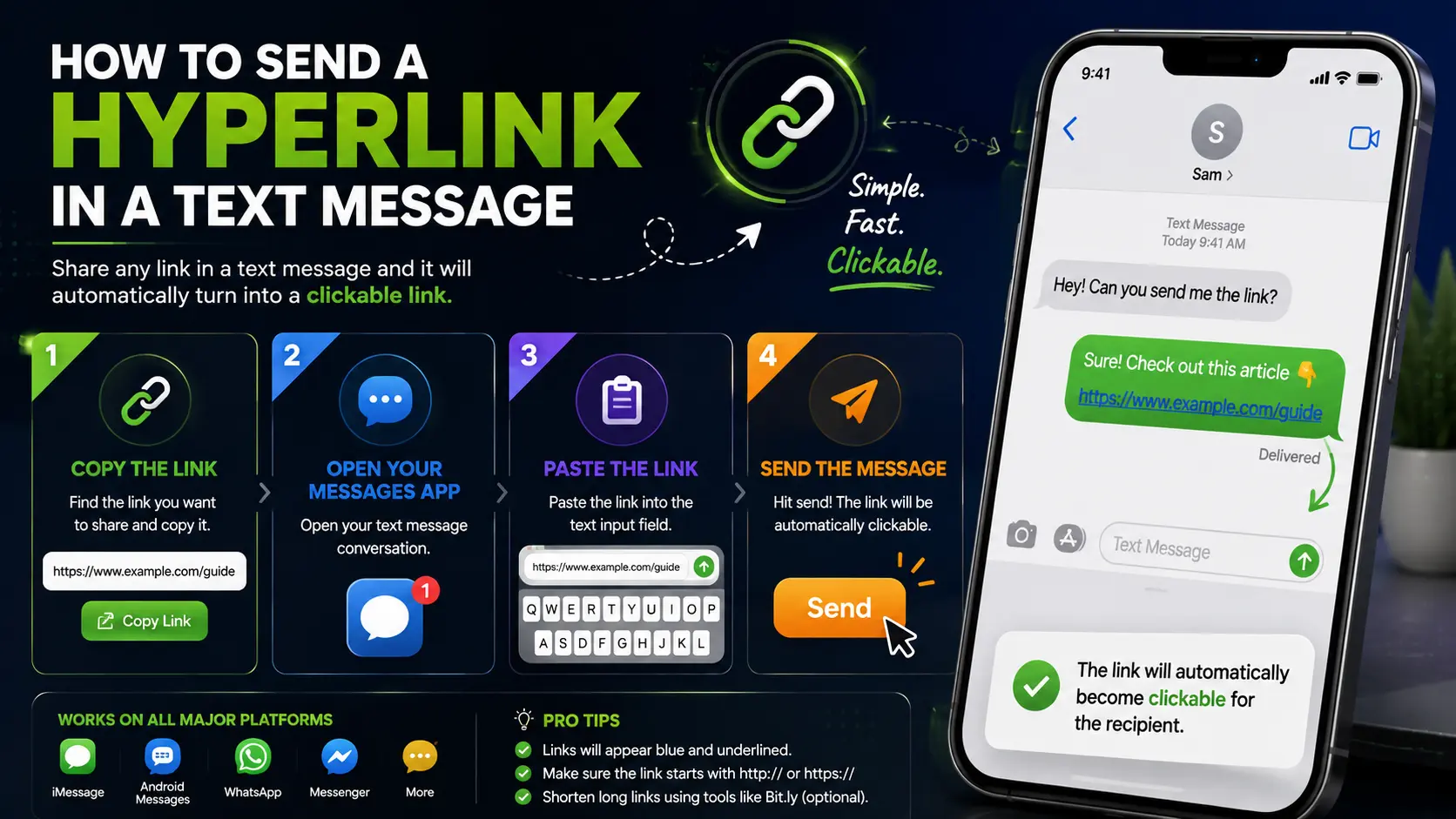
On both iPhone and Android, simply including a full URL in your message text is enough — the messaging app automatically detects and converts it into a tappable link.
On iPhone (Messages/iMessage)
- Open the Messages app and start or open a conversation.
- Type your message, including the full URL (make sure it starts with http:// or https://).
- Alternatively, copy a link from Safari or another app, then paste it directly into the message field.
- Tap Send.
The URL automatically appears underlined and tappable once sent — no extra steps needed.
On Android (Google Messages and most SMS apps)
- Open your default messaging app (commonly Google Messages).
- Start or open a conversation.
- Type or paste the full URL into the message field.
- Tap Send.
Just like iPhone, Android automatically detects the URL and renders it as a clickable link once the message is sent.
Can You Make Custom Text Into a Hyperlink? (Not Just a Raw URL)
This is where the real distinction matters, and where the honest answer requires more nuance than most guides give it.
On iPhone: Yes, within iMessage
Apple’s Messages app does include a genuine text-formatting option that lets you hyperlink specific selected text — not just paste a raw URL.
- Open Messages and type the text you want to turn into a hyperlink.
- Tap and hold on that text until the selection tool appears, then adjust the selection handles to highlight exactly the words you want linked.
- Tap the arrow on the right side of the popup menu to see more options.
- Tap BIU (Bold/Italic/Underline formatting).
- Tap the arrow again for more formatting options, then tap Link.
- Enter or paste the destination URL in the field provided.
- Tap Done to apply it.
Important limitation: this formatting feature works specifically through iMessage (blue-bubble conversations between Apple devices). If the recipient doesn’t have iMessage — meaning your message falls back to standard SMS/MMS (green bubble) — this custom formatting typically won’t carry over the same way, and the recipient may just see the plain link or text instead.
On Android: No, not currently
Standard Android messaging apps, including Google Messages, do not currently offer a way to attach a custom hyperlink to specific selected text the way iMessage does. Android’s messaging apps only support the auto-detection and linking of a full, raw URL — there’s no built-in formatting menu for turning arbitrary words into a clickable link pointing elsewhere.
If you’re specifically looking to “enable hyperlink in text message Android” with custom anchor text, there currently isn’t a native setting that unlocks this — it’s a feature gap in the platform itself, not something hidden in a settings menu.
Comparison: Hyperlink Capabilities by Platform
| Capability | iPhone (iMessage) | iPhone (SMS/MMS fallback) | Android (Google Messages) |
| Auto-clickable raw URL | Yes | Yes | Yes |
| Custom text hyperlinked to a different URL | Yes | Not reliably | No |
| Link previews (image/title) | Yes | Limited | Yes, via RCS |
What About RCS? Does It Change Anything?
RCS (Rich Communication Services) is a newer messaging standard that Google Messages supports on most Android devices as of 2026, offering features closer to iMessage — like read receipts, typing indicators, and richer link previews with an image and title pulled from the linked page.
However, RCS does not currently add the ability to hyperlink custom text the way iMessage’s formatting menu does. It improves how a plain, auto-detected link displays (with a preview card), but the underlying link itself is still tied to the visible URL, not a separate custom phrase.
A Related, Different Concept: Click-to-Text (SMS) Links
This is worth mentioning because it sometimes gets confused with hyperlinking within a text message, but it’s actually the reverse concept: a click-to-text link (also called an SMS link) is a hyperlink placed on a website that, when tapped on a phone, automatically opens the user’s messaging app with a specific phone number (and sometimes a pre-written message) already filled in.
Example use: A “Text Us” button on a business’s contact page that, when tapped, opens the visitor’s texting app with the business’s number pre-filled, ready for them to send a message.
This is built using a special sms: link format in a website’s code — a task for website builders, not something you do from within your phone’s messaging app itself.
Real-World Use Cases
- Sending a quick link to a friend: Simply pasting a URL into a text — no formatting needed, since it becomes tappable automatically on both iPhone and Android.
- A polished, professional text on iPhone: Using iMessage’s Link formatting to make a phrase like “here’s the confirmation” clickable, rather than showing a long raw URL.
- A business sending appointment reminders: Including a plain, auto-linking URL to a rescheduling page, since most recipients will be on mixed iPhone/Android devices where custom formatting can’t be guaranteed to display consistently.
- A “Text Us” button on a company website: Using a click-to-text SMS link so website visitors can start a text conversation with the business in one tap.
Common Mistakes
- Assuming custom-text hyperlinking works the same on Android as iPhone. It doesn’t — Android’s messaging apps currently lack this specific formatting feature entirely.
- Expecting iMessage-formatted links to work when texting an Android user. Once a conversation falls back to standard SMS/MMS, custom link formatting isn’t reliably preserved.
- Forgetting the http:// or https:// prefix. Without it, some messaging apps may not reliably auto-detect and convert the text into a clickable link.
- Confusing click-to-text SMS links with in-message hyperlinking. These are different concepts: one is a website element that opens a texting app, the other is formatting applied inside an actual text message.
- Sending too many links in a single message, which can sometimes trigger spam filtering on carrier networks, especially for business or bulk messaging.
Best Practices
- For most everyday use, just paste the plain URL. It works reliably across every phone and messaging app without any formatting steps.
- Use iMessage’s Link formatting only when you know the recipient is also on iMessage, since it may not display correctly if the conversation falls back to SMS.
- Keep links short or shortened when sending to unfamiliar or business contacts, since long, complex URLs can look suspicious or get flagged by carrier spam filters.
- Add brief context before the link, since RCS and iMessage previews aren’t guaranteed to render for every recipient — a short description ensures the destination is clear even as plain text.
- For business texting at scale, consider a dedicated SMS marketing platform, since these often include built-in link shortening and tracking beyond what a personal messaging app offers.
Frequently Asked Questions
Can you insert a hyperlink in a text message?
You can always send a plain, auto-clickable URL on any phone. True custom-text hyperlinking (linking specific words rather than the raw URL) is currently only supported within iPhone’s iMessage, not in standard Android messaging apps.
How do I hyperlink text in a text message on iPhone?
Type your message, select the specific text you want to hyperlink, tap the arrow in the popup menu, tap BIU, tap the arrow again, tap Link, enter the destination URL, and tap Done. This works specifically within iMessage conversations.
Can you enable hyperlink formatting for text messages on Android?
Not currently. Standard Android messaging apps, including Google Messages, only support auto-detecting and linking a full raw URL — there’s no built-in setting to attach a custom hyperlink to separate, arbitrary text.
Why did my iPhone’s formatted link show up as plain text when I sent it to someone with an Android phone?
This happens because iMessage’s link formatting feature only works reliably within iMessage-to-iMessage conversations. When a message falls back to standard SMS/MMS (common when texting a non-iPhone user), that custom formatting typically isn’t preserved.
What’s the difference between a hyperlink in a text message and a click-to-text link?
A hyperlink in a text message is formatting applied inside an actual text you’re sending. A click-to-text (SMS) link is the reverse — a link placed on a website that, when tapped, opens the visitor’s messaging app with a phone number pre-filled.
Does RCS support custom-text hyperlinks like iMessage does?
No. RCS improves how a plain, auto-detected link displays (often adding a preview card with an image and title), but it doesn’t currently add the ability to attach a hyperlink to custom, separate text the way iMessage’s formatting menu does.
Final Thoughts hyperlink in text message
For the vast majority of everyday texting, you don’t need to think about hyperlinking at all — just paste the URL, and both iPhone and Android will make it tappable automatically. True custom-text hyperlinking is a more specific, more limited feature currently available only within iPhone’s iMessage, and even then, only when the entire conversation stays on iMessage rather than falling back to standard SMS.
If you regularly text a mix of iPhone and Android contacts, the safest, most consistent approach is simply sending a plain, clearly labeled URL — it’ll work exactly the same way for everyone on the other end.