
If you want to add a hyperlink to a PDF — so a reader can click straight through to a website, another page, or an email address — you actually have more options than most guides mention, and you don’t need a paid subscription to do it.
This guide covers the full range of methods: using Adobe Acrobat Pro (the standard paid tool), free online editors, free desktop alternatives, and — often the easiest route of all — adding the link before you ever create the PDF. We’ll also cover a detail most tutorials skip entirely: making sure the hyperlink is actually accessible to screen reader users, not just visually clickable.
Table of Contents
Can You Hyperlink a PDF? Understanding What’s Actually Possible
Yes — PDFs fully support clickable hyperlinks, the same way a webpage does. A hyperlink in a PDF can point to:
- An external website
- A specific page or section within the same PDF
- A different PDF file
- An email address (opens a pre-filled draft when clicked)
- A phone number (on supported devices)
The method you use to add that link depends mainly on whether you already have access to the original source document (a Word file or Google Doc) or only the finished PDF itself.
Method 1: Add the Link Before Creating the PDF (Easiest Option)
If you still have access to the original document, this is by far the simplest route — link the text first, then export or save as a PDF afterward, and the hyperlink carries over automatically.
In Google Docs
- Highlight the text you want to hyperlink.
- Press Ctrl+K (Windows) or Cmd+K (Mac).
- Enter the destination URL and press Enter or click Apply.
- Go to File > Download > PDF Document (.pdf) to export with the link intact.
In Microsoft Word
- Highlight the text you want to hyperlink.
- Right-click and select Link (or use Insert > Link).
- Enter the URL and click Insert (or OK, depending on your Word version).
- Go to File > Save As (or Export), choose PDF as the file type, and save.
Why this method is worth trying first: it avoids extra software entirely, preserves formatting cleanly, and produces the most reliably accessible result, since word processors handle link tagging more consistently than after-the-fact PDF editing.
Method 2: Add a Hyperlink Using Adobe Acrobat Pro (Paid)
Adobe Acrobat Pro is the standard, full-featured tool for editing PDFs directly, including adding hyperlinks to an already-finished document. This functionality requires the paid Pro version — it isn’t available in the free Adobe Acrobat Reader.
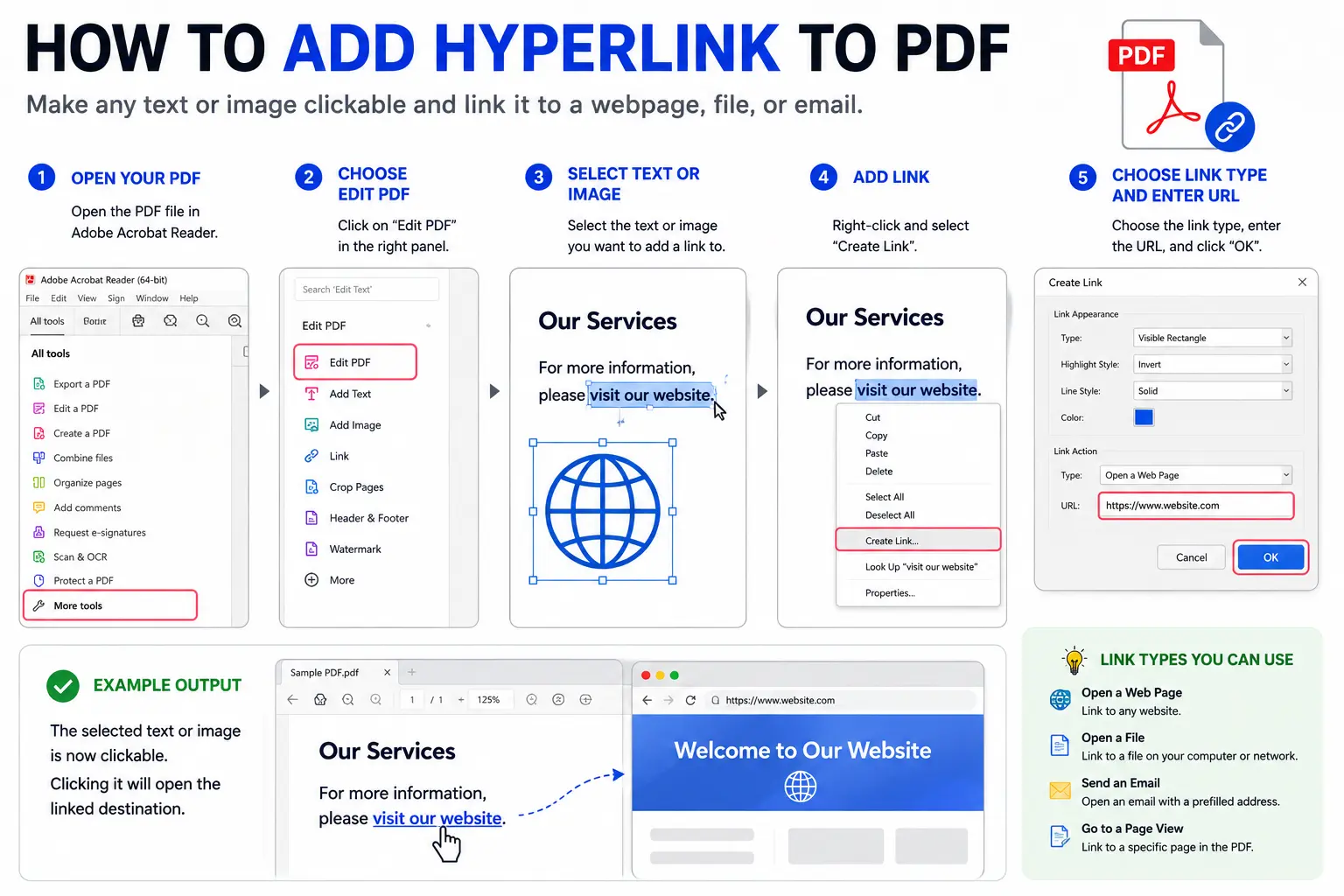
- Open your PDF in Adobe Acrobat Pro.
- Go to Tools > Edit PDF, then select Link > Add or Edit.
- Your cursor becomes a crosshair. Drag a rectangle over the text or image you want to turn into a clickable link.
- In the Create Link dialog box, choose the link’s appearance (visible border, invisible, highlight style).
- Choose the link action — most commonly Open a web page, where you’ll enter the destination URL — or alternatively Go to a page view to link to another spot within the same document, or Open a file to link to a separate file entirely.
- Click Set Link (or OK) to finish.
For more reliably accessible links: select the text first, right-click, and choose Create Link directly, rather than using the general Link tool — this method tends to produce hyperlinks that screen readers interpret more consistently.
Method 3: Add a Hyperlink Using Free Online Tools
If you don’t have Acrobat Pro, several browser-based tools let you add hyperlinks to an existing PDF without installing anything.
- Choose a free online PDF editor that supports link insertion (several are available with generous free tiers, typically limited by file size or number of edits per day).
- Upload your PDF directly through the tool’s website.
- Use the tool’s link or annotation feature to select text or an area, then enter the destination URL.
- Download the edited PDF once you’re finished.
Trade-off to know: free online tools are convenient and require no installation, but most cap file size (often under 100MB) and may limit how many files you can edit per day on the free tier.
Method 4: Add a Hyperlink Using Free Desktop Software (LibreOffice)
LibreOffice Draw, a free and open-source program available for Windows, Mac, and Linux, can open an existing PDF and treats each page as an editable canvas — including the ability to insert hyperlinks.
- Open LibreOffice Draw and open your PDF file directly within it.
- Select the text or object you want to hyperlink.
- Go to Insert > Hyperlink.
- Enter the destination URL in the dialog box and click Apply, then Close.
- Export the file back to PDF using File > Export As > Export as PDF.
This option works well for users who prefer a full desktop application over a browser-based tool, without any subscription cost.
Comparison: Which Method Should You Use?
| Method | Cost | Requires Original Source File? | Best For |
| Link before exporting (Word/Google Docs) | Free | Yes | Cleanest, most reliable results |
| Adobe Acrobat Pro | Paid subscription | No | Frequent PDF editing, professional workflows |
| Free online editor | Free (with limits) | No | One-off edits, no installation wanted |
| LibreOffice Draw | Free | No | Users wanting a full free desktop tool |
If you still have the source document, Method 1 is almost always the better choice — it’s free, faster, and produces cleaner results than editing a finished PDF after the fact.
How to Make Sure Your PDF Hyperlinks Are Accessible
This is the part most guides skip, and it matters more than it might seem — especially for PDFs meant for wide distribution or professional use.
- Use descriptive anchor text, not generic phrases like “click here.” Screen readers announce the link text aloud, so a phrase like “download the full report” is far more useful to a visually impaired reader than “click here.”
- Consider exporting as a tagged PDF, a format that includes structural information assistive technology can interpret correctly. Both Adobe Acrobat and LibreOffice support exporting tagged PDFs.
- Add alt text to image-based links where possible, so screen readers can describe the link’s purpose even when the clickable element is a graphic rather than text.
- Test the finished PDF with a screen reader or accessibility checker if it will be shared broadly, especially in workplace, educational, or government contexts where accessibility compliance may be required.
Real-World Use Cases
- Business proposals and reports: Linking to a company website, case study, or scheduling page directly within a shared PDF proposal.
- Resumes: Linking a name or header to a LinkedIn profile or online portfolio.
- Educational materials: Linking a citation or reference directly to its original source rather than listing a URL as plain text.
- Internal documentation: Linking a table of contents entry to jump directly to the relevant section further down in a long PDF.
- Email attachments: Linking a “Reply to this email” or contact prompt directly to a mailto: link within the document.
Common Mistakes When Adding Hyperlinks to a PDF
- Editing a finished PDF when the source file was still available. This is more work than necessary — linking in the original document before exporting is faster and more reliable.
- Using vague link text like “click here.” This hurts both usability and accessibility, since screen reader users hear the link text without surrounding context.
- Forgetting to test the link after saving. A hyperlink that looks correctly formatted can still fail to open properly if the URL was mistyped or the export process didn’t preserve it correctly.
- Ignoring accessibility entirely. For any PDF meant for broad or professional distribution, skipping tagged export or alt text can make the document genuinely unusable for some readers.
- Assuming Adobe Acrobat Reader (free) can add hyperlinks. This capability requires Acrobat Pro — free Reader is limited to viewing and basic annotation.
Best Practices
- Add hyperlinks in the source document whenever possible, rather than editing the finished PDF, for cleaner and more reliable results.
- Use specific, descriptive anchor text that tells the reader exactly where the link leads.
- Test every link after exporting, especially in longer documents with multiple hyperlinks, to catch broken or mistyped URLs before sharing.
- Export as a tagged PDF for any document intended for wide, public, or professional distribution.
- Keep a master source file (Word or Google Docs) whenever possible, so future edits — including adding or updating links — stay easy rather than requiring PDF-specific editing tools each time.
Frequently Asked Questions
Can you hyperlink a PDF without Adobe Acrobat?
Yes. Free online PDF editors and free desktop tools like LibreOffice Draw can both add hyperlinks to an existing PDF without needing Adobe Acrobat Pro. Alternatively, adding the link in the original Word or Google Docs file before exporting to PDF avoids the need for any PDF-specific editing tool.
How do I add a hyperlink to a PDF for free?
Use a free online PDF editor with link insertion support, or use free desktop software like LibreOffice Draw. If you still have the original source document, adding the hyperlink there before exporting to PDF is the simplest free method of all.
Why can’t I add a hyperlink using Adobe Acrobat Reader?
The free version of Adobe Acrobat (Reader) is limited to viewing and basic annotation. Adding or editing hyperlinks requires Adobe Acrobat Pro, which is a separate, paid subscription product.
Can I link to a specific page within the same PDF?
Yes. In Adobe Acrobat Pro, choose “Go to a page view” as the link action instead of linking to a web page, then select the specific page and view within the current document.
How do I make sure a PDF hyperlink is accessible to screen readers?
Use descriptive anchor text instead of vague phrases like “click here,” and export the document as a tagged PDF, a format that preserves structural information assistive technology needs to correctly interpret the link.
What’s the difference between adding a link before vs. after creating the PDF?
Adding a link in the original document (like Word or Google Docs) before exporting is generally simpler, free, and produces more reliably accessible results. Adding a link after the PDF is already created requires a dedicated PDF editing tool, whether paid or free.
Final Thoughts add hyperlink to pdf
Adding a hyperlink to a PDF doesn’t require a paid subscription unless you specifically need to edit a finished PDF you no longer have the source file for — and even then, free tools like LibreOffice Draw and browser-based editors cover most needs without cost.
Whenever possible, add your links in the original document before exporting; it’s faster, free, and produces cleaner results. And if the PDF will be shared widely, take the extra step to use descriptive link text and export as a tagged PDF — a small effort that makes a real difference for readers using assistive technology.


