
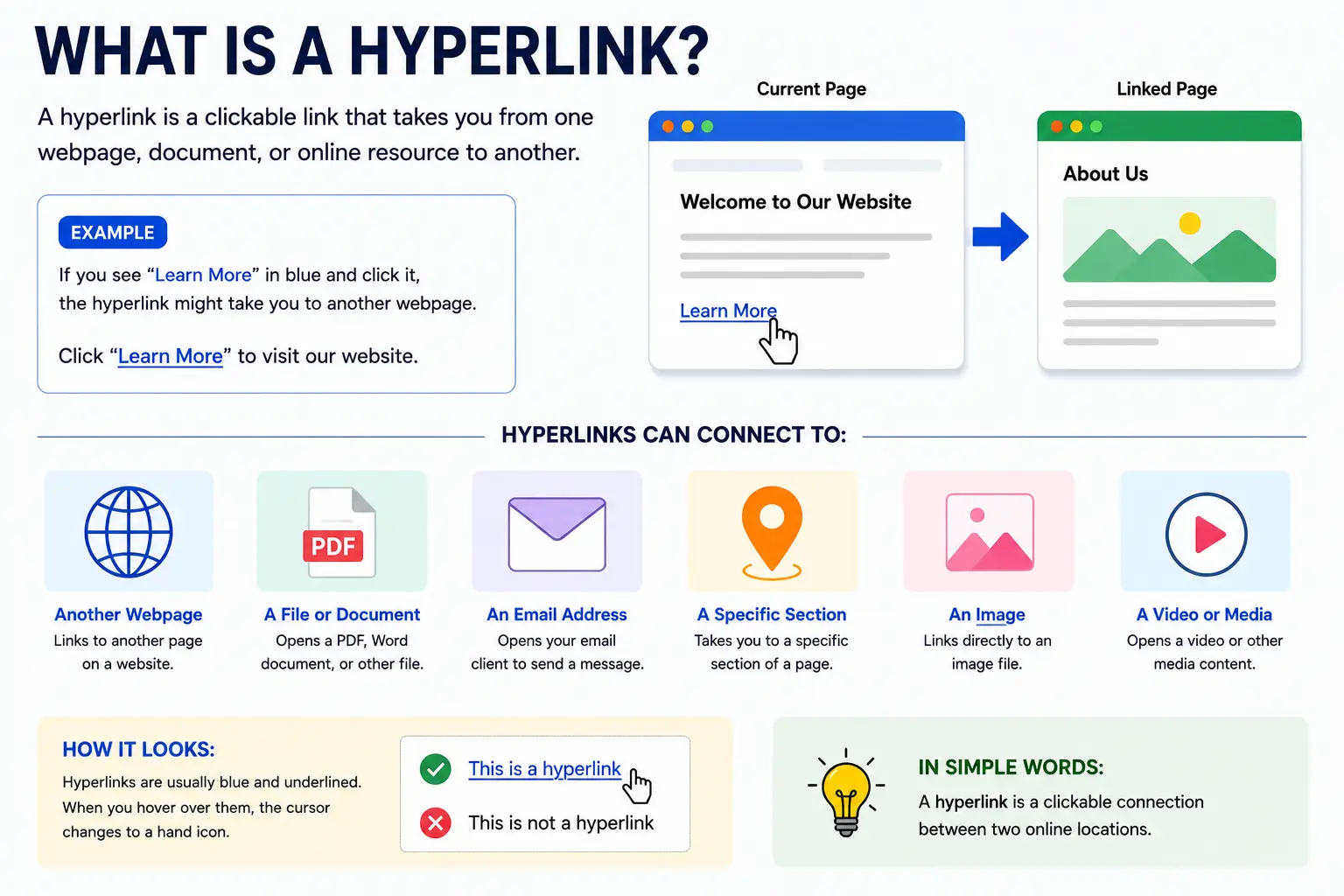
What is a hyperlink? It’s a clickable element on a webpage — usually text or an image — that takes you to another location when clicked, whether that’s a different page, a different website, a specific spot on the same page, or even a file to download.
Hyperlinks are the connective tissue of the internet — the “hyper” in hypertext literally refers to text (or other content) that links beyond itself. Without them, the web would just be a collection of isolated pages with no way to move between them. This guide covers exactly how hyperlinks work, the different types you’ll encounter, and how to use them correctly.
Table of Contents
Hyperlink Definition
A hyperlink is a reference embedded in a piece of digital content — most often text, but also images or buttons — that a user can click or tap to navigate to another destination. That destination might be another webpage, a different section of the current page, a downloadable file, or even a pre-filled email or phone number.
The clickable text itself is called anchor text, and it typically appears visually distinct — commonly underlined and in a different color (blue is the traditional default) — so visitors can immediately recognize it as clickable.
Analogy: A hyperlink works like a footnote in a printed book, except instead of flipping to a page at the back, clicking it instantly takes you to the referenced material — anywhere on the web, not just within the same document.
How Does a Hyperlink Work?
Behind the visible, clickable text, a hyperlink contains a URL (Uniform Resource Locator) — the specific web address it points to. In the underlying code of a webpage (HTML), a hyperlink is created using an anchor tag, written as <a href=”URL”>clickable text</a>.
- <a> marks the beginning of the link.
- href (short for “hypertext reference”) holds the destination URL.
- The text between the tags is what the visitor actually sees and clicks.
When someone clicks the visible text, their browser reads the hidden URL and navigates to that destination — all in a fraction of a second.
Types of Hyperlinks
Not all hyperlinks point to the same kind of destination. Understanding the different types helps clarify what’s actually happening when you click one.
| Type | What It Links To | Example |
| Internal link | Another page on the same website | A blog post linking to that site’s homepage |
| External link | A page on a different website | A news article linking to a source’s official site |
| Anchor link | A specific section within the same page | A “Jump to FAQ” link on a long article |
| Email link (mailto) | Opens a pre-filled email draft | “Contact us” linking to an email address |
| Telephone link (tel) | Initiates a phone call on mobile devices | A “Call now” button on a business site |
| Download link | A downloadable file rather than a webpage | A “Download PDF” link |
| Image link | Uses an image, rather than text, as the clickable element | A product photo that links to its full listing |
Internal vs. external links
This distinction matters most in everyday use. Internal links keep visitors moving around within the same website — useful for guiding readers to related content or important pages. External links send visitors away to a different website entirely — often used to cite a source, reference further reading, or point to a partner site.
What Is Anchor Text, and Why Does It Matter?
Anchor text is the actual visible, clickable words of a hyperlink — not the underlying URL itself. Good anchor text describes what the visitor will find if they click, rather than using vague phrasing.
Weak example: “Click here for more information.” Strong example: “Read our full guide to hyperlinks.”
The second version tells the visitor exactly what to expect before they even click, which improves both usability and, in the context of websites, search engine understanding of what the linked page is about.
Real-World Examples of Hyperlinks in Use
- Navigation menus: The clickable items across the top of a website (Home, About, Contact) are all hyperlinks pointing to different pages.
- Citations in articles: A news article linking the phrase “according to a recent study” to the actual research it’s referencing.
- Social media bios: A single link in an Instagram or TikTok bio pointing to a personal website or a link-in-bio landing page.
- Email signatures: A hyperlinked company name or logo pointing back to the business’s website.
- “Back to top” buttons: An anchor link on a long page that jumps a reader instantly back to the beginning without manually scrolling.
Common Mistakes When Using Hyperlinks
- Using vague anchor text like “click here” repeatedly. This tells visitors nothing about the destination and, on a page with several such links, makes them hard to tell apart.
- Linking to broken or outdated URLs. A hyperlink pointing to a page that no longer exists (often called a “dead link” or resulting in a “404 error”) frustrates visitors and looks unmaintained.
- Forgetting to open external links in a new tab when appropriate. For important reference content, sending a visitor away from your site entirely (rather than opening the link in a new tab) can cause them to lose their place and not return.
- Overlinking a single piece of content. Turning too many words or phrases into links on one page can overwhelm visitors and dilute the importance of the links that actually matter.
- Using the same anchor text for links pointing to different destinations. This creates confusion about what each specific link actually leads to.
Best Practices for Creating Effective Hyperlinks
- Write descriptive anchor text that clearly indicates the destination, rather than generic phrases like “click here” or “read more.”
- Check links periodically for accuracy, especially on older content, since websites and pages get moved or removed over time.
- Use internal links deliberately to guide visitors toward related, useful content on your own site, not just as an afterthought.
- Reserve external links for genuinely valuable references, such as citing a source or pointing to authoritative further reading.
- Make sure linked text is visually distinguishable from regular text (through color, underlining, or both), so visitors can easily identify what’s clickable.
Frequently Asked Questions
What is a hyperlink in simple terms?
A hyperlink is a clickable piece of text, image, or button on a webpage that takes you to another location — a different page, a different website, or a specific section — when clicked.
What is the difference between a hyperlink and a link?
In everyday use, the terms are used interchangeably. Technically, “hyperlink” is the more precise term specific to web content (referring to hypertext), while “link” is a broader, more general word that can also describe connections outside of web pages.
What is anchor text?
Anchor text is the visible, clickable words of a hyperlink — as opposed to the hidden URL it points to. Descriptive anchor text (like “read our pricing guide”) is clearer and more useful than vague text like “click here.”
What’s the difference between an internal and an external hyperlink?
An internal link points to another page on the same website, keeping visitors within that site. An external link points to a page on a completely different website, sending visitors elsewhere.
How do I create a hyperlink?
In HTML, a hyperlink is created using an anchor tag: <a href=”destination URL”>visible text</a>. Most website builders, content management systems, and word processors also offer a simpler, built-in tool for adding a hyperlink without writing code directly.
Why is my hyperlink not working?
A non-functioning hyperlink usually means the destination URL is broken, mistyped, or points to a page that no longer exists. Double-checking the exact URL and testing the link after publishing usually resolves this.
Final Thoughts
A hyperlink is one of the simplest but most essential building blocks of the web — a clickable connection between one piece of content and another, whether that’s a different page, a specific section, or an entirely different website.
Understanding the different types (internal, external, anchor, email, download) and following a few basic best practices — clear anchor text, working URLs, deliberate use of internal and external links — makes hyperlinks work the way they’re supposed to: helping visitors move smoothly from one piece of relevant content to the next.


