
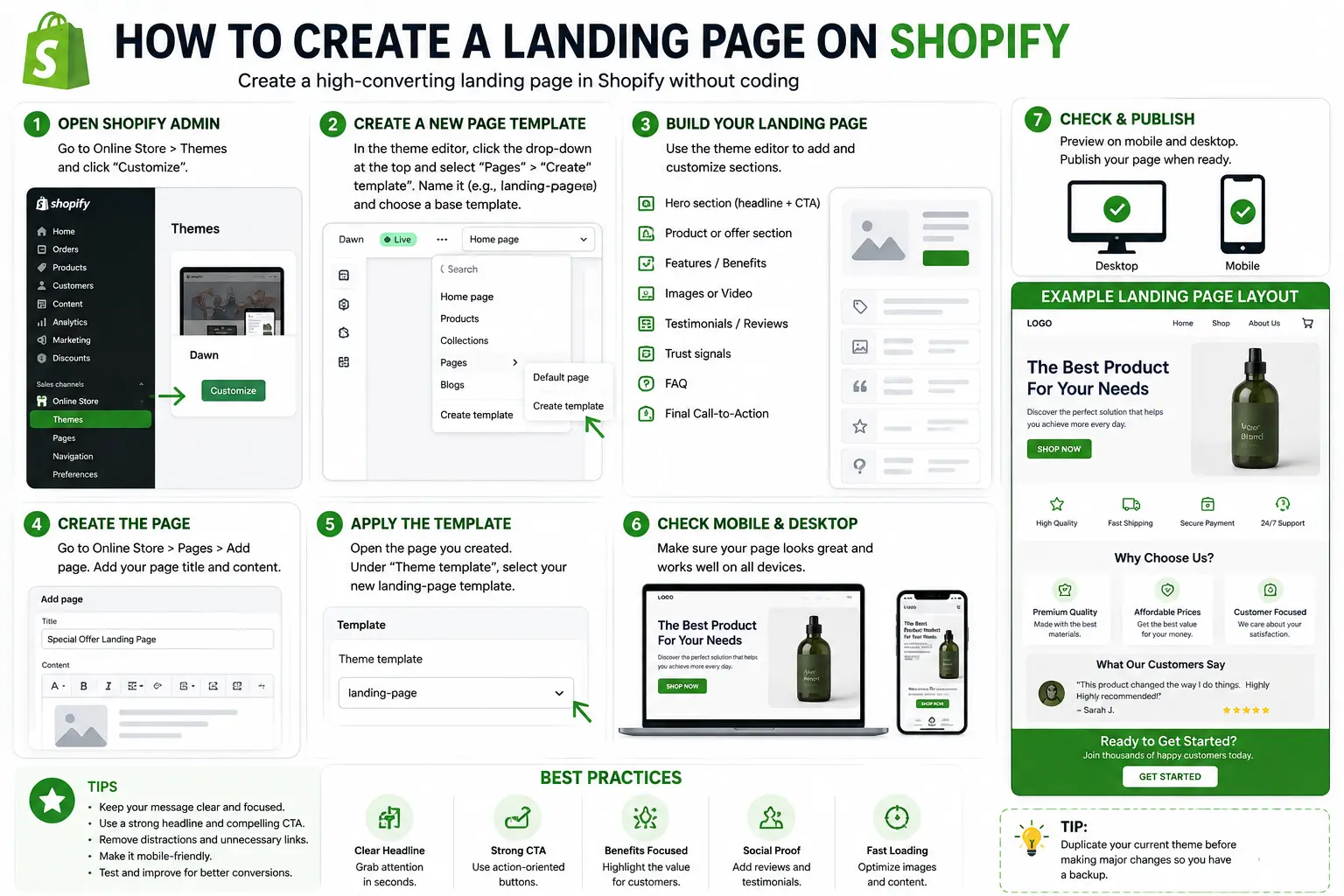
Learning how to create a landing page on Shopify doesn’t require coding knowledge or a separate website — Shopify’s built-in tools handle most of what you need, and a few free apps fill in the rest for more advanced designs.
This guide walks through three practical methods: using Shopify’s native Pages and section editor (the free, no-app option), using a Collection page as a landing page (useful for product-focused campaigns), and using a landing page app for drag-and-drop design flexibility. We’ll also cover URL structure, what to include on the page itself, and mistakes that quietly hurt conversion once the page is liv.
Table of Contents
What Is a Shopify Landing Page?
A landing page on Shopify is a standalone page built around one specific goal — promoting a single product, running a seasonal campaign, or capturing leads — rather than showing your full catalog and navigation the way your homepage does.
Unlike your homepage, which needs to serve many different visitor intents at once, a Shopify landing page removes distractions and focuses entirely on one message and one call to action, usually built to match a specific ad campaign, email, or promotion.
Method 1: Create a Landing Page Using Shopify’s Built-In Pages (No App Required)
This is the simplest starting point and works well if your theme supports Shopify’s newer section-based editing system (most current themes do).
Step 1: Create the page
- Log in to your Shopify admin dashboard.
- Go to Online Store > Pages.
- Click Add page.
- Enter a Title for the page — this also generates the page’s URL handle, which you can edit separately.
- Leave the main content area blank for now if you plan to design the page using sections in the next step; you can also enter basic content here directly if you prefer a simpler, text-based page.
- Click Save.
Step 2: Assign a page template (if your theme supports sections)
- Still on the page you just created, look for the Theme template option in the right-hand sidebar.
- If your theme includes a page template with section support, select it here.
- Save the page again after assigning the template.
Step 3: Build the page using the Theme Editor
- Go to Online Store > Themes, then click Customize on your active theme.
- Use the page selector at the top of the editor to navigate to the specific landing page you created.
- Use Add section to build out your page — common sections include an image banner, a text block, a product feature grid, and a call-to-action button.
- Customize each section’s text, images, colors, and button links directly in the editor.
- Click Save once you’re happy with the layout.
Step 4: Publish and check the URL
- Standard Shopify pages live at a URL structure like yourstore.com/pages/your-page-handle.
- Edit the handle (found under the page’s URL settings) to keep it short, descriptive, and matching the wording used in your ad or campaign — for example, /pages/summer-sale rather than a long, unedited default.
- Preview the page before sharing the link publicly to confirm it displays correctly on both desktop and mobile.
Method 2: Use a Collection Page as a Landing Page
If your landing page is essentially built around a curated group of products (rather than general campaign content), using a Collection page instead of a standard Page can work well, since it’s designed specifically for product browsing and purchasing.
- Go to Products > Collections in your Shopify admin.
- Click Create collection.
- Choose a Title, and select either Manual (you choose each product individually) or Automated (products are included based on conditions you set, like a tag or product type).
- Add your selected products, write a short collection description if useful, and set a clean, SEO-friendly URL handle.
- Save and publish.
This approach shortens the path between a visitor arriving and reaching an “Add to Cart” button, since collection pages are inherently built around product discovery and purchasing rather than general content.
Method 3: Use a Landing Page App for More Design Flexibility
If you want more advanced layouts, animations, or drag-and-drop design without touching code, a dedicated landing page app is the most flexible option — especially useful if your theme doesn’t fully support section-based page building.
- Go to Apps in your Shopify admin, then Shopify App Store.
- Search for a landing page or page-builder app (several popular options are built specifically for Shopify and integrate directly with your store’s products).
- Install the app and open it from your Shopify dashboard.
- Choose to start from a pre-made template or a blank canvas.
- Use the app’s drag-and-drop editor to add images, text blocks, and call-to-action buttons, matching your existing branding.
- Publish the page directly from the app once you’re satisfied with the design.
Trade-off to know: apps add design flexibility but also add an extra tool to maintain, and some come with a subscription cost beyond a limited free tier. For simpler campaigns, Method 1 (native Pages and sections) is often enough without adding another app to your store.
Comparison: Which Method Should You Use?
| Method | Coding Needed | Design Flexibility | Best For |
| Native Pages + Theme Editor | None | Moderate (theme-dependent) | Most campaigns, no extra cost |
| Collection page | None | Low to moderate | Product-focused promotions |
| Landing page app | None | High | Complex layouts, advanced animations |
| Custom Liquid template | Yes | Complete | Developers wanting full control |
For most store owners running a seasonal promotion or product launch, Method 1 covers the need without adding cost or complexity. Reach for a landing page app specifically when your theme’s built-in sections can’t achieve the layout you’re picturing.
What to Include on a Shopify Landing Page
Regardless of which method you use, a strong landing page structure includes:
- A clear headline matching exactly what brought the visitor there (the specific ad, email, or promotion).
- A hero image or product photo that makes the offer feel tangible immediately.
- One primary call to action — “Buy Now,” “Shop the Sale,” or “Get 20% Off” — repeated at key points down the page.
- Supporting product details or benefits, kept focused on this specific offer rather than your entire catalog.
- Trust signals, such as customer reviews, if available for the featured product.
- Minimal or no site-wide navigation, so visitors aren’t tempted away from the one action the page exists to drive.
Real-World Use Cases
- A seasonal sale: A “Summer Sale” landing page featuring only discounted products, with a countdown timer and a single “Shop the Sale” button.
- A product launch: A dedicated page for a new product, showing detailed images, key benefits, and reviews, matched directly to a launch-day ad campaign.
- An email campaign: A landing page built specifically for subscribers clicking through a promotional email, using matching language and imagery from that email.
- Paid social ads: A landing page built to match a specific Instagram or Facebook ad exactly, since message mismatch between the ad and the page is one of the biggest causes of lost conversions.
Common Mistakes When Creating a Shopify Landing Page
- Leaving full site navigation visible. This gives visitors an easy path away from your one intended action — many landing page apps and custom templates allow hiding the standard header/footer navigation specifically for that page.
- Using a generic, unedited URL handle. A long, default-generated URL looks unprofessional and doesn’t reinforce the campaign it supports — always edit it to something short and specific.
- Not matching the page to the ad or email that drove traffic there. A visitor expecting a specific discount should see that exact offer immediately, not a generic store welcome.
- Overloading the page with unrelated products. A landing page should stay tightly focused on the specific campaign, not attempt to cross-sell the entire catalog.
- Skipping mobile preview before publishing. Since much landing page traffic comes from social and email links opened on phones, always check mobile rendering before sharing the page publicly.
- Forgetting to test the call-to-action button. A broken or mislinked “Buy Now” button after a theme edit is a simple mistake that directly costs conversions.
Best Practices for a High-Converting Shopify Landing Page
- Keep the page focused on one campaign or product, resisting the urge to promote multiple unrelated offers on the same page.
- Match your landing page’s headline and imagery to the specific traffic source driving visitors there, whether that’s an email, ad, or social post.
- Use your store’s existing branding (colors, fonts, tone) so the landing page feels like a natural extension of your store, not a disconnected page.
- Track performance separately for each landing page using Shopify’s analytics or a connected tool, so you know which campaigns are actually converting.
- Reuse a proven structure for future campaigns once you find a layout that performs well, adjusting the content rather than rebuilding from scratch each time.
Frequently Asked Questions
How do I create a landing page on Shopify without an app?
Go to Online Store > Pages, click Add page, save it, then assign a section-supported template and build the layout using Online Store > Themes > Customize. Most current Shopify themes support this section-based approach without needing any additional app.
Can I use a Shopify collection page as a landing page?
Yes. Collection pages work well as landing pages specifically for product-focused campaigns, since they’re built around browsing and purchasing, which shortens the path to an “Add to Cart” click compared to a standard content page.
Do I need a Shopify app to build a landing page?
No, not necessarily. Shopify’s built-in Pages and theme section editor can handle most landing page needs. Apps become useful when you want more advanced design flexibility, like custom animations or highly specific layouts your theme’s built-in sections can’t achieve.
What should the URL be for a Shopify landing page?
Standard pages use a structure like yourstore.com/pages/your-handle, while collection-based landing pages use yourstore.com/collections/your-handle. Keep the handle short, descriptive, and matching the language used in your campaign or ad.
Can I hide site navigation on a Shopify landing page?
It depends on your theme and method. Some landing page apps and custom templates allow hiding the standard header and footer for a specific page, which is a common best practice for keeping visitors focused on a single conversion goal.
How do I know if my Shopify theme supports section-based landing pages?
Check whether your page’s theme template settings include an option with section support when creating a new page. Most modern Shopify themes (built on the newer Online Store 2.0 framework) support this by default.
Final Thoughts How to Create a Landing Page on Shopify
Creating a landing page on Shopify comes down to choosing the right method for your specific goal: native Pages and theme sections for most campaigns, a Collection page when the focus is product browsing, or a dedicated app when you need more advanced design control.
Whichever method you choose, keep the page tightly focused on one campaign, match it closely to whatever traffic source is driving visitors there, and always preview it on mobile before sharing the link. A well-built landing page turns a Shopify store’s marketing efforts into a much more direct path to conversion.


