
If you’ve typed home page or homepage into a search bar, you’re probably dealing with one of two questions: which spelling is actually correct, or how to set up a homepage yourself — either as your browser’s starting point or as the front page of a website you’re building.
This guide answers both. We’ll clear up the spelling question once and for all, define exactly what a homepage is and does, and then walk through how to set one — whether you mean your browser’s start page or the homepage of a website.
Table of Contents
Home Page or Homepage: Which Spelling Is Correct?
Both spellings are used, and neither is technically “wrong” — but they aren’t perfectly interchangeable in modern usage.
- Homepage (one word) is the more common, modern spelling, and it’s what most major style guides, tech companies, and dictionaries now favor. Google, browser settings menus, and most web development documentation use this single-word form.
- Home page (two words) was more common in earlier web writing, when the internet was newer and terms hadn’t fully settled into single words yet (similar to how “e-mail” gradually became “email”).
The short answer: if you need to pick one for consistency (in writing, documentation, or SEO content), go with homepage as one word. It’s the more widely accepted modern standard, though “home page” still appears in older references and isn’t considered incorrect.
What Is a Homepage? A Simple Definition
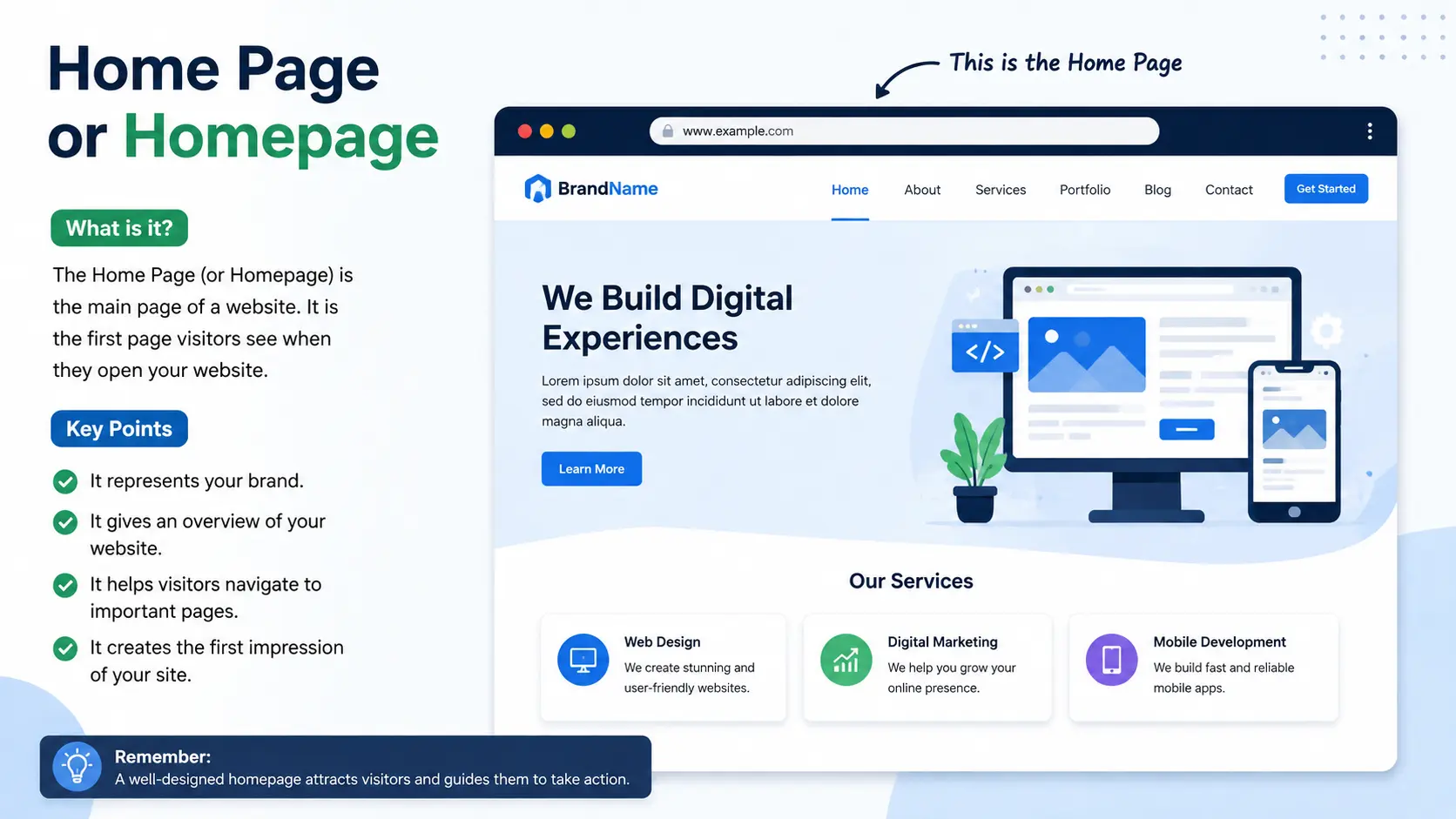
A homepage is the main introductory page of a website — the one visitors typically land on first, either by typing the site’s main domain (like example.com) or by clicking a logo to return to the start.
Think of a website like a building. The homepage is the lobby: it’s not where all the detailed work happens, but it’s where visitors get oriented, see what’s available, and decide where to go next — the blog, the product pages, the contact form, and so on.
There’s a second, related meaning worth knowing, especially since it drives a lot of search traffic on this exact topic: a browser homepage. This is the page that opens automatically when you launch your web browser or click the browser’s Home button — a completely separate concept from a website’s homepage, even though it shares the name.
Website Homepage vs. Browser Homepage: Two Different Things
This is where a lot of confusion comes from, since both use the exact same word for two related but distinct ideas.
| Website Homepage | Browser Homepage | |
| What it is | The main landing page of a specific website | The page your browser opens to automatically |
| Who controls it | The website’s owner or developer | You, the browser user |
| Where it’s set | Built directly into the website’s code/structure | Set inside your browser’s settings menu |
| Example | The main page of an online store | Google.com opening every time you launch Chrome |
If you’re a website owner or content creator, you likely mean the first kind. If you’re trying to change what page opens when you start your browser, you mean the second. Both are covered below.
What Makes a Good Website Homepage
A homepage has a specific job: quickly tell a visitor what the site is about and guide them toward the next step, whether that’s reading, browsing, or buying.
Strong homepages typically include:
- A clear headline stating what the site or business offers, visible without scrolling.
- Simple navigation to the site’s main sections (About, Products, Contact, Blog).
- A visual hierarchy that highlights the most important content first — using size, spacing, and placement, not just decoration.
- A clear call to action, such as “Shop Now,” “Get Started,” or “Contact Us,” so visitors know what to do next.
- Fast loading speed, since a homepage is often the first (and sometimes only) impression a visitor forms of the entire site.
Common homepage mistakes
- Overloading it with information. A homepage should introduce, not explain everything — save details for dedicated pages.
- Weak or missing navigation. If visitors can’t easily find where to go next, they often leave entirely.
- No clear purpose stated upfront. A visitor who can’t tell what a site does within a few seconds is likely to bounce.
- Ignoring mobile design. Most homepage visits now happen on a phone, so a homepage that only looks good on desktop underperforms.
How to Set a Homepage in Your Browser
If you searched this term because you want to change what page opens automatically when you launch your browser, here’s how — using Chrome as the primary example, since it’s the most widely used browser in the U.S.
On Windows or Mac (Chrome)
- Open Chrome and click the three-dot menu in the top-right corner, then select Settings.
- Click Appearance in the left sidebar, and turn on Show home button.
- Choose Enter custom web address, and type the URL you want as your homepage.
- Separately, click On startup in the left sidebar to control what opens automatically when Chrome launches — select Open a specific page or set of pages and add your preferred URL(s).
These are two related but separate settings: the Home button setting controls what a manual click leads to, while the startup setting controls what opens automatically.
On Android or iPhone (Chrome)
- Open the Chrome app and tap the three-dot menu, then Settings.
- Find Homepage (under Advanced settings on Android).
- Turn the toggle on, then select Enter custom web address and type your preferred site.
Mobile Chrome combines both settings into one, unlike the desktop version.
On Other Browsers
- Firefox: Settings > Home > change the “Homepage and new windows” dropdown to a custom URL.
- Safari (Mac): Safari > Settings > General > enter a web address in the Homepage field.
- Edge: Settings > On startup > select “Open a specific page or pages,” similar to Chrome, since both browsers share the same underlying engine.
How to Set Google as Your Homepage
This is one of the most common variations of this search, and it uses the exact same steps above.
- Follow the browser-specific steps in the section above.
- When entering a custom web address, type google.com (or your regional Google domain).
- Apply it to both the Home button setting and the startup setting if you want Google to appear both when you click Home and when the browser first opens.
How to Make a Website Your Homepage
If your goal is to set a specific website (not just a search engine) as your homepage, the process is identical — the only difference is which URL you enter.
- Copy the exact web address of the site you want, directly from your browser’s address bar while visiting it.
- Follow your browser’s homepage setting steps above.
- Paste the copied URL into the custom web address field.
Copying the address directly (rather than typing it from memory) helps avoid typos that can cause the homepage setting to fail or load an error page instead.
Real-World Examples
- A student sets their school’s learning portal as their browser homepage, so it’s the first thing they see every time they open a laptop for class.
- A small business owner designs their website’s homepage to immediately show their most popular product category and a clear “Contact Us” button.
- A remote worker sets their company’s project management tool as their browser’s startup page, so tasks are visible the moment they log in each morning.
- A news reader sets a specific outlet’s site as their homepage to stay updated without needing to search for it each time.
Best Practices
For browser homepages:
- Choose a page you genuinely check often, not just a default — a homepage should save you time, not add clutter.
- Double-check the URL by copying it directly from the address bar to avoid typos.
- Review your homepage setting occasionally, since extensions or unwanted software can sometimes change it without your input.
For website homepages:
- Keep the message simple — one clear statement of what the site offers, visible immediately.
- Test the homepage on both desktop and mobile before publishing, since layout issues often show up differently on each.
- Update the homepage periodically to reflect current offerings, promotions, or content, rather than leaving it static indefinitely.
Frequently Asked Questions
Is it “home page” or “homepage”?
Both are used, but “homepage” (one word) is the more widely accepted modern spelling, used by most tech companies, browsers, and style guides. “Home page” (two words) is an older variant and isn’t incorrect, just less common today.
What is the difference between a homepage and a landing page?
A homepage is the main, general entry point of an entire website, usually reached through the site’s main domain. A landing page is a separate, often standalone page created for a specific purpose, like an ad campaign or product promotion, and it’s usually not linked from the site’s main navigation.
How do I set Google as my homepage?
In your browser’s settings, find the homepage or “on startup” option, choose to enter a custom web address, and type google.com. The exact menu path varies slightly by browser but follows the same general steps.
Can a website have more than one homepage?
No, a website has one designated homepage, typically the page that loads at the site’s root domain (like example.com). However, a site can have multiple landing pages for different marketing purposes alongside a single homepage.
Why did my browser’s homepage change without me changing it?
This is often caused by a browser extension or previously downloaded software altering your settings, or by Chrome sync carrying over a setting from another signed-in device. Reviewing your installed extensions and homepage settings directly usually resolves it.
What should be included on a website’s homepage?
A clear headline explaining what the site offers, simple navigation to key sections, a visible call to action, and fast loading speed are the core elements every effective homepage should include.
Final Thoughts
Whether you came here to settle the “home page or homepage” spelling debate, understand what a homepage actually does, or change your browser’s starting page, the underlying idea is the same: a homepage is meant to orient someone quickly and point them toward what matters next.
For writing and consistency, go with “homepage” as one word. For browsers, take two minutes to set it to a page you genuinely use. And for a website, keep the homepage focused — it only needs to do one job well: help a visitor understand where they are and where to go next.


