
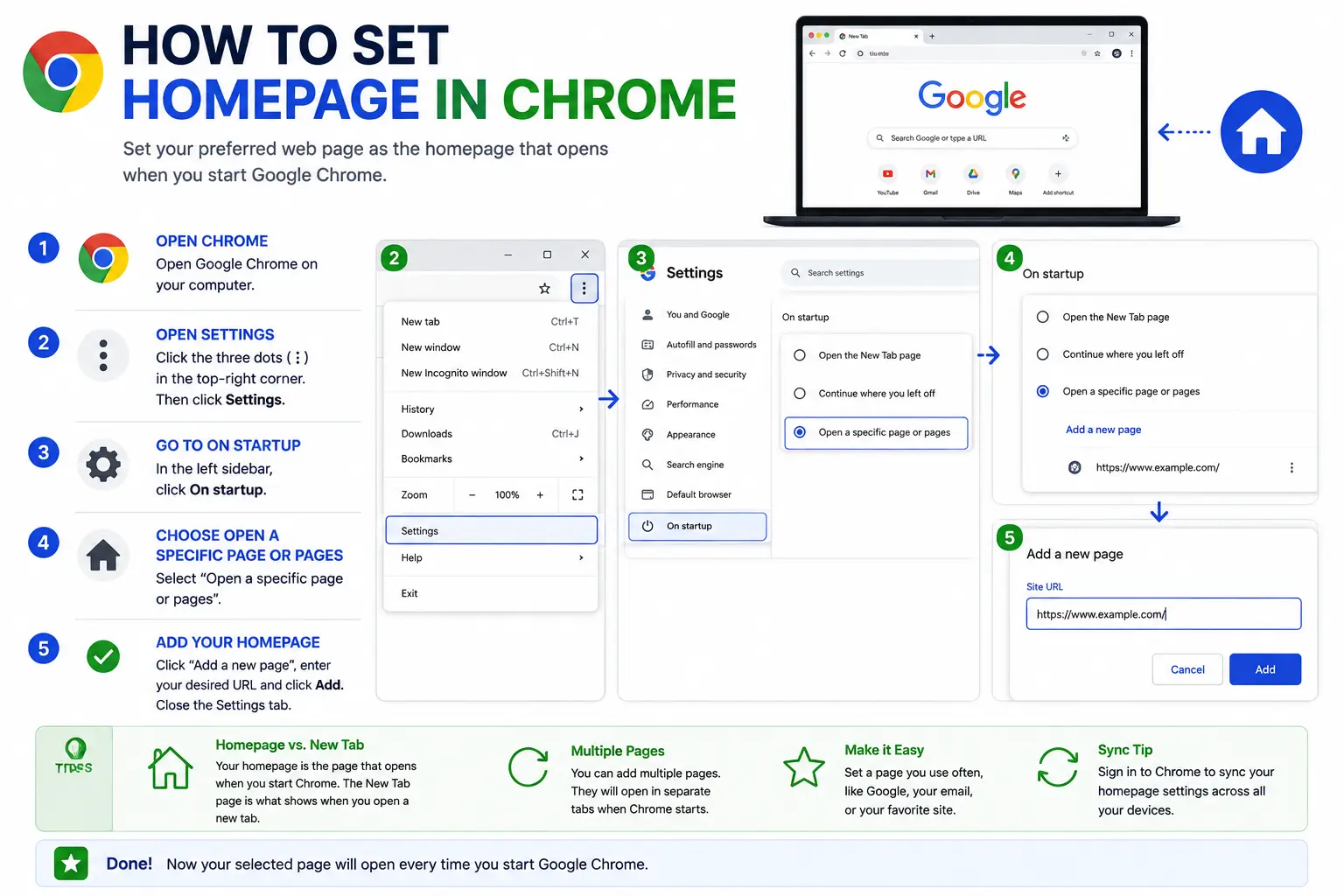
If you want a specific site — Google, your inbox, a news page, or a work dashboard — to greet you every time you open your browser, learning how to set homepage in Chrome takes less than two minutes once you know where the setting lives.
The tricky part is that Chrome actually has two related but different settings: a “homepage” tied to a Home button, and a separate “startup” setting for what opens when Chrome first launches. Most confusion around this topic comes from mixing the two up. This guide covers both clearly, with exact steps for Windows, Mac, Android, and iPhone.
Homepage vs. Startup Page: What’s the Difference
Before changing anything, it’s worth understanding what you’re actually setting, since Chrome treats these as two separate features on desktop.
- Homepage: The site that opens when you click the Home button (a small house icon next to the address bar). This button isn’t visible by default — you have to turn it on first.
- Startup page: The site (or sites) that open automatically every time you launch Chrome itself, whether or not you ever click the Home button.
You can set these to the same page, different pages, or only set up one of them. Most people who search for “how to make Google my homepage” actually want the startup page, since that’s what shows up automatically — but this guide covers both so you can choose exactly what you want.
On Android, Chrome doesn’t separate these two — one “Homepage” setting controls both what opens on launch and what the Home button leads to.
How to Set Homepage in Chrome on Windows or Mac
Step 1: Turn on the Home button (for the “Home” feature)
- Open Chrome and click the three-dot menu in the top-right corner.
- Select Settings.
- In the left sidebar, click Appearance.
- Find Show home button and toggle it on.
- Two options appear: New Tab page or Enter custom web address.
- Choose Enter custom web address, then type or paste the URL you want as your homepage (for example, google.com).
Once this is done, a small house icon appears next to the address bar. Clicking it always takes you to this page, no matter what site you’re currently on.
Step 2: Set your startup page (what opens when Chrome launches)
- In the same Settings menu, click On startup in the left sidebar.
- You’ll see three options:
- Open the New Tab page — Chrome opens to a blank tab with a search box.
- Continue where you left off — Chrome reopens the tabs you had open before closing it.
- Open a specific page or set of pages — Chrome opens to whatever URL(s) you choose every time.
- Select Open a specific page or set of pages, then click Add a new page.
- Enter the website address you want, then click Add.
You can add more than one URL here, and Chrome will open each one in its own tab automatically at startup.
How to Make Google My Homepage in Chrome
This is one of the most common variations of this request, and it uses the exact same steps above — just with a specific URL.
- Follow Step 1 above to enable the Home button.
- When entering your custom web address, type google.com (or your local Google domain, such as google.co.uk).
- Repeat with the On startup setting if you also want Google to load automatically every time Chrome opens, not just when you click the Home button.
How to Change Your Homepage in Chrome on Android
Android’s Chrome app combines the homepage and startup settings into a single option.
- Open the Chrome app and tap the three-dot menu in the top-right corner.
- Tap Settings.
- Scroll down to the Advanced section and tap Homepage.
- If the toggle at the top is off, tap it to turn it on.
- Choose either Chrome’s homepage (the default new tab experience) or select Enter custom web address and type the site you want.
Once set, tapping the Home icon in the toolbar (if visible) and launching the app both lead to this same page, since Android doesn’t distinguish between the two the way desktop Chrome does.
How to Set a Homepage in Chrome on iPhone or iPad
The process mirrors Android closely, since Chrome’s mobile app uses a similar settings structure across platforms.
- Open the Chrome app and tap the three-dot menu.
- Tap Settings.
- Scroll to find Homepage (sometimes listed under a similarly grouped advanced settings section).
- Turn the toggle on.
- Select Enter Custom Web Address and type the site’s URL.
Comparison: Homepage Settings by Platform
| Platform | Setting Location | Separate Startup Option? | Home Button Visible by Default? |
| Windows | Settings > Appearance (Home) + On startup | Yes | No — must enable |
| Mac | Settings > Appearance (Home) + On startup | Yes | No — must enable |
| Android | Settings > Advanced > Homepage | No (combined) | Depends on device/version |
| iPhone/iPad | Settings > Homepage | No (combined) | Depends on device/version |
Real-World Use Cases for Customizing Your Homepage
- Productivity setup: Setting your homepage to a task manager or email inbox so you land directly on your daily priorities.
- Multi-tab startup: Using “Open a specific page or set of pages” to automatically open your email, calendar, and a news site every time you start work.
- Shared or public computers: Setting a neutral homepage (like Google) so the browser doesn’t default to a personal account page.
- Simplifying browsing for family members, especially less tech-comfortable users, by setting a homepage to a familiar, simple starting point like a search engine.
Common Mistakes When Setting a Homepage in Chrome
- Confusing the Home button setting with the startup setting. Changing one without checking the other often leads to Chrome opening a different page than expected.
- Typing an incomplete URL. Entering “google” instead of “https://www.google.com” can cause an error — always include the full address, or copy it directly from the address bar of the actual site.
- Assuming Android and desktop work the same way. Since mobile combines both settings into one, expecting a separate startup option on Android will lead to confusion.
- Forgetting the Home button is hidden by default. Many users set a homepage but never see the results, simply because they never toggled on “Show home button” in the first place.
- Not checking for sync settings. If Chrome is signed into a Google account with sync enabled, homepage settings may carry over across your other signed-in devices — worth knowing if you only meant to change it on one device.
Best Practices
- Pick a homepage that matches how you actually use your browser. A search engine works for general browsing; a specific dashboard or inbox works better for focused daily routines.
- Use “Open a specific page or set of pages” if you always start your day by checking the same few sites — it saves the manual step of opening each tab yourself.
- Keep the Home button enabled if you frequently want to jump back to a starting point mid-session, not just at launch.
- Double-check the URL before saving by testing it in a new tab first, to confirm it’s the exact page you want.
- Revisit your settings occasionally, especially if a browser extension or unwanted software has changed your homepage without your input — Chrome’s settings page will always show the current active setting.
Frequently Asked Questions
How do I make Google my homepage in Chrome?
Go to Chrome Settings, open Appearance, turn on “Show home button,” select “Enter custom web address,” and type google.com. If you also want Google to load automatically when Chrome launches, repeat the process under “On startup” and choose “Open a specific page or set of pages.”
Why doesn’t the Home button appear in Chrome?
The Home button is hidden by default. Go to Settings > Appearance and turn on “Show home button” to make it visible next to the address bar.
What’s the difference between a homepage and a startup page in Chrome?
The homepage is the page that opens when you click the Home button, while the startup page is what opens automatically every time you launch Chrome. On desktop, these are separate settings; on Android and iPhone, Chrome treats them as one combined setting.
Can I set multiple homepages in Chrome?
You can set multiple startup pages using “Open a specific page or set of pages” under the On startup setting — each URL opens in its own tab when Chrome launches. The Home button itself, however, can only lead to one single page at a time.
How do I change my homepage on Chrome mobile?
On Android or iPhone, open Chrome, tap the three-dot menu, go to Settings, find Homepage (under Advanced settings on Android), turn the toggle on, and enter your preferred web address.
Why did my Chrome homepage change without me doing anything?
This can happen due to a browser extension, downloaded software, or a Chrome sync setting carrying over from another signed-in device. Checking your installed extensions and reviewing your homepage settings directly usually resolves it.
Final Thoughts
Setting a homepage in Chrome comes down to knowing which setting you actually want: the Home button page, the startup page, or both. On desktop, these live in separate places inside Settings; on mobile, Chrome combines them into a single Homepage option.
Once set, take a moment to test it — close and reopen Chrome, or click the Home button — to confirm it opens exactly where you intended. It’s a small setting, but getting it right saves a few seconds every single time you open your browser.


